Attributes are one of the key building blocks in Positive User. They help you collect, organize, and use data about your contacts, companies, products, and other objects in your workspace. Understanding how attributes work allows you to create more relevant campaigns, automate communication, and gain better insights from your data.
An attribute is a piece of information describing a specific characteristic of an object within the Positive User platform. Attributes organize data into structured profiles, for example, a contact’s “Email,” a company’s “Industry,” or a product’s “Price.”
Attributes can exist for different object types, including:
Contact attributes
Company attributes
Product attributes
Deal attributes
Task attributes
Event attributes
Ticket attributes
Coupon attributes
Campaign attributes [LINK]
Each object type can be described using its attributes. For instance, a contact can have attributes like “First name,” “Email,” or “Lifetime value,” while a product might have “Name,” “Price,” or “Product URL.”
Attributes help you create targeted marketing campaigns and enhance personalization by ensuring that each contact receives messages aligned with their interests and behavior.
There are two categories of attributes in Positive User: standard and custom.
When you create a workspace, a default set of standard attributes is provided for each object. These are basic data fields ready to be filled via imports, API, or tracking scripts.
Examples of standard contact attributes:
First name (string)
Last name (string)
Email (string)
Phone number (string)
Browser language (string)
First seen (datetime)
Last seen (datetime)
…
Check the full list of standard attributes here.
You can create custom attributes to capture any additional information specific to your business needs. These allow you to extend the data structure beyond standard parameters.
Examples of custom contact attributes:
Marketing consent (boolean)
UTM source (string)
Last purchase date (datetime)
Birthday (date)
Custom attributes offer the flexibility to track and analyze unique data points that drive your business decisions. Check the instruction about creating custom attributes here.
When you create an attribute you need to define its name and choose the type. Attributes can be categorized by various data types, each serving a unique purpose in capturing and representing information accurately.
Remember to create an attribute and define its type before starting sending data to the application.
Type | Description | Example |
Boolean | It represents binary options (true/false). | Attribute "Marketing consent", value "True" |
Date | Field to store the information about a specific date. | Attribute "Birthday", value "1996-01-20" |
Datetime | Field to store time-specific details like sign-up or last activity information. It requires ISO 8601 format. | Attribute "Last seen", value "2016-08-03 12:00:00+00:00" |
Fixed choice | Set of possible options that limit the values for a specific field. Such attributes can also include "Allow multiple choices" variation. | Attribute "Preferred language", value "English", "Polish", "Spanish" |
Floating-point number | Numerical data accommodating decimals, suitable for representing prices or statistical measures. | Attribute "Lifetime value", value "1000,59" |
Integer | Numerical data, includes only whole numbers. | Attribute "Total number of orders", value "9" |
JSON file format | It works for longer values that cannot be placed in other data formats. | Attribute "Additional order information", value (valid JSON object): "key": "value" |
Number | This field is used for event attributes in specific. It covers both integer and floating-point number options. | Attribute "Points collected", value "15" |
String | Any string of characters limited by 255 elements. It is perfect for text-based information, including names, email addresses, or any other textual data. | Attribute "Subscription plan", value "Standard" |
Attributes can be created and updated in several ways in Positive User. You can choose a method or several ones to work with your data:
CSV Import: Upload CSV files to create or update objects with attribute data. (You can both fill empty attributes and overwrite the existing values). Read more about CSV imports here.
Automations: Use automation modules such as “Update Company Attribute” to modify values dynamically within workflows. [LINK]
REST API: Send and update attribute data via the Positive User API. This is the link to Positive User API docs.
JavaScript: Send data directly from your website or app via FrontEnd. Please, check the documentation.
Integrations: You can have custom integrations with third-party services to send an update your data in Positive User.

You will meet the attributes all around the application, so it's important to understand what benefits you can get out of the them and what are the most popular use cases.
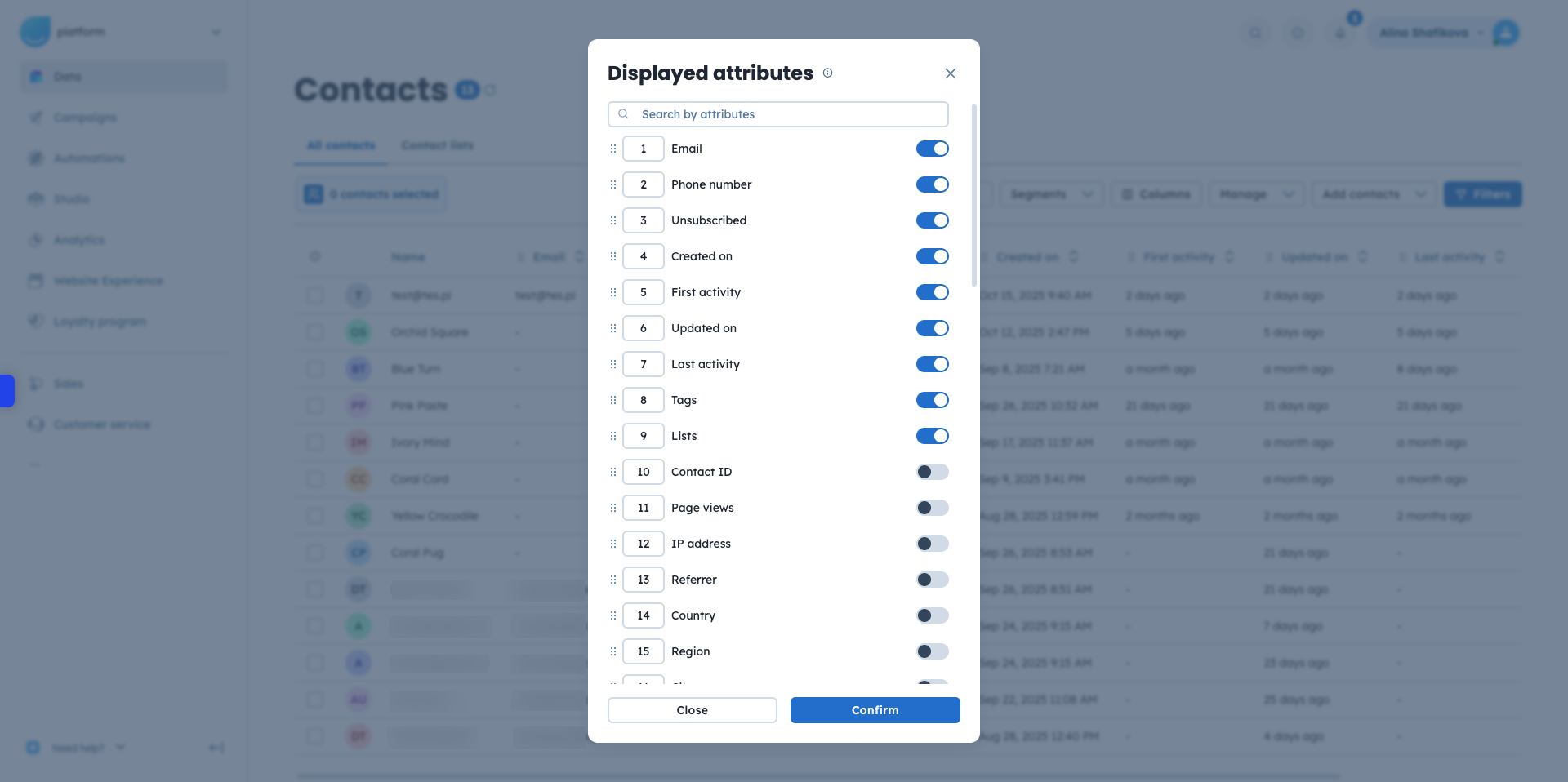
In each Data section (e.g., “Contacts”, “Companies”), you can customize visible columns to display selected attributes. Go with "Columns" option and choose the ones you feel necessary to see from the very first moment. This customization is specific to each team member, allowing you to prioritize the data most relevant to your daily tasks.
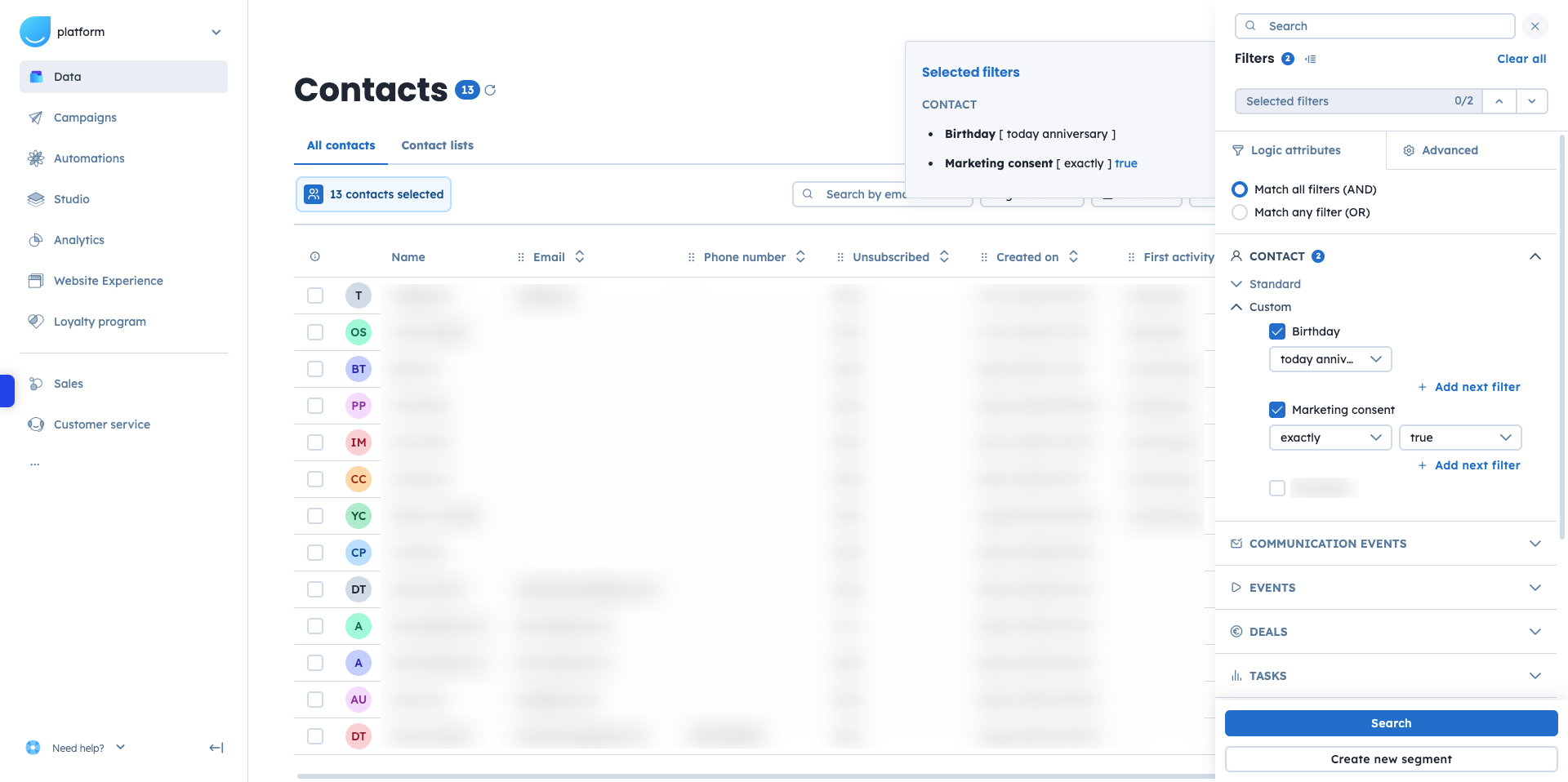
On the right side of any “Data” section you will find the "Filters" icon that opens the filtering panel full of all the attributes and other parameters connected with the object (contacts/companies/deals etc.).
Use filters to segment your data based on attribute values. For example, showing only contacts with “Marketing consent = true” or products with “Price > 100.” Depending on the type of the data within the attributes different filtering options are available to refine your search and organize your data effectively.
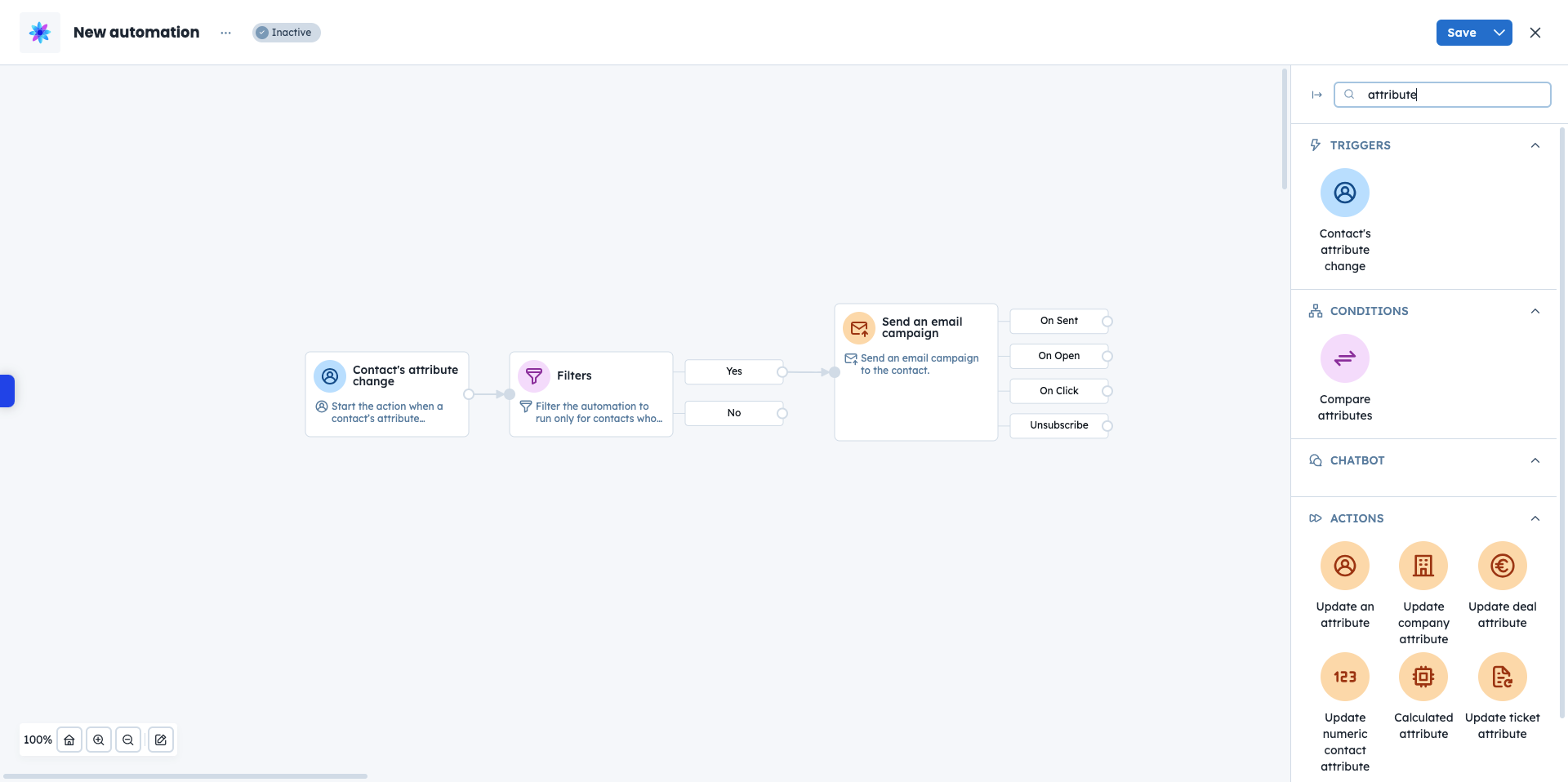
Attributes are essential in automations. You can:
Trigger workflows based on the attribute's value or when an attribute changes.
Filter automation modules based on attribute values.
Compare attributes (valid for numerical values).
Update attributes or modify numeric ones dynamically (increment/decrement).
There are modules that are based directly on the attributes.
Attributes allow you to personalize messages in email, SMS, and other channels. Use dynamic content (variable tags) to insert contact-specific values directly into content, for example, greeting each contact by their first name or showing the last viewed products from the website.
This level of customization not only enhances customer engagement but also significantly boosts the effectiveness of marketing campaigns by delivering content that is directly relevant to each recipient.
Find more information about dynamic content in this article.
To find full list of dynamic content options please go to “Studio” → “Dynamic Content” section.
While it’s possible to assign empty values to most attributes, "user_id" must never be empty. It uniquely identifies each contact in your database. In JavaScript integrations, you may assign a new value to "user_id" using UE.resetAuth(data), but never set it to empty - doing so will trigger a 400 error and prevent pageHit tracking.
How to Manage Access to Attributes [LINK]
JSON Attributes Guide [LINK]
