Campaign Revenue shows you how effectively your email campaign drives revenue within a defined time frame. It connects a specific event (for example, a purchase) with campaign engagement (email open) and calculates the business value generated.
This helps you understand which campaigns truly influence conversions and revenue.
The logic for calculating revenue from email campaigns begins with identifying a revenue event. When a revenue event occurs, the system searches for the closest touchpoint in time from any email campaign (an email open) that falls within the defined revenue period.
The revenue is then attributed exclusively to the campaign associated with this closest touchpoint. This ensures that the revenue event is linked to the campaign most likely to have influenced the recipient’s action.
Example:
Revenue counting factor: Product event
Revenue event: Purchase
Revenue event attribute: Price
Currency: USD
Revenue period: 7 days
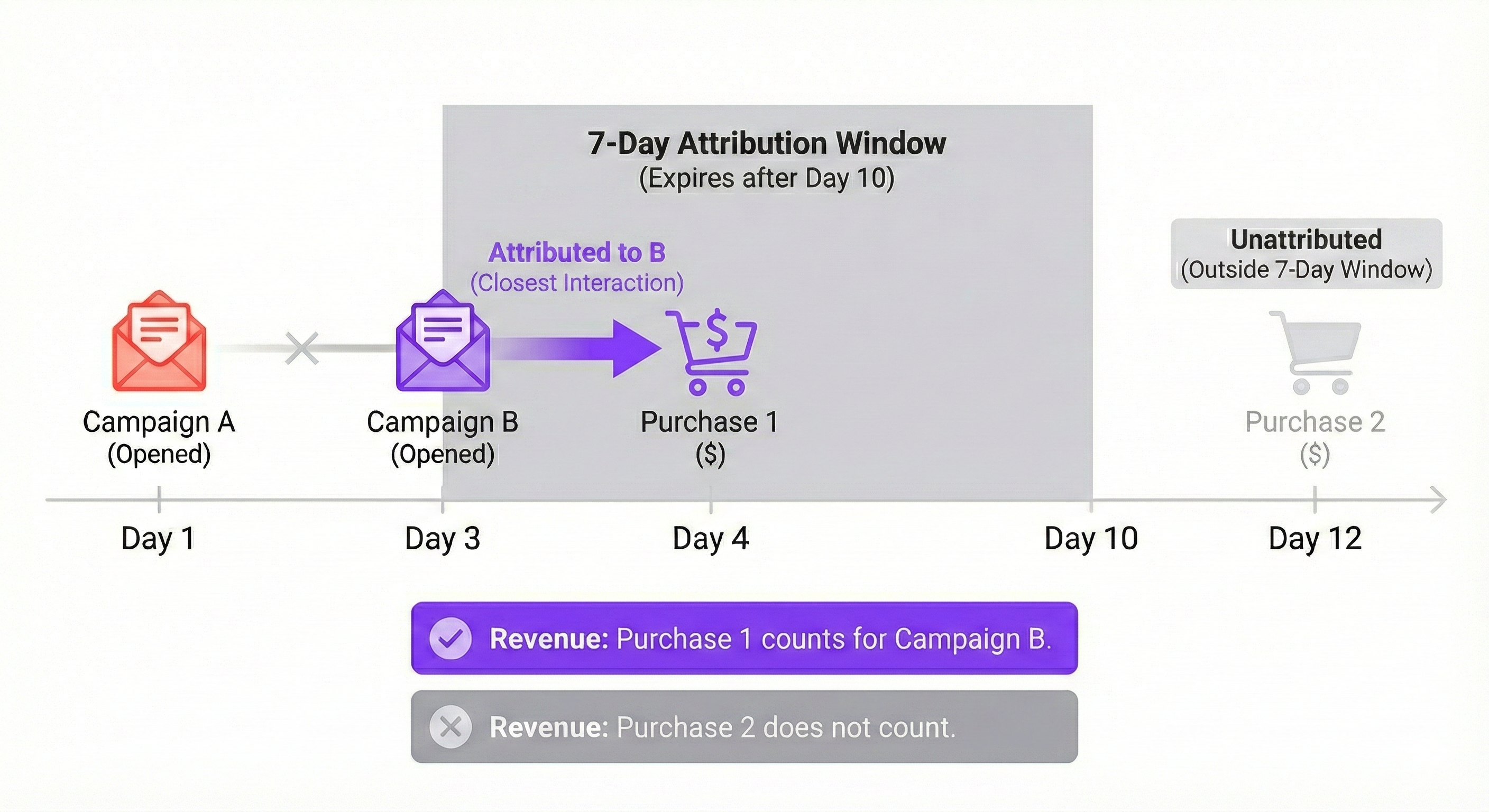
Let’s imagine there is a sequence of emails sent after the registration on the website to motivate a purchase. “Campaign A” is sent on day 1 and “Campaign B” is sent on day 3. The recipient opens both emails. Then they make one purchase on day 4 and another on day 12.
In this case, the first purchase (day 4) is closer to “Campaign B” (from day 3) than to “Campaign A” (from day 1). Because of that, revenue from this purchase is counted only for “Campaign B”.
The second purchase (day 12) happens more than 7 days after both “Campaign A” and “Campaign B”. This event occurrence is not included in revenue calculations for these campaigns.
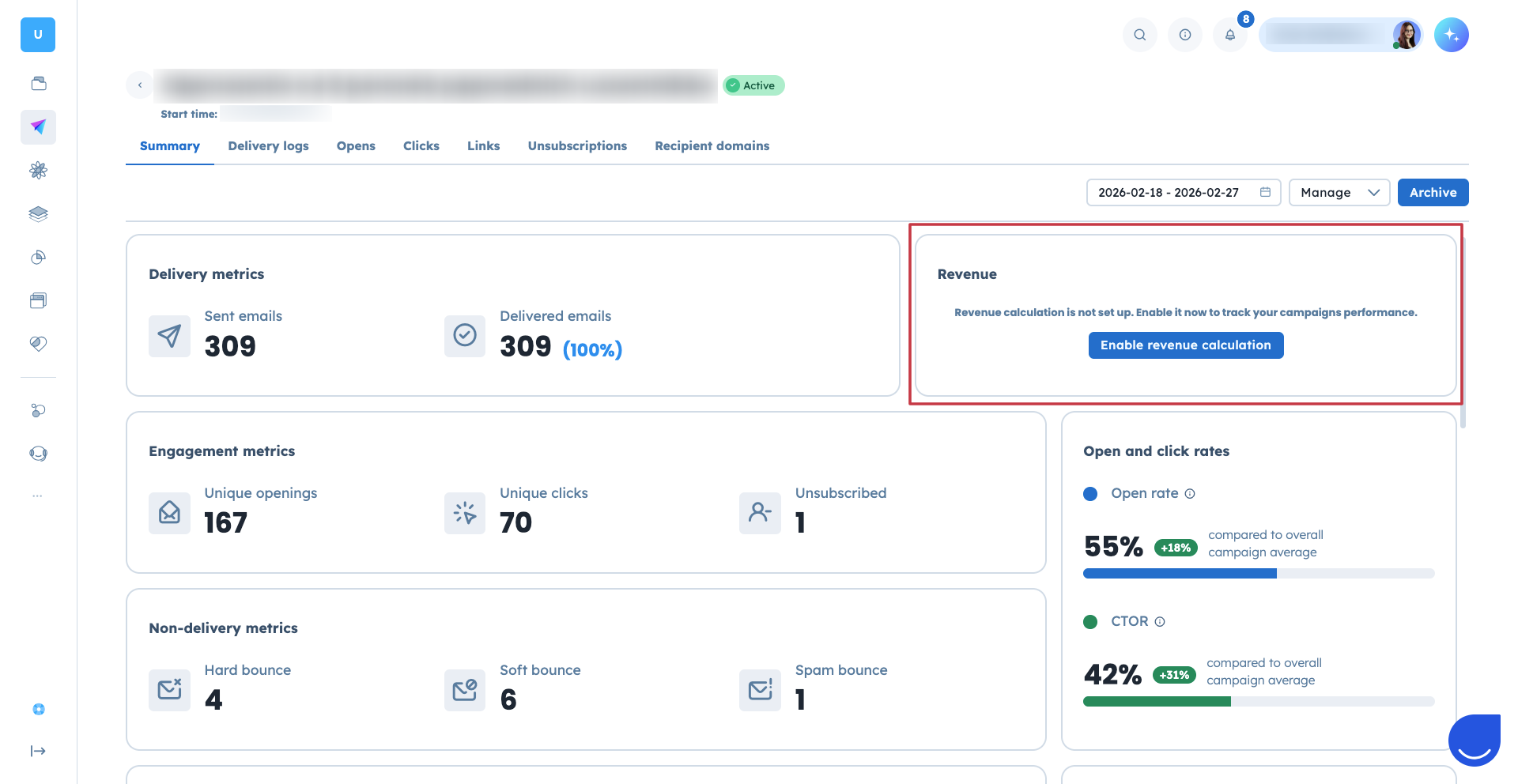
Go to “Campaigns” → “Email” section.
Open the email campaign profile.
Find the “Revenue” statistics block.
Click “Enable revenue calculation” button.
OR
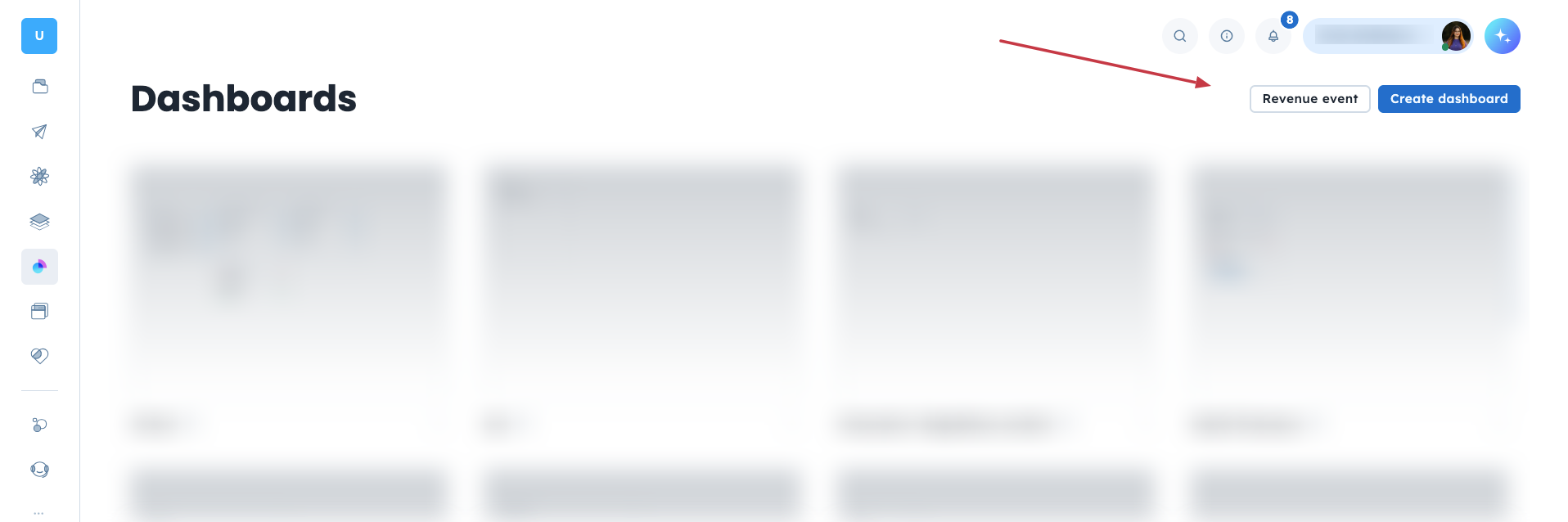
Go to “Analytics” → “Dashboards” section.
In the top-right corner, click the “Revenue event” button to open the configuration form.
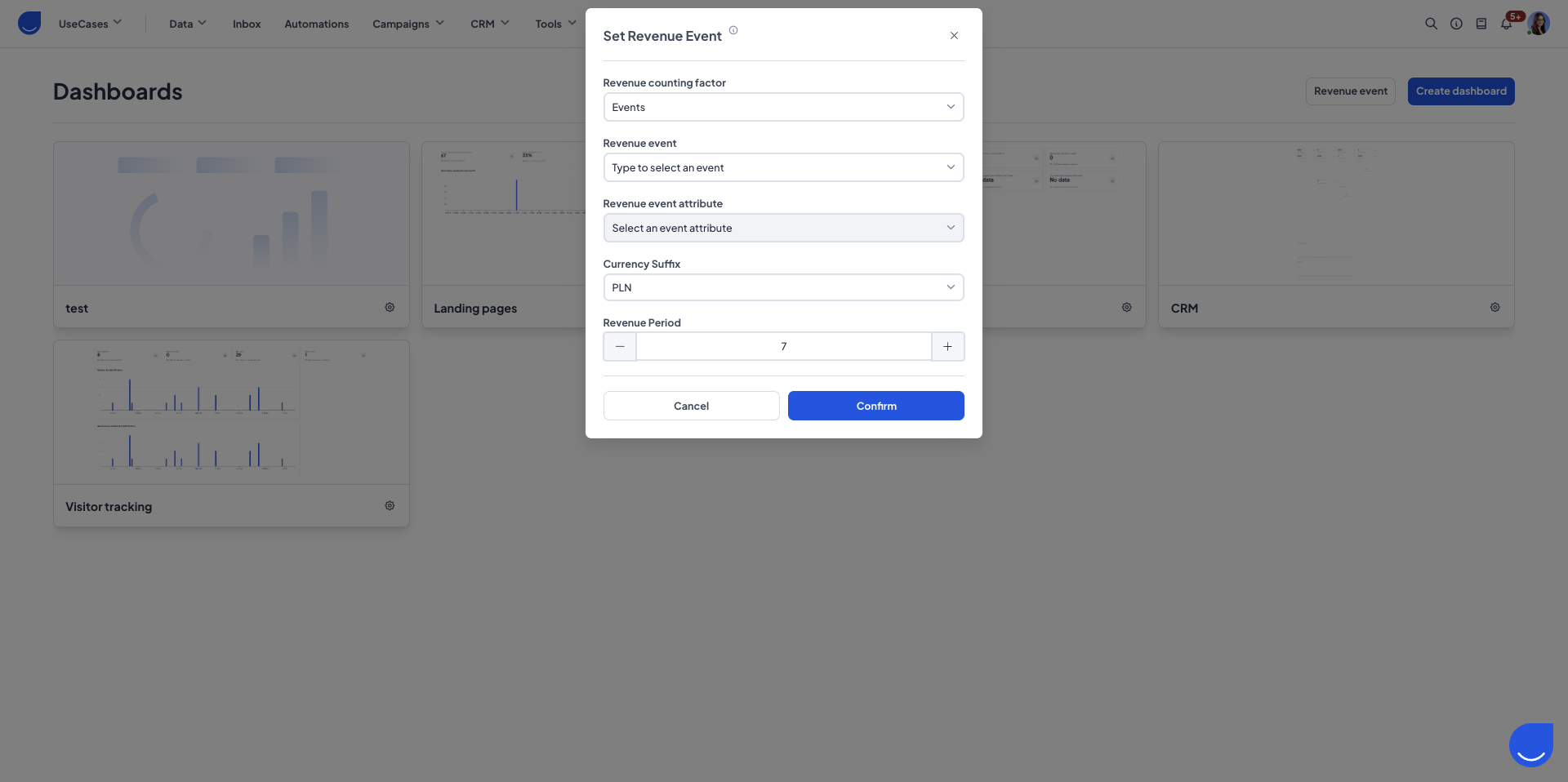
Both buttons open the revenue setup pop-up in the “Analytics” section.
Once you open the revenue event configuration form (from either path above), set the following parameters:
Revenue counting factor: Choose between events and product events. This setting defines the type of action you want recipients to perform.
Revenue event: Select the specific event (or product event) that should be treated as the conversion point after the recipient receives the email campaign. (For example, “Purchase”)
Revenue event attribute: Choose which value of the selected event should be summed up as revenue (For example, “Purchase price”). This should be a numeric attribute.
Currency: Set the currency used for the revenue value (For example, USD).
Revenue period: Set the number of days the system should check recipient activity for and count revenue for this campaign. In other words, only revenue events that occur within this time window (counted from the closest email engagement) are included.

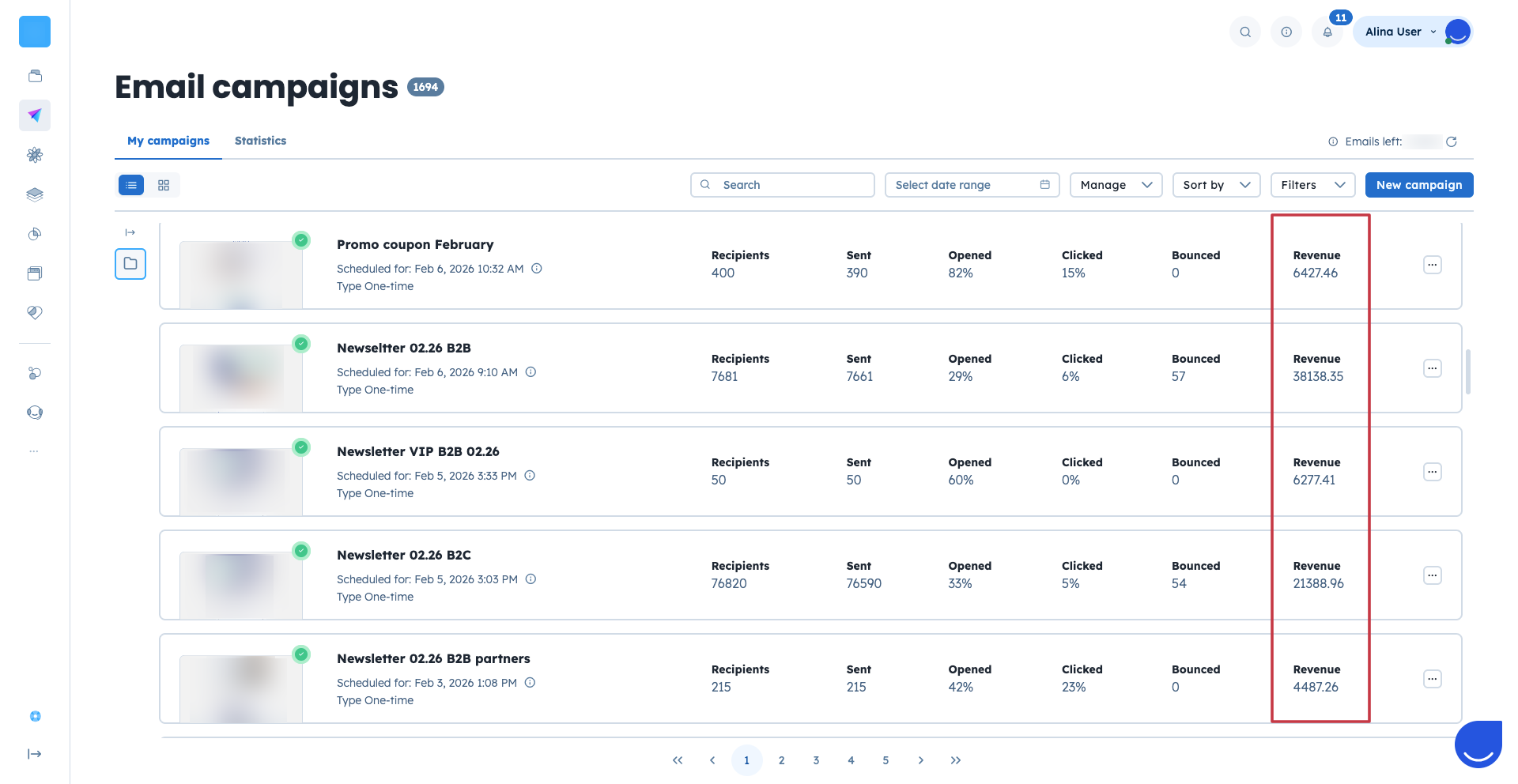
After you configure the revenue event, the Email Campaigns list includes a “Revenue” column.
Revenue is recalculated automatically once a day (around 1 a.m. CET) based on your settings, so the first results appear the next day.
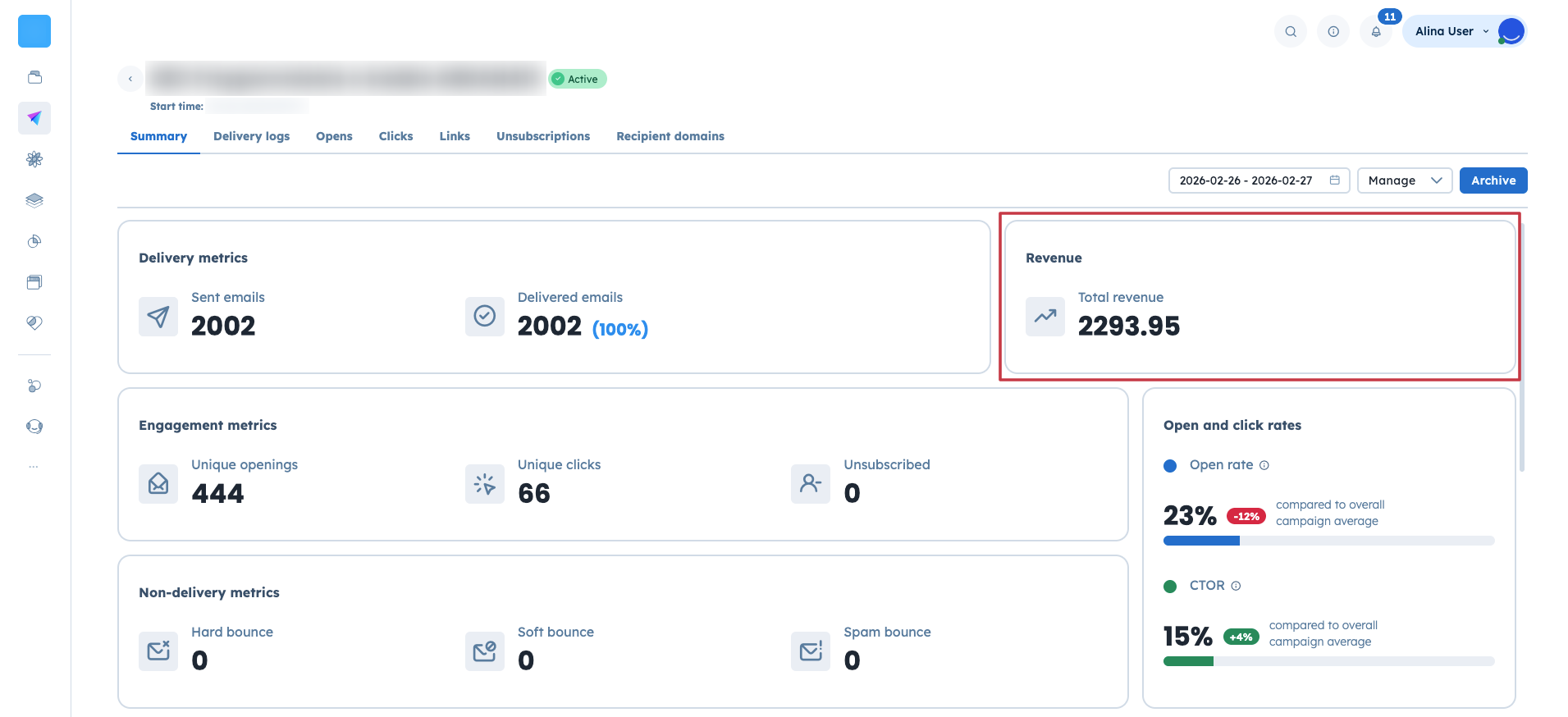
Additionally you can check revenue statistics in each specific email campaign. Just open the profile and you will find the “Revenue” widget on the right.
Optimizing Email Sequences: Use Campaign Revenue to compare which emails in a sequence generate the highest revenue and refine your messaging or timing accordingly.
Attribution for Campaign Performance: Use Campaign Revenue when you want to connect conversions to the campaign engagement that happened closest to the action within your defined time window.
