Integrating WhatsApp with Positive User enables you to manage messaging campaigns, automate workflows, and track contacts interactions - all from one centralized platform.
With the WhatsApp integration in Positive User, you can launch and manage personalized WhatsApp Campaigns directly from your dashboard - no need to switch platforms. This powerful connection allows you to reach contacts instantly on one of the world’s most popular messaging apps, using both templates created within Positive User and those prepared in Meta’s official Template Manager. Combined with Positive User’s automation features, you can trigger timely, targeted messages based on contact behavior, lead status, or CRM updates. It’s a seamless way to boost engagement, drive conversions, and provide real-time support right where your audience is most active.
To summarize, the integration includes:
Creation of simple and automated campaigns
Tracking basic statistics about the deliveries
Integrated templates list
Dedicated events on contact’s timeline
"WhatsApp action" trigger and "Send a WhatsApp campaign" action module in automations
Dedicated unsubscribe attribute

Follow these simple steps:
Navigate to “Settings” → “Workspace Settings” → “API & Integrations” → “Setup & Integrations” section.
Find the WhatsApp icon and click on it.
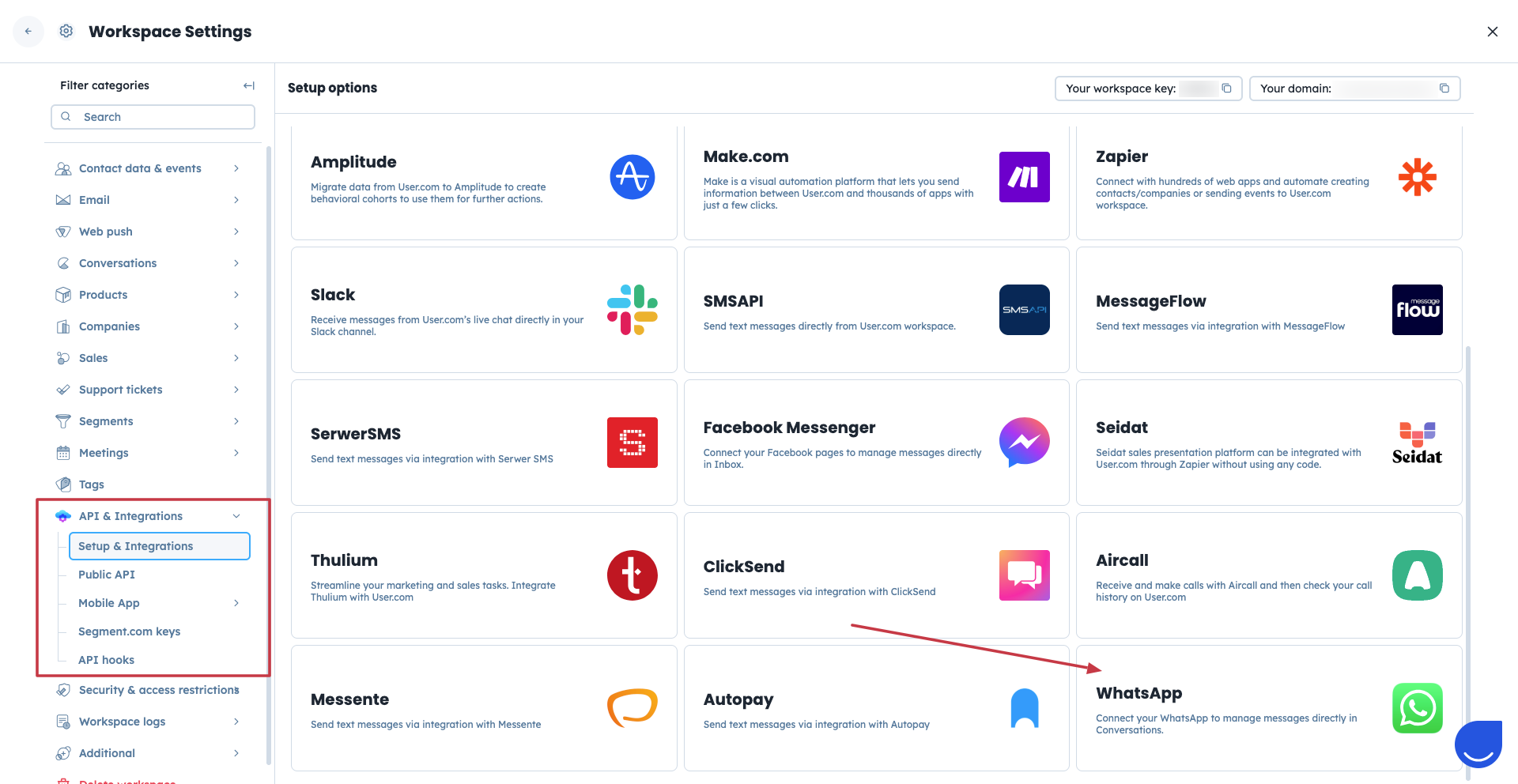
Get familiar with the introduction and go with "Continue with Meta" option.
A new tab will be automatically opened. There you need to log in to the Meta account that should be connected with the Positive User application.
Fill the form with the business information and choose the "Business portfolio"(Meta account).
On the next step you need to select the "WhatsApp Business Account" and the "WhatsApp Business Profile" that will be used for the campaigns in Positive User.
Confirm the details and finish the connection process.
Now you will be redirected back to Positive User application. There you will see the WhatsApp account details.

Now you need to register the account. Please click on "Register" button.
Fill the form with the unique pin code from the WhatsApp Manager application. If you never created a pin before, you can type any unique 6-digit code to create one. Save this pin code for the future!
Once you confirm the pin, you will see the confirmation in Positive User.
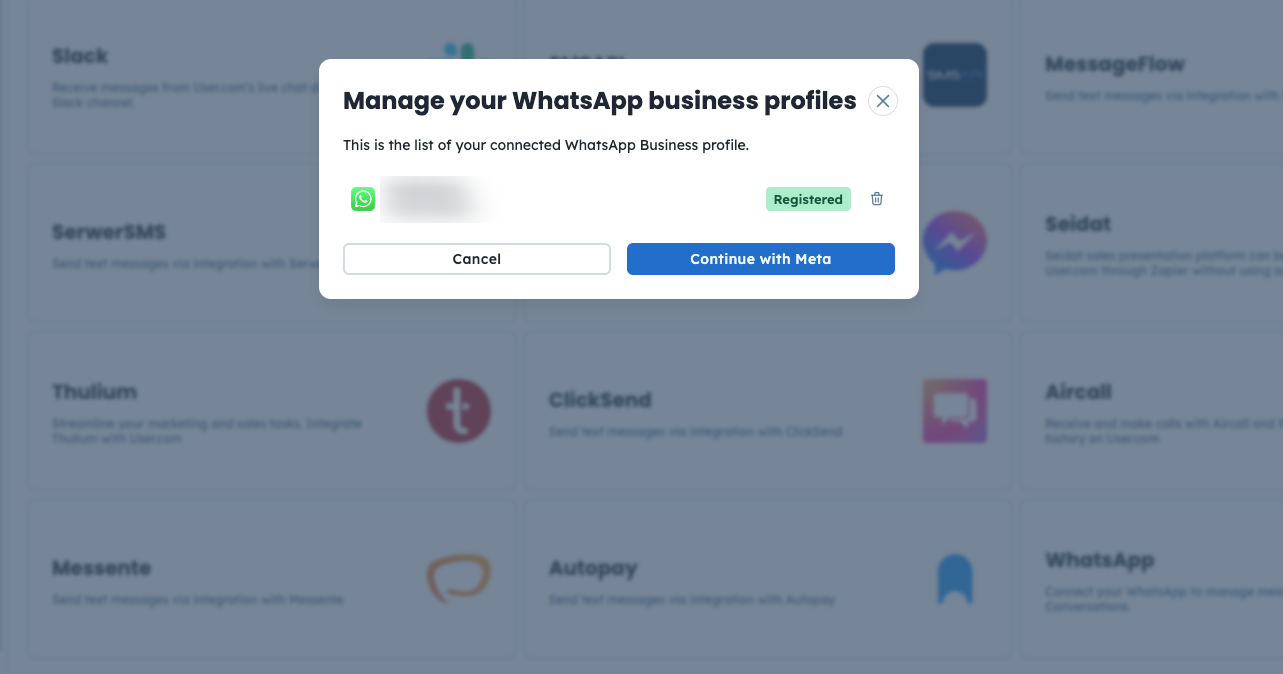
The account is connected. Now you can use it for the campaigns.
Feel free to create the campaigns for your WhatsApp account for one-time delivery or use them inside the automation flows.
How to Create a One-Time WhatsApp Campaign [LINK]
How to Create an Automated WhatsApp Campaign [LINK]
Module Guide: WhatsApp Action Trigger [LINK]
Module Guide: Send a WhatsApp Campaign Action [LINK]
