Managing a large inventory manually is nearly impossible when you want to provide a personalized experience for every customer. Product feeds allow your team to connect your store’s product list directly to Positive User, ensuring that every price change, new item, or updated description is reflected in your marketing efforts without manual data entry.
By connecting a feed, you bridge the gap between your online shop and your communication tools. This means your team can focus on building better recommendations and smarter campaigns, knowing the data behind them is accurate and refreshed every day.
A product feed is a hosted file (such as a Google Merchant Feed or an .xml file) that contains a complete list of your products and their details, such as names, prices, and categories.
In Positive User, you can connect the product feed with the workspace. It serves as an automated bridge, updating your product database every 24 hours by creating and updating items en masse.
Example: If you change the price of a "Blue Running Shoe" in your store, the product feed automatically updates that price in Positive User by the next morning.
Connecting a product feed gives your team several key advantages:
Save time on manual updates: Stop manually importing CSV files or updating product details one by one every time inventory changes.
Ensure data accuracy: Keep your product details consistent across all marketing channels, helping your emails land with the correct current pricing.
Personalize communication: Use real-time product data like images, names, and URLs to build dynamic recommendations tailored to what your contacts actually want.
Smarter targeting: Filter your database based on specific product attributes to send highly relevant offers to the right groups of people.
A product feed is typically hosted directly on your e-commerce server or generated through your online store platform (like Shopify, WooCommerce, or Magento). You can usually find or generate this feed link inside your store's dashboard using a Google Merchant Feed plugin or by exporting an updated XML file.
Positive User accepts standard Google Merchant Product Feeds or .xml files hosted on your server. To successfully connect, your server must deliver the file using one of these three standard headers:
text/plain
application/xml
text/html; charset=UTF-8
To ensure the automated connection works smoothly, the feed file must follow specific structural rules:
Size Limit: The maximum size limit for a single feed file is 4 GB. If your store has a larger inventory, your team needs to split it into multiple files and connect multiple feeds.
Mandatory Mapping: To successfully synchronize, each product item in the feed must include these exact mandatory fields to match the app structure:
“custom_id” mapped from the “<g:id>” tag
“name” mapped from the “<title>” tag
Standard Fields: The system includes built-in rules to automatically map common attributes like “Category” (<g:google_product_category>), "Image URL" (<link>), and "Product URL" (<g:image_link>).
Custom Attributes: Any additional field in your file will automatically map to an attribute with a matching name.

By default, the feed synchronization happens automatically each night around 1:00 AM UTC.
If a product from the file does not exist in Positive User yet, the system creates it using the unique “custom_id”.
If the product already exists, the system updates its attributes with the latest values from the file.
If a product attribute contains an old value but is completely missing from the new feed file, Positive User will not change or nullify it.
If your team runs a multi-language store and connects multiple feeds to a single workspace, using the same “custom_id” across different language feeds will cause them to overwrite each other. The product will simply display the language of whichever feed synchronized last.
To prevent this, your team should create unique, custom attributes for each language inside the file (for example, using <name_en> and <price_en> for English, and <name_fr> and <price_fr> for French) while keeping the mandatory <title> tag as a baseline.
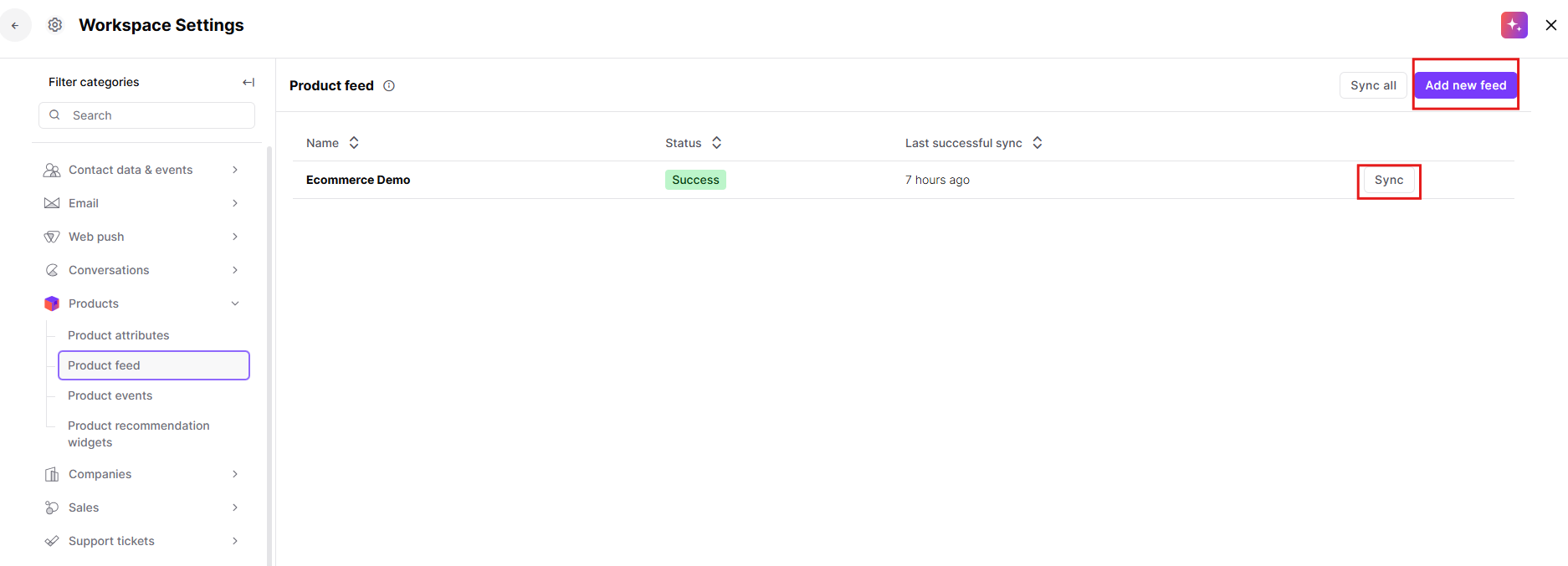
Navigation pathway: Go to “Settings” → “Workspace Settings” → “Products” → “Product Feed” and click “Add new feed”.
Forcing a manual sync: Click "Synchronize" on the feed list to instantly force an update without waiting for the nightly automated process
You can find detailed steps in the “How to Connect Product Feed” article.
Remember, that product feeds create an update the existing products, but never delete the products from your Positive User workspace. Make sure you have some procedures to clean up your product list once in a while.
Automations: Your team can trigger an automated abandoned cart flow when a contact leaves items behind. Positive User uses the “custom_id” from the feed to instantly match the product details, dynamically displaying the correct product image, name, and current price directly inside the automated message.
Campaigns: When launching a newsletter for new arrivals, your team can use dynamic snippets to automatically pull the newest “image_url” and “product_url” attributes straight from your feed file into your email templates.
Product Recommendations: Your team can use the feed data to power product recommendation frames on your website or in your emails. By pulling details straight from the file, these frames automatically display tailored, real-time item suggestions - such as showing the exact matching accessories or trending categories - directly to your contacts based on their browsing behavior.
