Mobile push notifications let you send quick, targeted messages directly to your contacts' mobile devices. They appear on the lock screen or notification bar, giving your team a fast way to reach people without needing an email address or phone number.
As long as contacts have opted in to receive notifications and have your app installed, you can share timely updates, highlight specific products, or bring contacts back to your mobile experience.
A mobile push notification is a small message delivered directly to a contact's smartphone or tablet. Each notification consists of an icon, a bold heading, and brief body text. When contacts tap the message, you can redirect them to a specific URL, product category, or page in your app.
You can create and manage these messages directly in Positive User under "Campaigns" → "Push Notifications".

Choose the right notification type depending on whether you want to send a single message or build a recurring automated sequence.
One-Time Campaigns: They are sent immediately or scheduled for a specific date and time. These work best for one-off promotions, major announcements, or time-sensitive news.
Automated Campaigns: Messages sent automatically when a specific trigger occurs in your workflow. These work best for real-time actions, like abandoned cart reminders or welcome messages.
Every mobile push campaign has a status that indicates whether your team can edit its configuration or send it out:
Draft: The campaign is not active yet. Your team can freely adjust the message text, target audience, and link settings until it is ready for launch.
Active: The campaign is ready to send or be used inside automated workflows. While overall campaign settings are locked, you can still update the content of the connected push message.
You can quickly check the status of any campaign by looking at the colored indicator dot in front of the campaign’s name on the list:
Orange dot: Indicates a draft campaign.
Green dot: Indicates an active campaign.
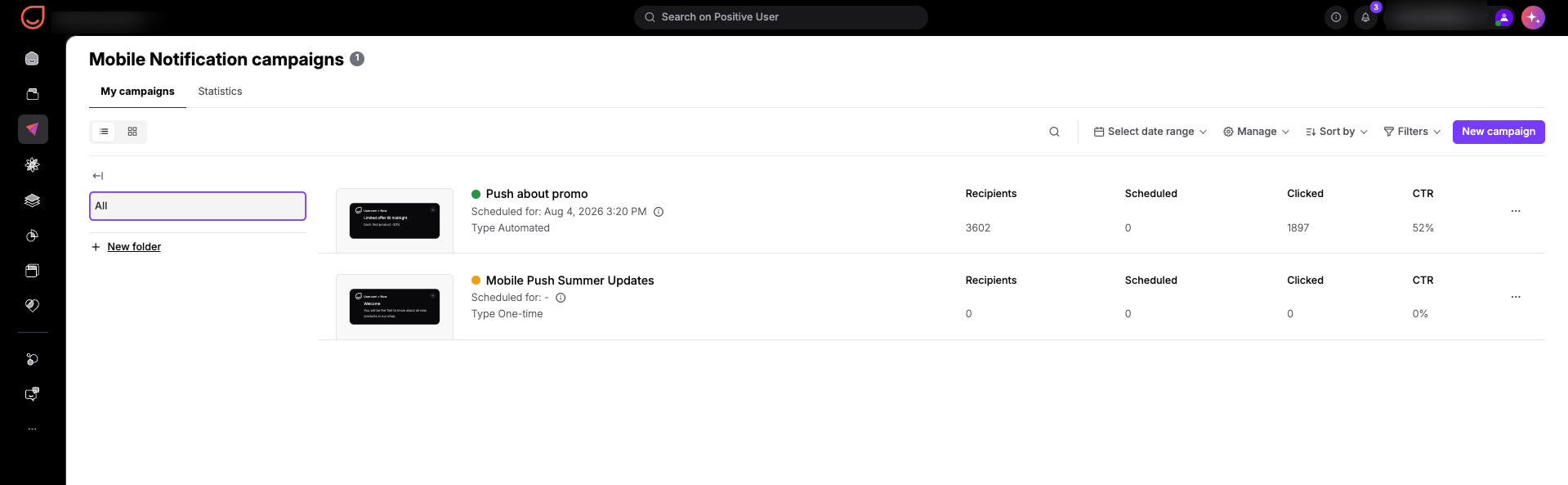
Your team can create and manage push notifications from the "Campaigns" → "Push Notifications" section in Positive User. Here, you can track performance statistics, group campaigns into folders, and access related resources. You can also open the message creator directly from the “Send mobile push notification” [LINK] action module inside automations.
For step-by-step instructions on creating push notifications, see these detailed guides:
How to Create a One-Time Mobile Push Campaign [LINK]
How to Create an Automated Mobile Push Campaign [LINK]
Cart Abandonment Reminders: Send an automated push notification shortly after a contact leaves items in their shopping cart without completing a purchase. Tapping the notification takes them straight back to checkout in your app so they can finish ordering.
Promotional Announcements: Schedule a one-time push campaign to announce a new product collection or seasonal sale to all contacts who gave consent. Tapping the notification opens the featured product category directly on their device.
Positive User Integration for Mobile App [LINK]
How to Create a One-Time Mobile Notification Campaign [LINK]
How to Create an Automated Mobile Notification Campaign [LINK]
