A pipeline helps you bring order and visibility to complex business processes such as sales, onboarding, or customer success. By visualizing each step a deal goes through, you can clearly see what is happening now, what needs attention, and what comes next.
In User.com, pipelines make it easier for you and your team to stay aligned, prioritize work, and manage growing volumes of deals without losing clarity or control.
A pipeline is a visual framework used to track the progress of deals through a defined sequence of stages. Each stage represents a specific step in your process, such as “New Lead”, “Qualified”, “Proposal Sent”, or “Final Decision”.
Pipelines are most commonly used for sales tracking, but you can also adapt them for onboarding, renewals, partnerships, or internal workflows.
In User.com, every deal must belong to a specific pipeline and be assigned to a stage. This structure allows you to monitor progress, coordinate work across teams, and build consistent, repeatable processes.
To reach these goals it's important to remember about:
Aligning pipelines with real-world processes.
Keeping stage names action-oriented and clear.
Avoiding overloading one pipeline with too many deal types (there can be several pipelines instead).
Using automations to move deals within/between pipelines to save the time of the team.
Regularly reviews of deals or overloaded stages to improve the flow.
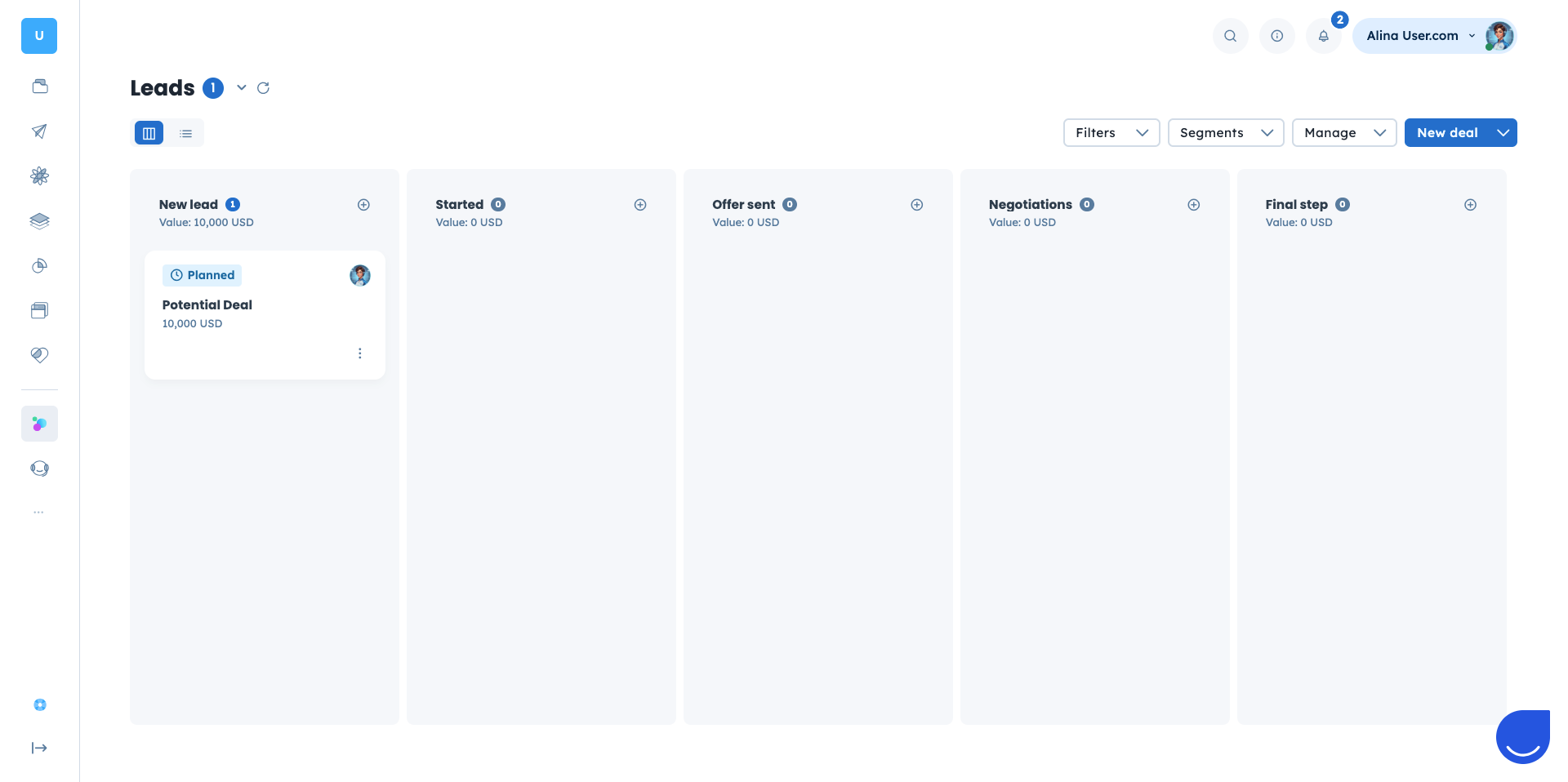
Pipelines work closely with other objects in User.com, including:
Contacts: Individuals associated with deals.
Companies: Organizations that contacts belong to.
Deals: Records that move through pipeline stages.
Tasks: Actions connected with a specific deal.
Automations are also an important element in managing the pipeline they include the logic that moves deals between stages or pipelines based on defined conditions.
This structure ensures that data stays connected and actionable across your CRM.
Pipelines are not only a visual tool but also a strategic element of your sales setup. A well-designed pipeline reflects how your business actually works and supports your long-term goals.
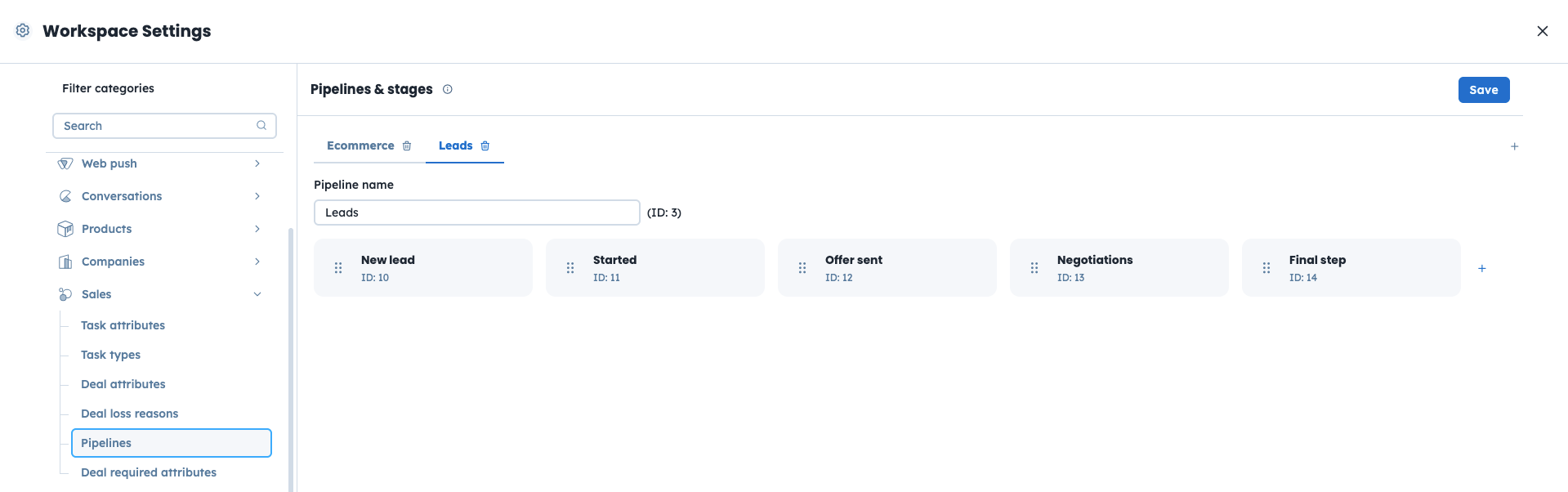
To create or manage pipelines in the application, go to “Settings“ → “Workspace Settings” → “Sales” → “Pipelines”.
In this section, you can create new pipelines and edit existing ones, including stage names and order.
You define the pipeline name, add and name its stages, arrange their order, and save the changes. The updated structure is applied immediately to the “Sales” section of the application.
You can also create and manage pipelines programmatically using the User.com REST API. Available endpoints allow you to create, update, delete, and retrieve pipelines.
This approach is useful if you manage pipelines dynamically or want to synchronize CRM structures with external systems.
Check the REST API docs here.
Here is the endpoint that allows a new pipeline creation:
Additionally you can use other endpoints to manage the pipeline:
Sales Processes (B2B and B2C)
Pipelines help you track deals from the first interaction to closing.
Example:
Pipeline name: B2B Sales or B2C Sales
Stages: New Lead → Qualified → Proposal Sent → Negotiation → Closed Won / Closed Lost
A deal can be created automatically when a contact fills out a demo or contact form. Automations then move the deal through stages while assigning responsibility to the right team members.
Customer Onboarding
Pipelines can also structure post-sale processes.
Example:
Pipeline name: Onboarding
Stages: First Meeting Scheduled → Setup in Progress → Team Training → Success
When a deal is marked as won in a sales pipeline, an automation can create a new deal in the onboarding pipeline and assign it to the customer success team.

