---
title: "How to Create a Company"
description: "Learn how to add a company to your User.com database."
url: https://help.user.com/en/articles/37-how-to-create-a-company
collection: "Companies"
updated: 2026-10-27
language: en
alternates: [fr, pl, de, it, es]
---
# How to Create a Company
Learn how to add a company to your User.com database.
In [User.com](https://User.com), a company represents an organization or business that your contacts belong to. Using companies helps you group contacts under one account, track interactions on a business level, and run sales or support processes more effectively.
You can create companies manually in the application, automatically with automations, in bulk via import, or programmatically using JavaScript or the REST API.
Feel free to check basic information about companies in [“What Is a Company” article](https://help.user.com/en/articles/5-what-is-a-company.md).
## Create a Company Manually
Manual creation works best when you need to add a company quickly while working with contacts, deals, or support cases.
### **Companies Section**
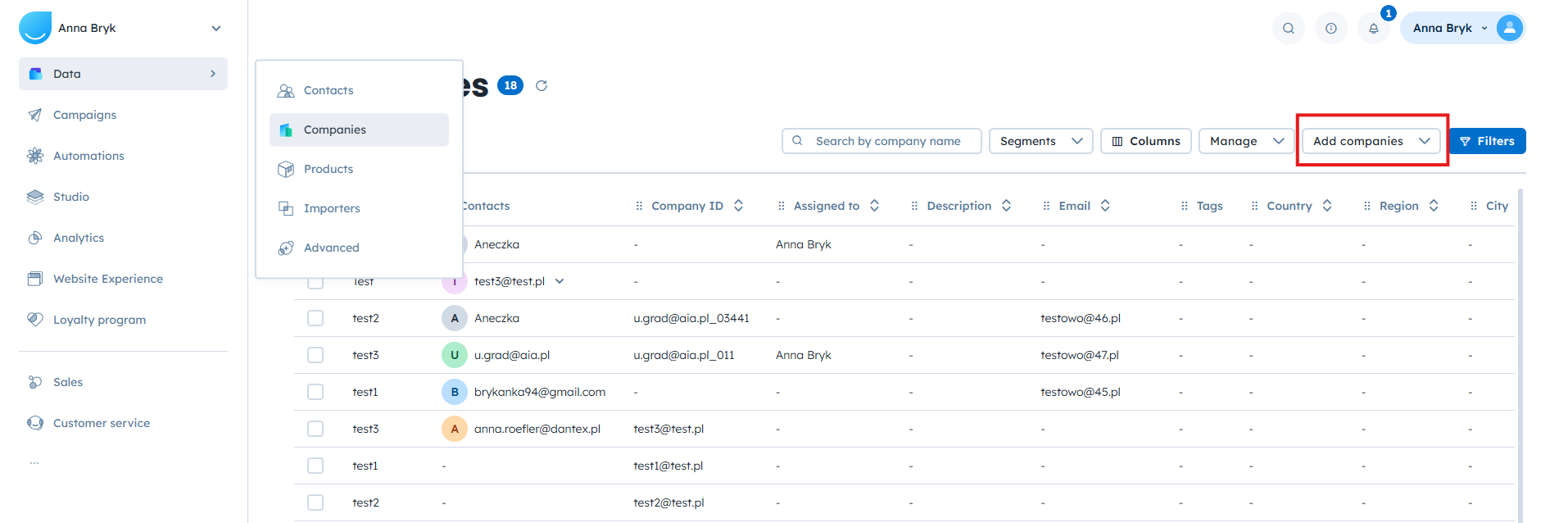
1. Go to “Data” → “Companies” section.
2. Click “Add companies” button in top right corner → Choose “Add a single company” option from the list.
3. Fill in the company details and click the Confirm button.
### **Contact Profile**
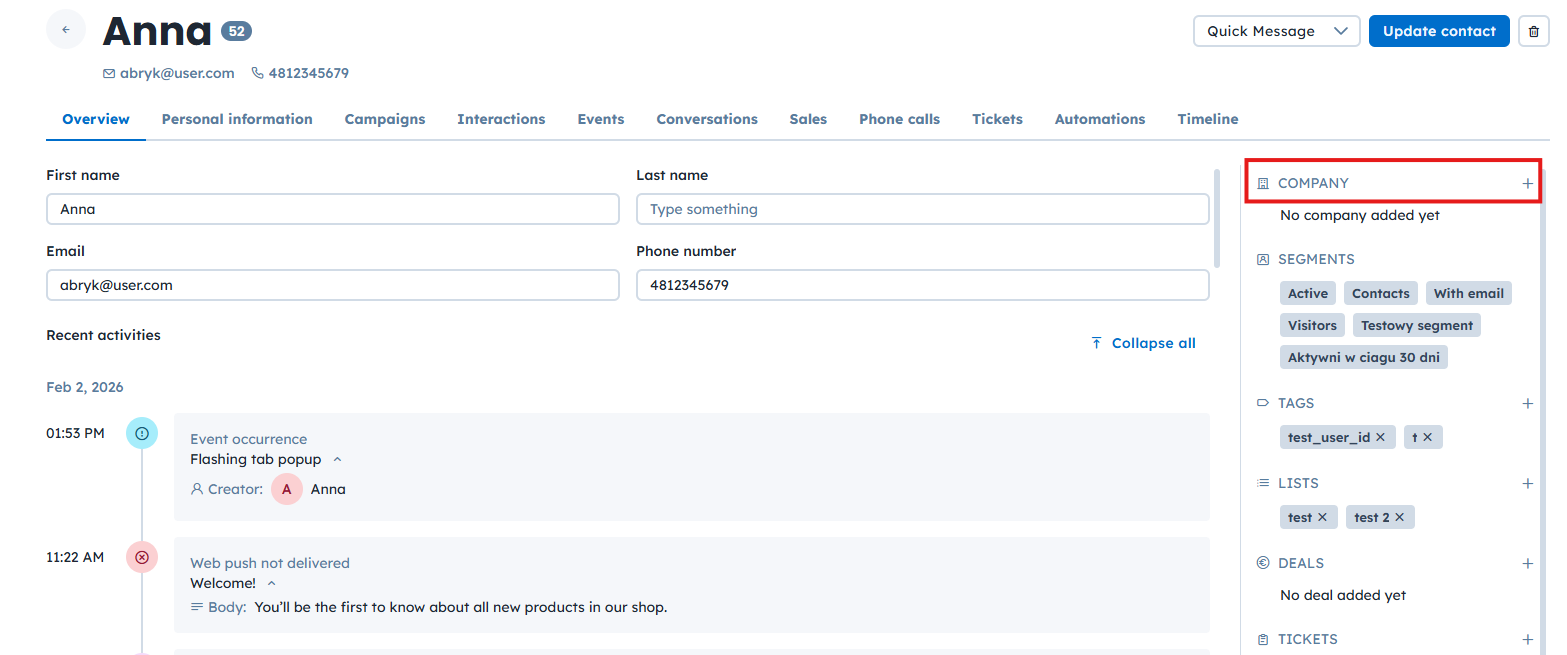
1. Open the contact profile you want to assign to a company.
2. Find the “Company” section on the right side and click the plus icon.
3. Use the “Create new company” button.
4. Complete the form using the “Confirm” button.
### **Deal Profile**
1. Go to “Sales” → “Deals” section.
2. Enter a deal profile.
3. In the “Company” section on the right side, click the plus icon.
4. Use the “Create new company” button.
5. Complete the form using the “Confirm” button.
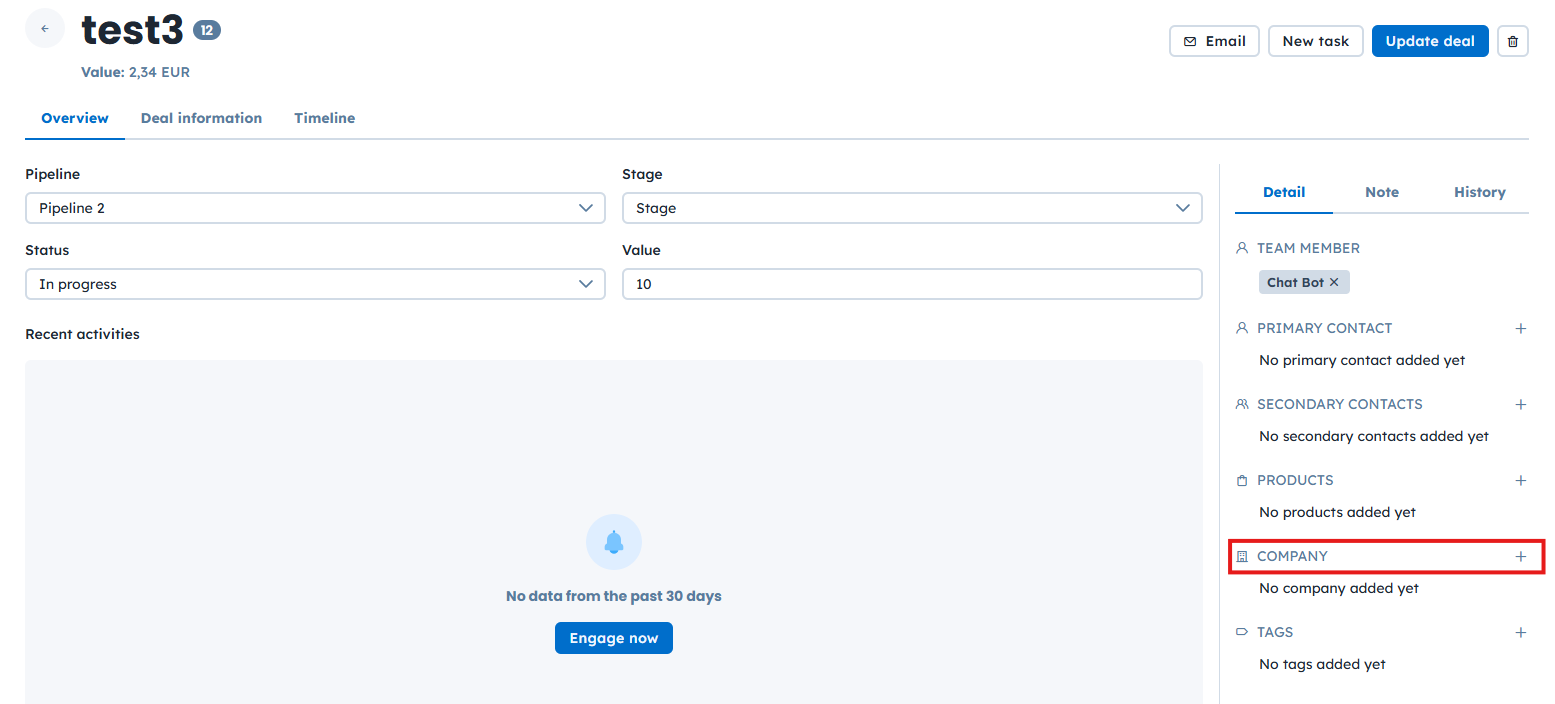
All of these paths open the same company creation form, where you define company attributes.
### Company Creation Form
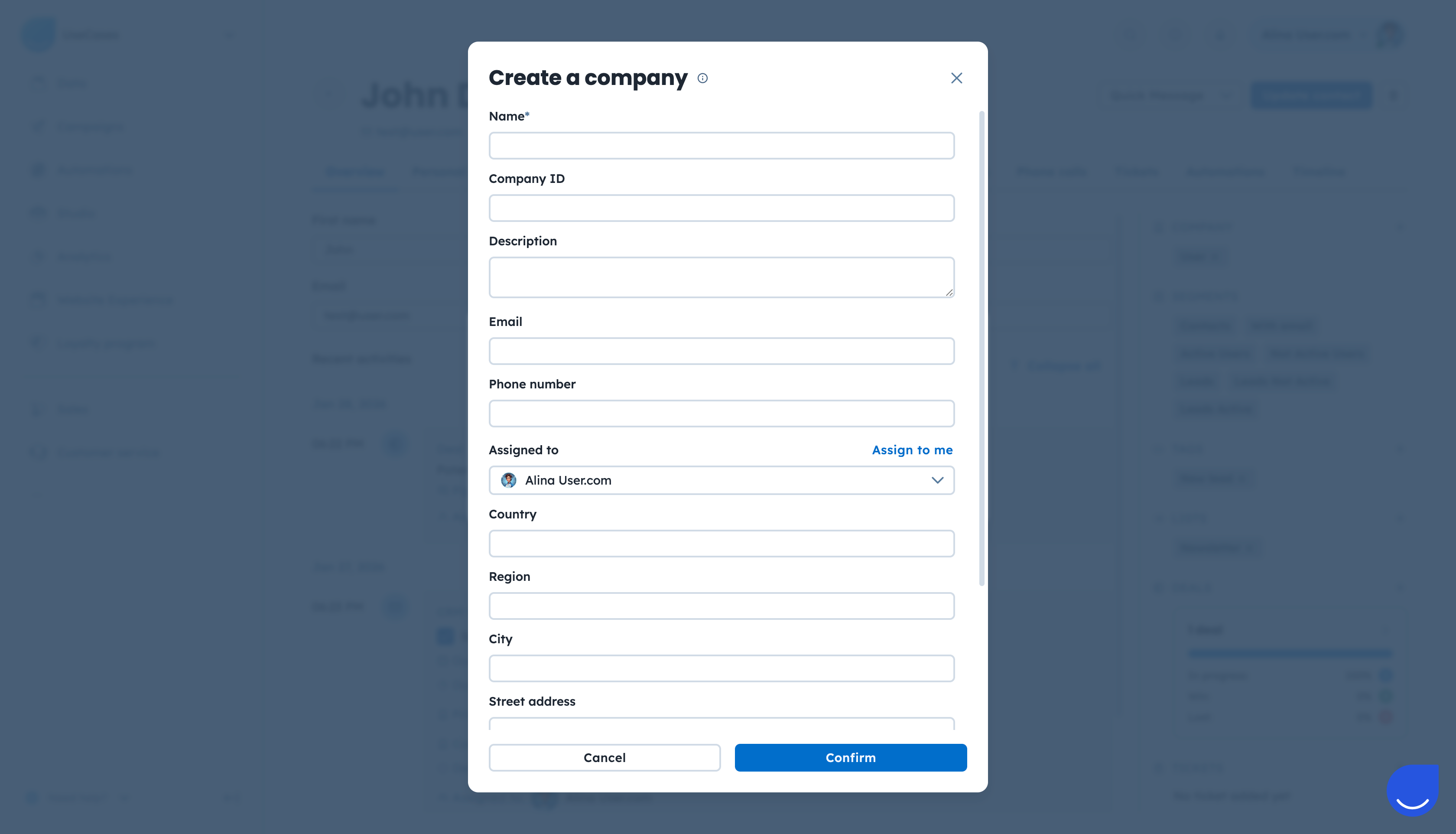
All manual creation paths lead to the same company creation form. The form includes standard and custom company attributes. The only mandatory attribute is the “company name”.
Each team can decide which additional fields are required, such as industry, region, or account owner. Defining internal standards helps keep your Sales data consistent and reliable.
**Example**
An account manager onboards a new B2B client. They create a company from the user profile, add the company name, country, industry, and assign the responsible sales representative.
> **Info:** The “company ID” attribute is especially useful when importing companies via CSV or synchronizing data with external systems. It allows you to update existing companies and correctly assign users during imports.
## Create Companies Automatically based on Email Domain
[User.com](https://User.com) allows you to automatically create and assign companies based on a contact’s email domain. This option helps you keep your B2B data organized without manual work.
Enable Auto-Assign Contacts To Companies
1. Go to “Settings” → “Workspace settings”.
2. Find the “Companies” → “Auto-assign contacts to companies” section.
3. Enable the option and save your changes.
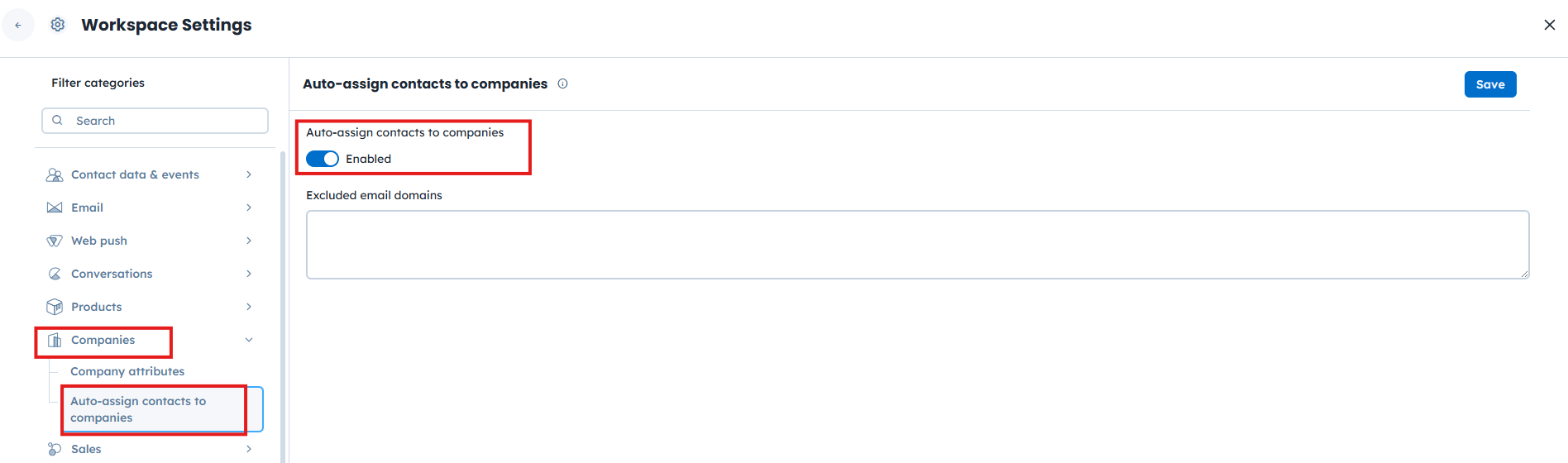
When this option is enabled, [User.com](https://User.com) automatically creates a company profile using the email domain of a contact and assigns all contacts with the same domain to that company.
The feature works only for unique, company-owned domains. Generic third-party domains such as [gmail.com](https://gmail.com) or [yahoo.com](https://yahoo.com) do not trigger company creation or assignment.
> **Info:** Remember, that is option is automatically enabled for every new workspace.
**Exclude Email Domains**
You can decide which domains should not trigger automatic company creation.
1. In the “Excluded email domains” field, enter domains separated by commas.
2. Save your changes.
> **Info:** Auto-assign works only for new contacts. It does not retroactively assign existing contacts to companies.
### Import Companies from CSV/XLSX
If you already have a list of companies, you can import them in bulk.
1. Go to “Data” → “Importers”→ “Import Companies”.
2. Upload a file with the companies and their attributes.
3. Match CSV columns to company attributes.
4. Complete the import process.
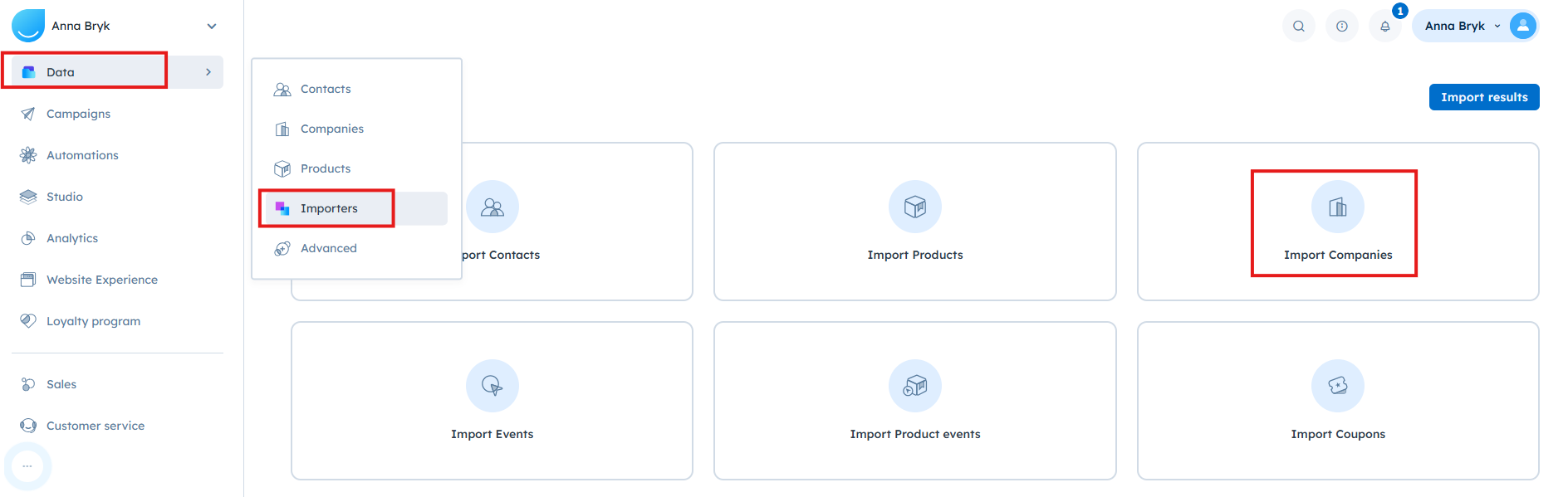
For detailed instructions, see the dedicated article about CSV [import of companies](https://help.user.com/en/articles/108-how-to-import-companies-from-csvxlsx.md).
### Create a Company Using JavaScript
You can create or update companies automatically by sending company data together with user data via JavaScript. This is useful when tracking contacts who belong to organizations in real time.
- The key attribute is “company\_id”.
- If a company with this ID already exists, the contact is assigned to it.
- If it does not exist, a new company is created.
Example:
```javascript
```
### Create Companies via REST API
The [User.com](https://User.com) REST API allows you to create company records directly from external systems. This method is recommended for advanced integrations and automated data flows where companies are created outside the [User.com](https://User.com) interface.
Using the REST API, you can create companies individually or in bulk and make them available immediately in the “Companies” section.
Use the [dedicated endpoint](https://apidocs.user.com/companies/create-company.html) to create a new company and pass values for company attributes, such as name or external identifiers.
If a company with the same unique identifier does not exist, [User.com](https://User.com) creates a new company record in your workspace.
For full details, request formats, and authentication rules, see the [User.com REST API documentation](https://apidocs.user.com/).
> **Info:** Align your internal rules for required company attributes before importing or automating company creation. This helps avoid duplicates and incomplete records.
## Related Articles
- [What is a Company](https://help.user.com/en/articles/5-what-is-a-company.md)
- [How to Update a Company](https://help.user.com/en/articles/76-how-to-update-a-company.md)
- [How to Import Companies from CSV/XLSX](https://help.user.com/en/articles/108-how-to-import-companies-from-csvxlsx.md)