Contacts are the core of your workspace. Every automation, campaign, and process helps you reach and engage them. This guide shows you all available methods to add contact data to Positive User.
To learn more about contacts, check “What Is a Contact” article.
By pasting the tracking script on your website you trigger the process of collecting the data straight away. Contacts Section starts being filled with the new anonymous visitors profiles.
The profiles can be enriched with the data collected via pop-ups, forms and other sources of personal data.
There is a way to create a contact manually if you need to do it quickly.
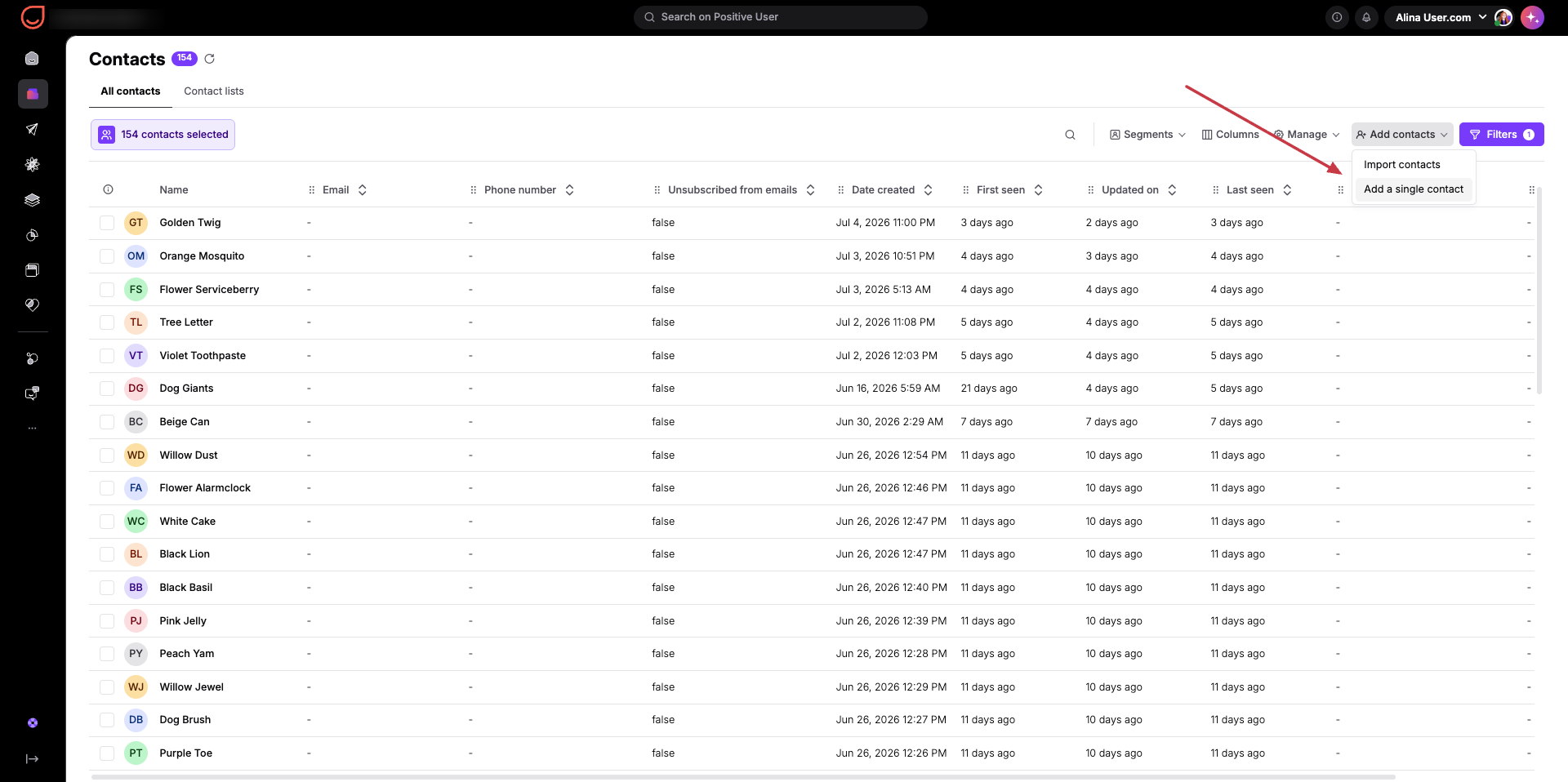
In order to add a single contact to your database, please visit the Contacts Section and click the "Add contacts" > "Add a single contact"
Fill out the form with the necessary details about the record.
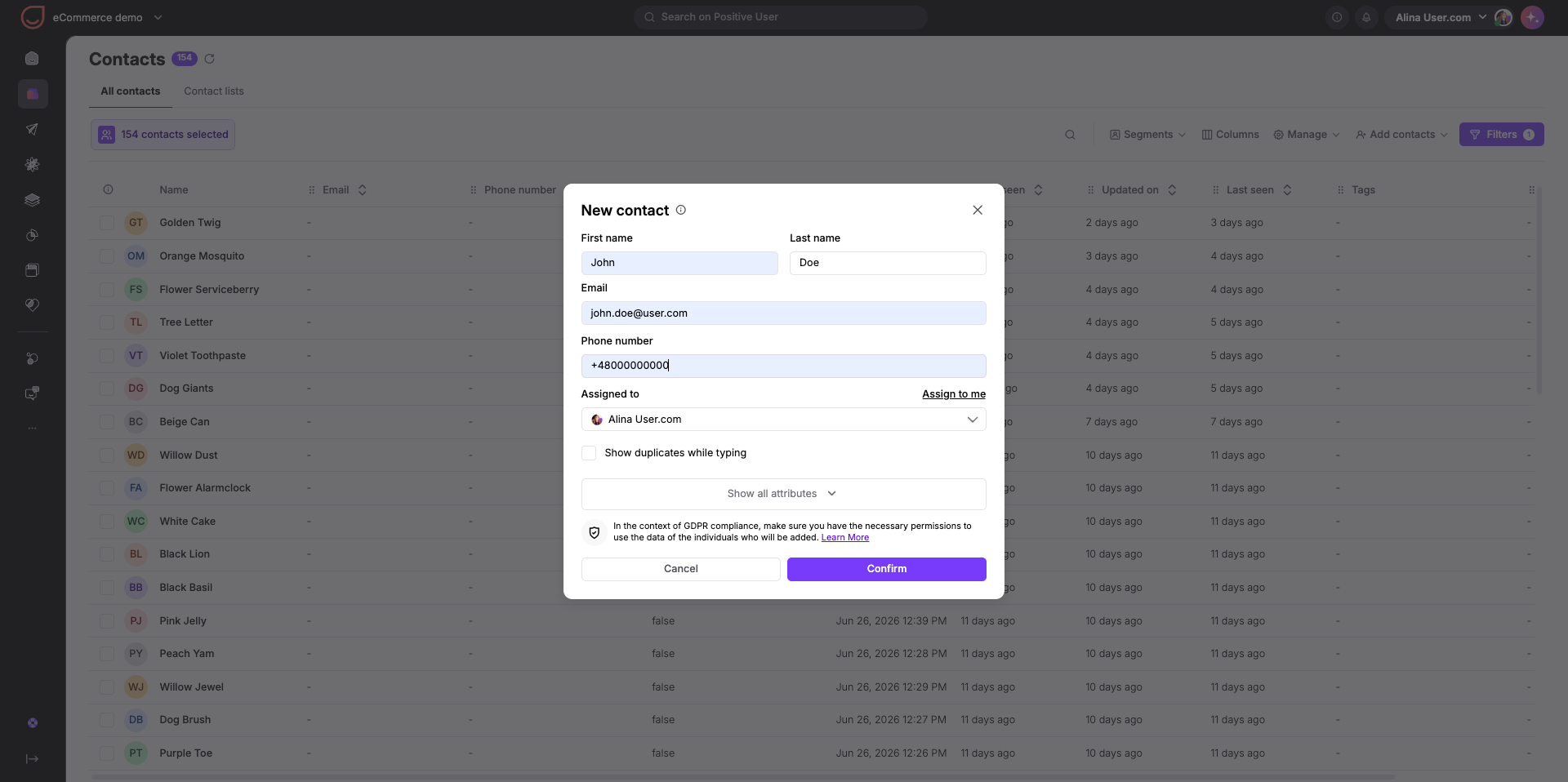
Click “Confirm”. New contact is added to the database!
This method is highly efficient for adding multiple contacts at once, updating existing contact information, or migrating data from other systems. So, if you already have a database of contacts you want to import to Positive User, this is the best option.
Please check the dedicated article about CSV import of contacts.
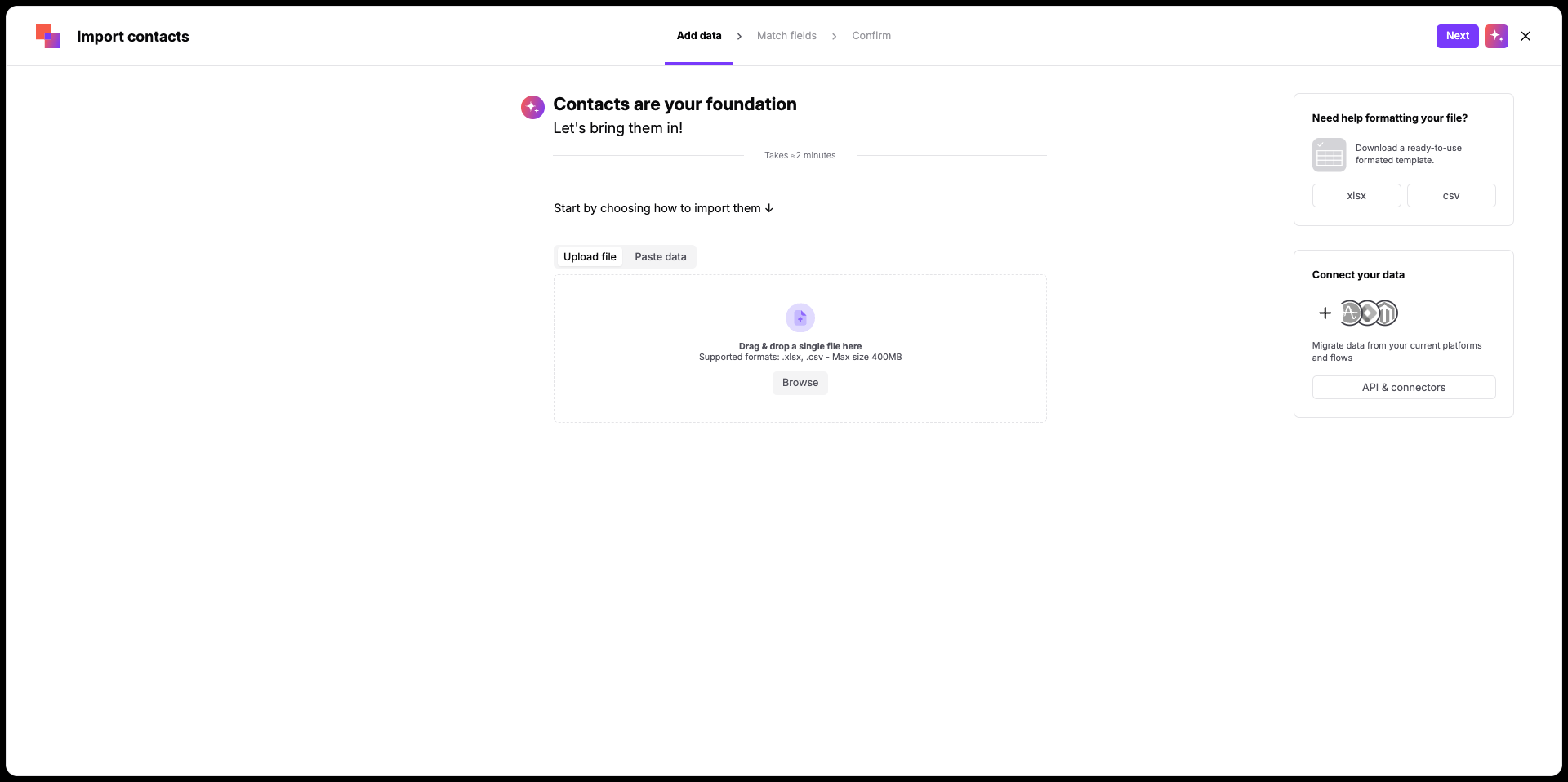
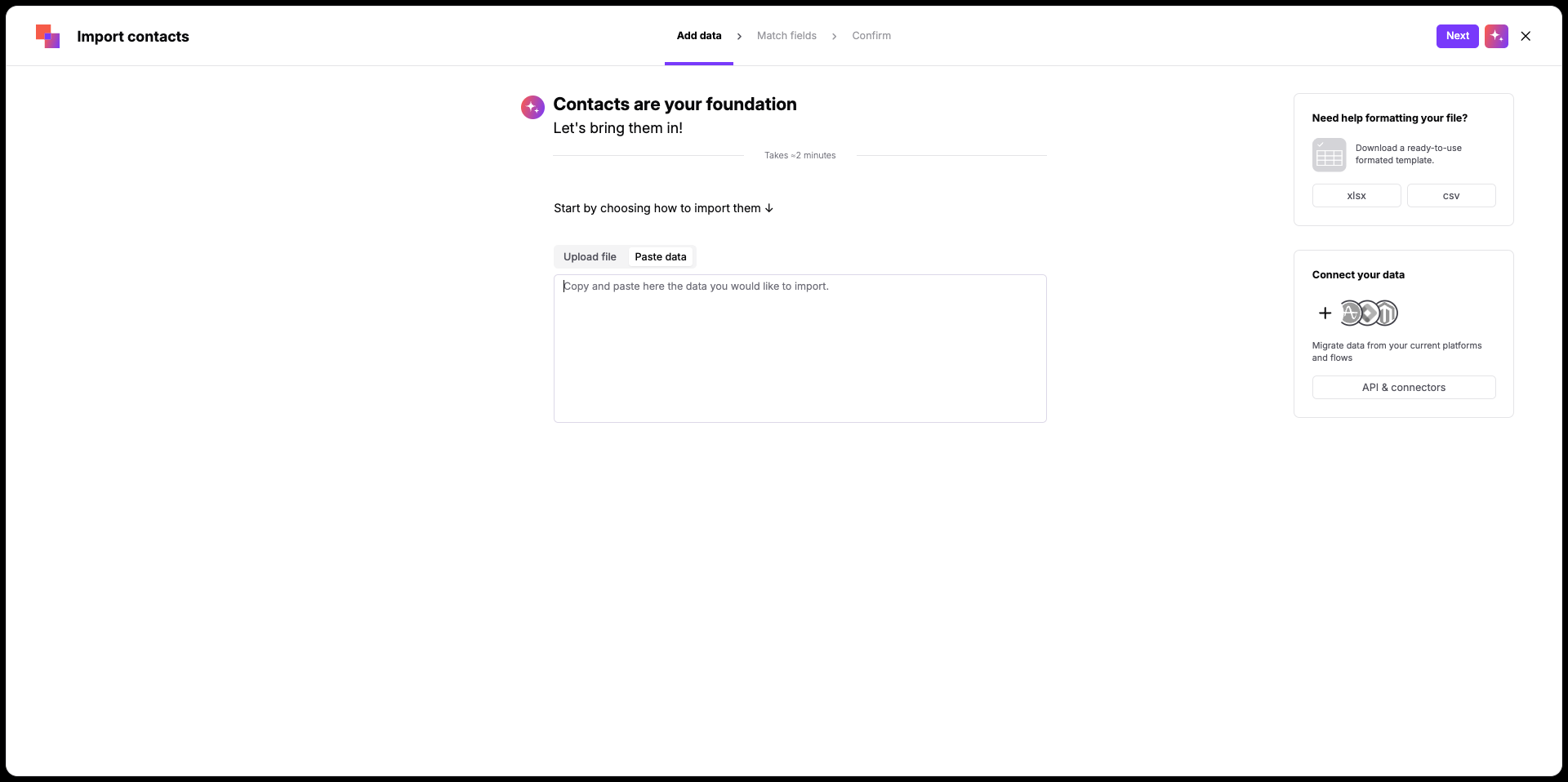
This process is nearly the same as in the CSV import option.
The only differences are:
Instead of uploading a CSV file, paste data by clicking on the "Paste data" button and then paste your data in the box below.
There are several endpoints that allow you to create new contacts as well.
Create or update contact (It checks if you already have a contact like that in your database. If yes – contact profile is updated, if no – new contact will be created)
Check our REST API documentation for more useful endpoints.
