Tasks help you stay on top of every interaction with your contacts and companies. They make it easier to plan follow-ups, track responsibilities, and keep your entire team aligned across sales, support, and customer success.
By using tasks consistently, you create a clear, shared timeline of actions taken and planned. This helps you avoid missed follow-ups, improve collaboration, and maintain a complete picture of the customer journey.
A task is a planned, scheduled, or completed action of the team member related to a contact, company, or deal. It is a core element of the “Sales” module in User.com.
Tasks represent everything your team needs to do when working with prospects and customers, such as calls, meetings, reminders, or internal to-dos. Each task has a specific type, a due date, and an assignee, which makes workload management and accountability clear across teams.
Example CRM tasks include:
A scheduled sales call
An onboarding follow-up
A reminder to send a proposal
A post-demo check-in
A general to-do linked to a contact or company
For a step-by-step guide on creating tasks, please check the related article.
Tasks are categorized by type to help you organize work and clearly distinguish between different kinds of actions and interactions. Task types ensure consistency in how your team tracks work across contacts, companies, and deals.
The default task types include:
Call
Meeting
Task
Lunch
Deadline
…
Similar to custom attributes, you can create your own task types and delete existing ones. To manage task types, go to “Settings” → “Workspace Settings” → “Sales” → “Task types”.
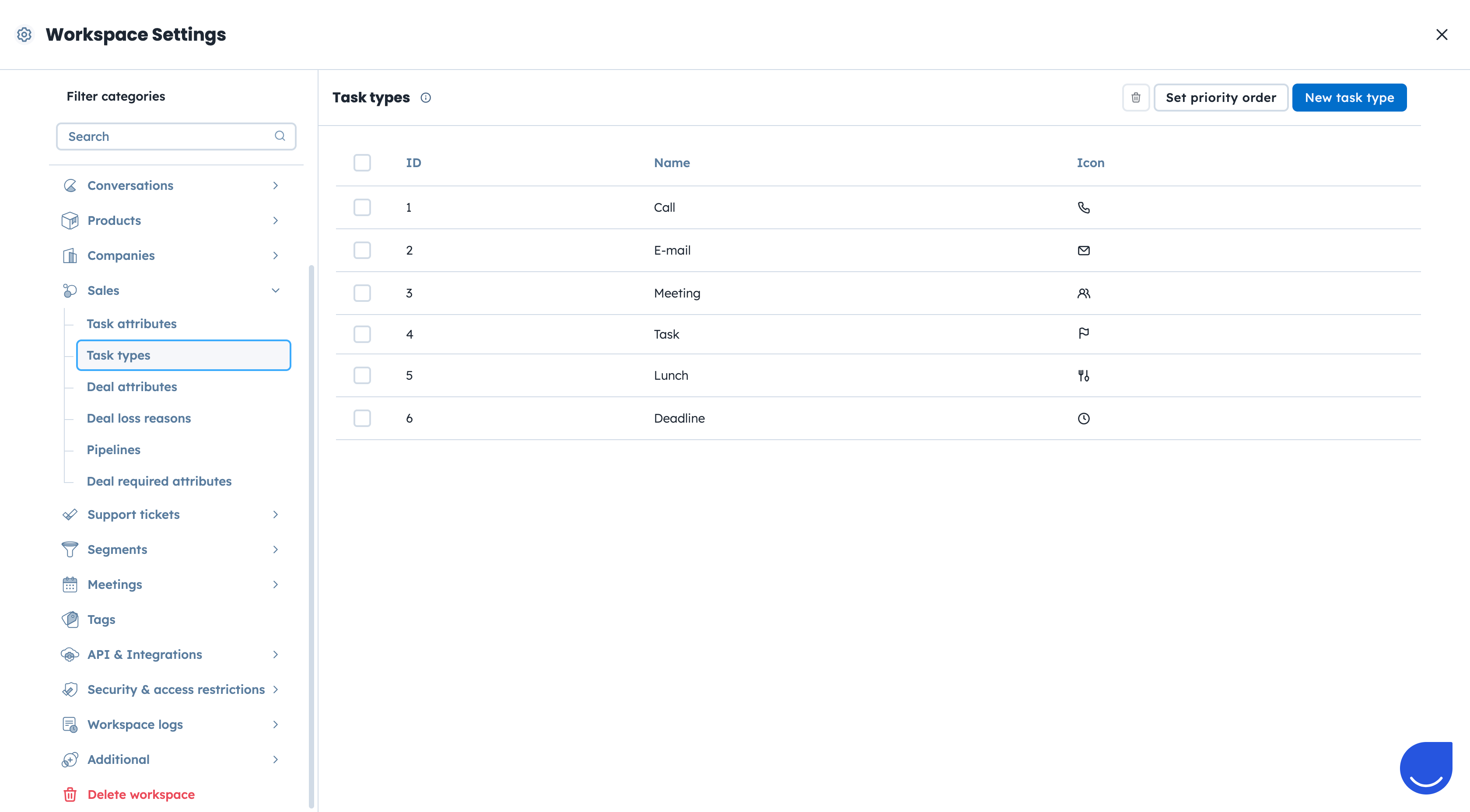
In this section, you can also define the order in which task types appear. When creating or editing a task, you select its type from a dropdown menu.
Task types are especially useful when you:
Filter tasks in Sales views
Create automation triggers (for example, “Task Type” = “Call” AND “Status” = Done”)
Build reports and analyze team activity

Tasks can be created in several ways, depending on your workflow:
Manually: Directly from the “Sales” → “Tasks” section or connected object profiles (contact, company, deal).
Automatically: Use “Create a task” automation module.
During imports: Upload external tasks to User.com via CSV files.
REST API: Use “Create activity” endpoint for it.
Tasks exist across multiple areas of the workspace, ensuring they are always connected to the right context. They are visible in dedicated views as well as on contact, company, and deal profiles.
To check a step-by-step instruction on each method read the following article.
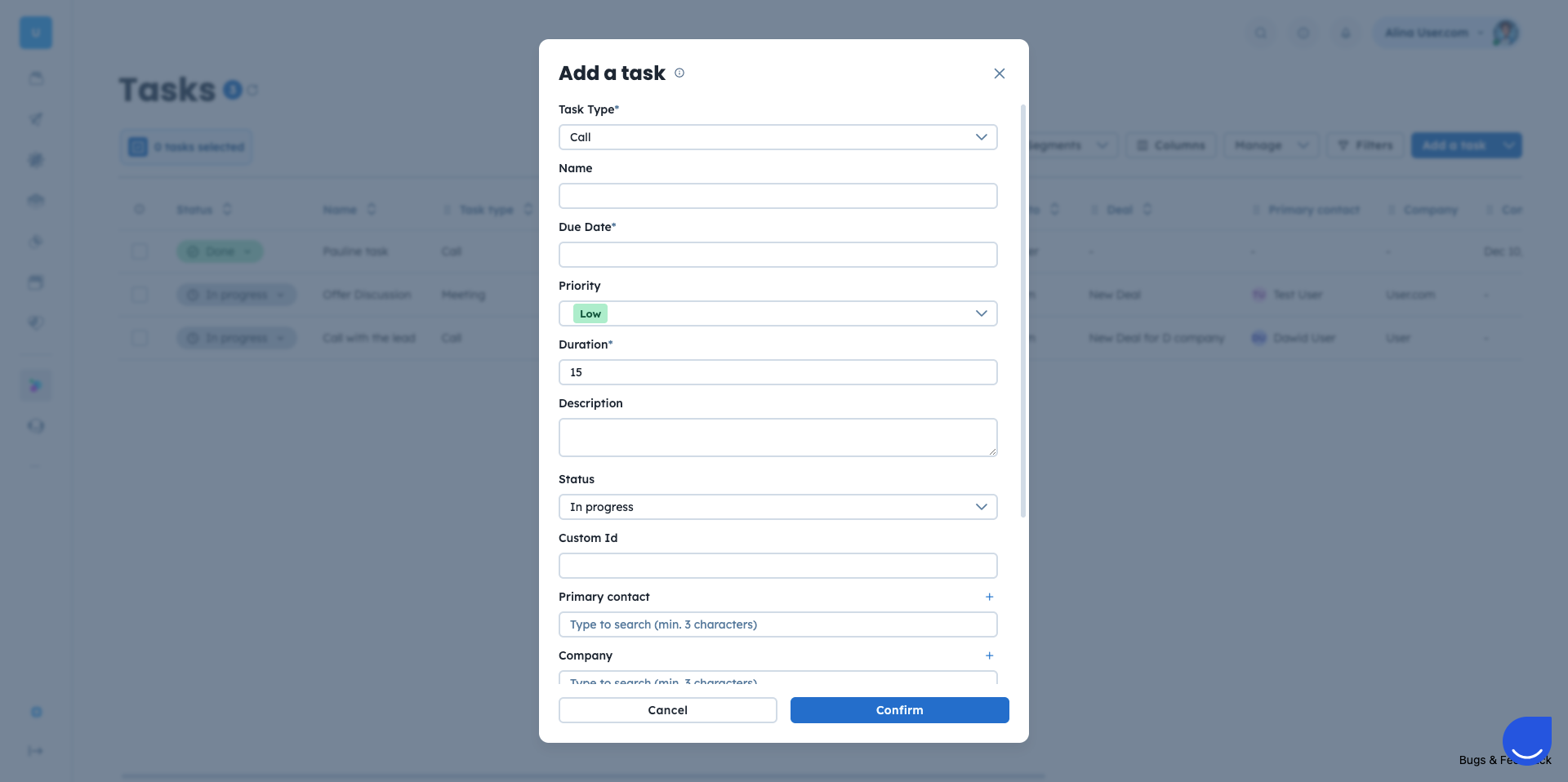
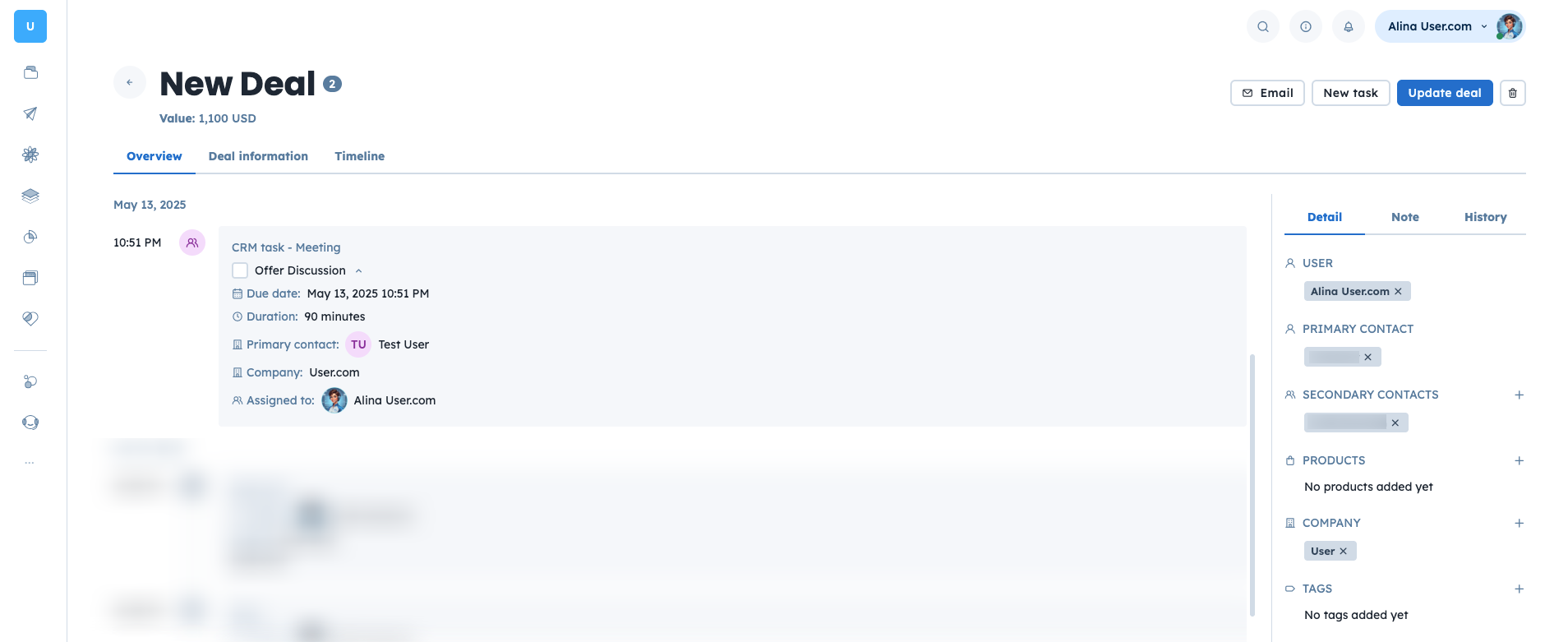
Tasks are closely connected with other objects in User.com, ensuring that every action is stored in the right context.
Each task can be linked to:
Contact: Both “primary contact” and “secondary contacts” mentioned in the activity have it in their profiles.
Company: In B2B use cases tasks can also be connected to the companies “primary contact” and “secondary contacts” relate to to keep the transparent data structure.
Deal: Most tasks are connected to a specific deal within a pipeline in a sales funnel.
This structure ensures that all scheduled actions, historical notes, and future plans are visible from every related object. For example, a call logged on a deal is also visible on the contact profile and company profile timeline.
B2B Sales: Long Sales Cycles
A company selling a software uses tasks to track touchpoints throughout a 2-month sales cycle. After a lead submits the demo request form, the first task is automatically created by the automation. Once the lead is qualified after the the demo call a new task is created. Every touchpoint is recorded as a separate activity and is linked to the lead, company and deal profiles.
Such a process keeps sales representatives accountable, creates a complete timeline of interactions, and helps managers track and forecast the goal achievements more effectively.
Onboarding New Customers
A B2B SaaS company uses tasks to manage the onboarding process for new clients after a deal is marked as "Won". A deal state change triggers and automation which creates a series of tasks connected with the new client. These tasks are assigned to the account manager from the support team. All activities are linked to the contact, company, and deal, allowing everyone involved to see progress at a glance.
This improves activation rates, ensures smooth onboarding, and aligns the sales and support teams.
Post-purchase Engagement and Upsell
Use tasks to schedule follow-up calls for customers who placed high-value orders. When a customer submits an order over $5000, an automation creates a "VIP Follow-Up Call" task for a sales representative to confirm satisfaction and offer an additional suitable service. Another automation can create a task for the support team to check customer satisfaction level.
This keeps customers engaged, reduces post-purchase friction, and opens doors for loyalty-building and upsells.
