---
title: "How to Add an Unsubscribe Link to the Email Message"
description: "Learn how to add unsubscribe and manage subscription links."
url: https://help.user.com/en/articles/74-how-to-add-an-unsubscribe-link-to-the-email-message
collection: "Email Campaign & Content Creation"
updated: 2026-10-30
language: en
alternates: [fr, pl, de, it, es]
---
# How to Add an Unsubscribe Link to the Email Message
Learn how to add unsubscribe and manage subscription links.
An unsubscribe option is a required element of every marketing email. It helps you stay compliant with email regulations, protects your deliverability, and gives recipients control over the messages they receive. In User.com, you can add unsubscribe and subscription management links in several flexible ways, depending on how you build your emails and how granular you want subscription control to be.
This option allows you to automatically generate unsubscribe links in email messages and templates. User.com replaces dedicated HTML elements with unique unsubscribe URLs at send time.
## **Add Link Using Simple Builder**
In the Simple Drag&Drop Builder, the unsubscribe link is automatically included in every **new email template** to ensure compliance with email regulations.
By default, the unsubscribe link is placed in the footer of the message/template.
You can click the unsubscribe text in the footer and edit it using the standard text editor. This allows you to modify:
- the text itself
- font type and size
- color
- styling (bold, italic, etc.)
### **Moving the unsubscribe link**
If you want to remove the unsubscribe link from the footer and place it somewhere else in your email:
1. Go to the “**Style”** section on the right panel.
2. Find the “**Display footer”** toggle.
3. Turn it off to remove the unsubscribe link from the footer.
After disabling the footer, you can manually place the unsubscribe link in another part of your email layout by adding a classical link with “Opt-out form” link type and suitable the “Link ID”.
1. Highlight a piece of text you want to include the unsubscribe link to.
2. Choose “Link” text option.
3. In the pop-up configuration window choose “To the opt-out form” type of the link.
4. Make sure you have “UE\_unsubscribe” value in “Link ID” field.
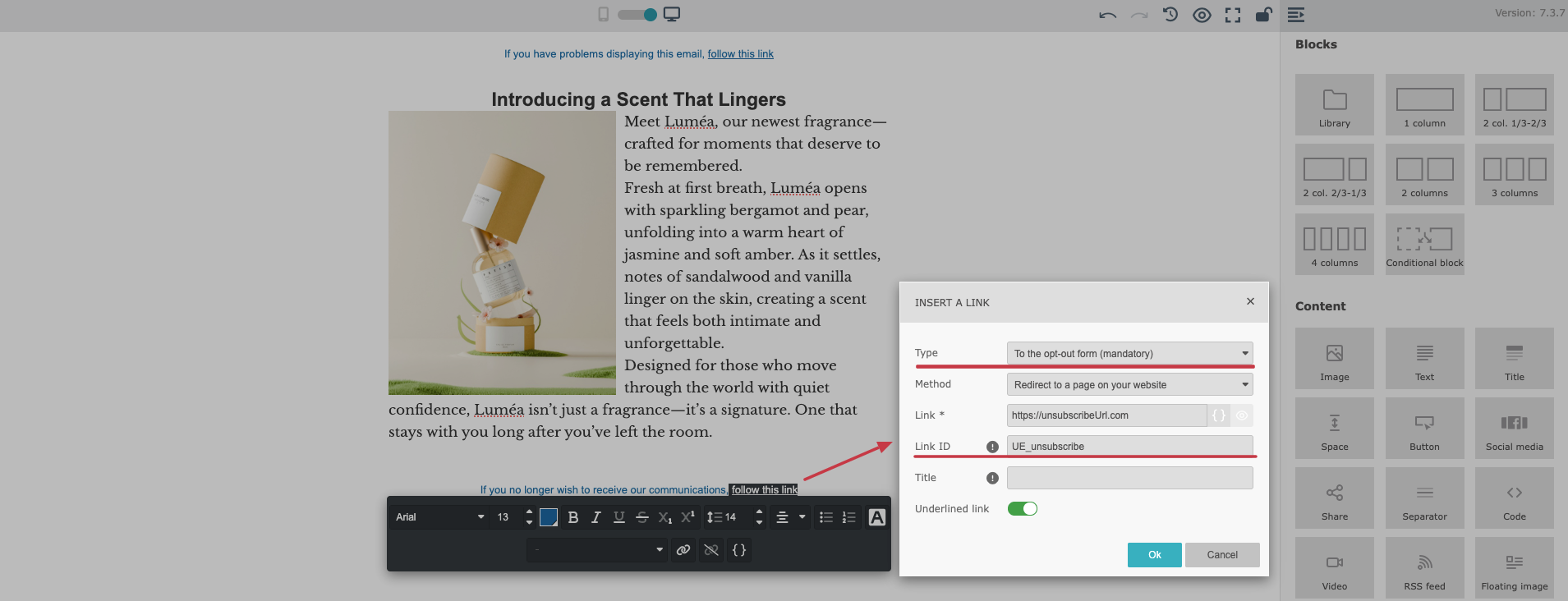
> **Info:** If you click the “Link” icon and choose the “Opt-out form” link type, you can change the “Link ID” from global unsubscribe to an [“unsubscribe from a specific list”](https://help.user.com/en/articles/89-how-to-add-an-unsubscribe-from-specific-list-link-to-the-email-message.md) link.
## Paste Link Directly to Email HTML
Use this method if you work directly with custom HTML templates or the code editor.
**1\. Add the unsubscribe HTML element.**
Paste the following HTML element into your email template or message:
```javascript
Unsubscribe message here
```
> **Info:** Any valid HTML element with the attribute id="UE\_unsubscribe" will be transformed into a clickable link during sending.
**2\. Customize the unsubscribe text.**
You can freely change the text inside the element, for example, to “Click here to unsubscribe” or any other wording that matches your brand voice.
## Unsubscribe Page
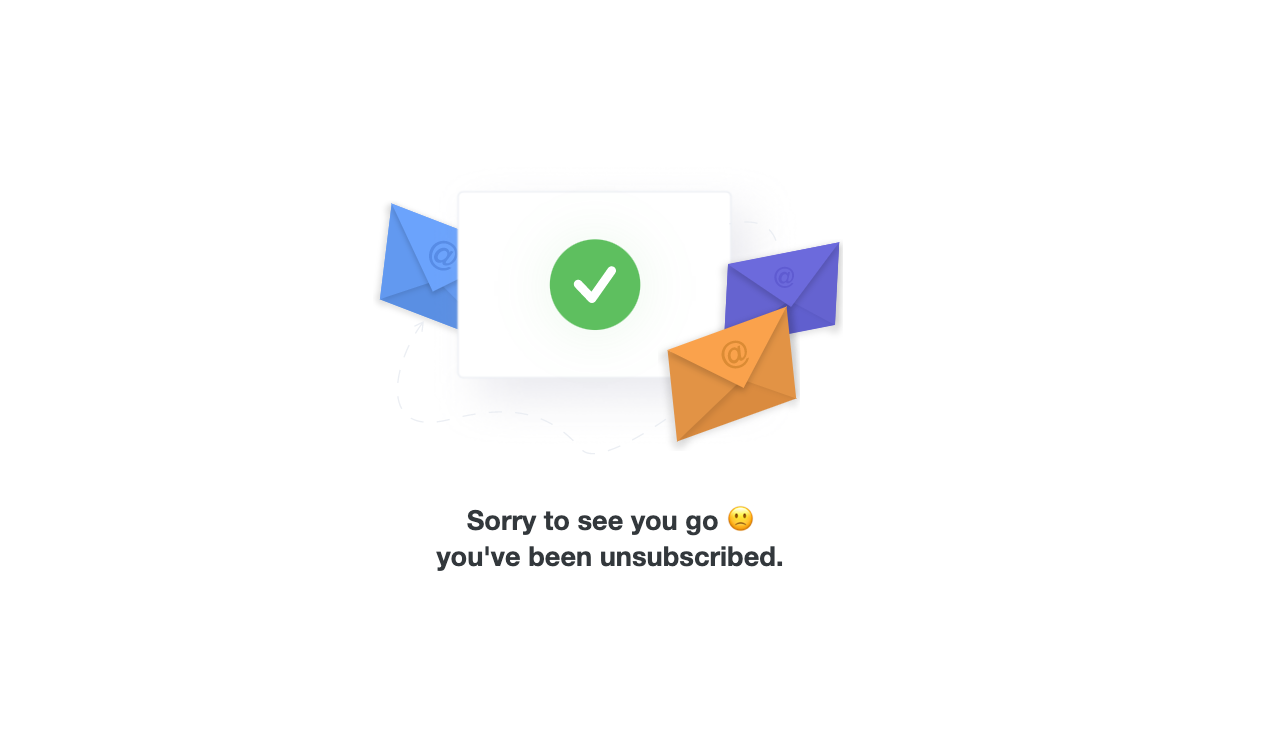
After a contact clicks the unsubscribe link, they are redirected to a confirmation page informing them about their subscription status.
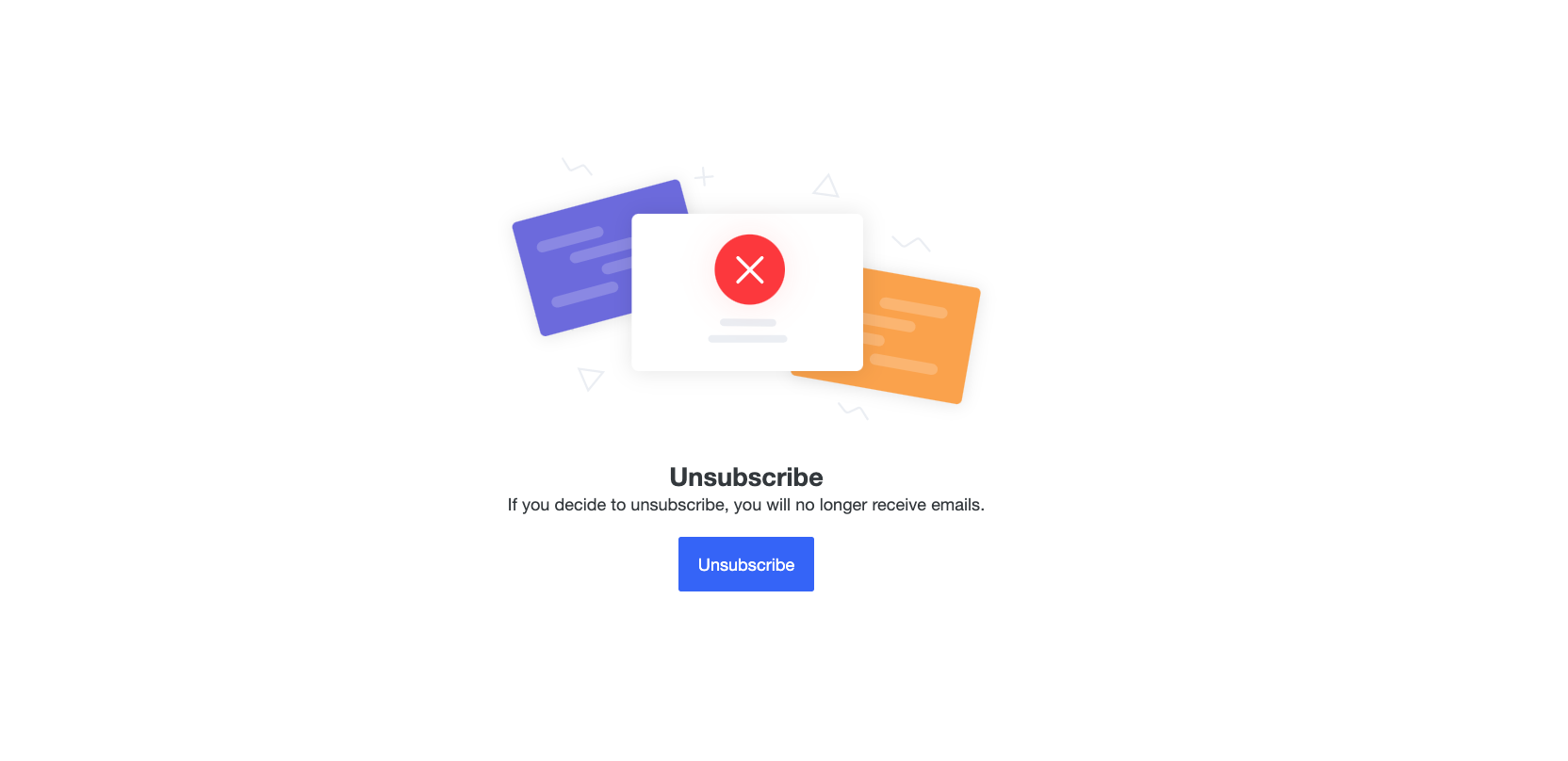
After clicking on the "Unsubscribe" button:
## Unsubscribe from a Specific List
If you use [contact lists](https://help.user.com/en/articles/10-what-is-a-contact-list.md) to separate different types of communication, such as newsletters and important alerts, you may want recipients to unsubscribe from only one list instead of all emails.
Please check [a dedicated article](https://help.user.com/en/articles/89-how-to-add-an-unsubscribe-from-specific-list-link-to-the-email-message.md) with the instruction about it.
## Manage Subscriptions with Advanced Unsubscribe
In addition to a single unsubscribe link, you can let recipients manage their subscriptions across multiple public lists.
If you want to apply this option to your emails, please [follow the instruction](https://help.user.com/en/articles/90-how-to-add-subscription-management-link-to-the-email-message.md).
> **Info:** Always test your emails before sending them to your audience. Send the message to yourself or your team to verify styling, links, and unsubscribe behavior across different email clients.
To test properly:
1. Create a new Email Campaign.
2. Select an existing email prepared for your recipients.
3. Send it only to yourself or your team.
## Related Articles
- [How to Add an "Unsubscribe From Specific List" Link to the Email Message](https://help.user.com/en/articles/89-how-to-add-an-unsubscribe-from-specific-list-link-to-the-email-message.md)
- [How to Add "Subscription Management" Link to the Email Message](https://help.user.com/en/articles/90-how-to-add-subscription-management-link-to-the-email-message.md)
- [How to Create an Email Template](https://help.user.com/en/articles/104-how-to-create-an-email-template.md)