Tags are one of the simplest and most flexible ways to organize data in Positive User. You can use them to label contacts, companies, deals, tickets, products, and conversations, making segmentation, filtering, and targeting much easier in your daily work.
A tag is a customizable label that you can assign to different objects in Positive User, such as contacts, companies, deals, or tickets. Tags help you categorize data, keep it organized, and quickly group records that share a common characteristic.
Tags work as lightweight identifiers. You can use them to filter lists, build segments, trigger automations, and personalize communication without changing your data structure or creating complex logic.
To find the list of all tags please go to Settings → Workspace Settings → Tags.
In Positive User, tags can be applied to different objects across the platform. Each type supports a specific area of your daily work.
Contact tags: Contact tags are used to segment contacts based on behavior, engagement level, preferences, or other characteristics. For example, you can tag contacts as “Hot lead” or “Cold lead” to adjust marketing and sales actions.
Company tags: These tags can categorize companies by industry, size, relationship status like "VIP Client" or "Partner", or any other relevant characteristic.
Product tags: Product tags describe products using features, categories, or promotional statuses, such as “Eco-friendly”, “Electronics”, or “Sale”. This helps in managing product listings.
Deal tags: Deal tags are used in CRM to add additional context to deals, such as “Urgent”, “High priority”, or “At risk”. This helps sales teams prioritize work and manage their pipeline more effectively.
Ticket tags: These tags can help support teams to organize their workload and respond appropriately thanks to categorizing and prioritizig the tickets. Tags can indicate the nature of the issue ("Technical" or "Billing") or urgency ("High priority", "Low priority").
Message tags: this type of the tag is specifically used within the context of chat conversations to categorize and manage conversations. By tagging chat messages, support teams can track the number of the requests connected with a specific problem or topic ("Payment issues", "Refund request").
In order to start using tags around the platform you need to create them first and preferably write a description.
Please, go to Settings → Workspace Settings → Tags section.
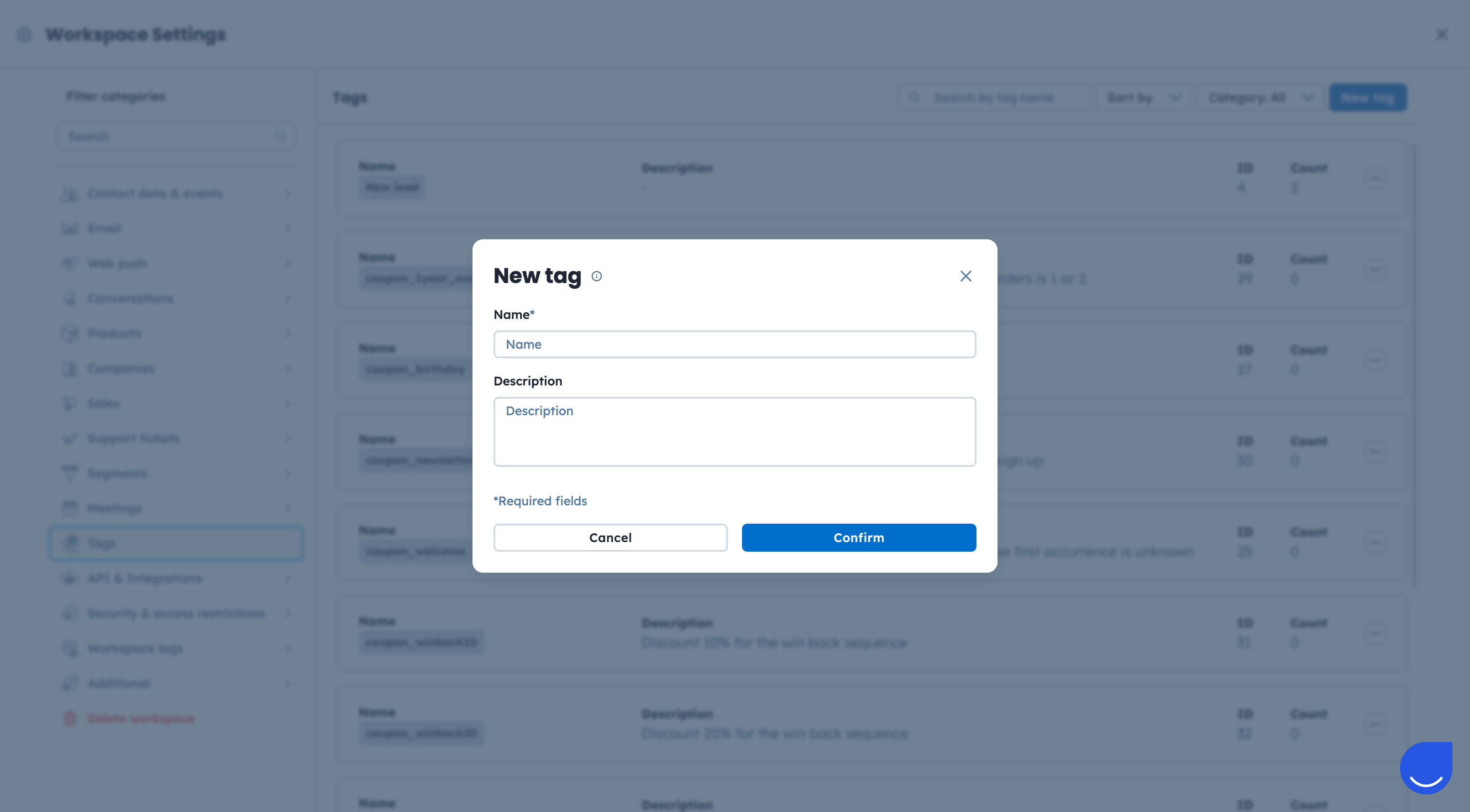
Click on “New tag” button and fill the form.
Give the name to your tag and add description for your team members defining the rules of usage.

In order to learn more about the process of adding/removing the tag to/from a specific object, please check this article.
Tags in Positive User can be instrumental in improving data management, campaign targeting, and customer support, making business processes more efficient and responsive to your needs. Let's check some examples for the inspiration.
Using Tags for Segment Management: If your company operates across multiple industries, you can tag contacts or companies with labels such as “Healthcare”, “Education”, or “Retail”. Marketing teams use these tags to send industry-specific campaigns, while sales teams filter tagged records to prepare for meetings and tailor their communication to sector-specific needs.
Using Tags for Imported Objects: You have a database of fresh leads from your Sales Team after the offline conference. Now you want to upload this database to Positive User to work with the records in the CRM section. After the import you need to have an easy way to filter all these records out to create the deals for your Sales Team and assign them to specific team members. This is the moment when user tags will help you with that. On the second step of the CSV import process you can add a new tag to all the records from the file. It will create a common characteristic for all of them, allow you to trigger an automation for these specific contacts and keep the track of the imports in the system.
