Reach your contacts directly on their phones by sending a targeted, one-time WhatsApp message. This guide helps you set up your campaign using pre-approved templates so you can share updates, offers, or important news safely and efficiently. Make sure your workspace integration is fully connected before you begin.
A one-time campaign is ideal when you need to send an announcement that isn't triggered by a contact's ongoing behavior. Your team can use this approach for seasonal holiday promotions, sudden product launches, or urgent service updates that every contact in a specific list needs to see immediately.
WhatsApp - Positive User integration (more details in “WhatsApp - Positive User Integration”).
Approved WhatsApp templates (follow the “How to Create a WhatsApp Message Template” article).
Follow these steps to build and launch your single WhatsApp campaign.
Go to "Campaigns" → "WhatsApp" and click the "Create New Campaign +" button in the top right corner of the panel.
Choose one of the existing templates or create your own from scratch. Choose between:
Marketing: For promotional, opt-in-required messages.
Utility: For updates or service-related notifications.
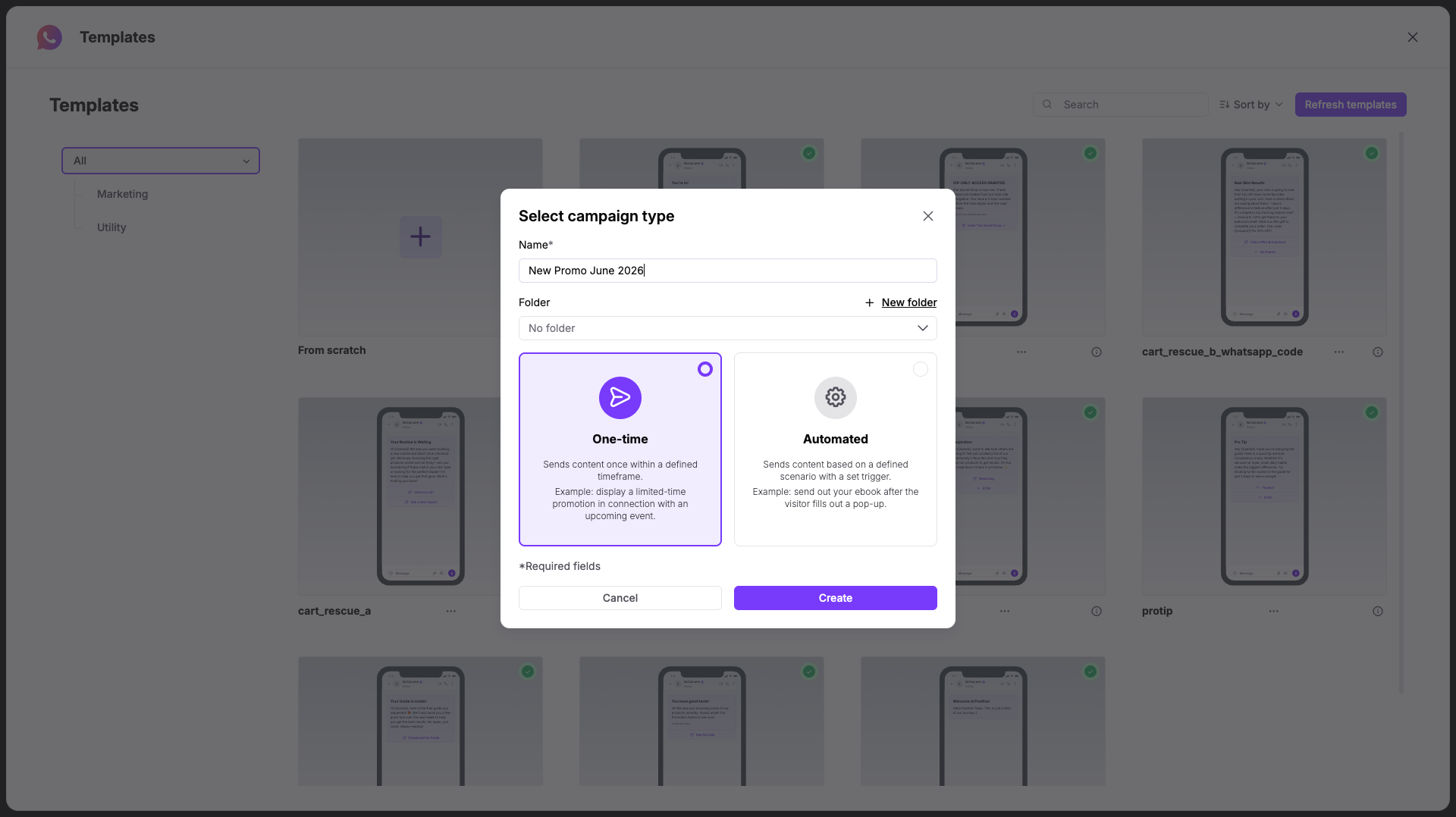
Once you define the content type, decide on the name of the campaign and assign it to the folder, if needed.
Choose the “One-time” type, and click “Create”.
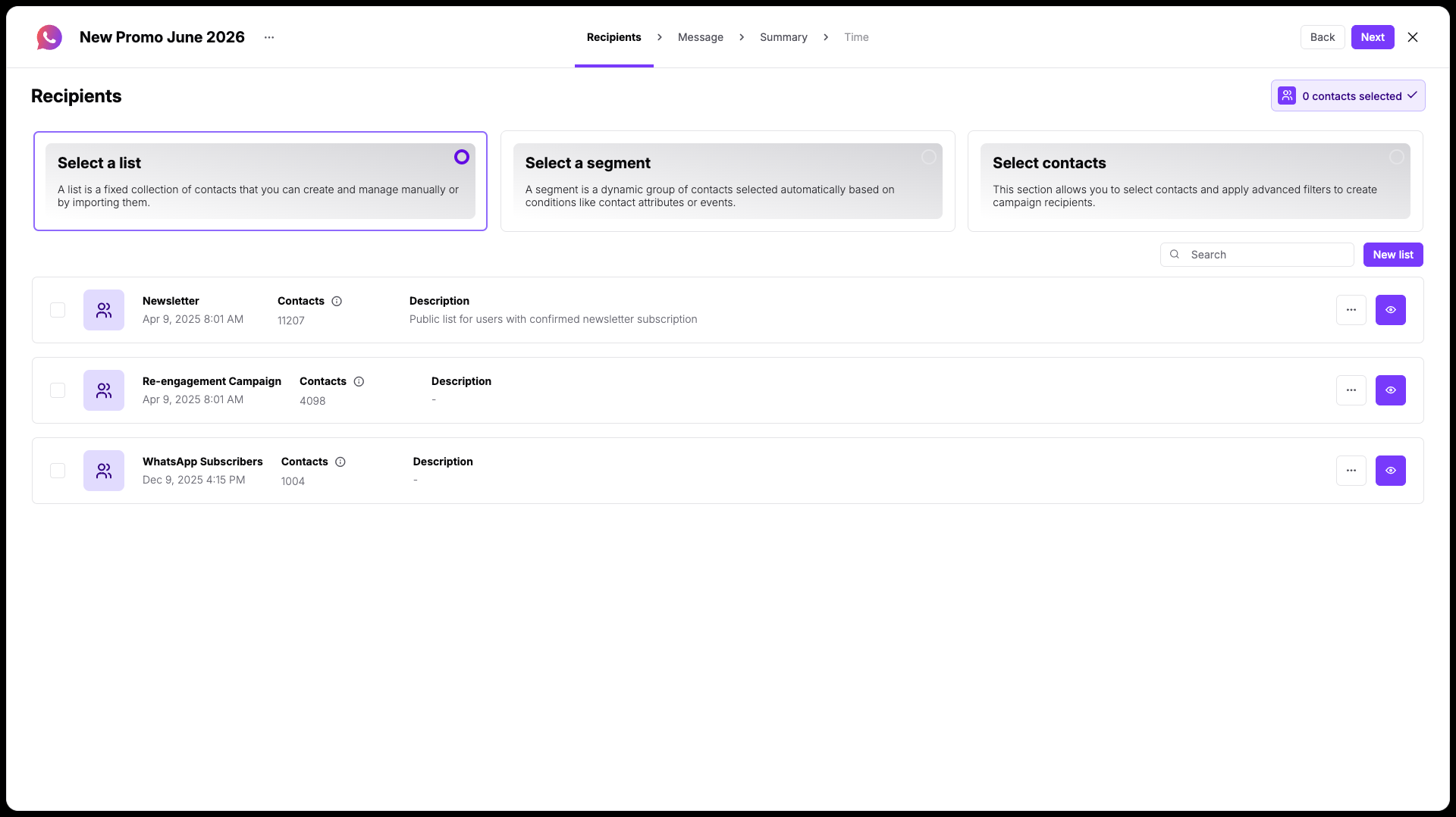
Define the target audience for your single campaign by selecting an existing segment, picking a contact list, or adding manual filters:
Select a contact list.
Select a segment.
Select contacts (using filters).
Once you are ready, click the “Next” button.
Next configure the message that will be used in the campaign. We highly recommend choosing a predefined template that has already been approved by WhatsApp — this ensures a smooth launch without delays. Click on “Open templates” if you want to pick one of the existing templates.
If you decide to create a new one, then you need to fill the following details:
Name of template: Type a distinct name for your text template to help your team identify it later. Please use only small signs without any space.
WhatsApp Business Account: Select your connected messaging profile from the dropdown list.
Language: Choose the language your message text is written in.
Template type: Select the functional category that matches your campaign goals:
Marketing: For promotional, opt-in-required messages.
Utility: For updates or service-related notifications.
Next, adjust the content right in the preview editor in the middle of the page. Type the header and the body of the message.
More details about message configuration can be found in “How to Create a WhatsApp Message Template”.
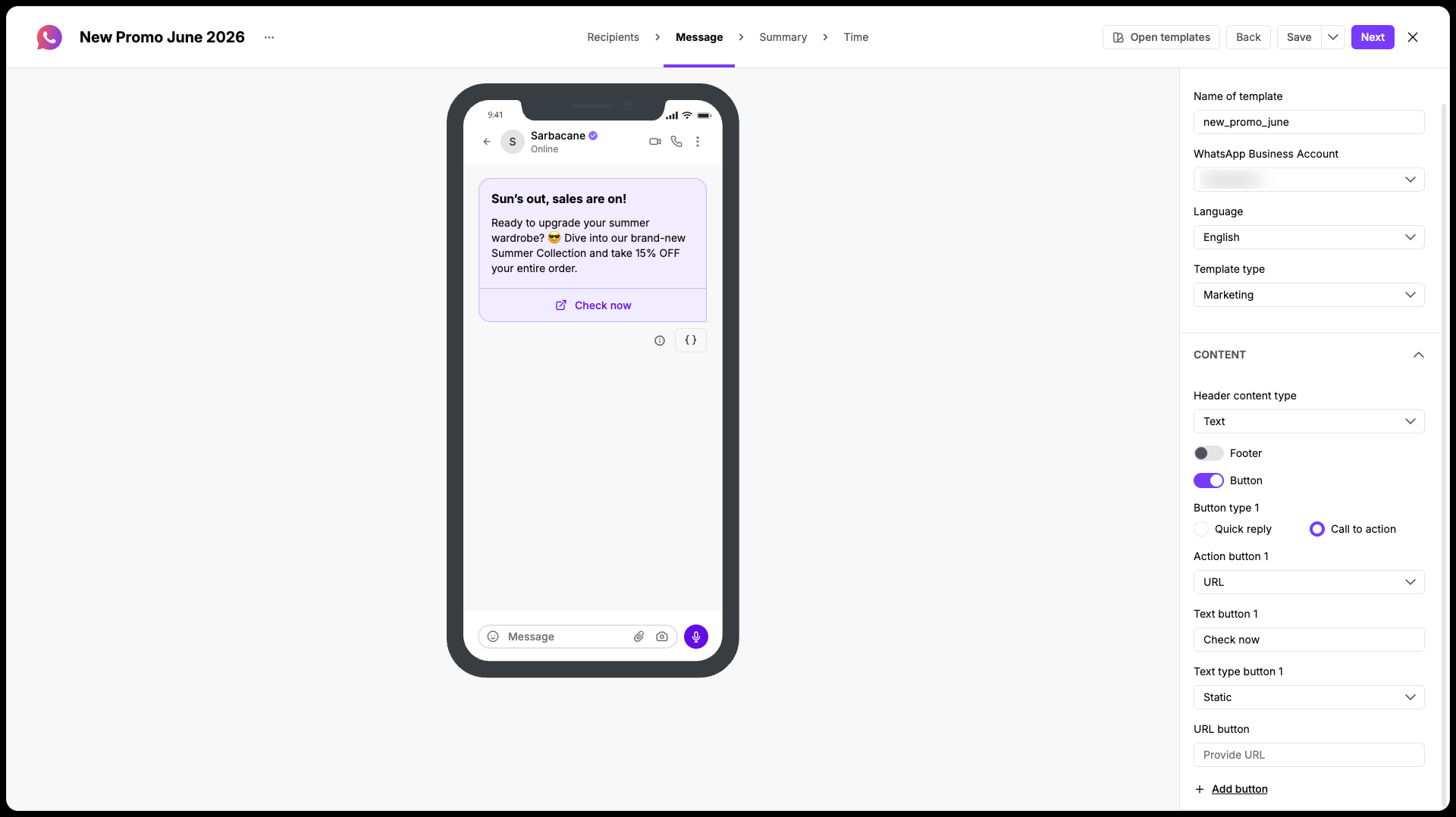
As you adjust these settings, check the mobile screen graphic in the center of the workspace to view a real-time preview of your message.
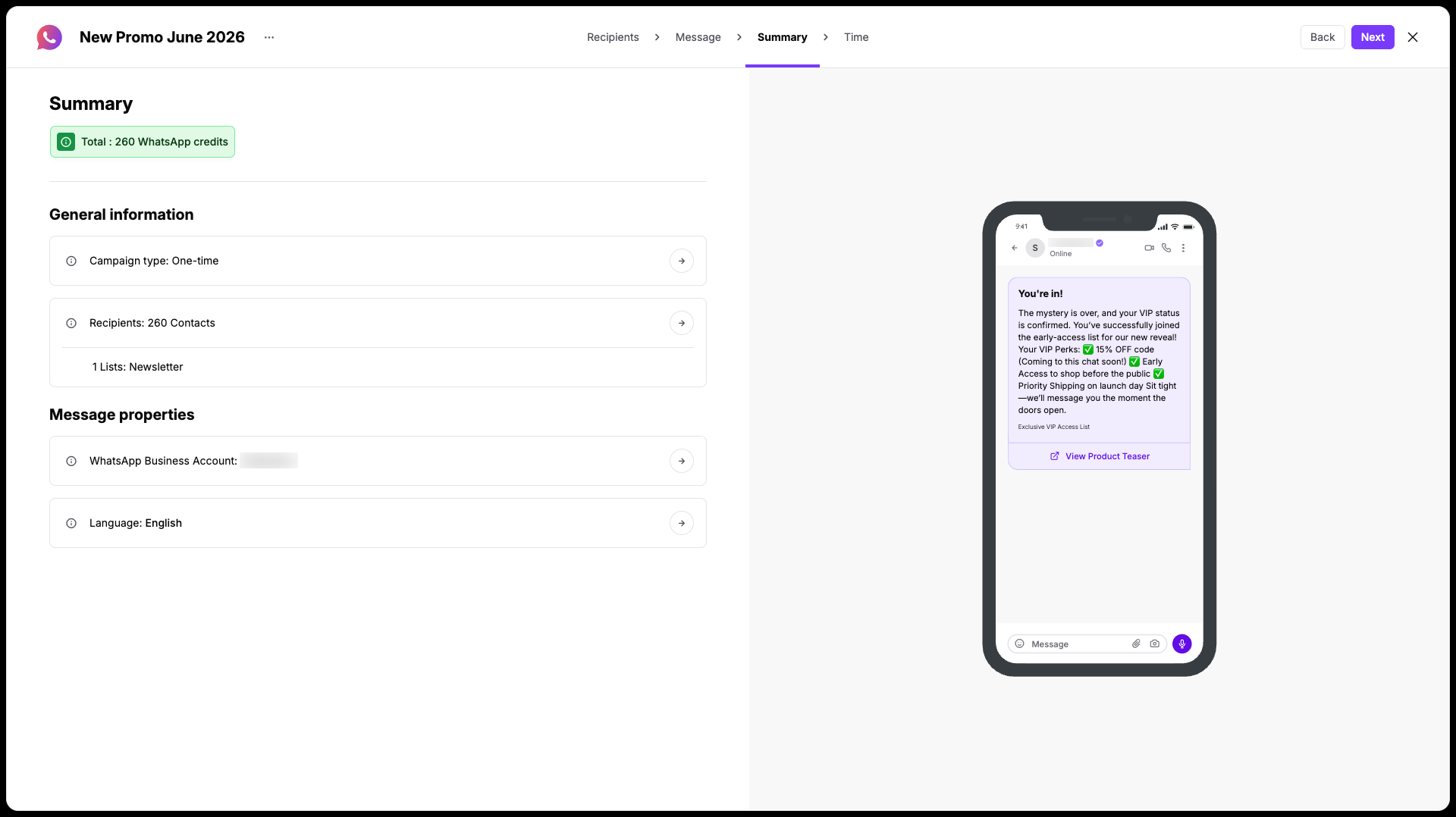
Verify all details of your campaign before moving to final scheduling. The "Summary" step gives your team a comprehensive overview of your campaign configuration and credit requirements:
Total WhatsApp credits: Review the estimated credit balance needed to send this campaign to your selected group.
General information: Double-check your campaign type and total number of selected recipeints.
Message properties: Confirm your selected "WhatsApp Business Account" and your messaging "Language".
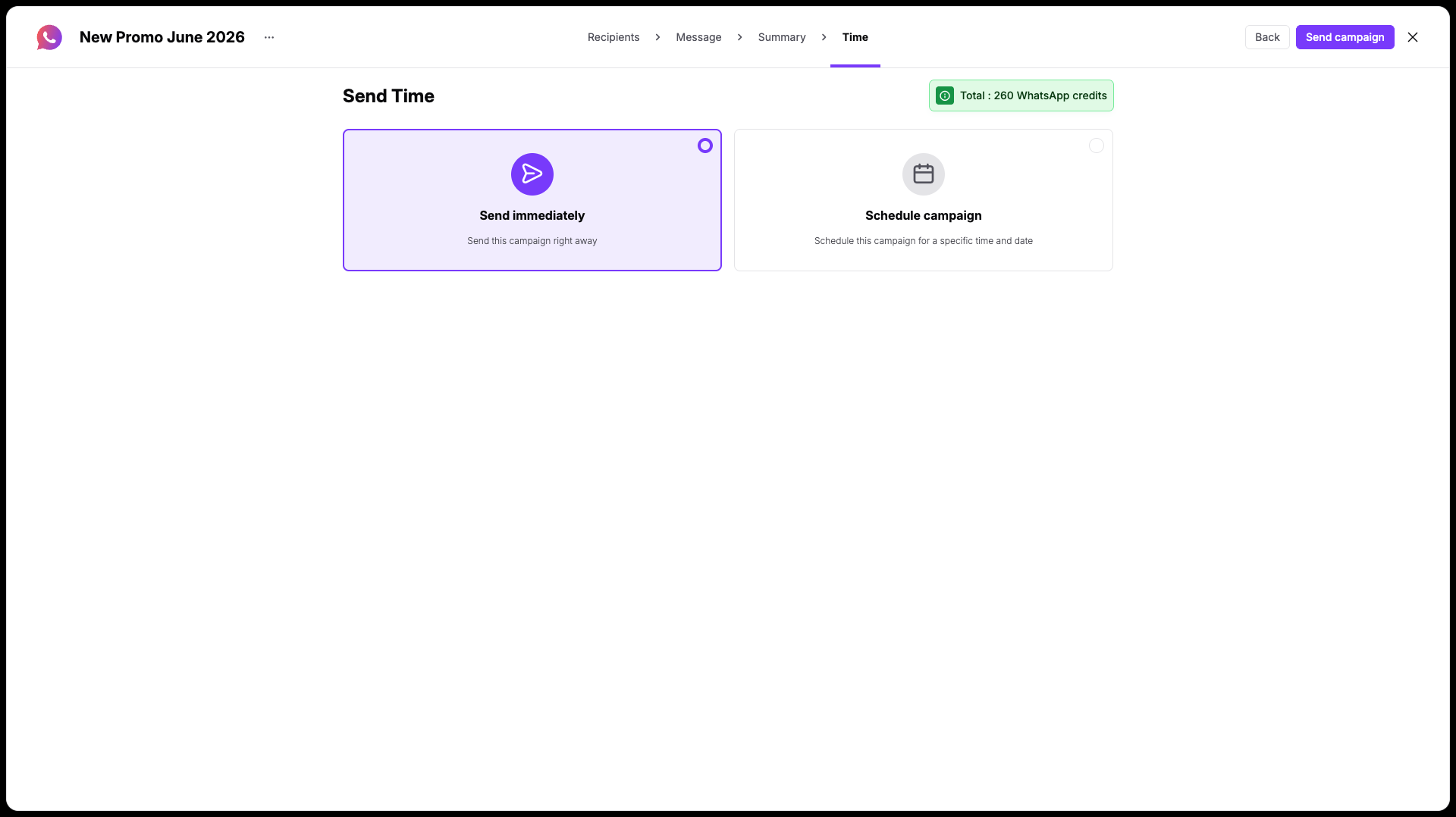
Choose exactly when your message will go out to your contacts. You can select "Send Now" to distribute the campaign immediately, or pick a specific calendar date and time to align your messaging with an upcoming sale, event, or team schedule.