Calculated attributes help your team automatically sum, count, or average numerical data across different tasks and events in Positive User. You can use these calculations to analyze campaign performance, build dynamic dashboards, and trigger targeted automations based on real contact behavior. Learn more about tracking customer data in “What is Calculated Attributes”. [LINK]
Before you start configuring a calculated attribute, complete the following:
Define your goal: Write down a clear user story and objective for what you want to calculate.
Check your data structure: Ensure your target object contains a numeric attribute (such as purchase price or point count), as calculated attributes only work with numeric values.
Choose an execution method: Decide whether the calculation should run automatically on a fixed schedule or trigger within an automation workflow.
Follow these steps to create and configure a new calculated attribute module for your workspace.
Go to "Data" → "Advanced" → "Calculated Attributes" in the main menu. Click the purple "New calculated attribute" button in the top right corner to open the setup form.
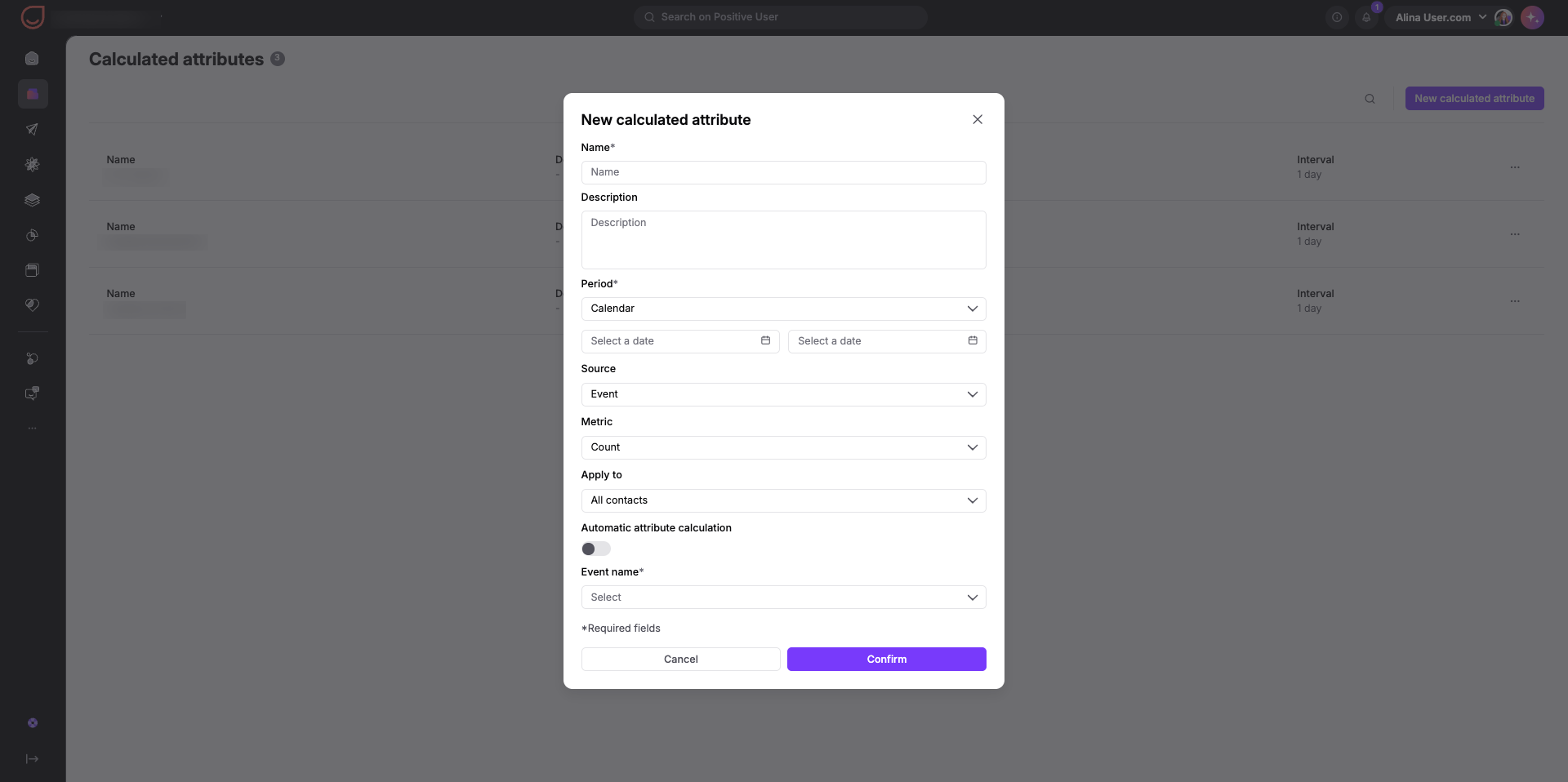
Enter a clear "Name" and optional "Description" so your team understands what this attribute measures . Under "Period", select how the system checks dates:
Calendar: Choose specific start and finish dates using the date pickers.
Relative: Choose a rolling timeframe (such as the last 30 days) to track continuous data.

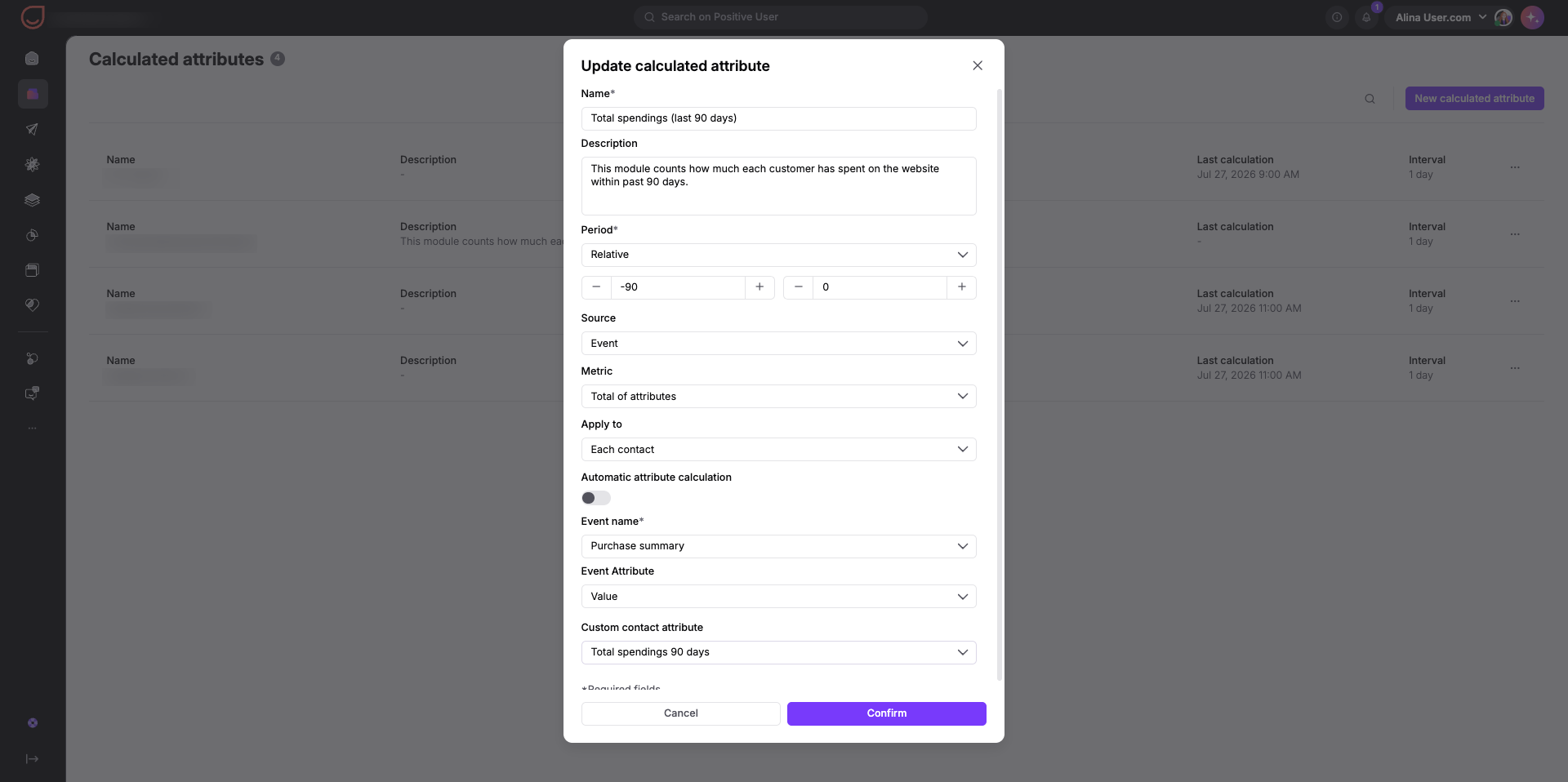
Select where your numerical data comes from using the "Source" dropdown menu.
Each source provides dedicated metric options tailored to its data type.
Source | Available Metrics |
Event | Count, Total of attributes, Average, Median |
Event with specific attribute | Count |
Email activity | Send, Open, Click, Unsubscribe |
Deal | Count, Total of attributes, Average, Median |
Product event | Count, Total of attributes, Average, Median |
Contact | Count, Total of attributes, Average, Median |
Next, select how to scope your data using the "Apply to" dropdown menu:
All contacts: Aggregates workspace-wide data across all contacts. You can view these overall statistics directly on the individual calculated attribute's module page.
Each contact: Aggregates data individually for each contact. To store and view this value on a contact's profile, you must create a corresponding custom contact attribute.
Each company: Aggregates data individually for each company. To store and view this value on a company profile, you must create a corresponding custom company attribute.
Fill in any conditional required fields, such as "Event name" or "Email action type".
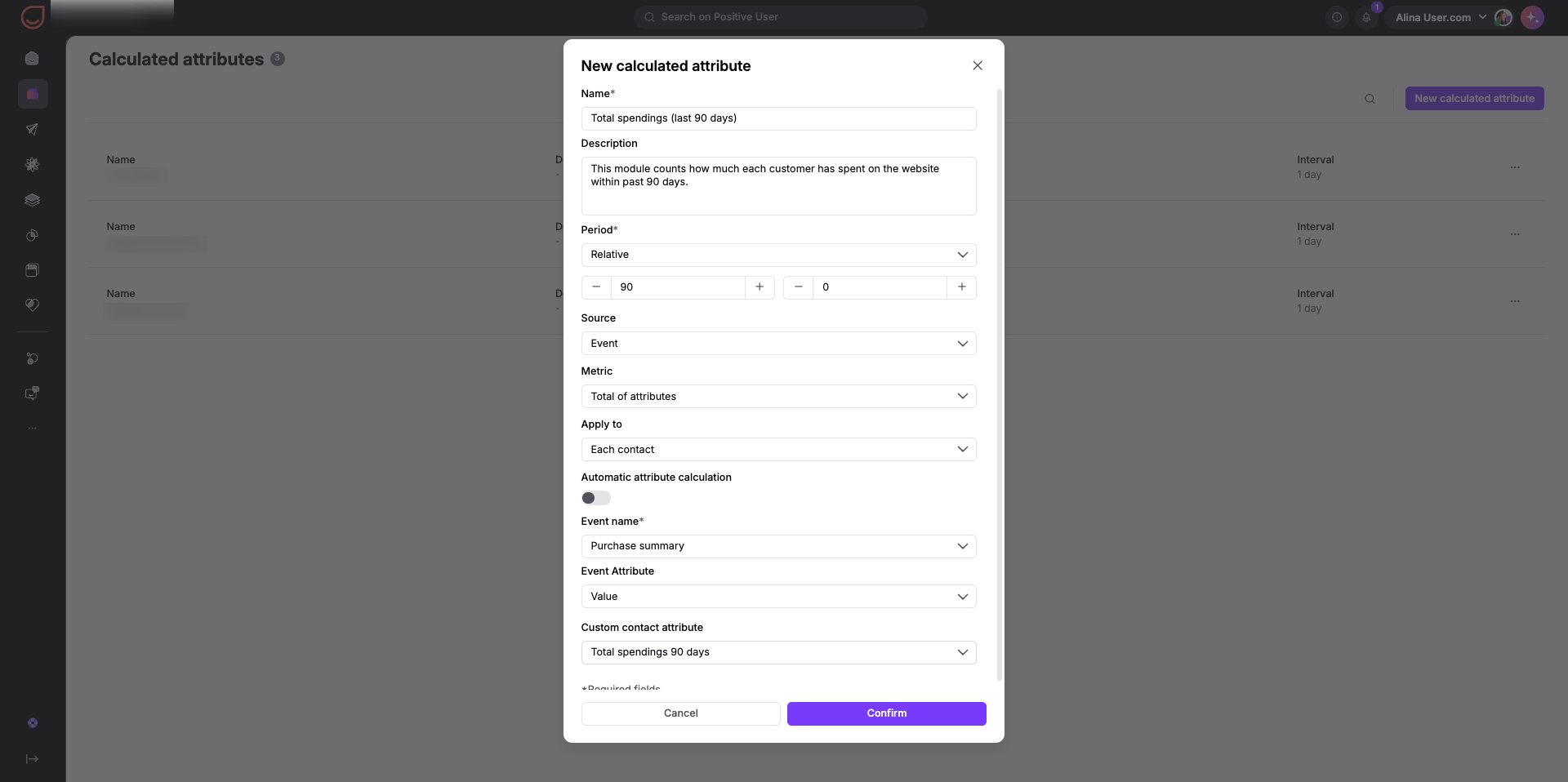
Decide how Positive User updates your numerical data. Check the paragraph below.
Click the purple "Confirm" button at the bottom of the modal window to save your calculated attribute configuration.
Workspace-wide totals: If your calculation applies to "All contacts", click the attribute name in "Calculated Attributes" to view general statistics.
Individual values: If your calculation applies to "Each contact/company", create a custom attribute on the profile to display individual scores or numbers.
Turn on the "Automatic attribute calculation" toggle switch. No action is required from the contact side or your team; the system recalculates data automatically every X hours or days based on your chosen frequency. Set the "First calculation" date, choose the "Calculated attribute unit" (days/hours), and enter the "Calculated attribute frequency" (for example, every 1 day). You can view the updated data directly on the object's profile or inside the calculated attribute module page (if you count the that value for all contacts).
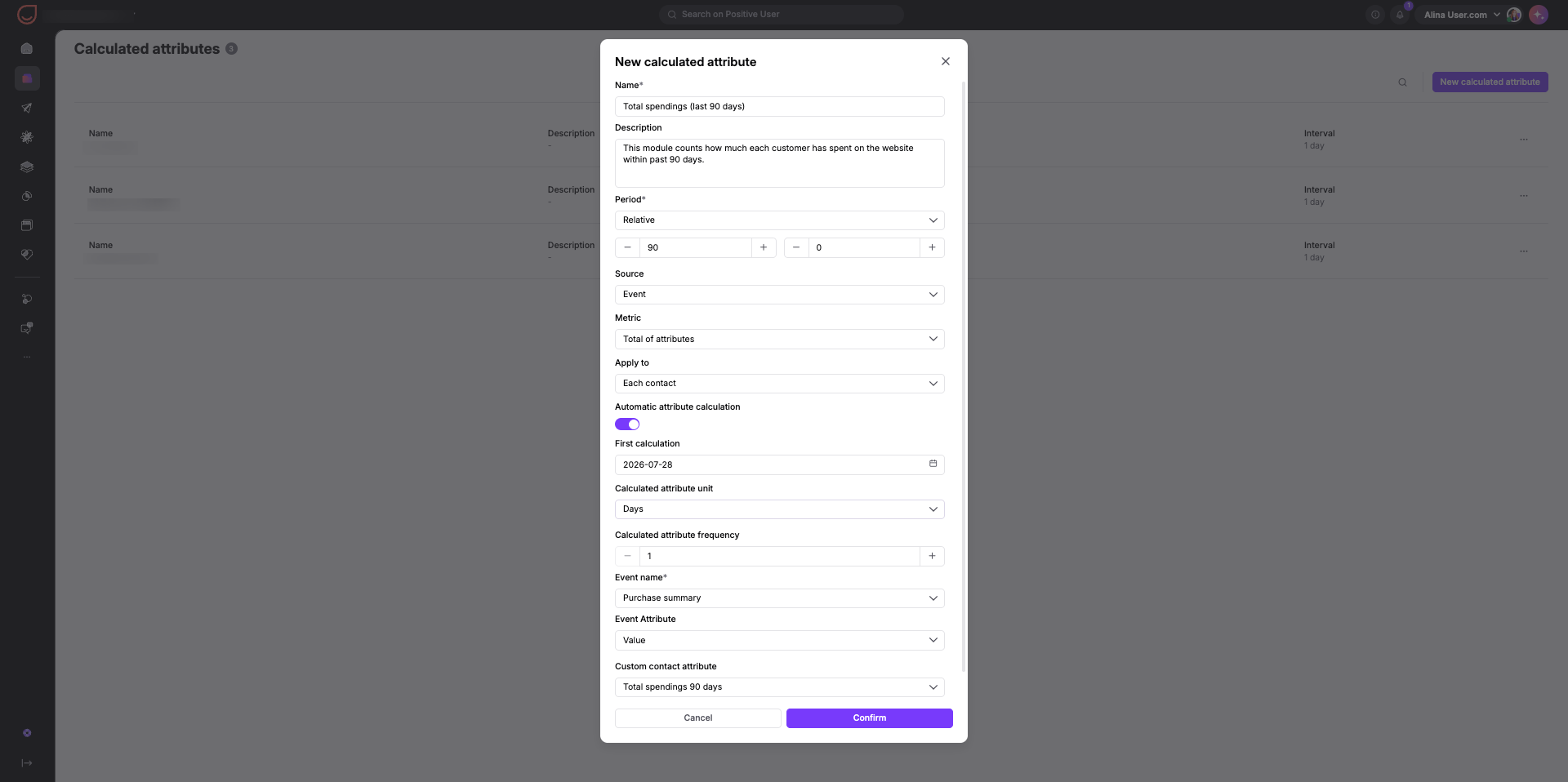
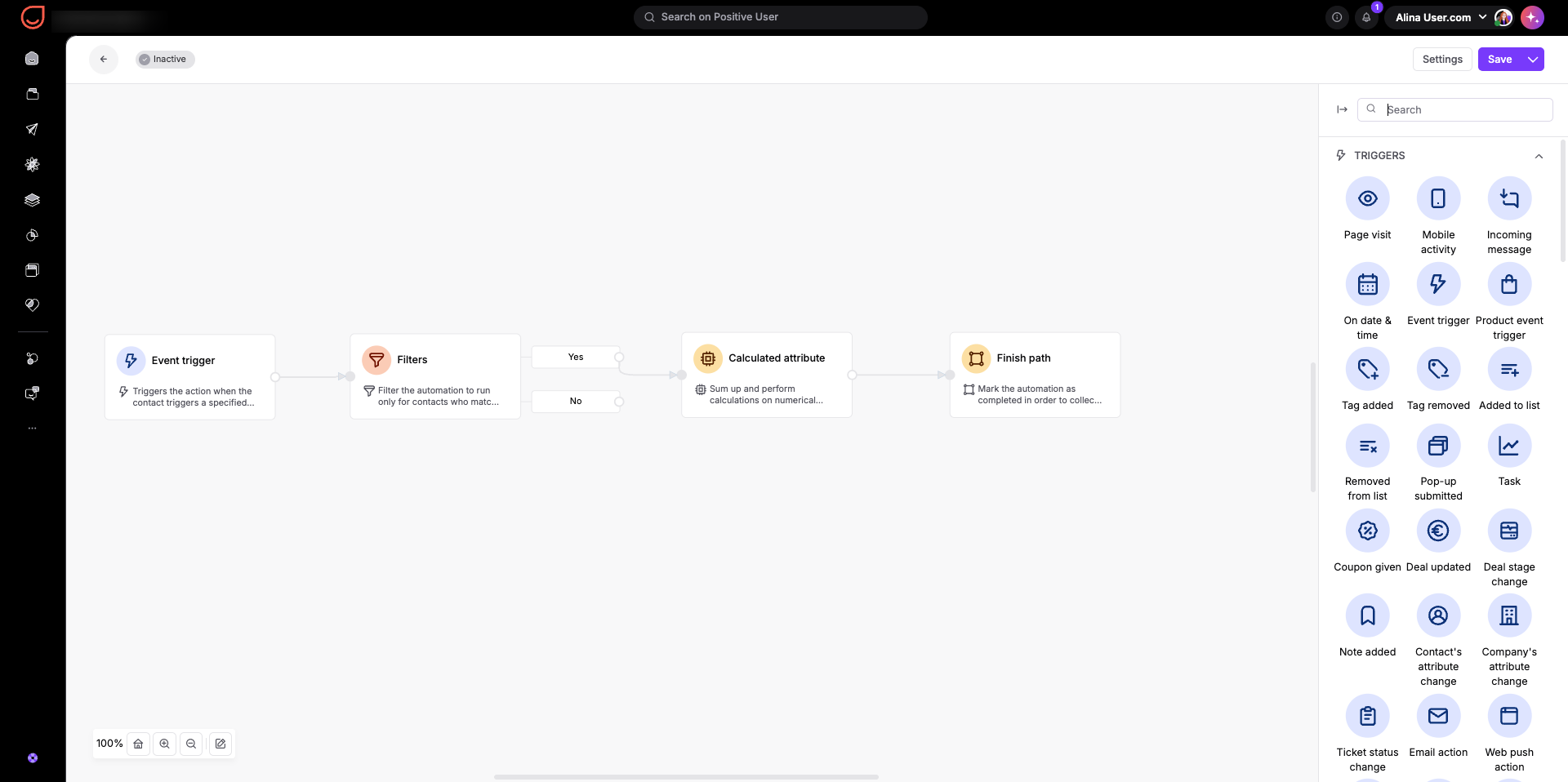
First, write your user story to plan the workflow. Next, save the module, navigate to "Automations", and build an automation flow using the "Calculated attribute” action module. [LINK] This block performs the recalculation for each specific contact as soon as they reach that step in the flow.
Track Customer Spending: Sum total purchase values per contact over the last 30 days to identify top spenders for VIP campaigns.
Analyze Sales Pipelines: Count won or lost deals by industry stage to evaluate sales health and build dynamic reporting dashboards.
Manage Email Capping: Count send, open, or click tasks per contact over a specific timeframe to manage campaign frequency and keep your emails landing in the inbox and being opened.
What is Calculated Attribute Module [LINK]
Module Guide: Calculated Attribute Action Module [LINK]
