Creating a workspace gives your team a central home to organize contacts, run email campaigns, and automate customer interactions. This guide takes you through setting up your account, customizing your brand assets, and choosing the right trial suite.
Follow these steps to register your account and build your new workspace.
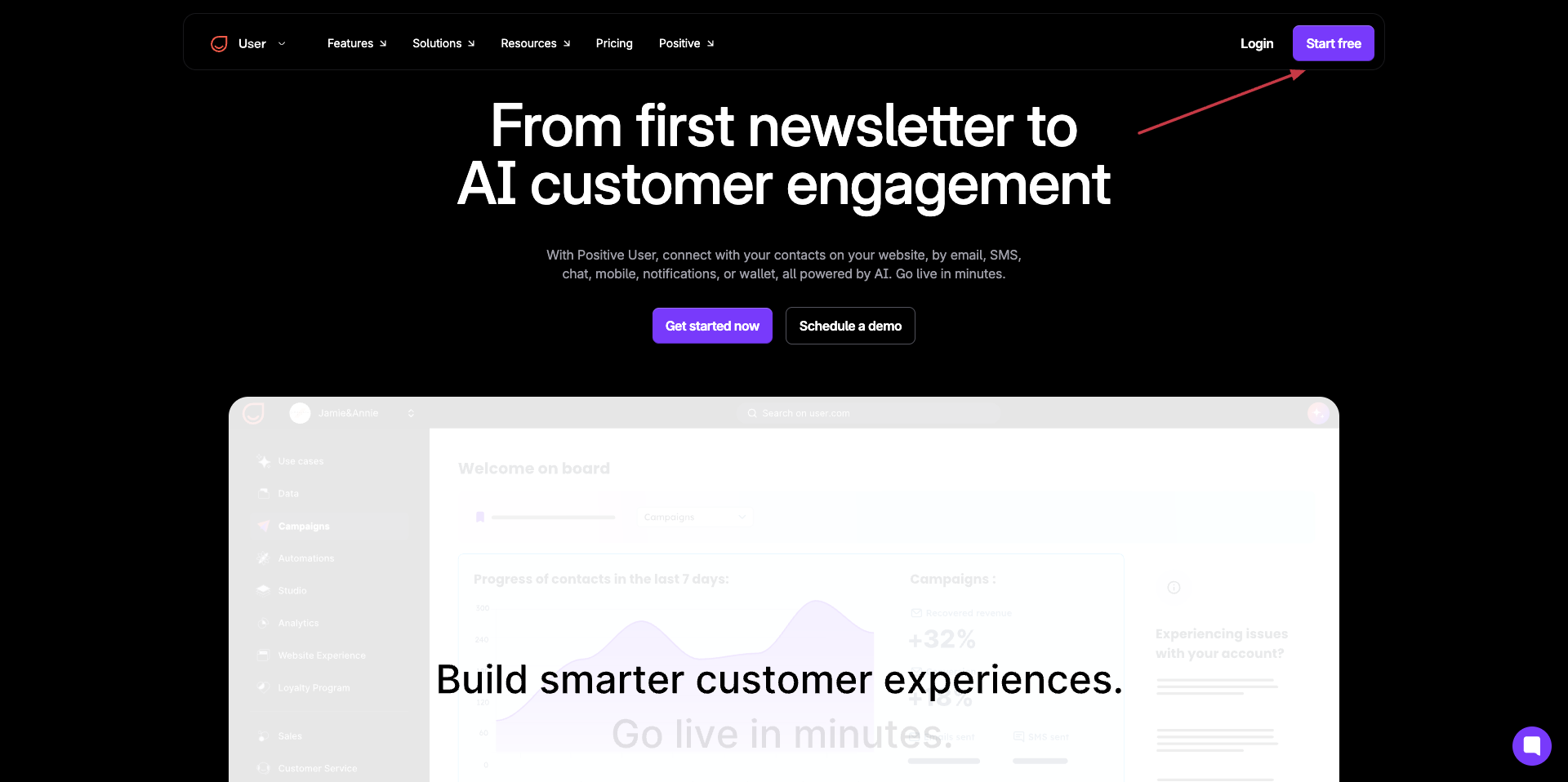
Go to the Positive User website and click the purple "Start free" button in the top navigation menu or "Get started now" on the main page.
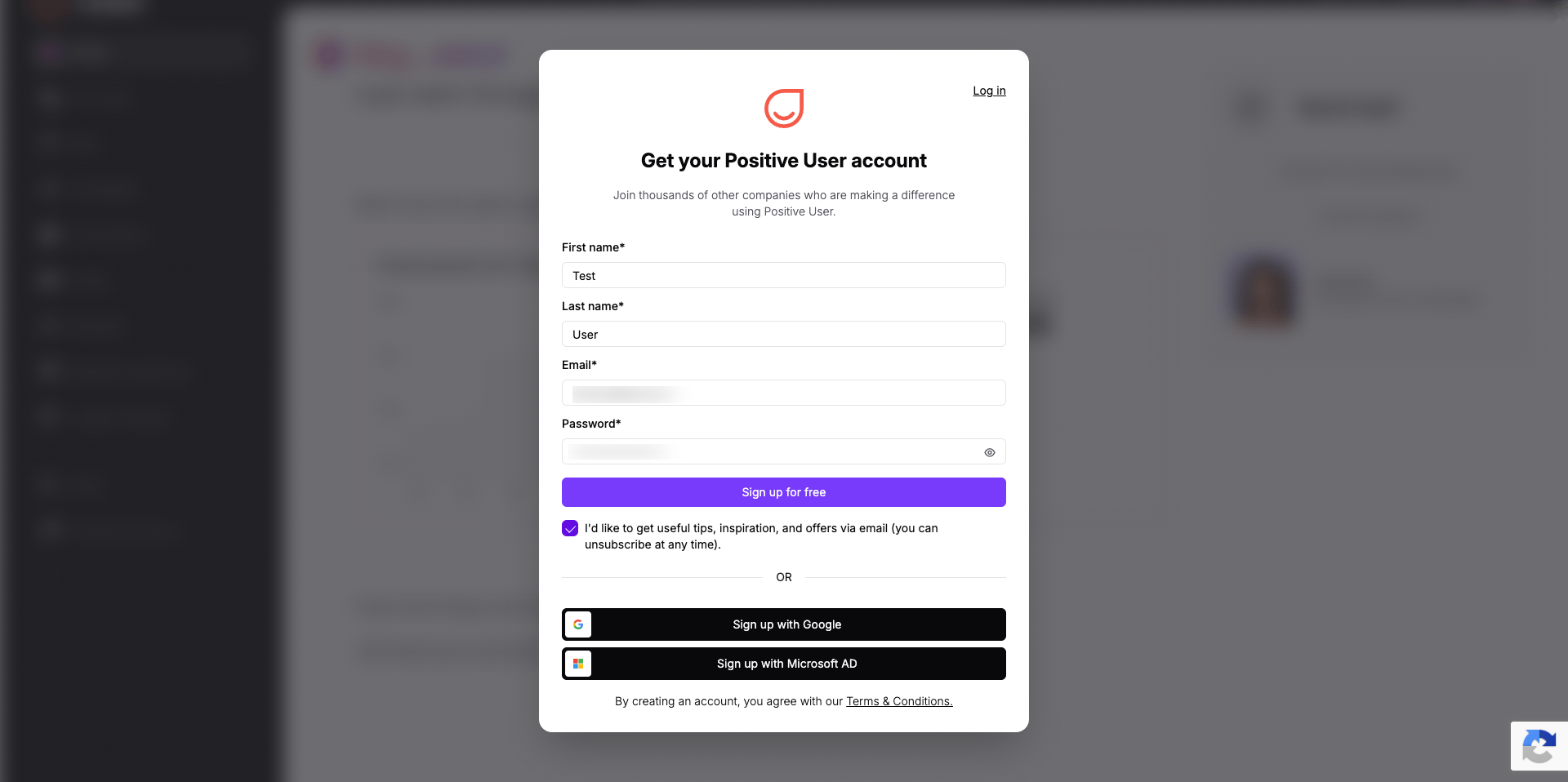
Fill out the "First name", "Last name", "Email", and "Password" fields, then click "Sign up for free". Alternatively, select "Sign up with Google" or "Sign up with Microsoft AD" to log in with an existing account. You can also select the checkbox "I'd like to get useful tips, inspiration, and offers via email (you can unsubscribe at any time)" to receive marketing updates from our team.
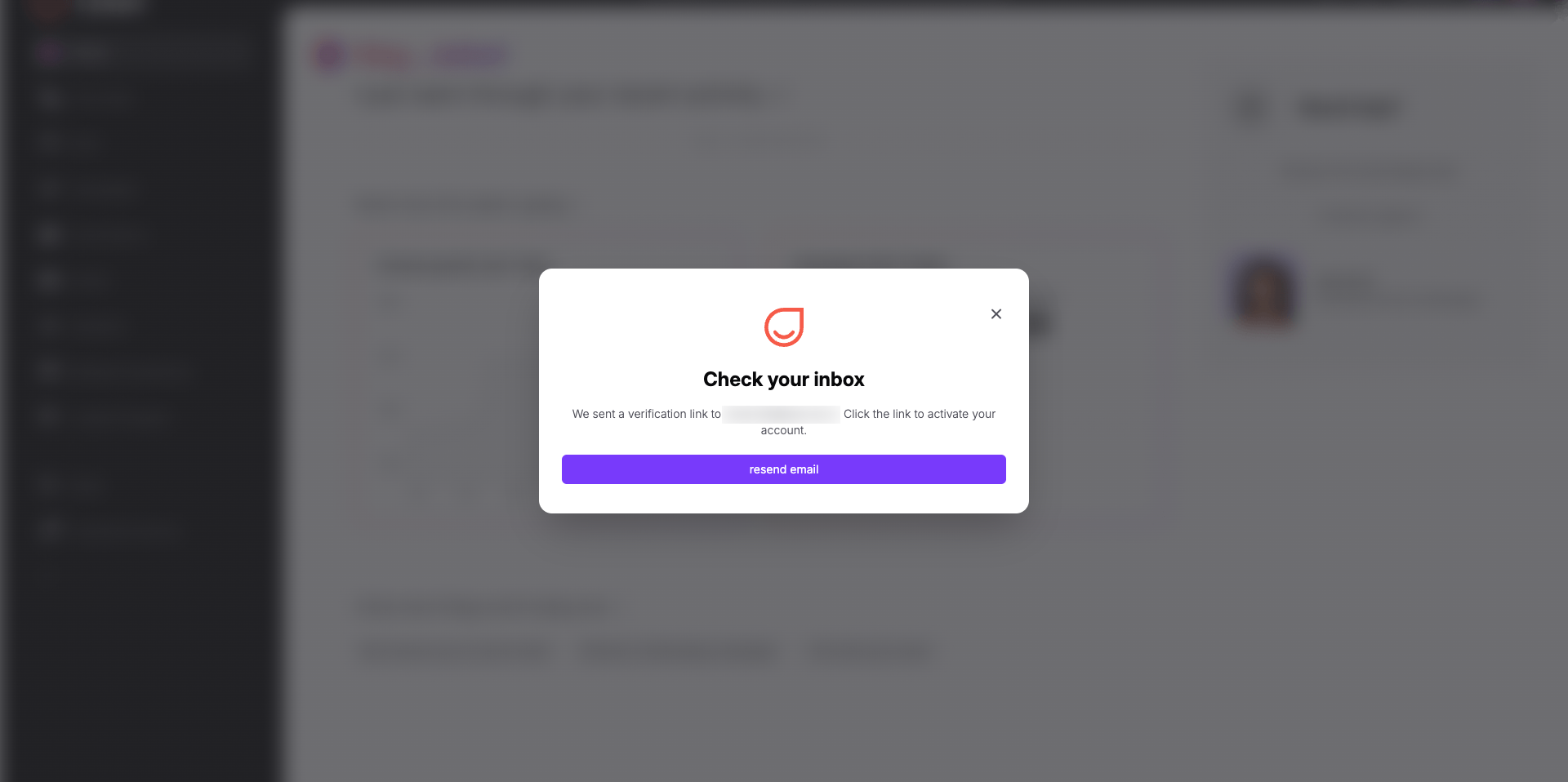
Check your email inbox for a verification message from Positive User and click the confirmation link to activate your account. Clicking the verification link will bring you back to complete your workspace setup.
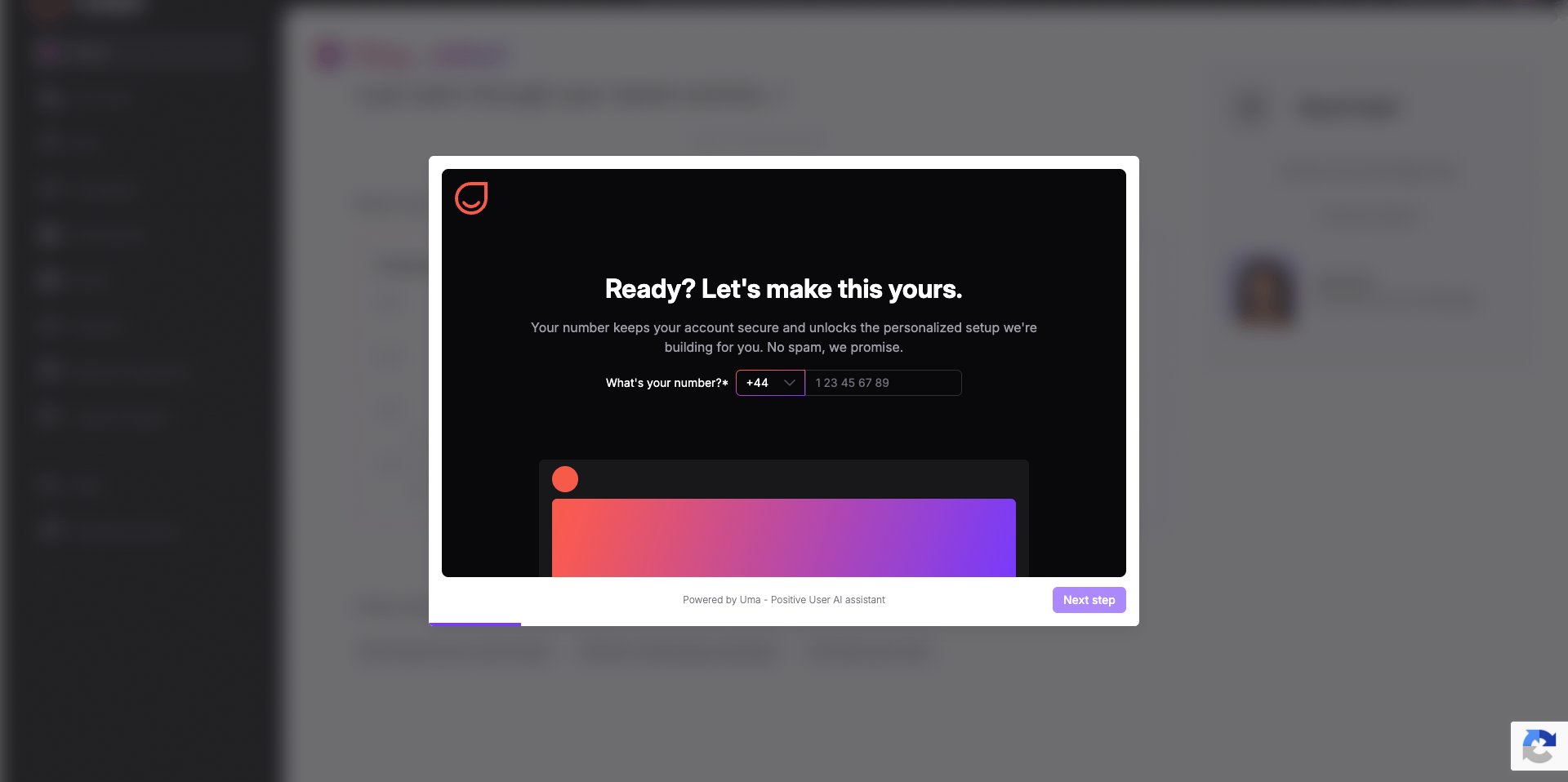
Enter your phone number into the field and click "Next step". Your phone number is required for account security, and Positive User will not send marketing messages to it.
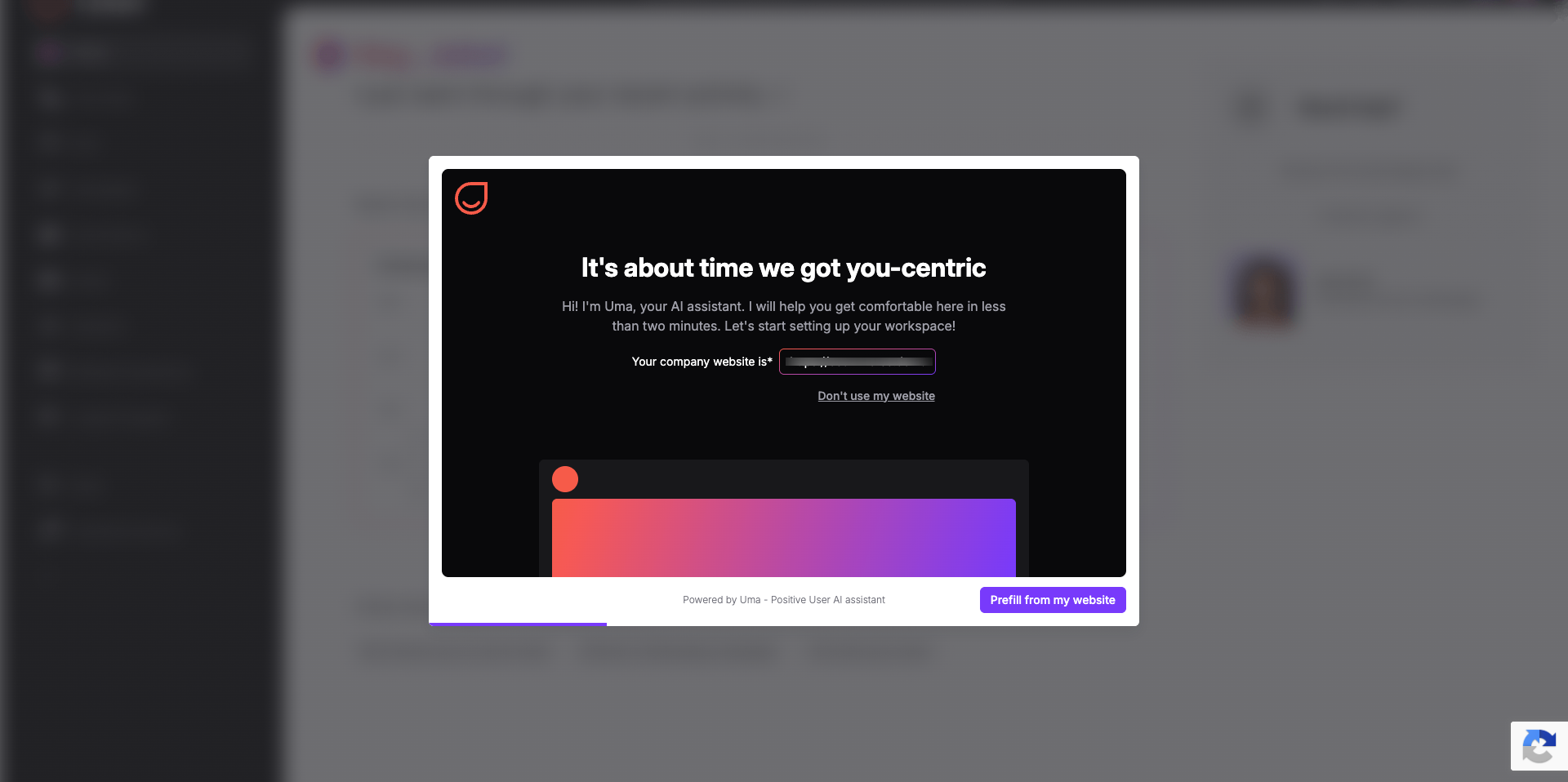
Type your website URL into the "Your company website is*" field and click "Prefill from my website". Connecting your website allows our AI assistant, Uma, to pull your visual assets into your workspace. If you do not have a website yet or want to set up your branding manually, click "Don't use my website".
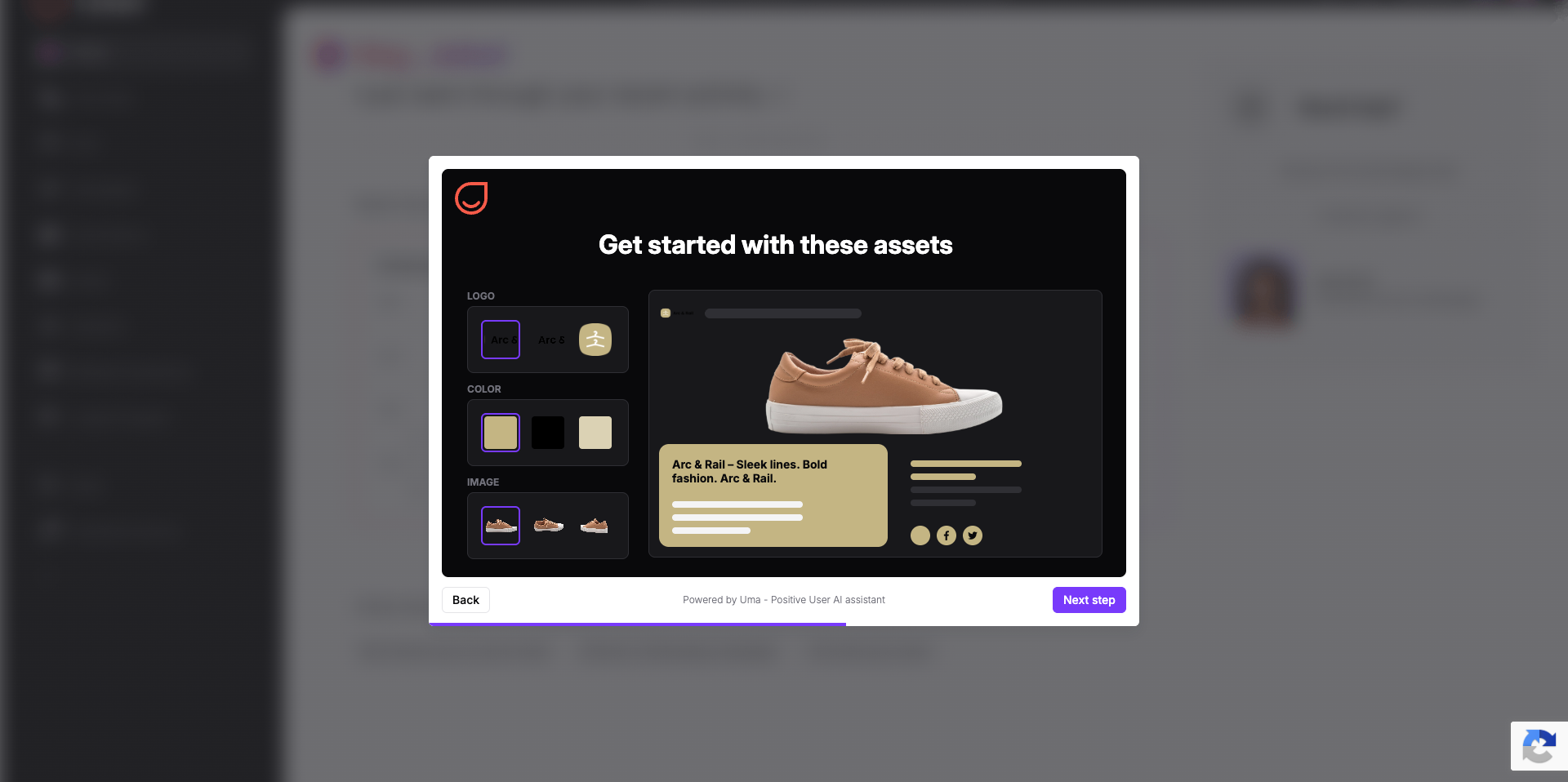
Review the logo, brand color, and images automatically collected from your website design. Click "Next step" to confirm these assets, which will automatically style your email templates inside the workspace.
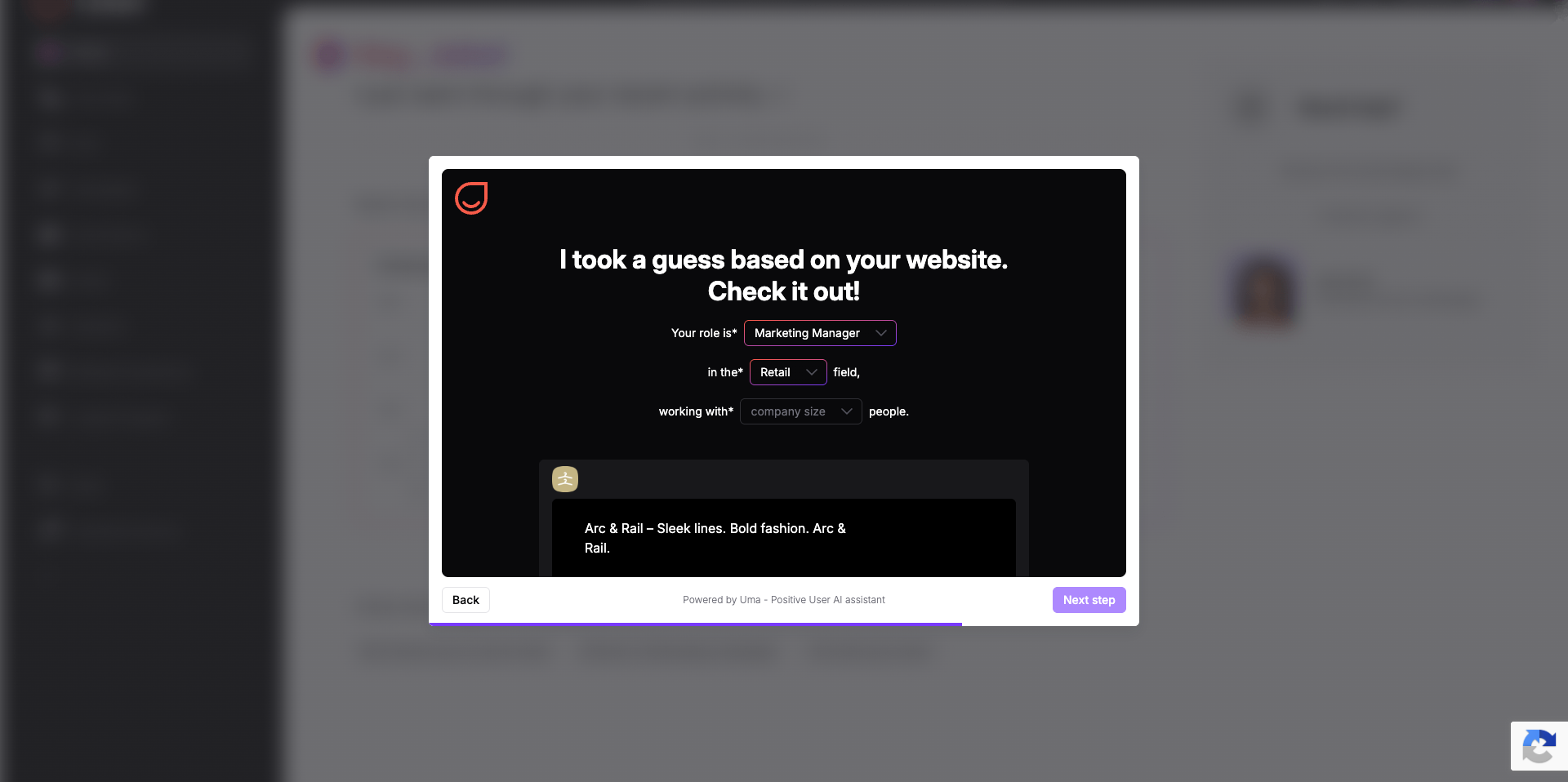
Select your role from the dropdown menu, choose your industry, and pick your team size. It will help to adjust the offer for your company. Click "Next step" to continue.
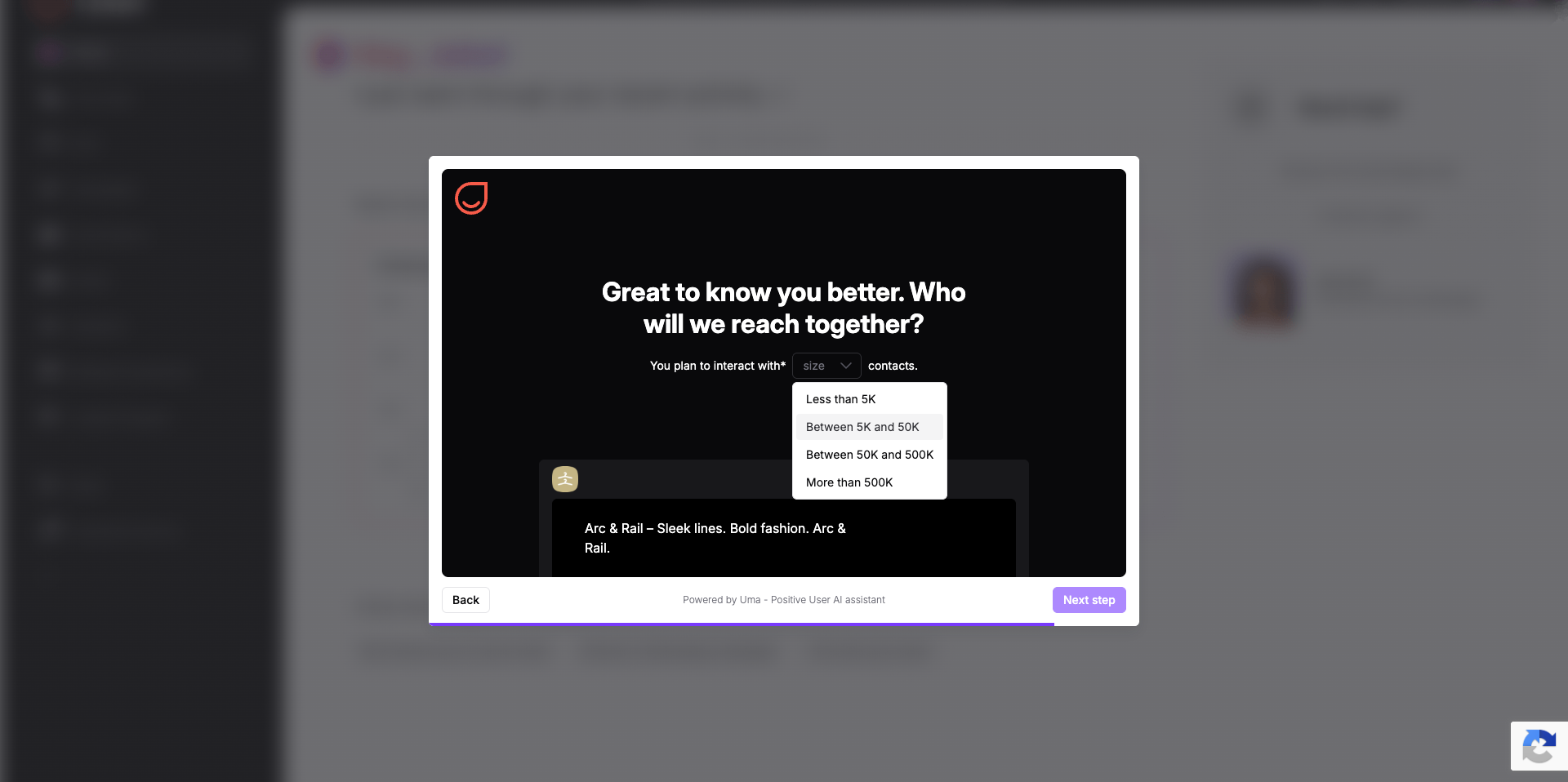
Select your estimated database size from the dropdown menu and click "Next step". Options include "Less than 5K", "Between 5K and 50K", "Between 50K and 500K", or "More than 500K". This parameter will also help to tailor an offer for you.
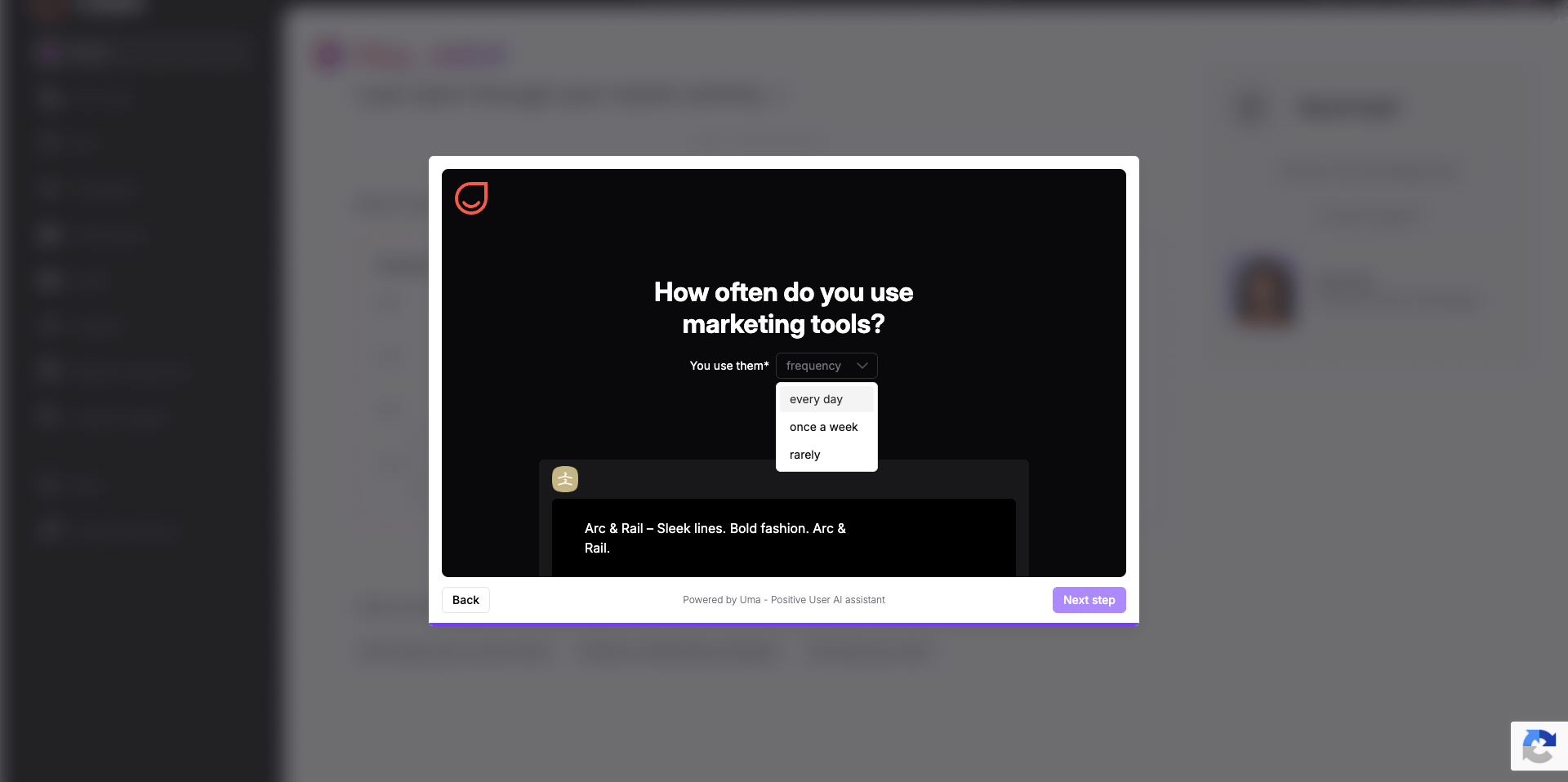
Choose how often your team uses marketing automation tools from the dropdown menu ("every day", "once a week", or "rarely"), then click "Next step".
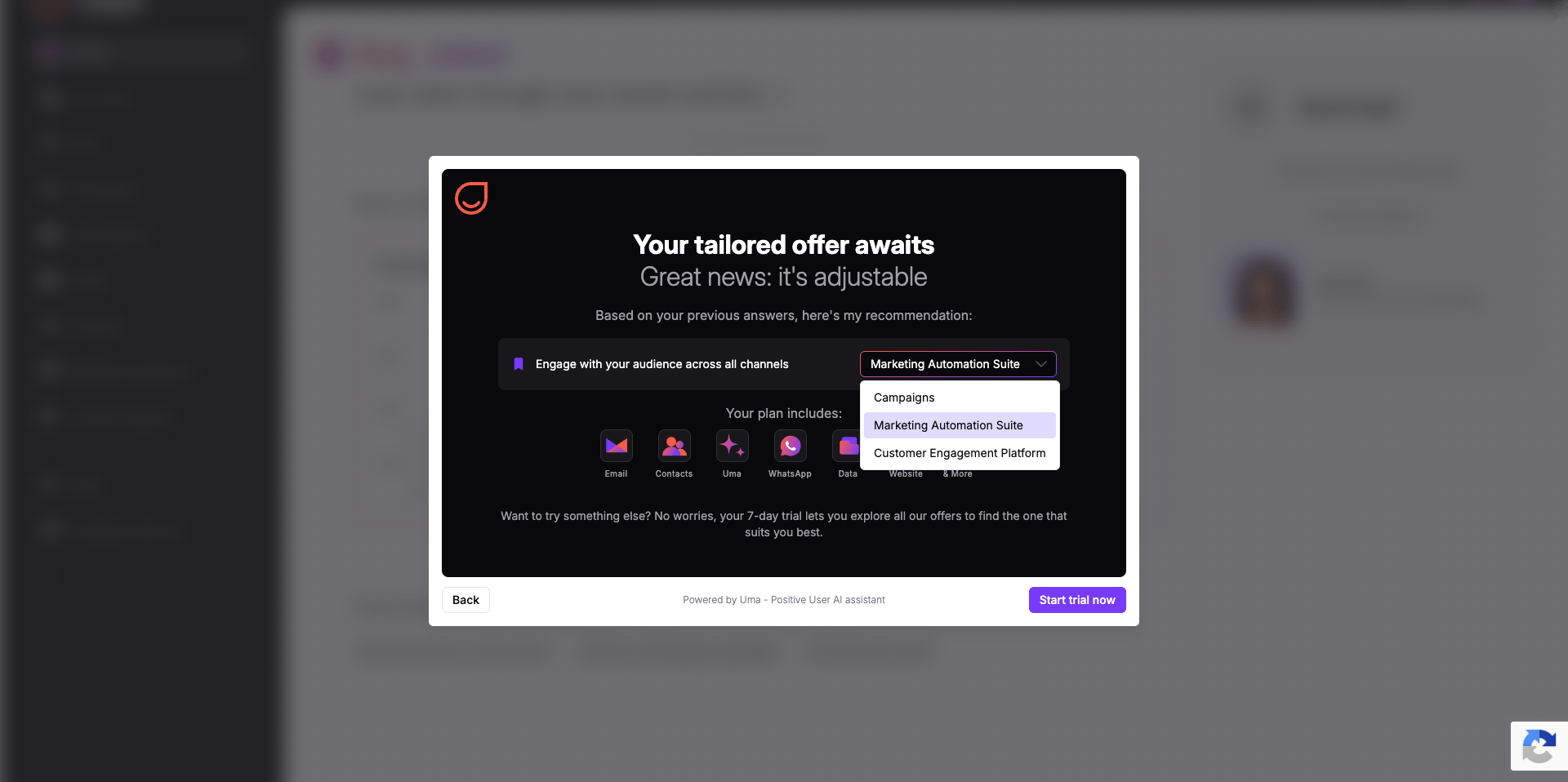
Choose one of the three available suites for your 7-day trial from the dropdown menu: "Campaigns", "Marketing Automation Suite", or "Customer Engagement Platform". Review the included features and click "Start trial now".
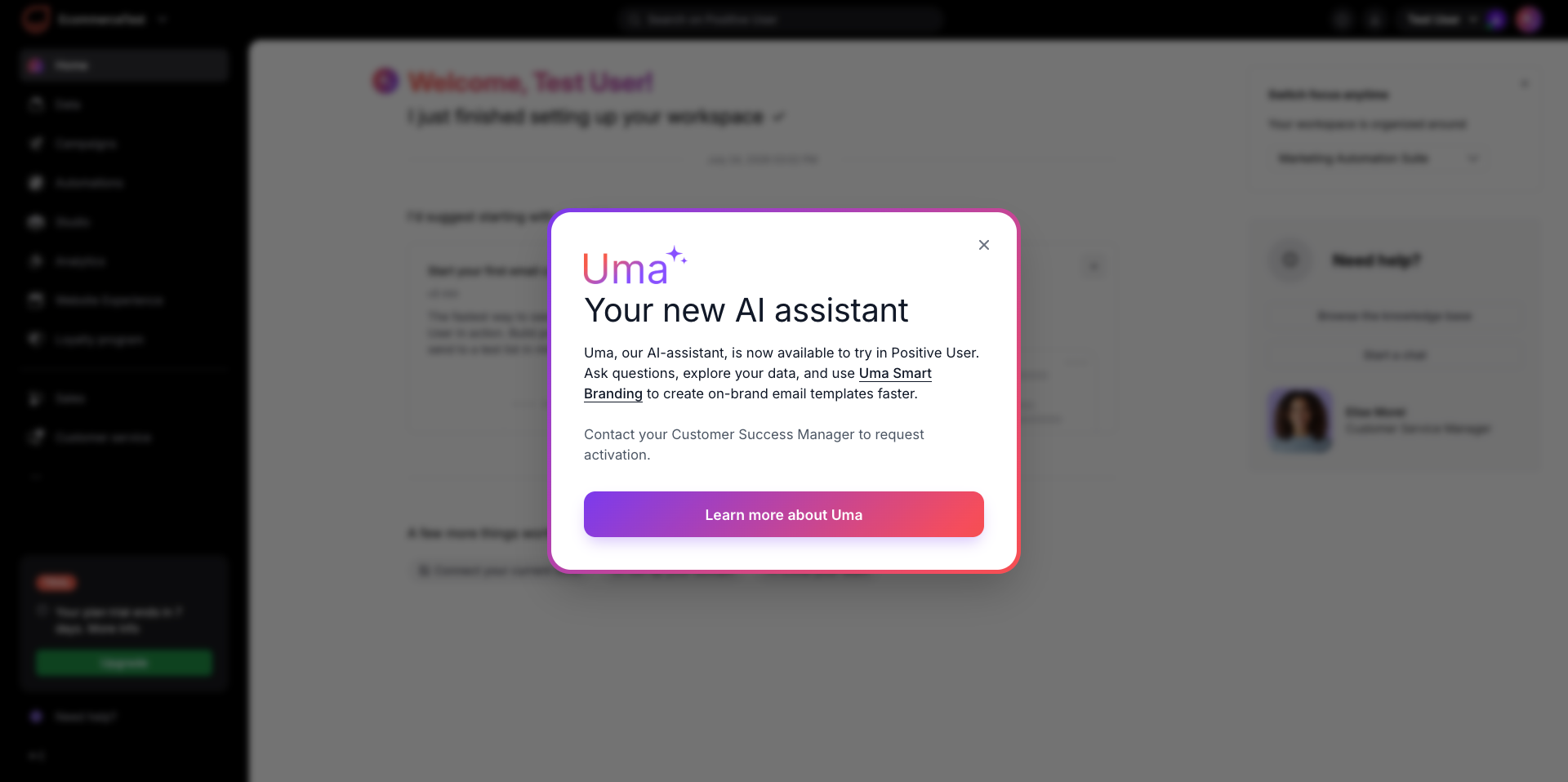
Wait 1–2 minutes while Positive User sets up your workspace. Once completed, AI assistant Uma will welcome you directly on your new workspace homepage, where you can start managing contacts and sending campaigns.