Your team can set up your brand details in one place so Positive User can design your email assets automatically. By pulling your logo, colors, and styling straight from your website, this feature helps your emails look polished and consistent without manual design work. This ensures your campaigns stay on-brand every time you send messages to your contacts.
When you create a new workspace, Positive User will prompt you for your website details to build your brand profile. If you skipped this step or want to update your profile later, you can manage it directly in your settings.
Go to "Workspace Settings" → "Smart Branding".
Type your website domain into the field, making sure to include https:// at the beginning.
Click the purple refresh icon next to the URL field. Within a few seconds, the system will pull the logo, brand colors, meta title, fonts, social media links, and company or legal data directly from your live website.
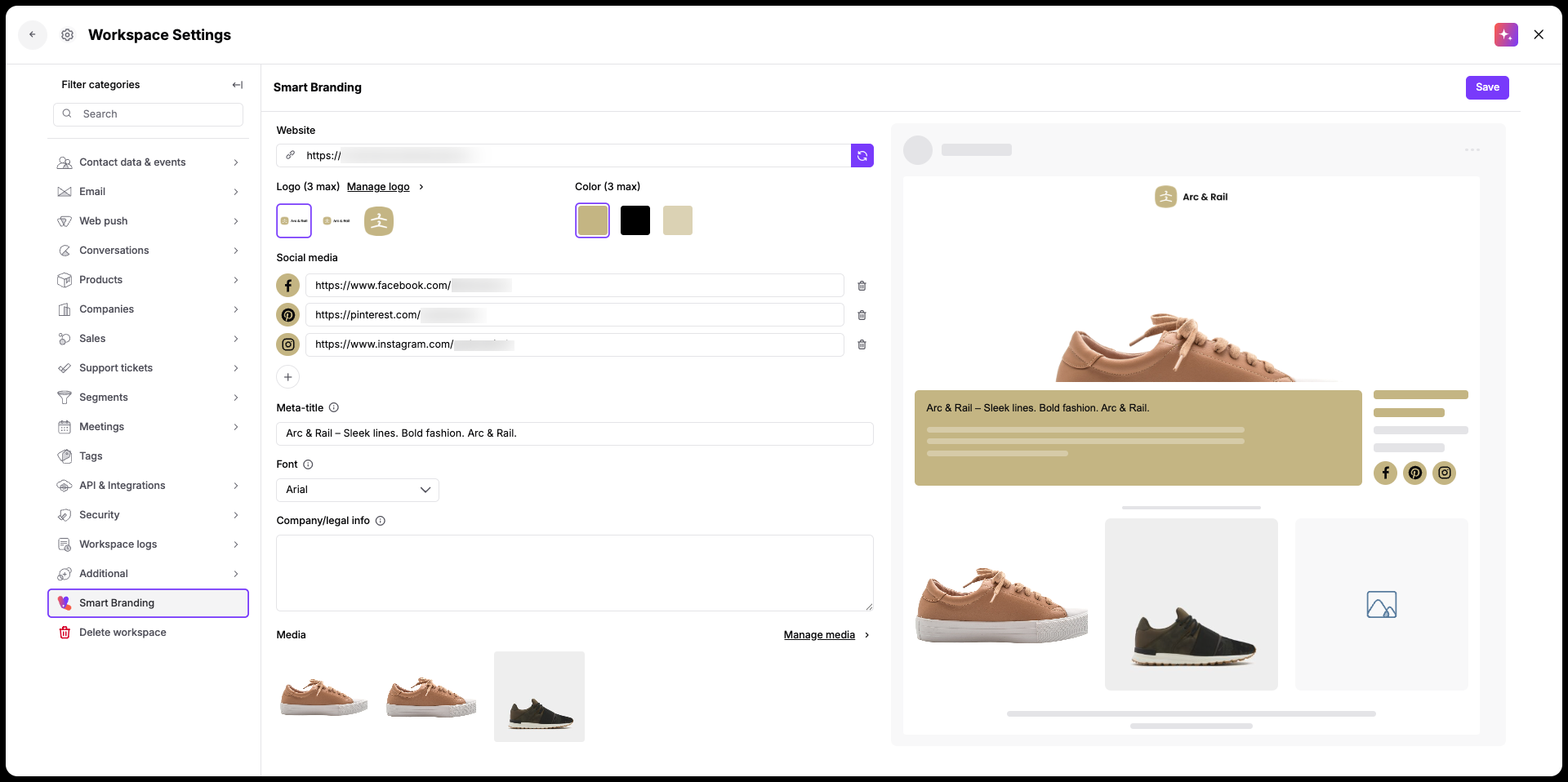
Look through the imported details. Your team can manually change the color hex codes, manage logos, select a different "Font", or edit the "Company/legal info" box to match your exact styling preferences.
Click the purple "Save" button in the top right corner of the screen. Once saved, our AI assistant, Uma, will automatically generate tailored email templates using these exact assets.
You will be able to find them in “Studio” → “Templates” → “Smart Templates”. Feel free to use these templates in your email campaigns.
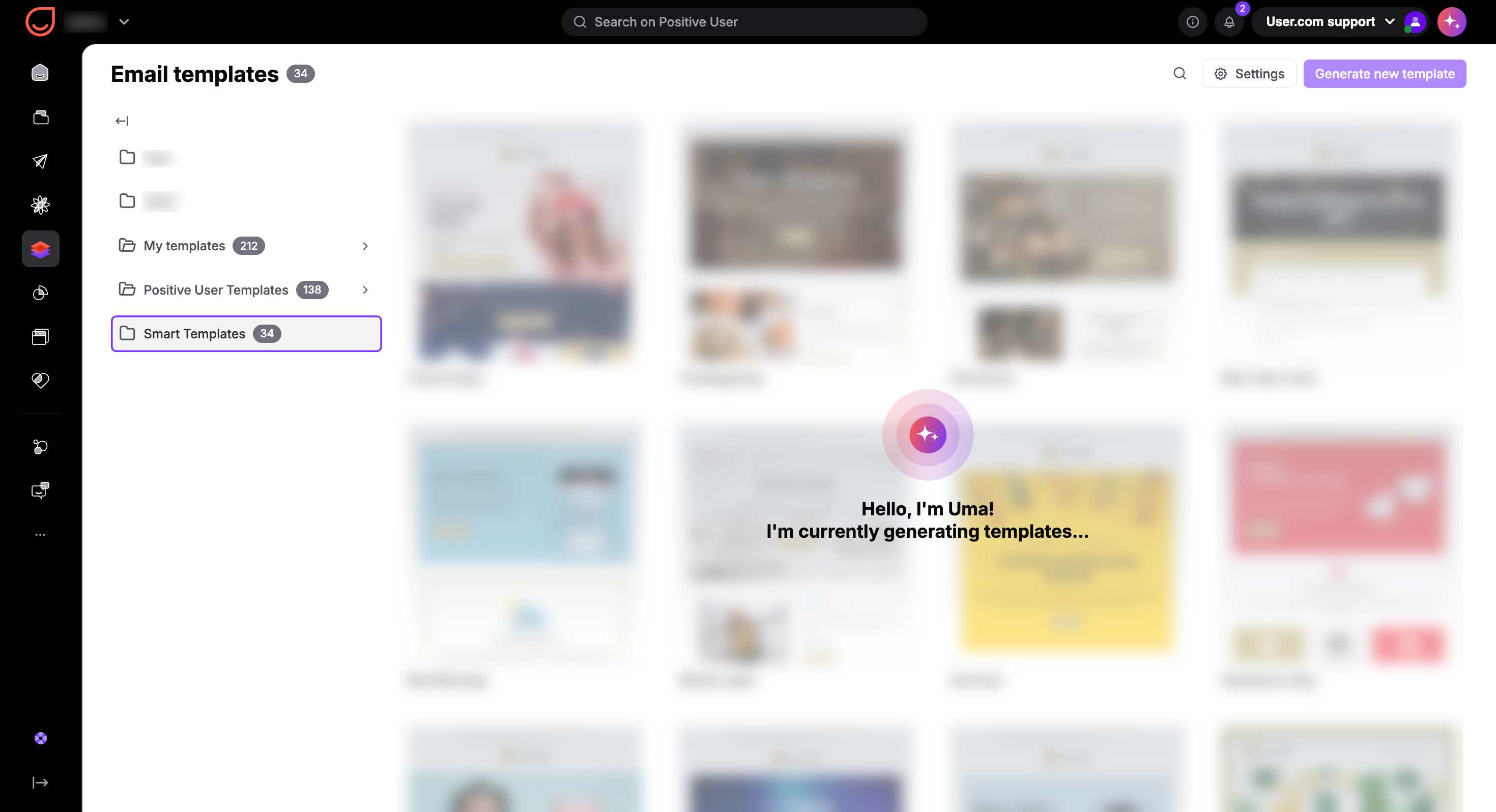
After configuring your brand style, you can find your AI-generated templates in your asset library and refresh them whenever your branding changes.
Go to "Studio" → "Email templates" and select the "Smart Templates" folder.
Click the "Generate new template" button located in the top right corner. This opens the "Smart branding" sidebar drawer on the right side of the screen.
Modify any brand colors, logos, or social media links directly inside the sidebar fields. You can review how the layout looks in the "Preview" section of the drawer.
Also, you can completely change the url. Then all the templates will be updated for new branding for a new website.
Click the "Apply modifications" button at the bottom of the drawer. The system will process your updates and automatically refresh all templates within the folder in just a few moments.
Launching a New Email Campaign Quickly: When your team builds a new email campaign, you can select any template from your dedicated "Smart Templates" folder so your layout, logo, and colors are perfectly configured from the start.
Rebranding Your Corporate Identity: If your company updates its corporate logo or primary colors, you can update your details in the "Smart branding" settings to instantly push those design changes across all your templates simultaneously.
