Managing your daily work in Positive User, like looking over your latest campaign results or checking in on your contacts, requires your full attention. Turning on "snooze" mutes your desktop and mobile notifications, giving you the quiet you need to focus or enjoy your time off.
What "Snooze" Does
When you turn on "Snooze", Positive User stops sending you immediate alerts for new conversations and other tasks. Think of it as a "Do Not Disturb" sign for your workspace.
Silences All Alerts: It stops pop-up notifications and sounds on both your computer and the mobile app.
Keeps You Logged In: You can still navigate your "Contacts", "Sales", and "Website Experience" tools without being signed out.
Step-by-Step
Follow these steps to silence your notifications whenever you need a distraction-free environment.
1. Open Your Profile Menu
In the top right corner of your workspace, click on your team member avatar to see your account options.
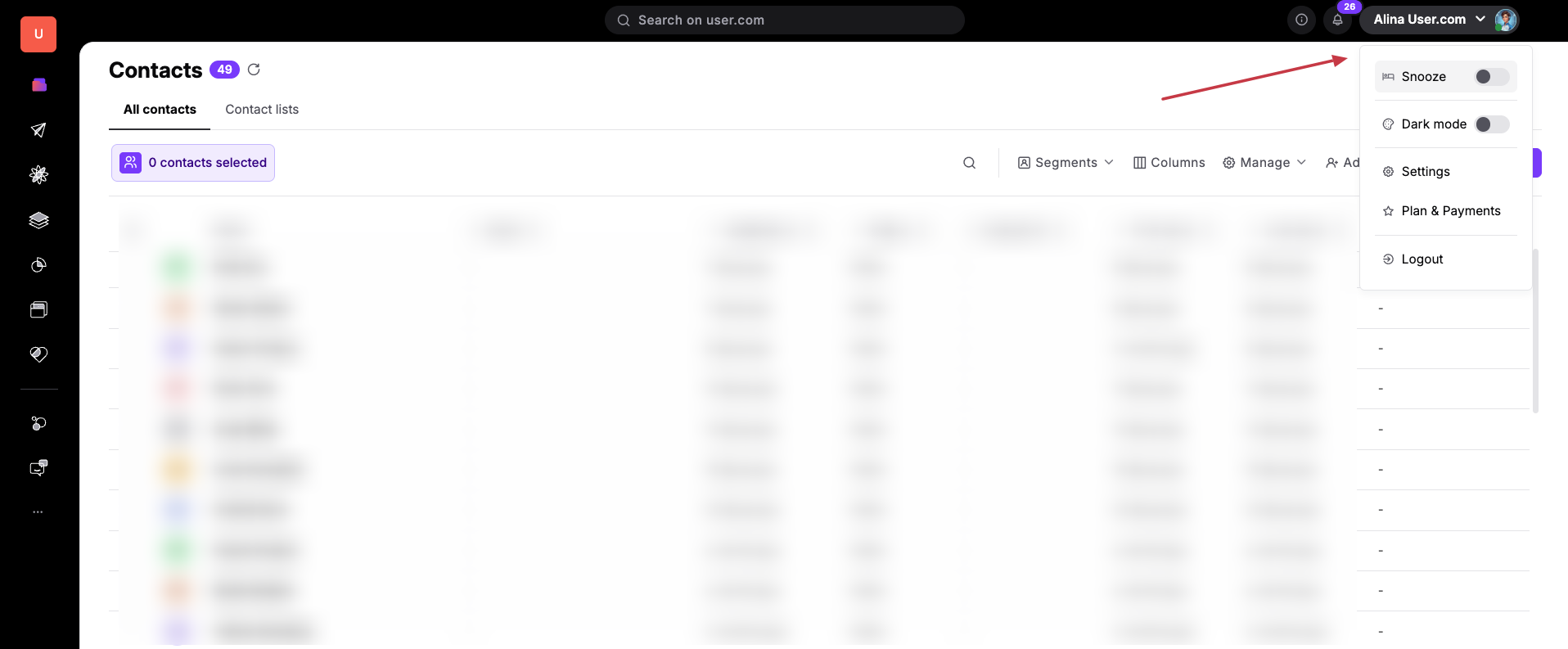
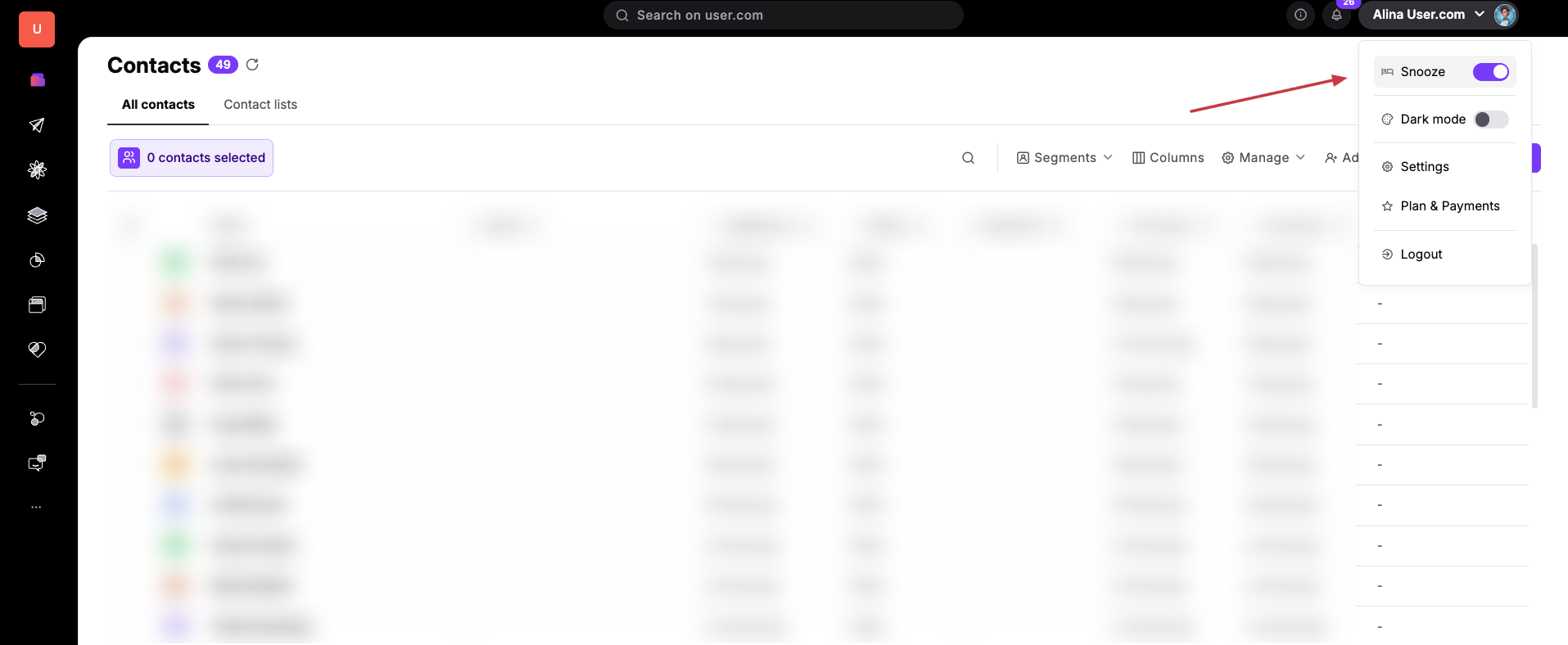
2. Turn on Snooze
At the top of the menu, you will see the “Snooze" option. Simply click the toggle switch to turn it on and silence your notifications.
Use Cases
Focusing on Tasks: Use this when you need to finish a report or build a campaign without being interrupted by every new chat.
Managing Your Break: Turn this on when you are stepping away for lunch or finishing your shift so you don't receive work alerts on your phone.
Important Note
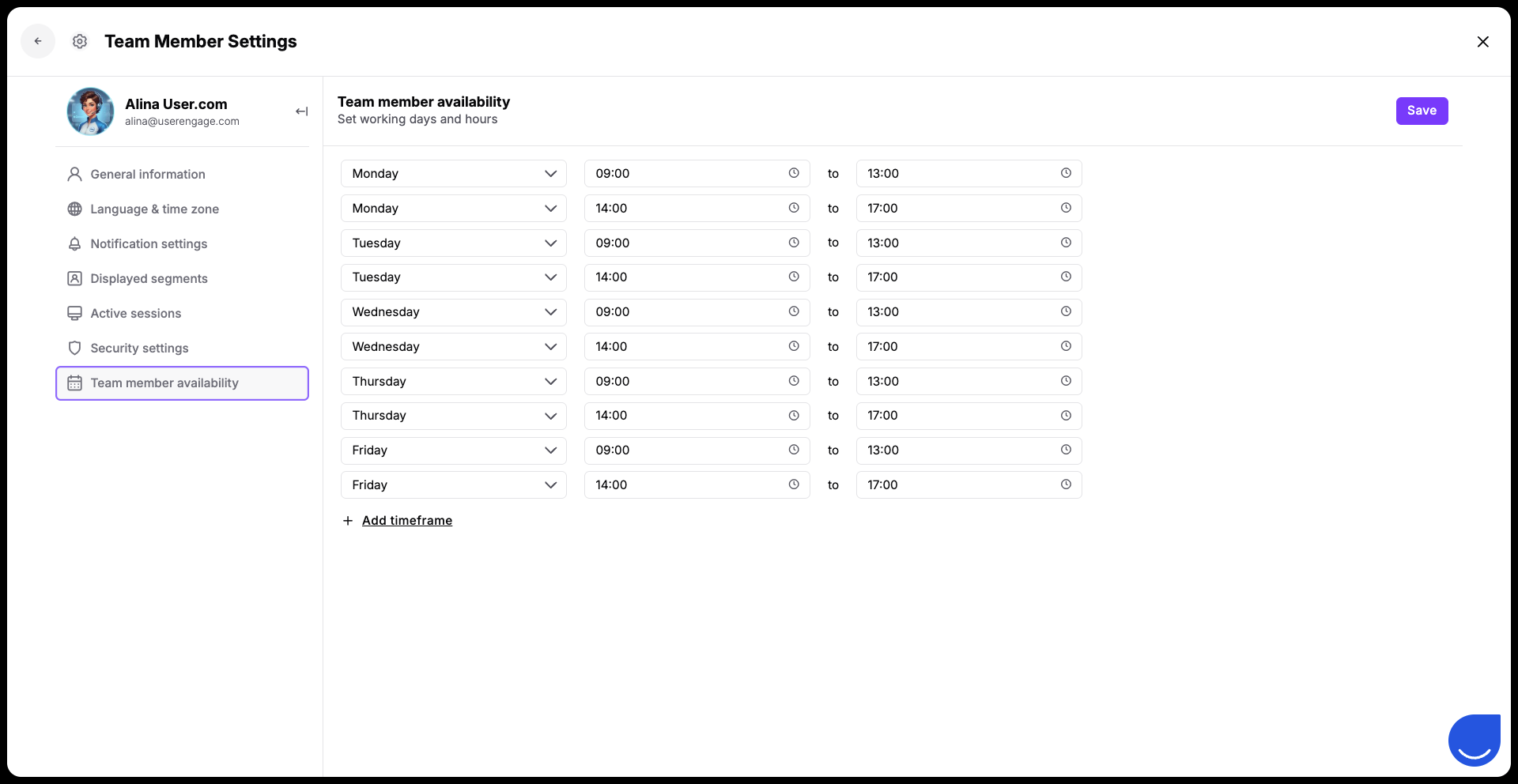
You can automate your quiet time by setting a fixed schedule for yourself. Inside "Team Member Settings", you can navigate to "Team Member Availability" to set your specific working days and hours.
This schedule works like a repetitive "Snooze" feature. Once you set your hours and click "Save", the system will automatically mute your notifications during your off-hours, ensuring you aren't disturbed outside of your shift.