Uma is an AI assistant built directly into Positive User. Instead of navigating through multiple menus to find data or platform information, your team can type questions in natural language and receive immediate, contextual answers.
The assistant lives inside a dedicated panel within the platform, letting you maintain organized conversation threads without disrupting your active workflows.
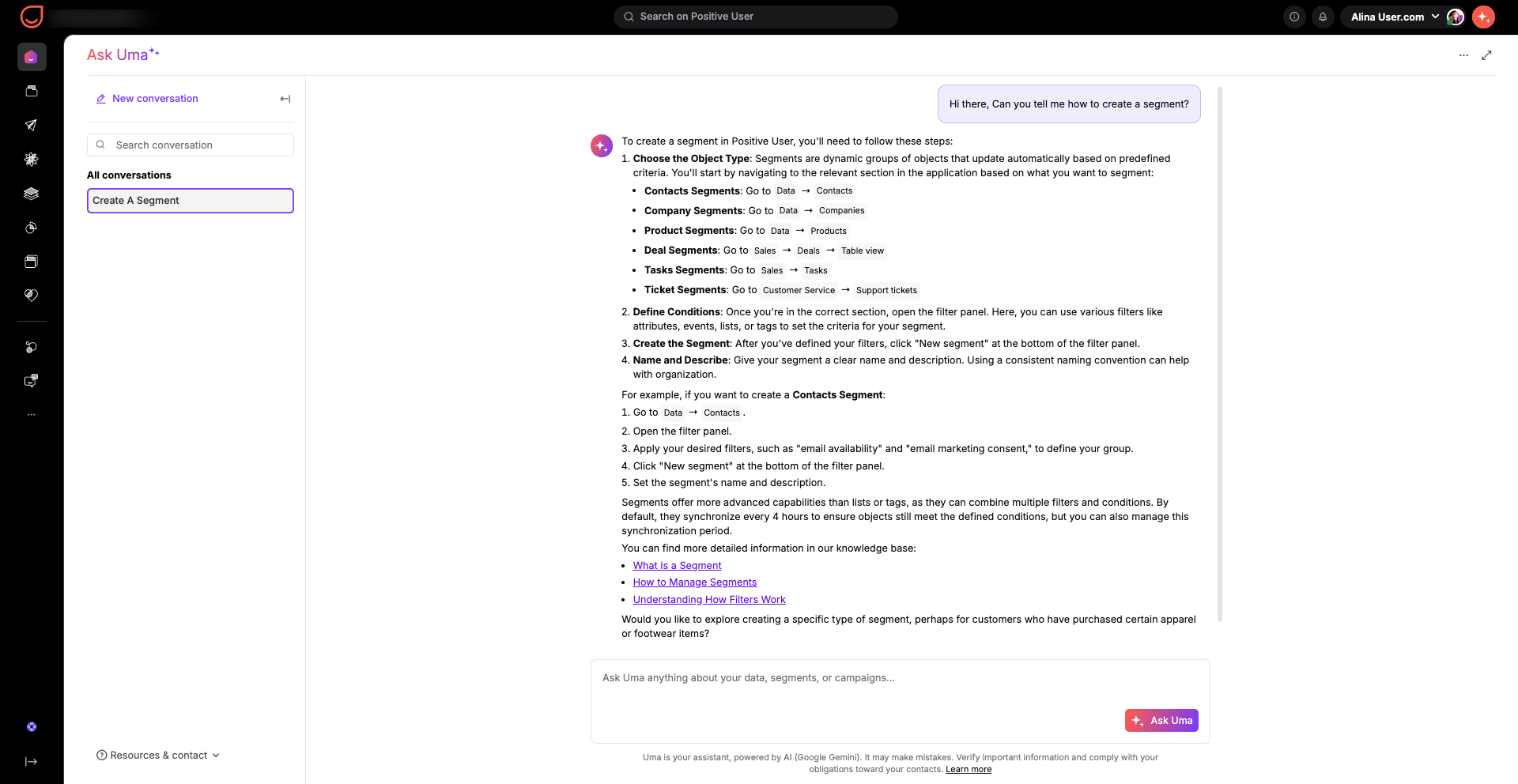
Uma acts as your on-demand platform expert and data analyst, saving your team from digging through menus or building manual reports. You can ask her for immediate technical guidance, like how to create custom attributes for your events or the best way to integrate your e-commerce store to track abandoned carts. Beyond setup support, Uma can instantly dive into your workspace data to answer complex business questions. You can ask her to break down last quarter's revenue by product category, check how many new leads entered your "Sales" pipeline, or compare the average order value of different customer groups. She can also help you optimize your marketing by identifying your most engaged contacts based on their recent website interactions, pinpointing the geographical location of contacts using your chat feature, and showing you how to target contacts who view products multiple times without making a purchase.
Find data instantly: Ask questions about your contacts in plain language (like checking how many people from a specific country made a purchase recently) without building complex filters manually.
Get quick platform support: Find step-by-step guidance on how to use features, send web push notifications, or connect integrations, because Uma is fully trained on the Positive User documentation.
Keep conversations completely private: Every discussion you have with Uma is isolated and secure. Workspace administrators cannot see your private conversation history.
Work without interruption: Open and close the assistant from anywhere in the application without losing the text you are typing or changing your current page view.
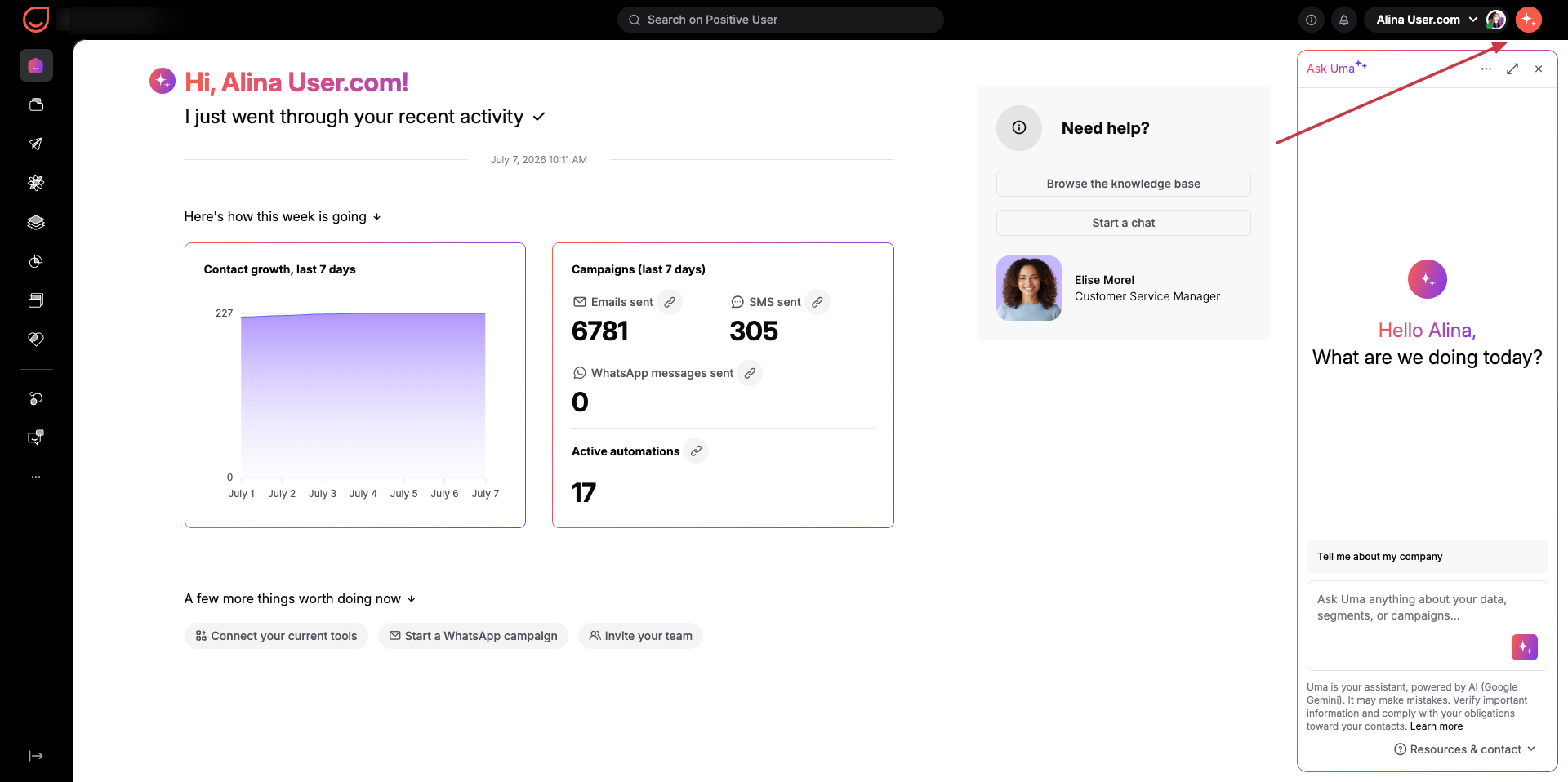
You can open Uma from any screen in the application by clicking the "Ask Uma" entry point in top right corner. The assistant opens in a side panel on desktop screens or a bottom panel on smaller screens, automatically adjusting to your view so you can keep working. You can also open it in a full screen view.
If the icon is not available in your workspace - contact our Customer Support team to activate it.
When you start a discussion, Uma automatically generates a short title based on your first message to keep your sidebar organized. You can open and manage multiple independent conversations at the same time, and each thread remembers its own history and context. If you switch between chats, your unfinished text is preserved automatically.
Access to Uma is controlled at the workspace level. Administrators must explicitly request activation through customer support or customer success to turn the feature on. If your company requires it for contractual or legal reasons, all AI references can be completely hidden from the workspace.
Once turned on, administrators can limit access to specific roles by going to "Team Management" → "Access Levels".
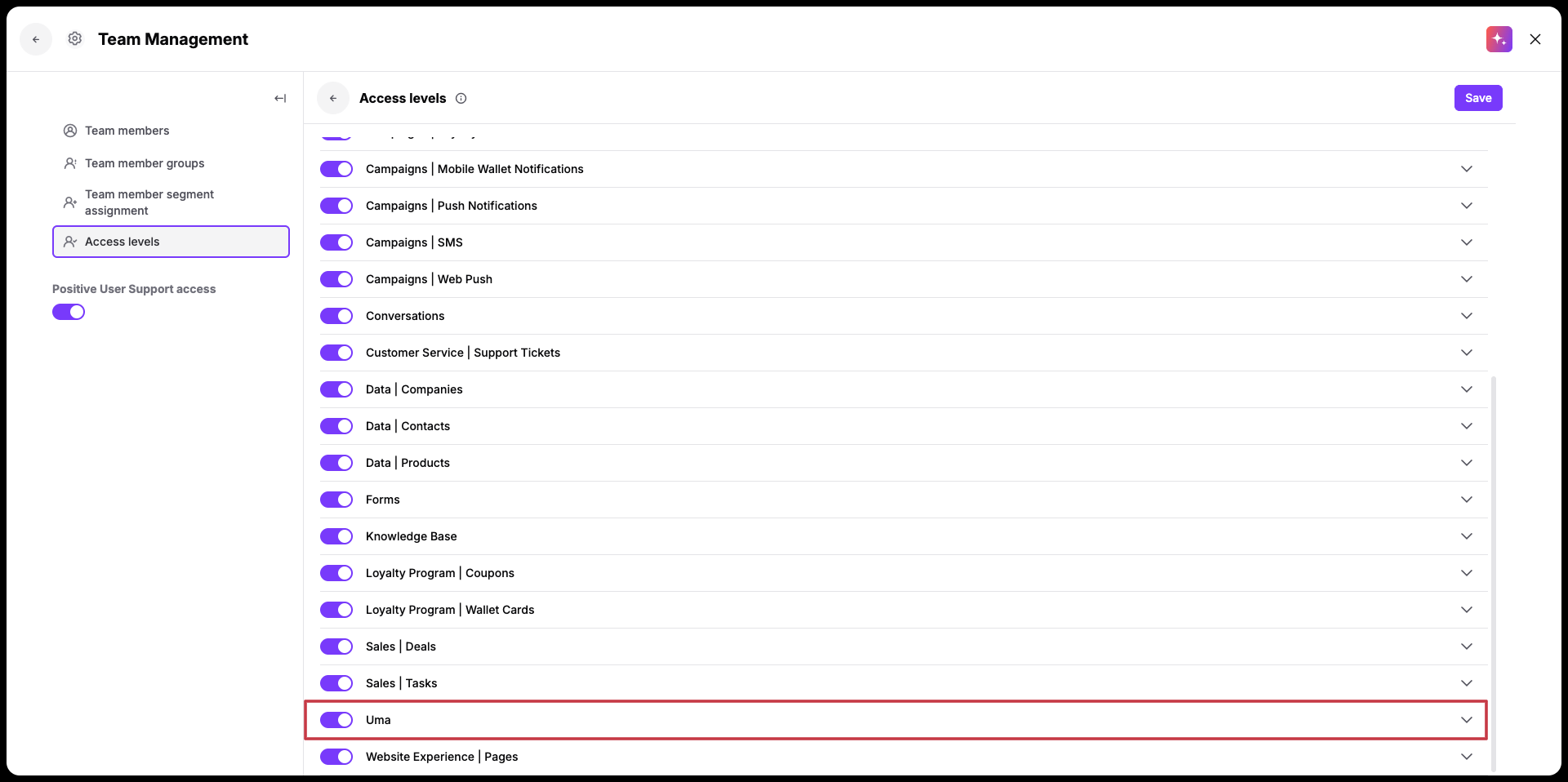
Team members who do not have permission will still see the interface icon but will be informed that their access is restricted. They can click a button to notify administrators and request access.
If an error occurs during a conversation, Uma displays a clean message allowing you to retry your request immediately.

Filters: You can use Uma to filter and pull data from your database using plain language instead of manually clicking through menus. For example, you can ask how many of your contacts come from a specific country and made a purchase on your website within the past few days, giving you instant insights without needing to build a complex filter view.
Knowledge Base and Support: Uma is trained on the Positive User help documentation to answer basic platform questions directly in the chat, which helps you to save time. You can ask questions about how to create an event with custom attributes, how to integrate an e-commerce platform to track abandoned carts, or how to identify your most engaged contacts. The assistant provides the necessary setup steps along with clickable hyperlinks that take you straight to the relevant guides.
Campaigns: When planning target audiences, you can ask Uma specific questions to clarify your campaign approach, such as how to send targeted web push notifications to customers who have viewed a specific product.
