Adding a new user to the User.com workspace is a straightforward process that enables you to expand your team within the platform. It allows new users to manage communications, interact with contacts, and contribute to your workflows.
User.com is an application that lets different teams collaborate in one shared workspace, using the same database. Usually, these departments are:
marketing
sales
support
Once you create a workspace in the User.com environment, you need to give access to it to other team members. To do so, you must send a user invitation to every email address that should have access.
To invite a new team member to the workspace, you need to have access to the Settings section of the account. If you don’t have enough access level, please contact your admin.
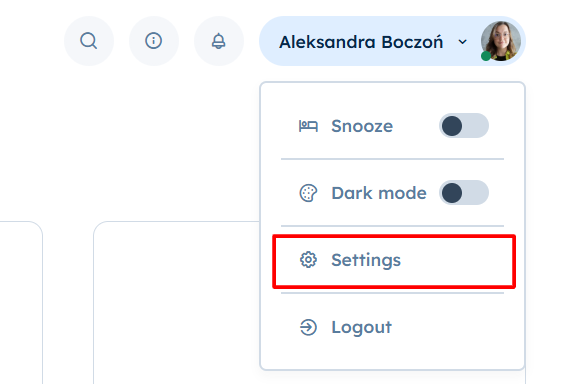
Go to Settings → Team Management
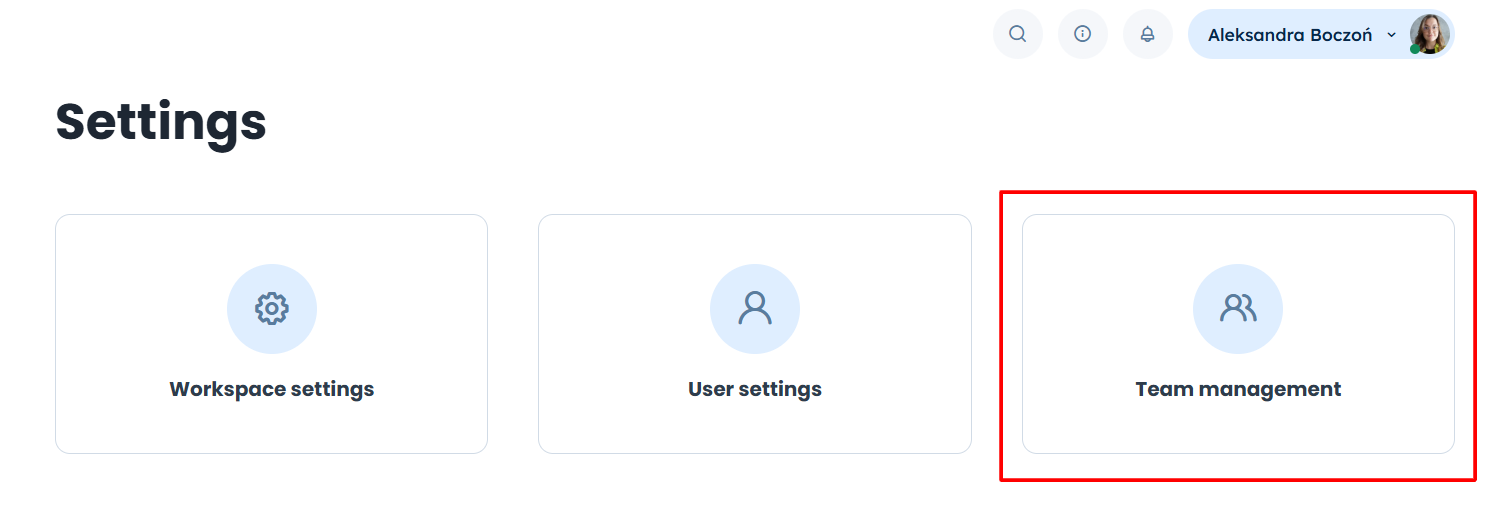
Click the "Invite user" button in the top-right corner of the page.

Once you click the button, you’ll see a form with invitation details.
The obligatory fields are:
First name
Last name
Permission group (more about permissions here) [LINK]
Depending on your organizational needs, you can assign specific permissions to the new user. User.com allows you to customize access levels, ensuring users can only reach the parts of the system necessary for their work.
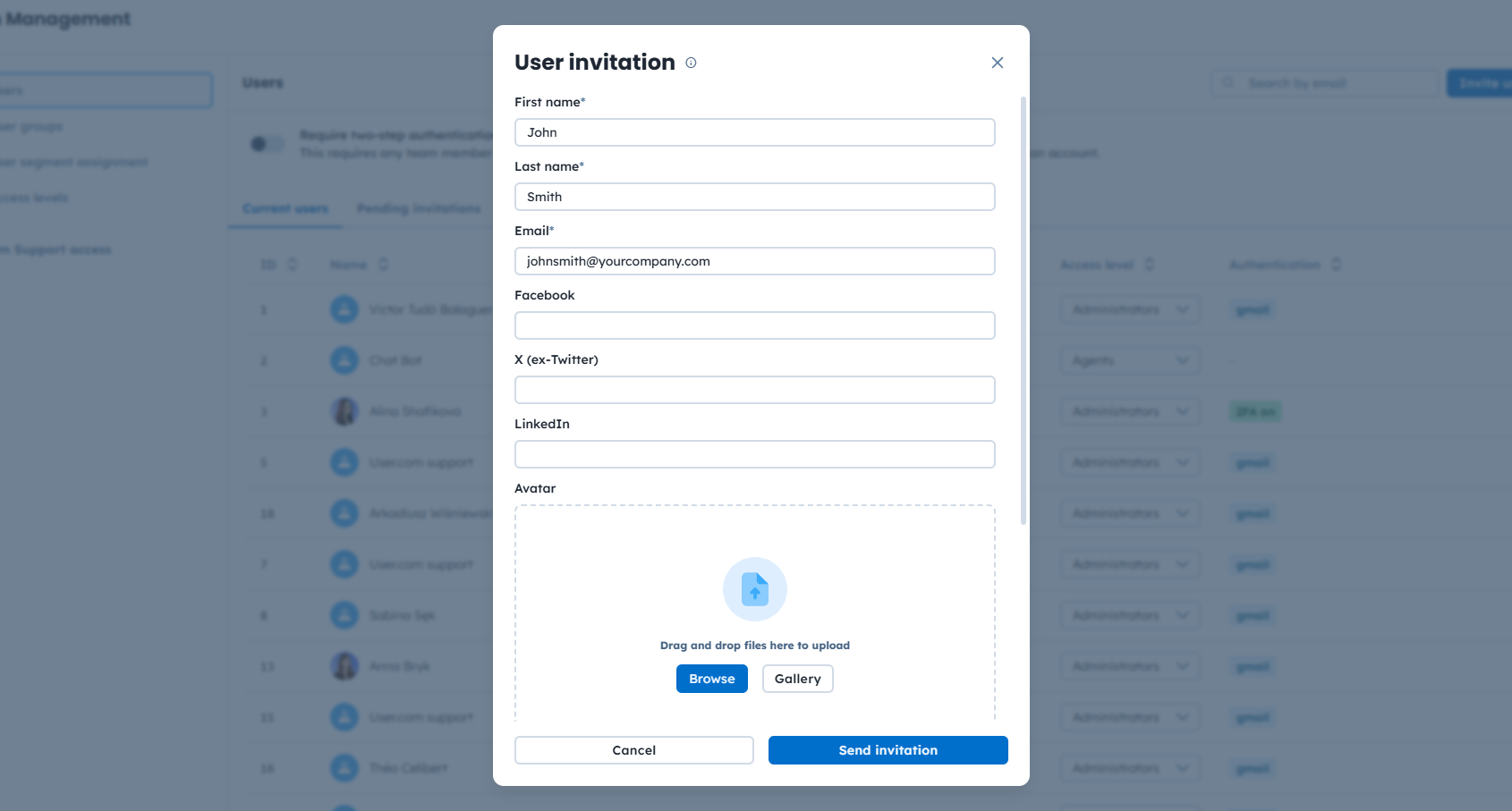
Within a few seconds, your team member will receive an email with the invitation. Once the invitation is sent, it’s time for your team member to act.
This is how the invitation email looks like:
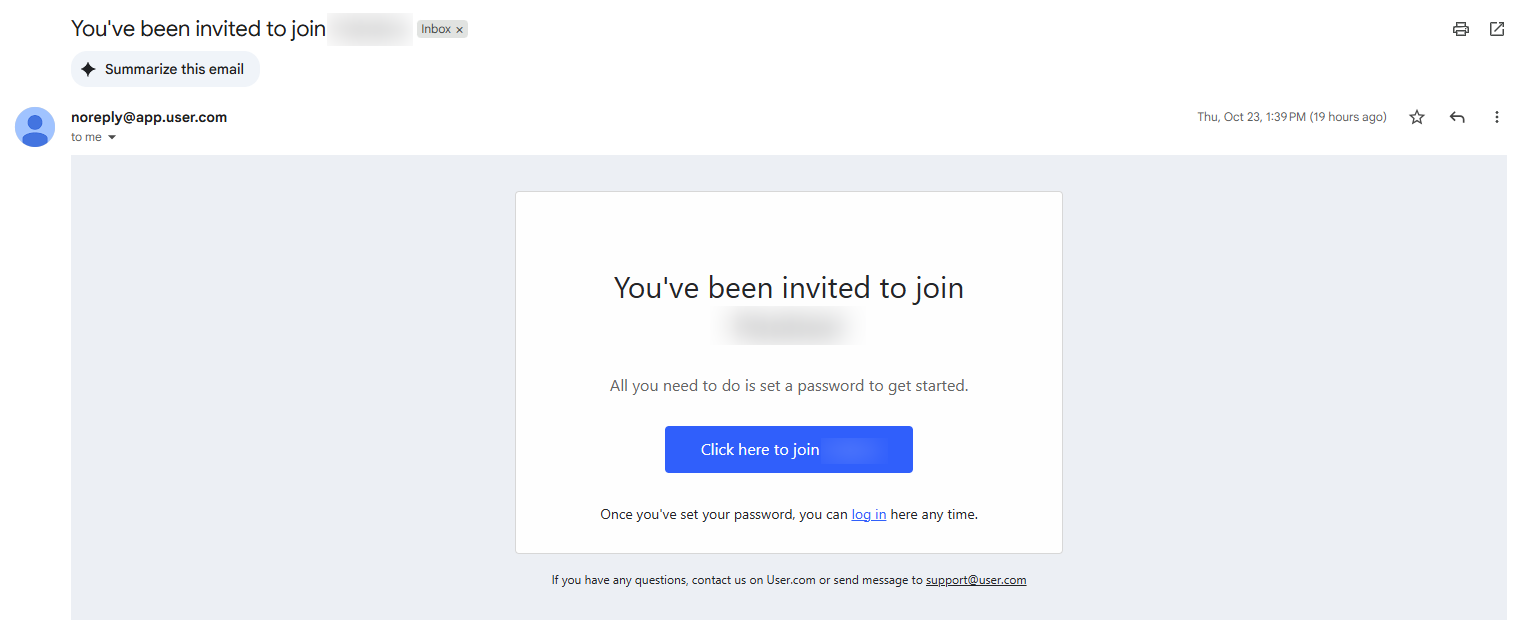
The new user should click this blue button and set the password for the User.com account or choose the "Sign up with Google" option.

Once the user logs in to the workspace, it’s highly recommended to configure their User Profile. More information about that part of the app here. [LINK]