Adding WhatsApp broadcast campaigns to your multi-channel marketing helps your team reach contacts and leads directly on a channel they check every day. Managing opt-in consent and automatic opt-out requests ensures your team stays compliant and messages only interested contacts.
To understand how broadcast messaging fits into your marketing strategy, read “WhatsApp Campaigns Benefits”.
Collect marketing consent directly through a sign-up form and verify contact subscription status with a simple automation.
1. Create a Custom Consent Attribute.
Create a dedicated boolean attribute to record whether a contact agrees to receive WhatsApp campaigns. Go to "Workspace Settings" → "Contact data & events" → "Contact attributes" and click "Add attribute". In the creation window, enter "WhatsApp marketing consent" in the attribute name field, select "boolean" from the type dropdown, and click "Save".
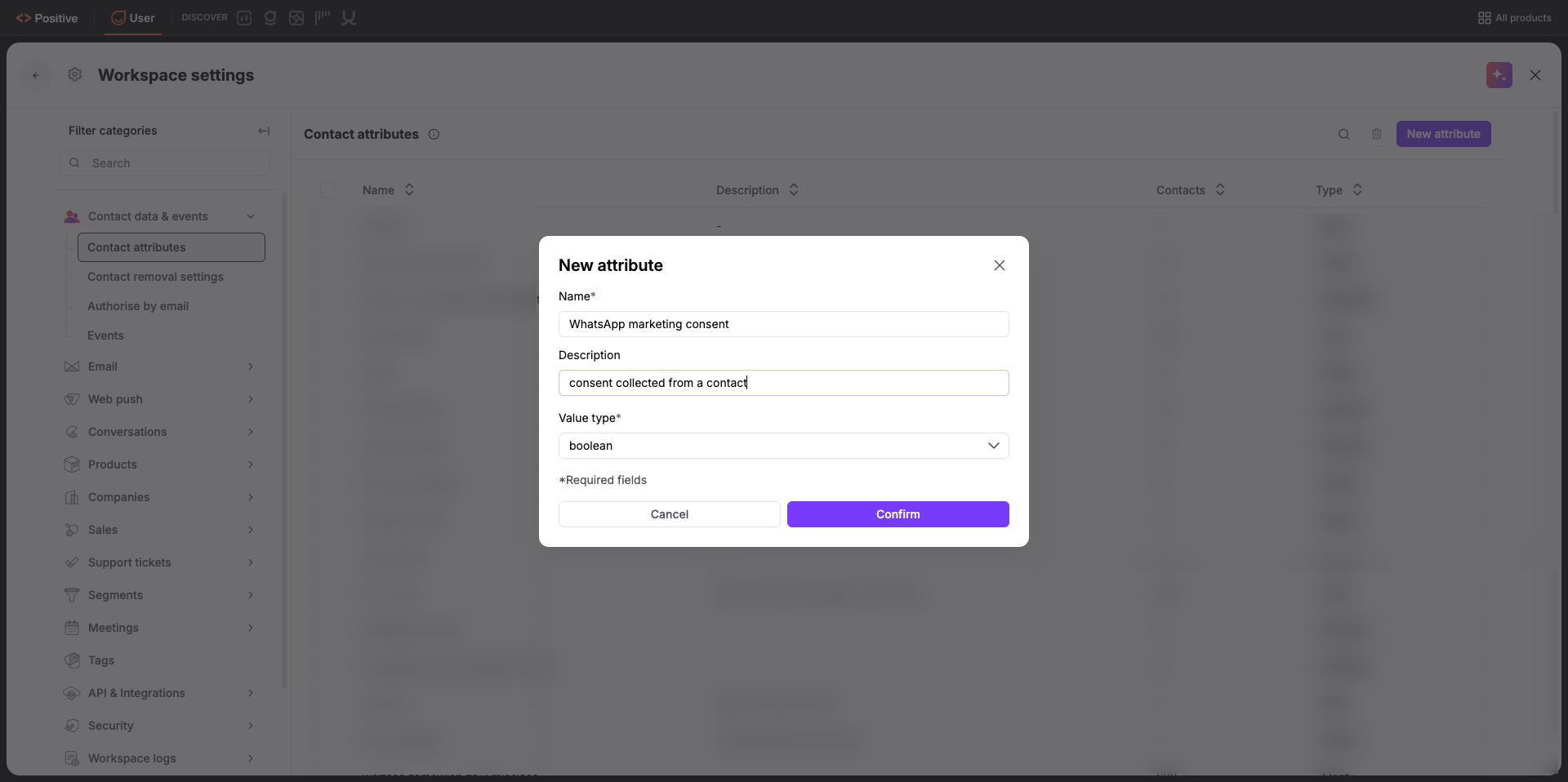
2. Add an Opt-In Field to a Form, Landing Page or Pop-up.
Add an opt-in checkbox to your website forms so contacts can grant permission when submitting their phone number. Go to "Website Experience" → "Landing pages" and click "New landing page", or go to "Website Experience" → "Forms" and click "New form" / “Pop-ups” → “New pop-up”. In the form builder, add a phone number field and an opt-in checkbox field mapped to your custom boolean attribute "WhatsApp marketing consent".
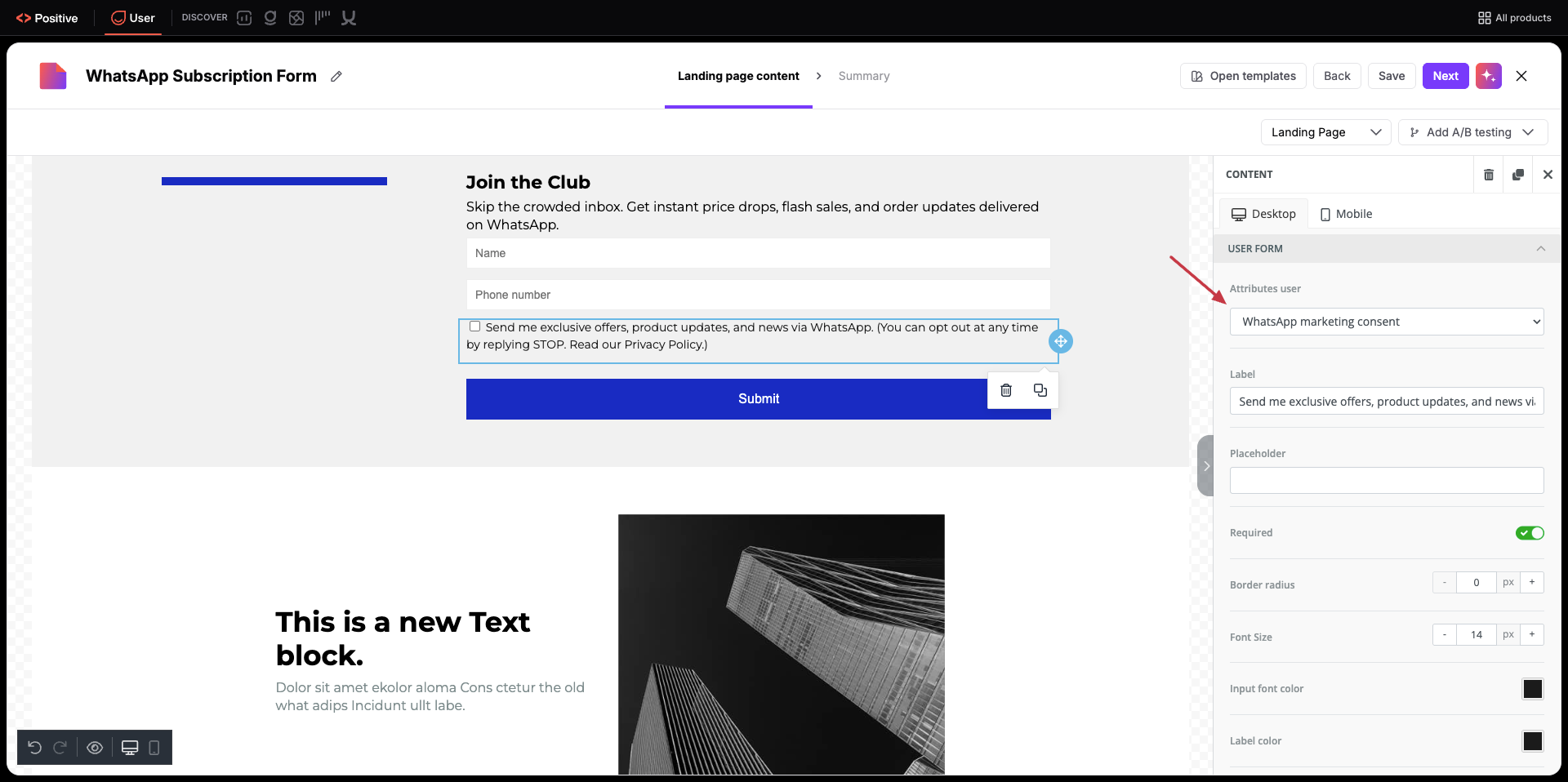
3. Build an Automation to Verify Opt-In Status.
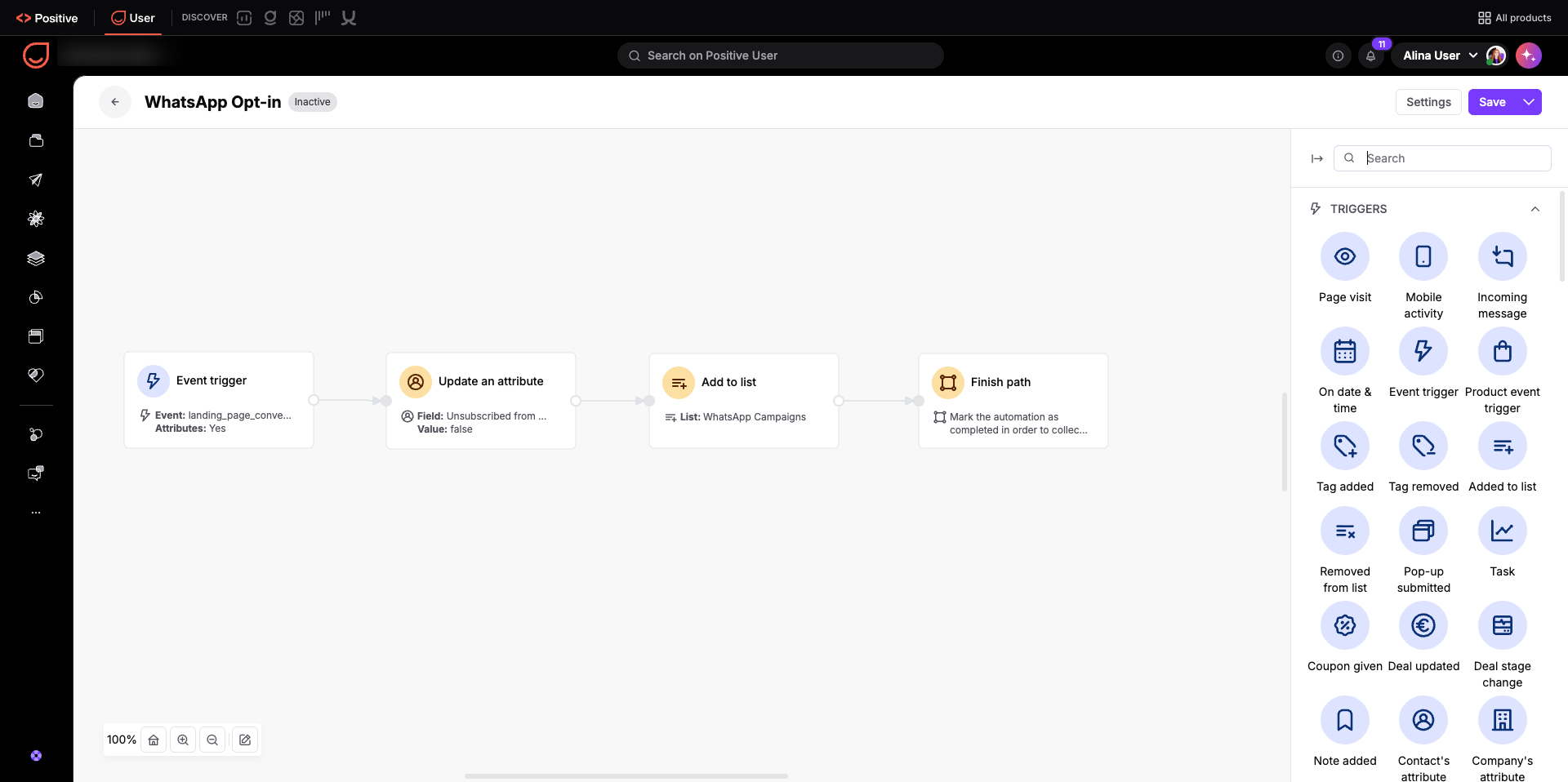
Create an automated workflow to confirm that the contact is eligible to receive broadcast campaigns. Go to "Automations" and click "New automation". Add an "Event" trigger module configured for your form submission or "landing_page_conversion" event where "WhatsApp marketing consent" is "true". Connect an "Update contact attribute" module to change "Unsubscribed from WhatsApp" to "false". You can also fire an event (“Create event”) to keep the timestamp of the change and add the contact to the list (“Add to list”). Connect a "Finish Path" module to complete the automation.
Allow contacts to withdraw marketing consent on your website and automatically update their subscription records.
1. Add an Opt-Out Option to a Landing Page, Form or Pop-Up.
Provide an unsubscribe form or preference center where contacts can update their communication choices. Go to "Website Experience" → "Forms" and click "New form", (or alternatively "Website Experience" → "Pop-ups" / “Landing pages”). Configure the form or pop-up checkbox so that submitting the request updates the custom attribute "WhatsApp marketing consent" to "false".
2. Build an Automation to Process Opt-Outs.
Create an automated workflow to update the contact's standard unsubscribe status and remove them from active campaign lists. Go to "Automations" and click "New automation".
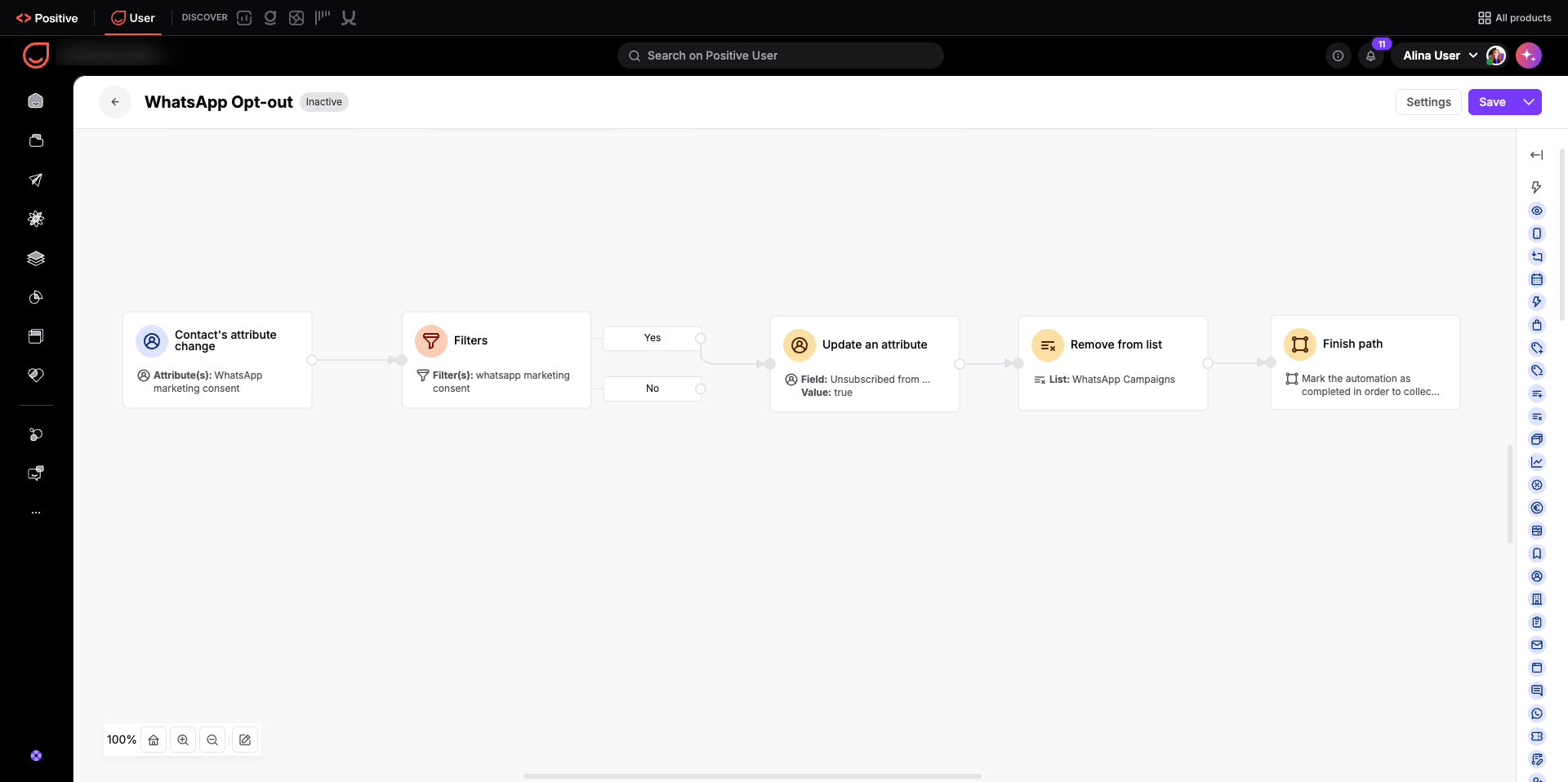
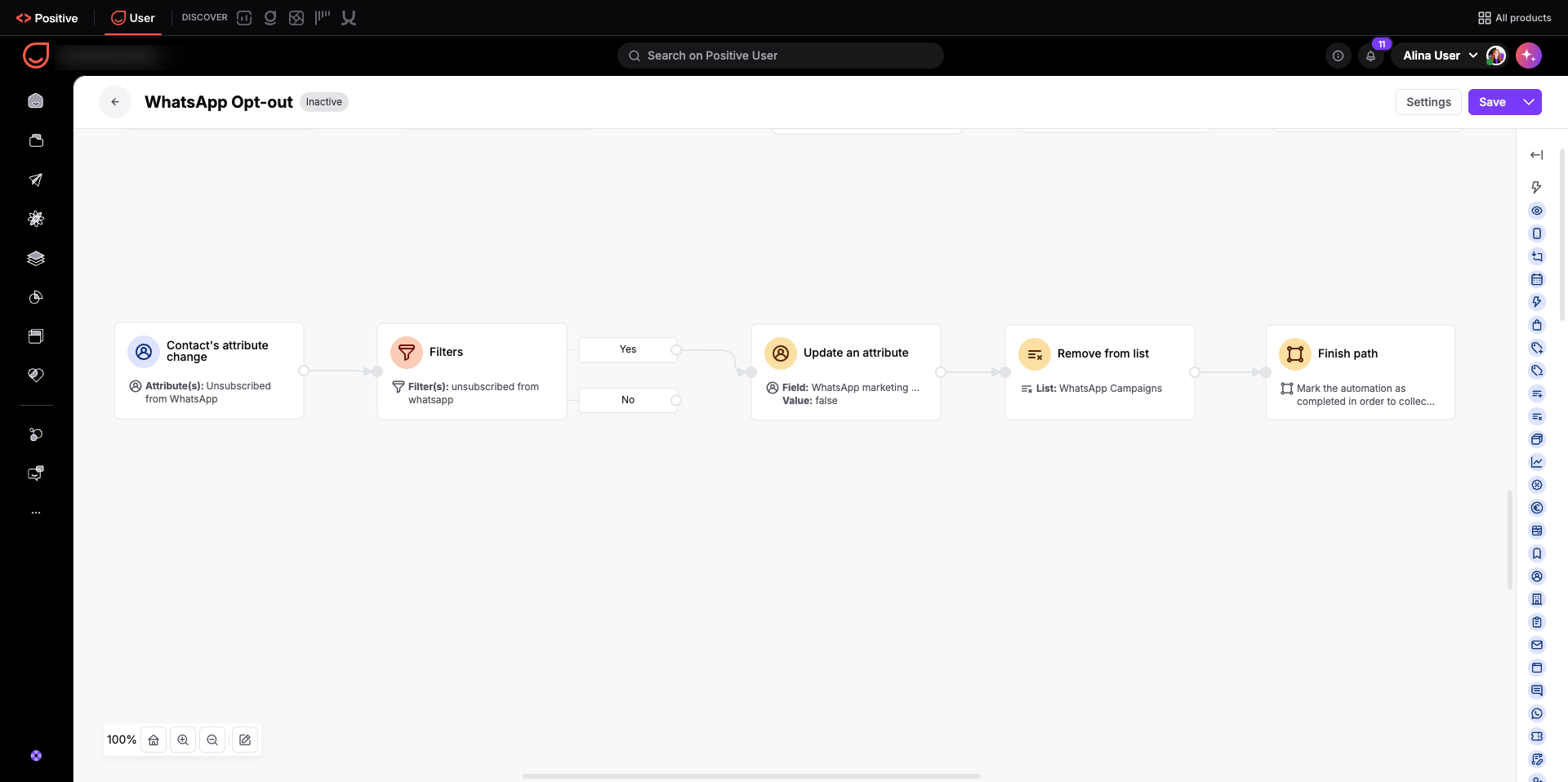
Add an "Contact’s attribute change" trigger module set to run when the custom attribute "WhatsApp marketing consent" changes. Use “Filters” to check whether the value changed to "false". If yes, then connect an "Update an attribute" module to set the standard contact attribute "Unsubscribed from WhatsApp" to "true". You can also connect a "Create an event" module configured with the event name "whatsapp_opt_out" to record the exact timestamp when the contact withdrew consent. Moreover you can use a "Remove from list" module to take the contact off your broadcast list, then attach a "Finish Path" module to complete the workflow.
Give contacts an instant way to unsubscribe by replying directly to any WhatsApp broadcast campaign.
1. Add Opt-Out Instructions to Message Templates.
Inform contacts how to unsubscribe by including a clear opt-out sentence in your broadcast messages. Go to "Campaigns" → "WhatsApp". In the message editor, include a clear instruction such as "Reply STOP to unsubscribe" at the end of your message text. When a contact replies with "STOP", Positive User automatically sets the standard contact attribute "Unsubscribed from WhatsApp" to "true".
2. Build an Automation to Sync Opt-Out Data.
Keep your custom consent attribute and campaign lists updated whenever an automated unsubscribe occurs. Go to "Automations" and click "New automation". Add an "Contact’s attribute change" trigger module configured to run when the standard contact attribute "Unsubscribed from WhatsApp" changes. Use “Filters” to confirm it changes to "true". If so, then connect an "Update an attribute" module to set the custom attribute "WhatsApp marketing consent" to "false". You can also connect a "Create event" module set to "whatsapp_opt_out" to record the opt-out timestamp in the contact's profile. Additionally you can use a "Remove from list" module to remove the contact from any list used for WhatsApp campaigns, and attach a "Finish Path" module to complete the automation.
One-Time Promotional Campaigns: Filter your audience by contacts whose "WhatsApp marketing consent" is "true" to schedule holiday sales or major product launches. This ensures your campaign reaches only interested contacts and protects your sender score.
Multi-Channel Communication Control: Allow contacts to opt out of WhatsApp broadcasts through a website preference form without losing their subscription to your email campaigns. This respects individual channel preferences while maintaining your contact connection.
