Reviewing your campaign results helps your team understand how contacts interact with your WhatsApp messages. When you track delivery and open rates, you can confirm whether messages reach contacts, see which content generates interest, and spot technical errors early. In Positive User, WhatsApp campaign statistics provide high-level summaries across your entire workspace, as well as detailed logs for individual broadcasts and contacts. This visibility helps your team troubleshoot failed sends, refine message copy, and plan future campaigns using real performance data.
WhatsApp campaign statistics are performance records that track the delivery and reading status of WhatsApp messages sent from Positive User.
Unlike standard text messages that rely on tracked redirect links to measure contact engagement, WhatsApp communication records message delivery and read receipts directly. This gives your team visibility into message outcomes, showing which contacts received a message, who opened it, and which dispatches encountered errors.
Tracking your WhatsApp statistics helps your team understand audience engagement and maintain a reliable communication channel:
Verify message delivery: Confirm that your campaigns reach contacts successfully and identify delivery failures before they disrupt larger campaigns.
Measure audience interest: Review how many contacts open your messages to learn which topics and templates capture attention.
Troubleshoot integration errors: Spot expired credentials or invalid phone numbers in your logs so you can resolve issues quickly.
Follow up at the right time: See when contacts open your messages so sales team members can reach out while interest is high.
Maintain list hygiene: Track opt-outs automatically to honor contact preferences and keep your database compliant.
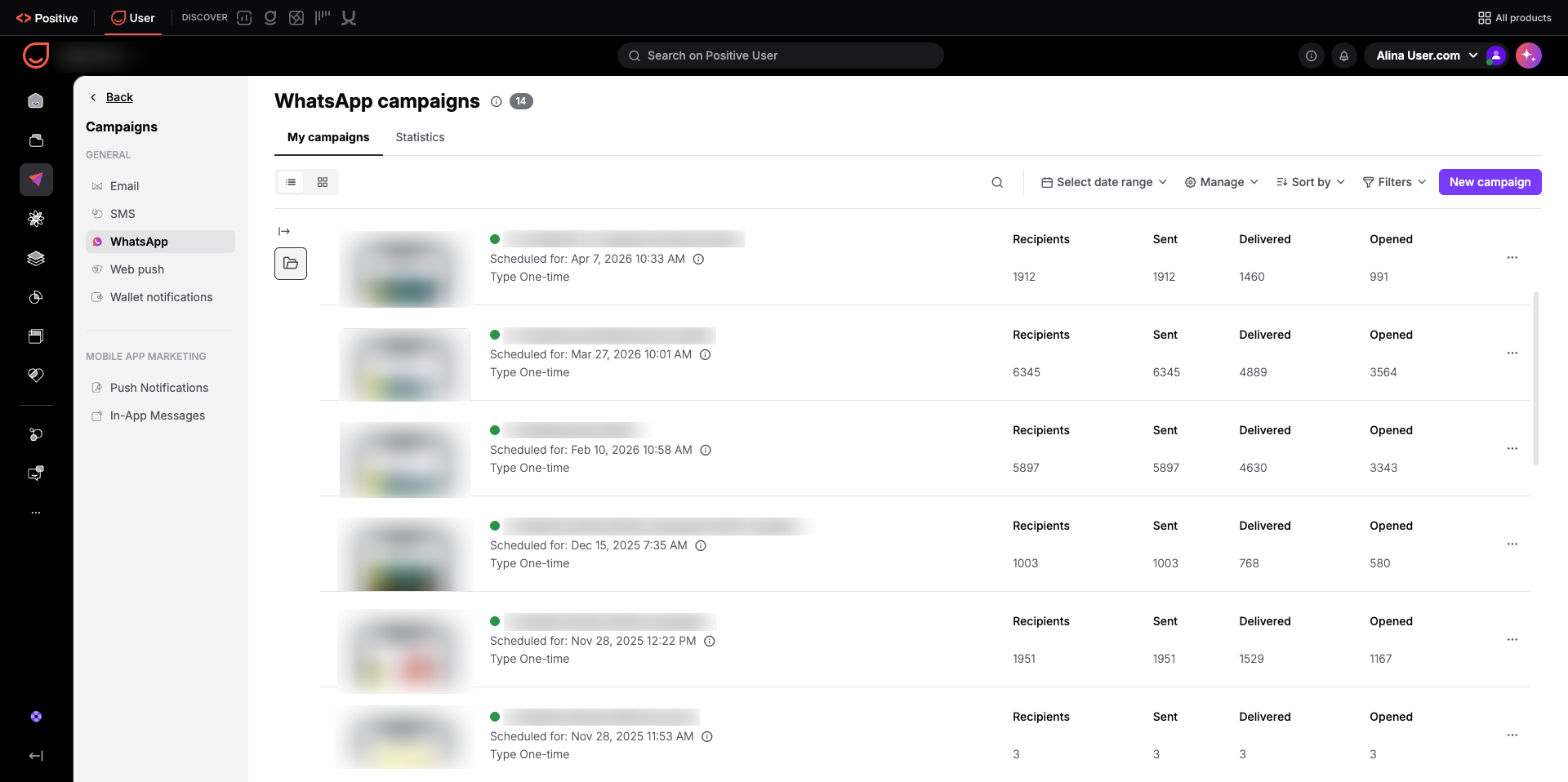
To view quick results for your broadcasts, go to "Campaigns" → "WhatsApp".
Under the "My campaigns" tab, each automated and one-time message displays four primary numbers:
Recipients: The total number of contacts targeted by the campaign. This confirms your planned audience size so your team can verify segmentation rules before sending.
Sent: The number of messages dispatched from Positive User. This verifies that messages left the workspace without platform issues and helps your team monitor sending limits.
Delivered: The number of messages that reached recipient devices. This reveals your true addressable audience on WhatsApp by showing how many contacts have active, reachable accounts.
Opened: The number of contacts who opened and viewed your message. This measures message attention directly without requiring contacts to click an external link.
Click "Select date range" at the top of the table to show results from a specific timeframe. You can also sort campaigns using "Sort by" and organize messages into folders on the left panel, refine the list using "Filters".
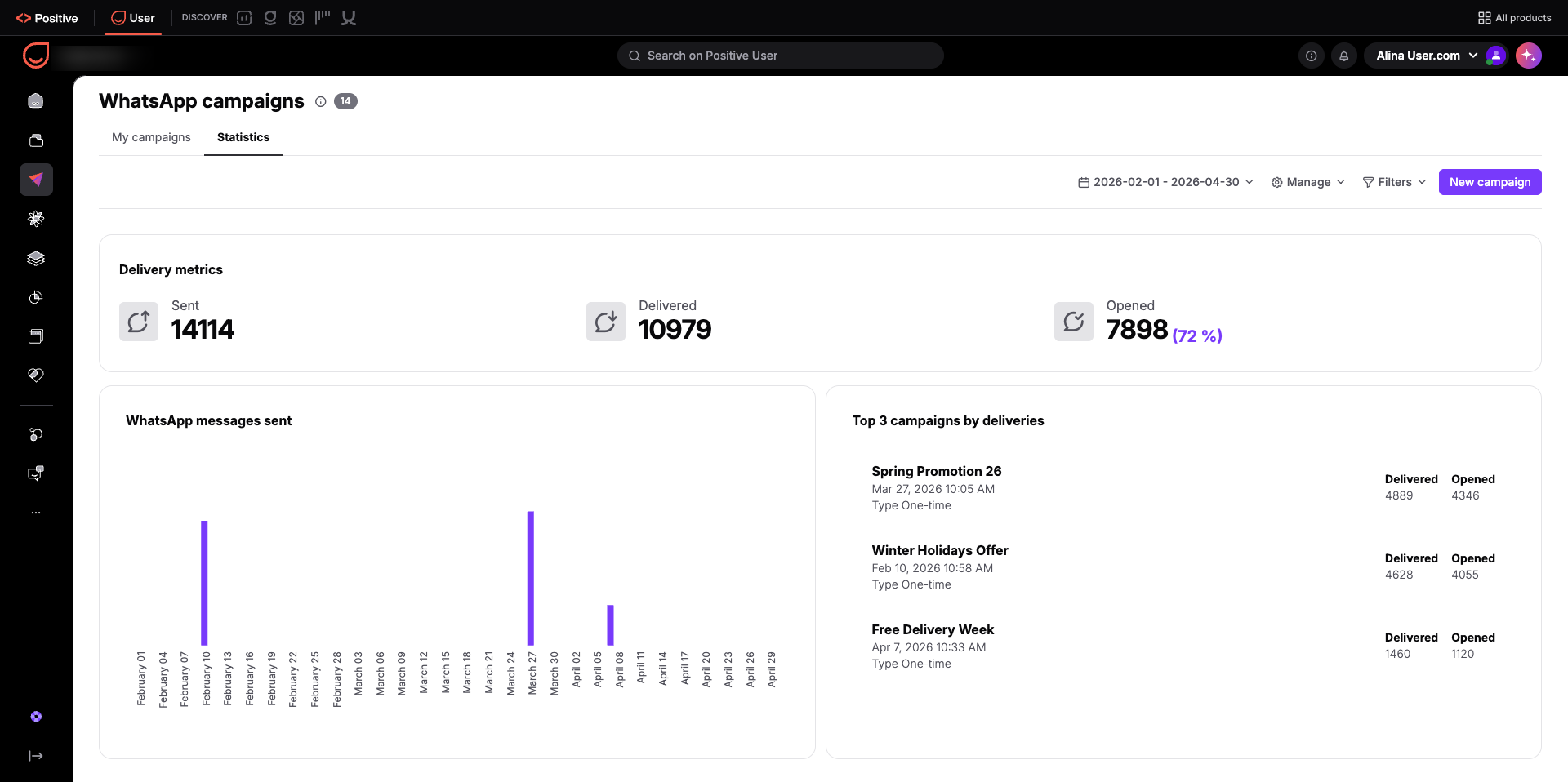
To view overall performance across all your WhatsApp marketing, click the "Statistics" tab.
This view aggregates data across your entire workspace to help your team evaluate channel health:
Delivery metrics: Total figures for "Sent", "Delivered", and "Opened" messages, including your workspace open rate percentage. These numbers set a reliable performance baseline so you can evaluate how WhatsApp performs compared to your other communication channels.
WhatsApp messages sent: A timeline chart showing daily message dispatch volume. This visualizes your team's sending rhythm and helps prevent message fatigue across your audience.
Top 3 campaigns by deliveries: A ranked list of the three broadcasts with the highest volume of successful deliveries. This highlights which campaigns reached the widest audience so your team can learn from effective targeting setups.
Use the date picker in the top-right corner to review a specific timeframe, or click "Filters" to examine specific campaign groups.
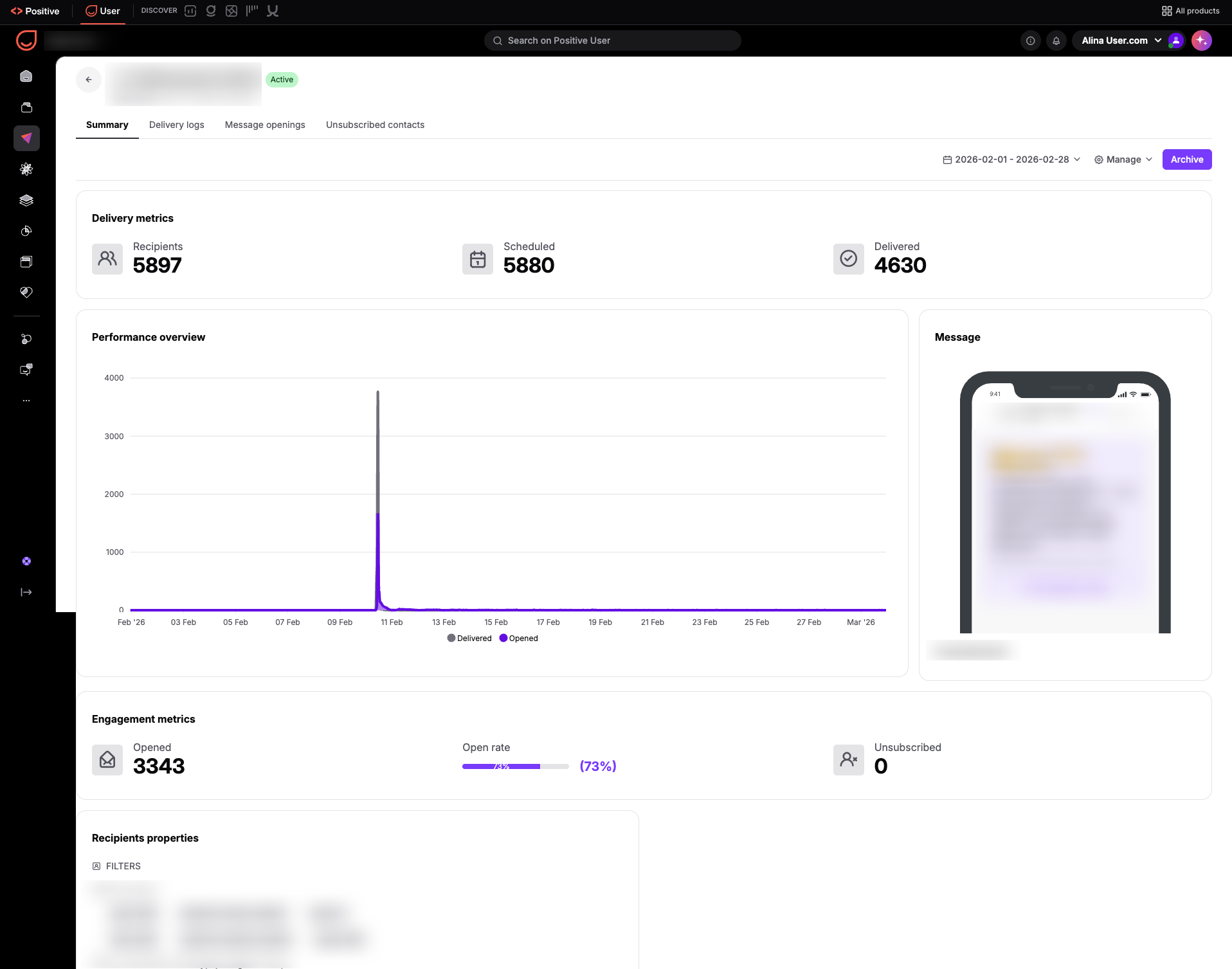
To review a single campaign in detail, click the campaign name in your list. This opens an individual campaign report divided into four tabs.
The "Summary" tab gives an overview of results for that specific campaign:
Delivery metrics: Cards displaying totals for "Recipients", "Scheduled", and "Delivered". Comparing these numbers shows you whether any drop-off occurred between planned scheduling and actual delivery.
Performance overview: A timeline chart tracking daily delivery volume over time, showing only your delivery trends across the selected period without opening data.
Message: A visual preview of the template and text sent to contacts. This allows your team to evaluate copy and layout alongside actual performance numbers.
Engagement metrics: Performance cards showing the total "Opened" count, the overall "Open rate" percentage bar, and total "Unsubscribed" contacts. These metrics show how well your message resonated and alert you if message frequency is prompting opt-outs.
Use the date picker to inspect a custom timeframe, update campaign settings with "Manage", or click "Archive" to archive the campaign.
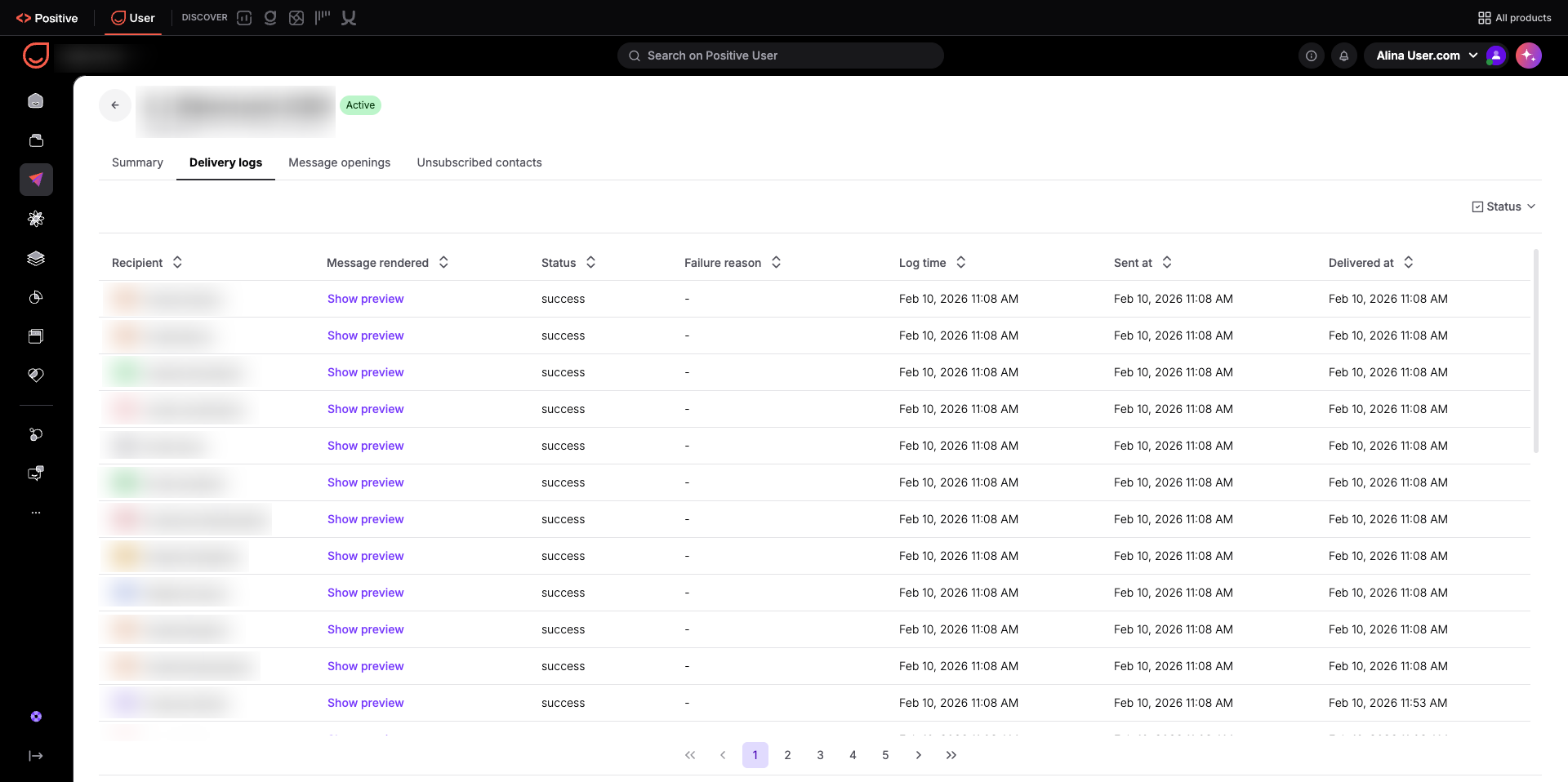
The "Delivery logs" tab shows a contact-by-contact record for every message in the campaign:
Recipient: The contact name, linked directly to their profile so your team can easily check history for specific accounts.
Message rendered: Click "Show preview" to see the exact personalized text sent to that person.
Status: The delivery outcome, such as success or failure, giving your team a quick count of delivered messages versus failed attempts.
Failure reason: Clear diagnostic details explaining why a message failed, such as an expired integration token or an invalid phone number, pinpointing setup errors so your team can fix them quickly.
Log time: The timestamp when the status was recorded, providing a clear audit trail for technical checks.
Sent at: The exact timestamp when the message left your workspace, confirming dispatch execution times against your schedule.
Delivered at: The timestamp when the message arrived on the contact's device, helping your team spot network or carrier delays.
Click "Status" in the top-right corner to filter by failed or successful deliveries.
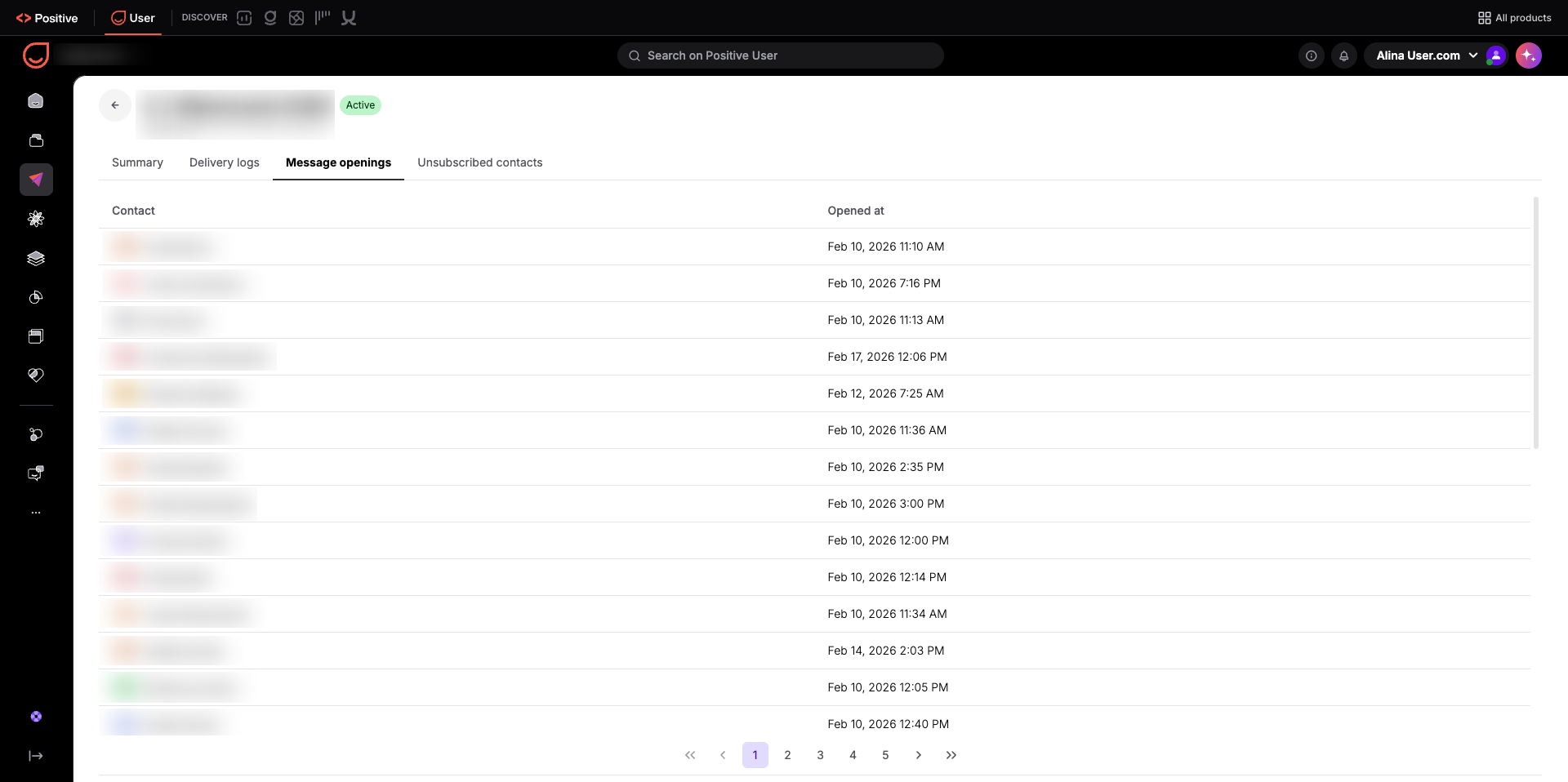
The "Message openings" tab tracks individual contact interactions:
Contact: The name of the contact who opened your message, linked directly to their profile so your team knows exactly who engaged.
Opened at: The exact date and timestamp when the contact read the message, giving your sales team the exact moment of engagement for timely follow-ups.
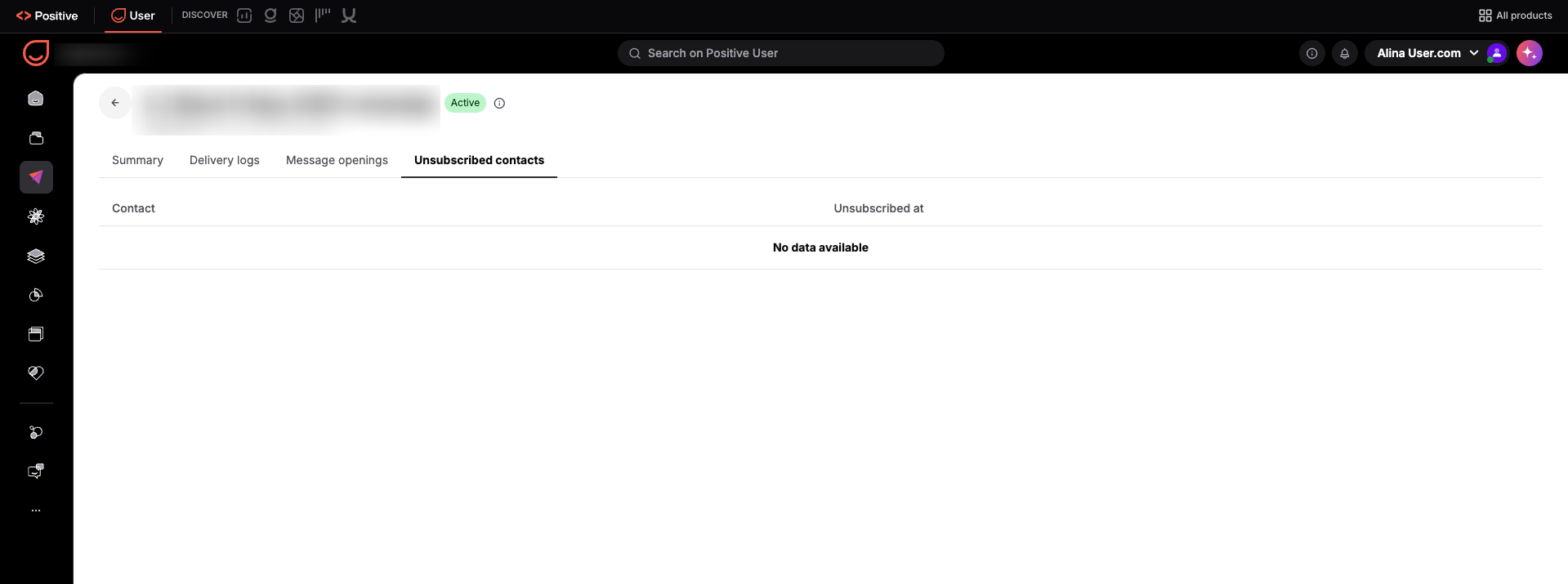
The "Unsubscribed contacts" tab lists people who opted out after receiving this message:
Contact: The name of the contact who opted out, linked to their profile so your team can evaluate whether specific segments felt the message was irrelevant.
Unsubscribed at: The date and timestamp of the opt-out, helping you connect unsubscribe spikes to specific campaigns or sending times.
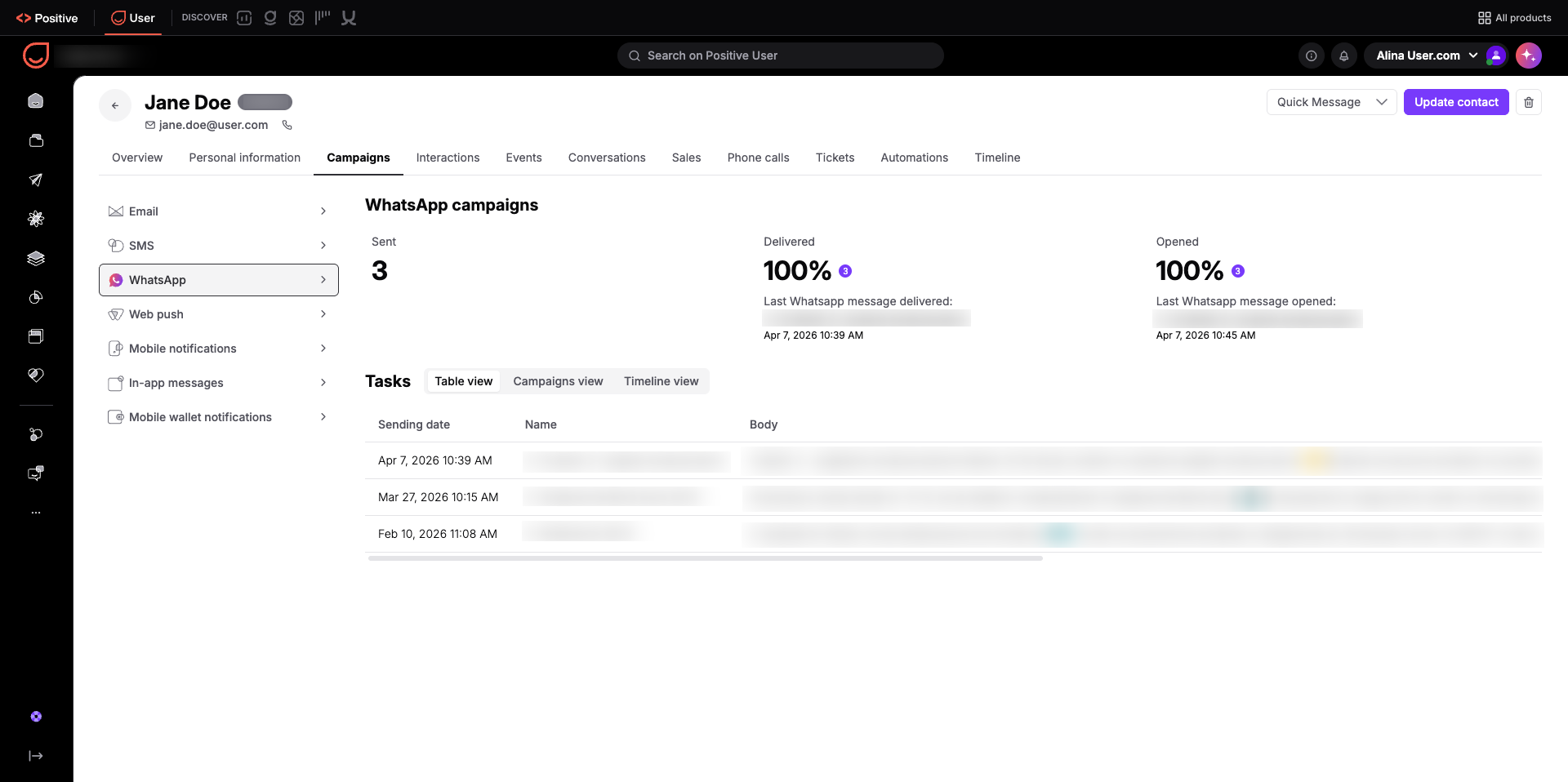
Your team can also check WhatsApp history directly on an individual contact profile:
Open a profile in the "Contacts" section.
Click the "Campaigns" tab in the top navigation panel.
Select "WhatsApp" from the left sidebar.
This view shows every past WhatsApp message sent to that contact, along with delivery statuses and recorded open times.
Reviewing WhatsApp campaign data helps your team refine message content, prioritize sales outreach, and maintain clean workflows.
Template and Copy Optimization: Compare open counts and open rates across different broadcasts in the "Summary" tab to see which greetings and formats contacts read most often, helping your team pick the most engaging template for future campaigns.
Timely Sales Follow-Ups: Check the "Message openings" tab after sending a promotional broadcast to see which prospects opened the message recently, allowing team members to reach out while interest is fresh.
Workflow and Data Troubleshooting: Filter by failed statuses in the "Delivery logs" tab and review the "Failure reason" column to identify invalid phone numbers or expired integration tokens, helping your team fix errors and keep automated journeys running smoothly.
When reviewing your WhatsApp campaign statistics, keep in mind that your actual open rates are likely higher than what appears in your reports. Because tracking relies on read receipts, Positive User can only record an open if a contact has read receipts enabled in WhatsApp on their personal device. If a contact has turned off this privacy setting, their message will remain marked as "Delivered", but there will be no “Opened” information. If your open rate looks lower than expected, it might reflect your contacts' personal privacy choices rather than a lack of interest.
