SMS is a highly direct communication channel that ensures immediate delivery and high visibility. Because text messages are typically read within minutes of being received, this channel is ideal for time-sensitive communications where you need to reach your audience quickly and prompt an immediate action. Common use cases include critical service updates, event reminders, and time-bound promotions.
This guide shows you how to create and send a one-time or automated SMS campaign in Positive User - connect a sender, write the message, schedule/send, and track results.
One-time SMS campaigns are perfect for sending urgent, highly visible messages such as flash sales, critical service updates, or time-sensitive alerts. They work well when you want to reach your audience instantly with information that doesn’t require ongoing automation, like last-minute event reminders, policy changes, or exclusive daily deals. These campaigns are also ideal for engaging contacts right on their mobile devices, delivering bite-sized updates, or sharing one-off announcements that keep your audience informed without setting up a full workflow.
To send effective SMS campaigns you need to focus on:
good timing
precise target group
valuable content
Before creating your first campaign, make sure steps below are done.
An active SMS provider connected to Positive User. (check the instruction) [LINK]
An opted-in audience segment.

In Positive User SMS campaigns are understood as a combination of content and settings which allow you to send text messages.
Due to that, the process of the campaign creation is divided into several steps. Let’s through all of them.
Go to “Campaigns" → "SMS" → "New campaign".
Decide on the name of the campaign and assign it to the folder, if needed.
Choose the “One-time” type, and click “Create”.
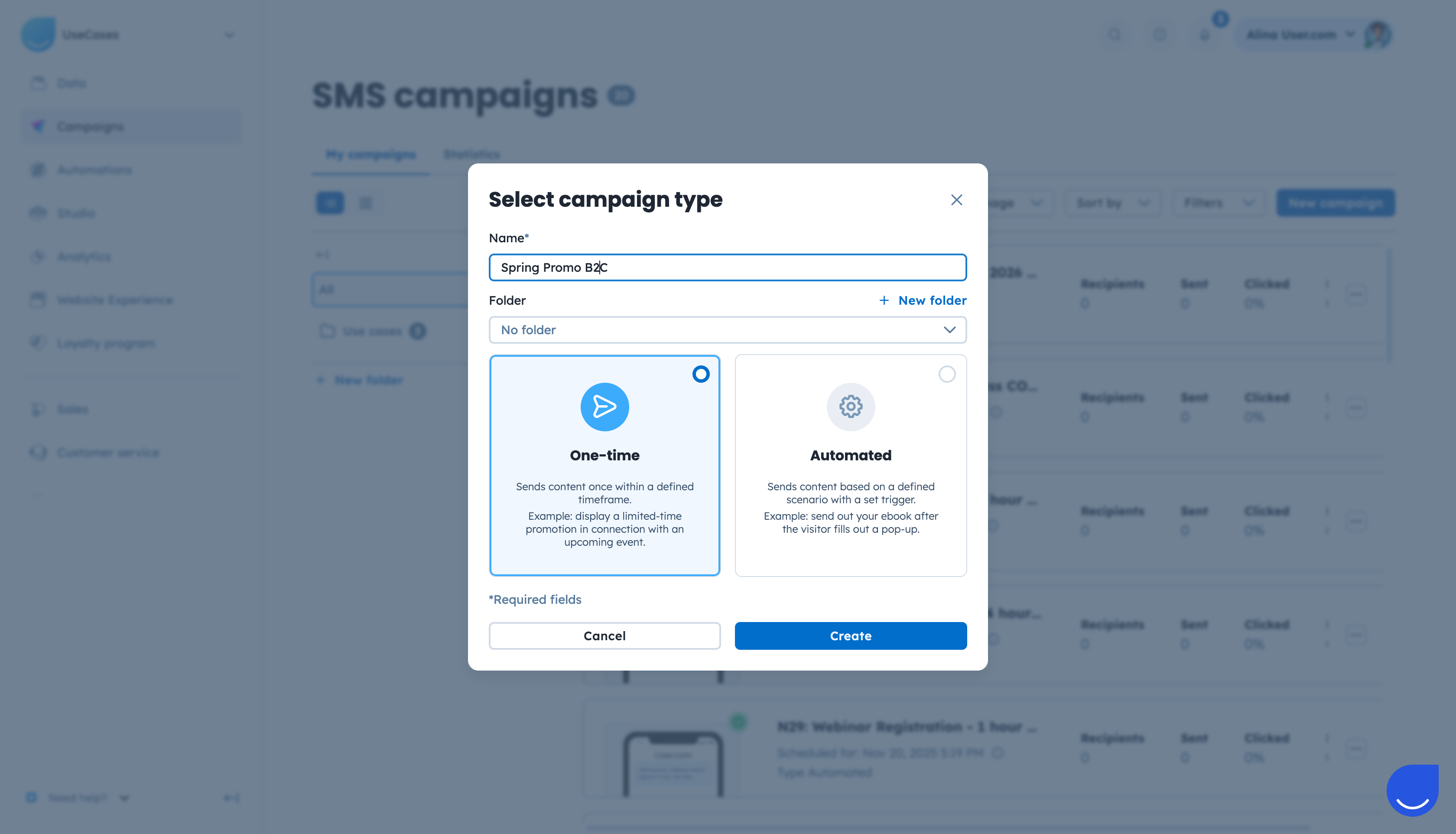
Now you need to select the recipients for this specific SMS campaign. There are 3 available options to define them:
Select a contact list.
Select a segment.
Select contacts (using filters). [LINK]
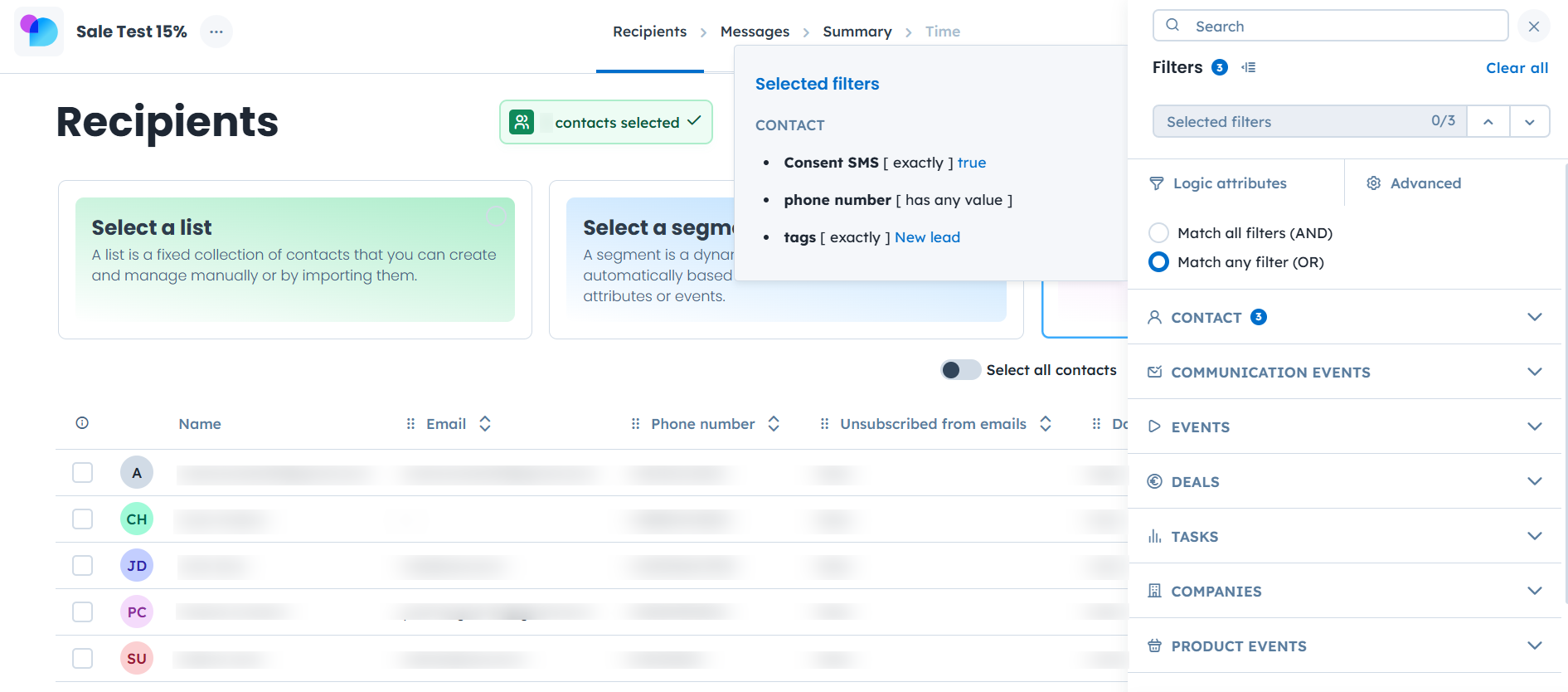
Once you are ready, click the “Next” button.
Here you need to create a message that will be sent to the contacts. Remember, that you can use dynamic content to personalize your content.
On the same page you need to choose the SMS account you want the campaign to be sent from.
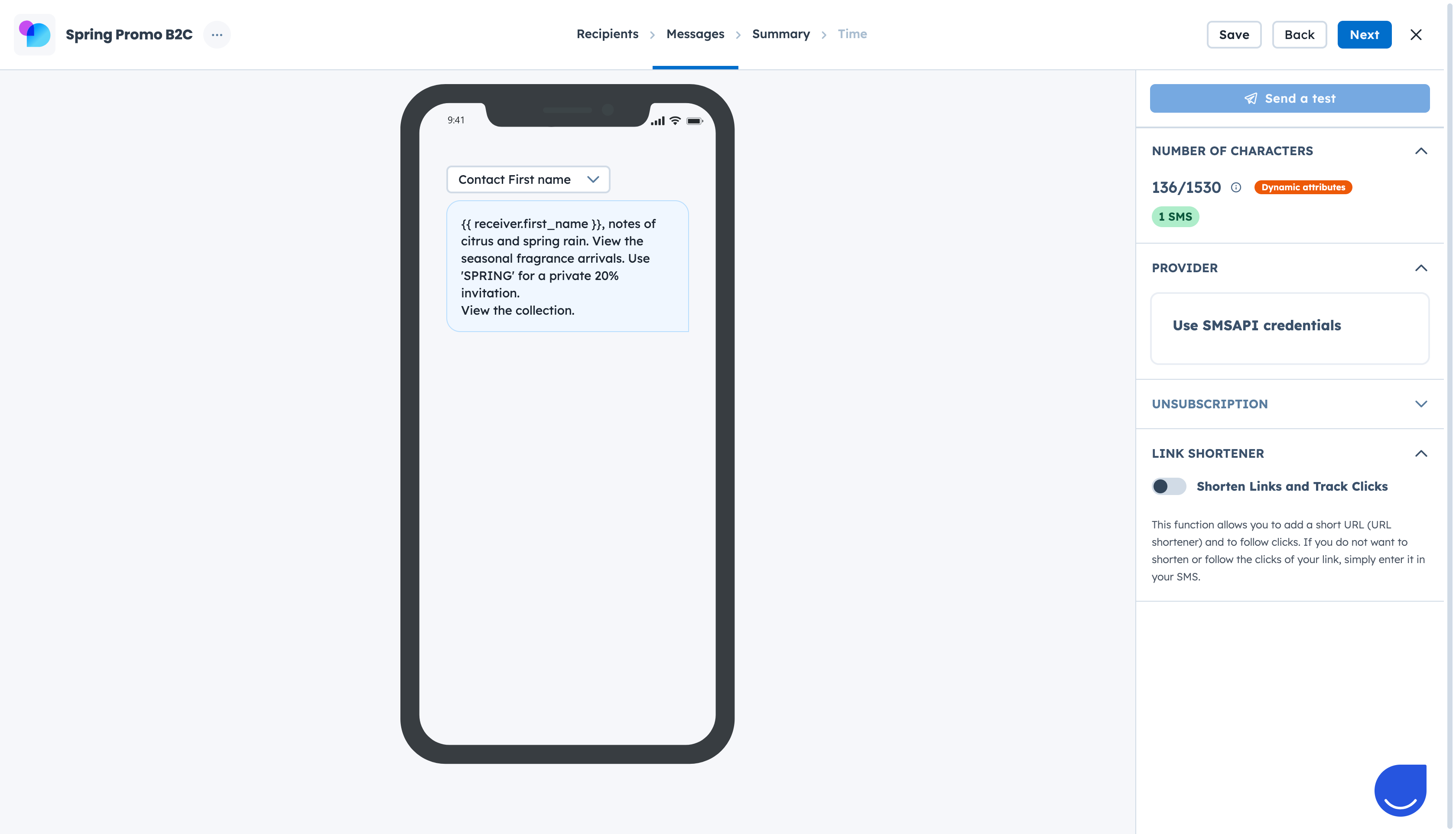
Write the content right in the preview mode. Easily insert variables to personalize the content.
Choose SMS provider from the list. (Integration must be done in prior)
Decide on the unsubscribe option (depending on the provider).
Use link shortener, if needed. It uses a default domain, that cannot be changed.
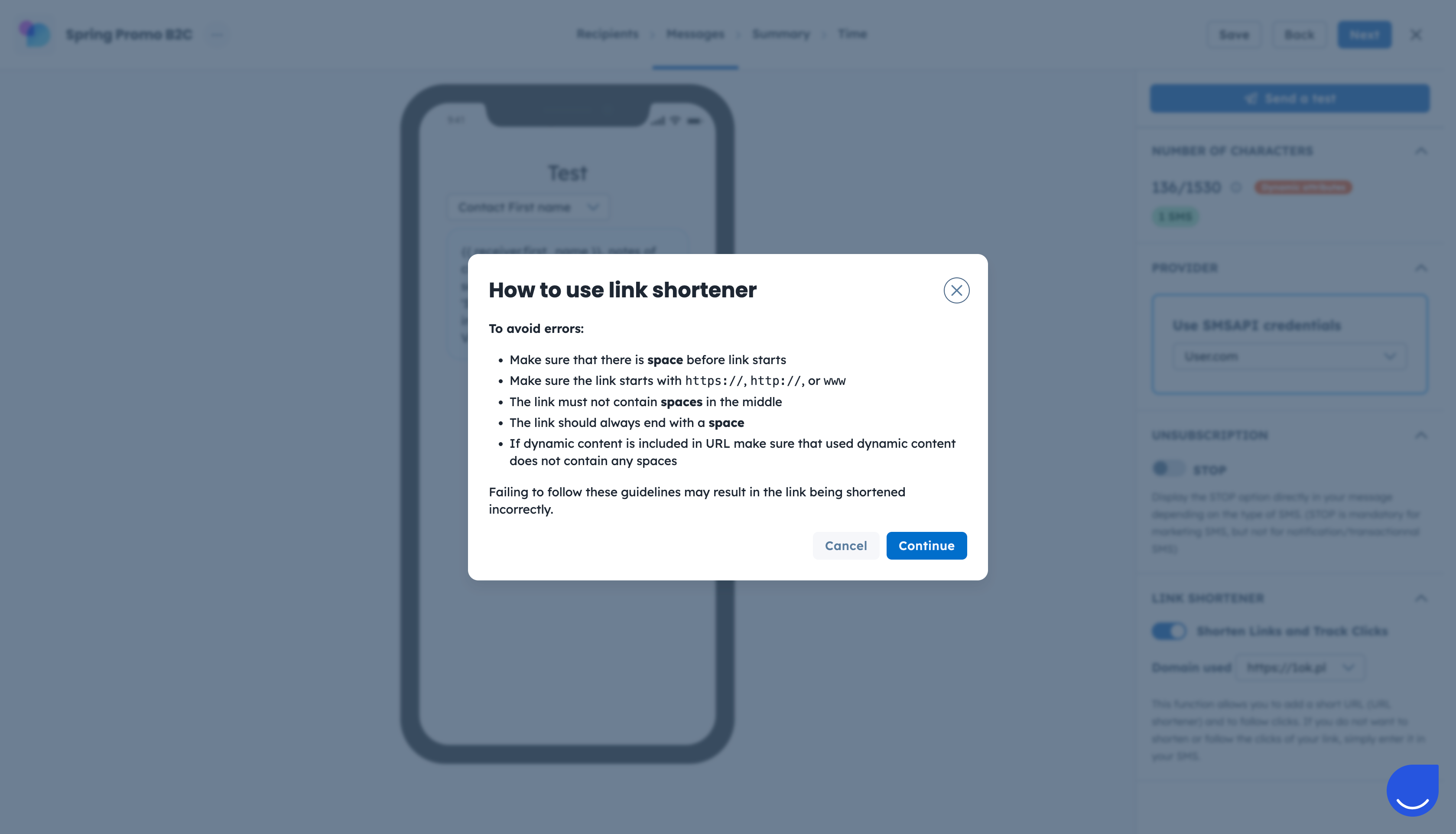
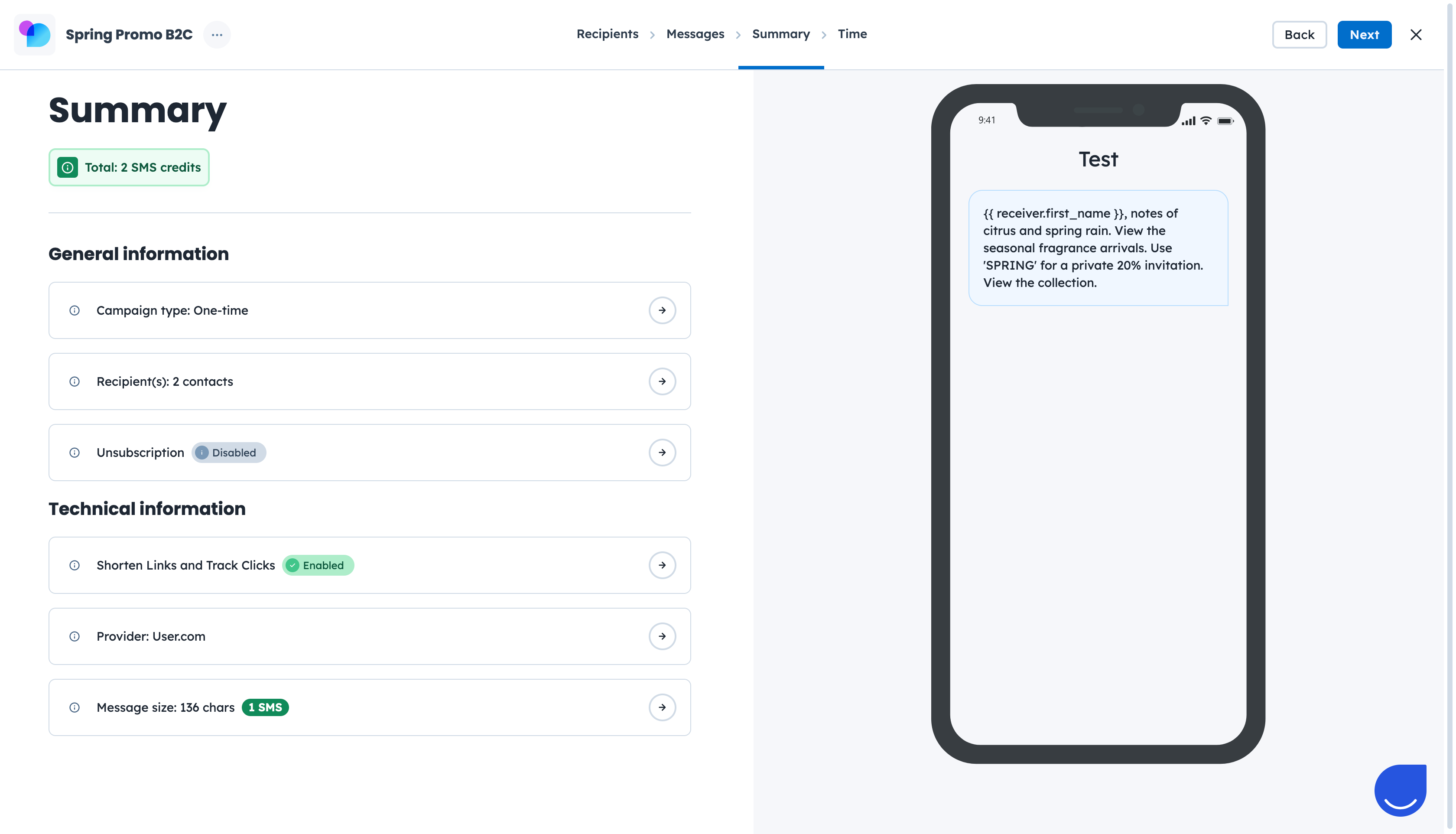
This step includes all main elements of the campaign:
Number of SMS credits used.
General information (campaign type, recipient number, unsubscribe type).
Technical information (link shortener and tracked clicks status, provider info, message size).
Preview of the content.
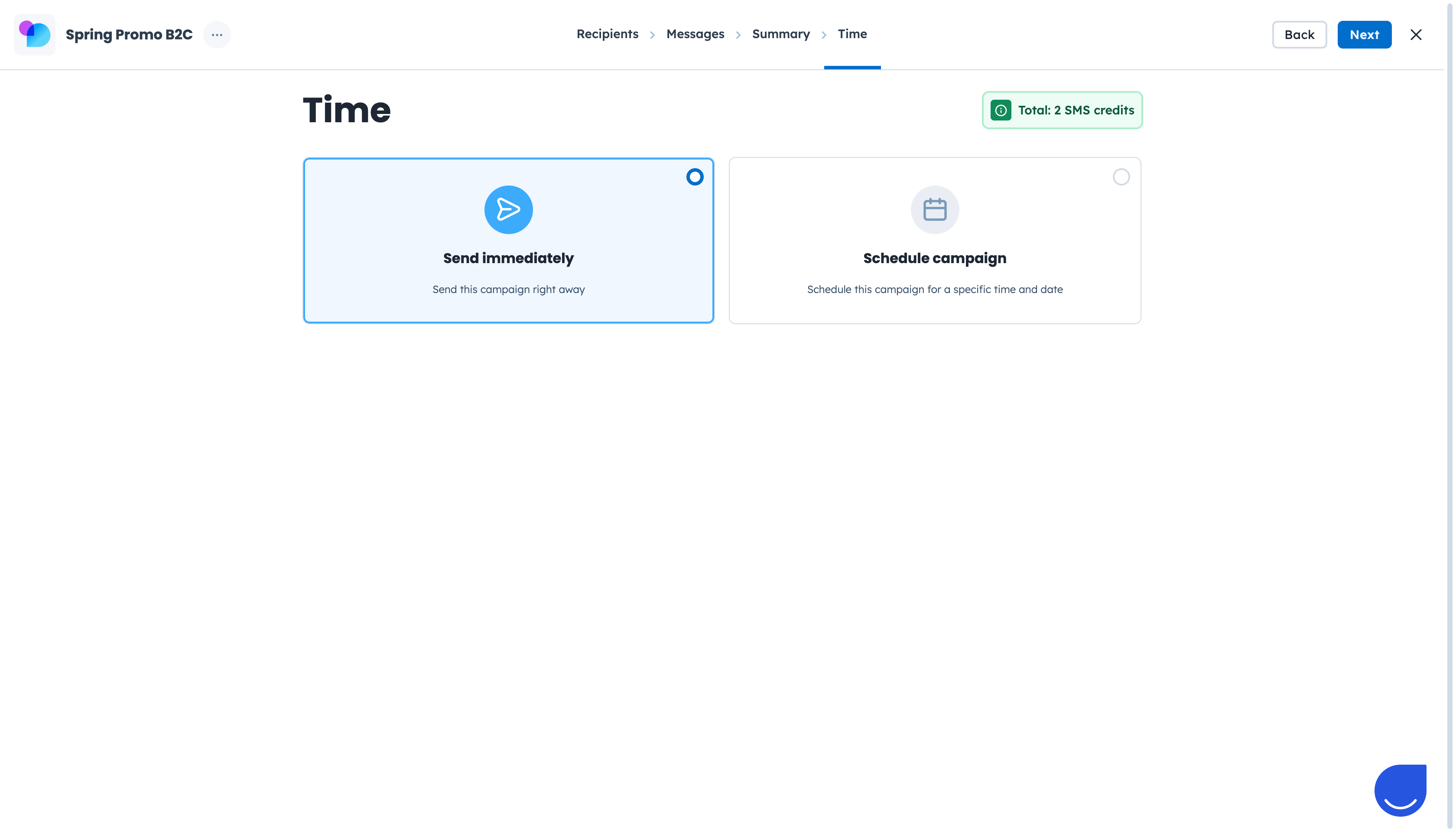
The last, but not least, step is setting the time of the SMS campaign delivery.
Send immediately
Schedule campaign (choose date and time in the nearest future)
Confirm your choice and activate the campaign.
If you click the “x” icon in top right corner of the panel and save the changes, you will get a draft of the campaign saved on the list. It means you can come back later, modify the campaign and the activate it.
How to Create an Automated SMS Campaign [LINK]
How to Connect SMS Provider [LINK]
Send Your First SMS Campaign [LINK]
SMS Campaign Statistics [LINK]