As your database grows, you need a simple way to find specific information. Filters let you narrow down your lists in Positive User based on precise details or actions. Whether you are searching for a specific company, tracking down support tickets, or building a list of contacts, filters help you locate your data quickly so your team can work more effectively.
Filters allow you to search and segment objects in your database based on specific parameters. You can filter by standard attributes, custom attributes, events, and connected objects. For example, you can filter contacts based on their deal attributes, tasks, company details, product events, support tickets, or coupons.
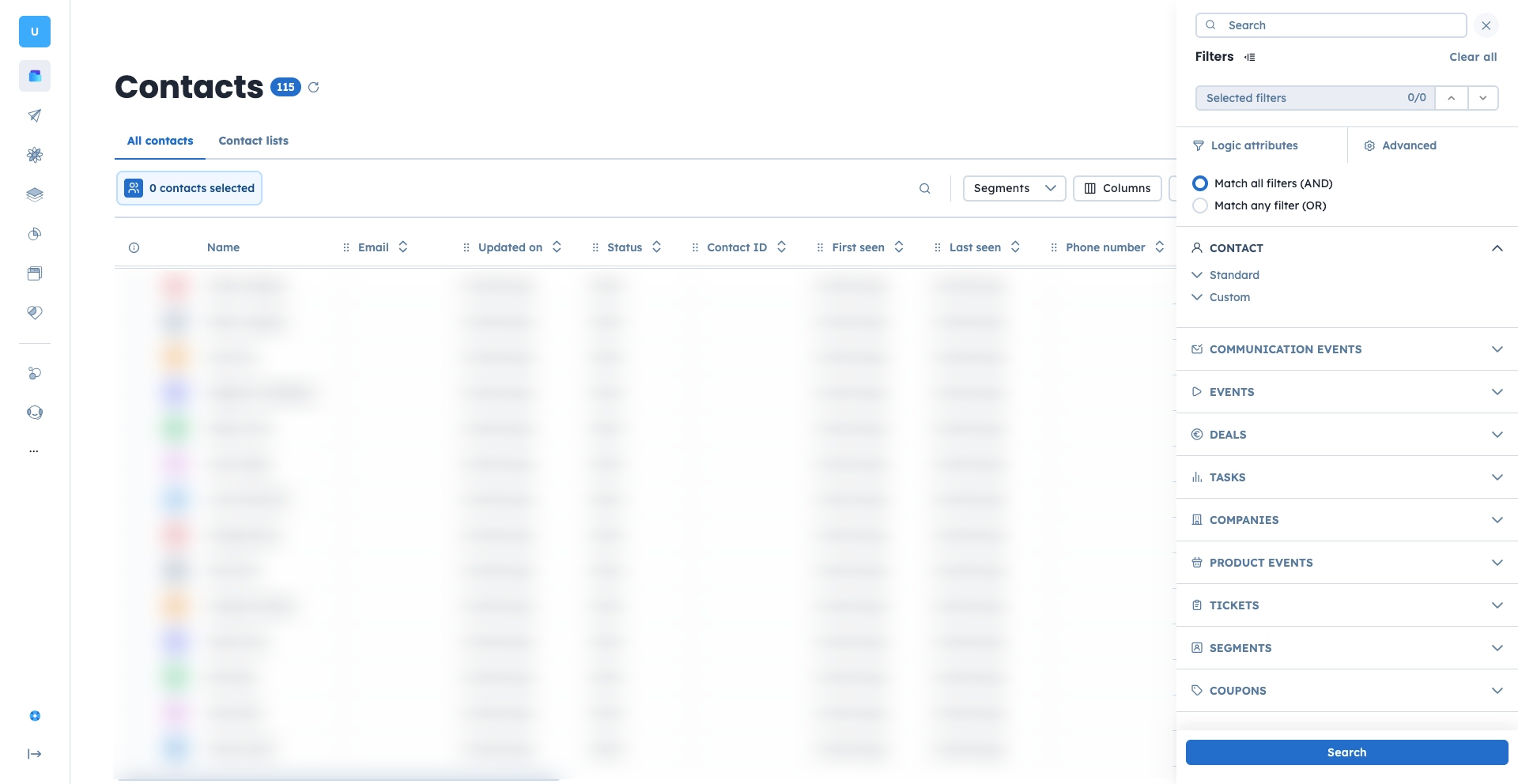
You can find the filtering option in almost every data view across Positive User. Go to the "Contacts" section, "Companies", "Tasks", or "Support Tickets", and click the filters icon in the top-right corner of the panel.
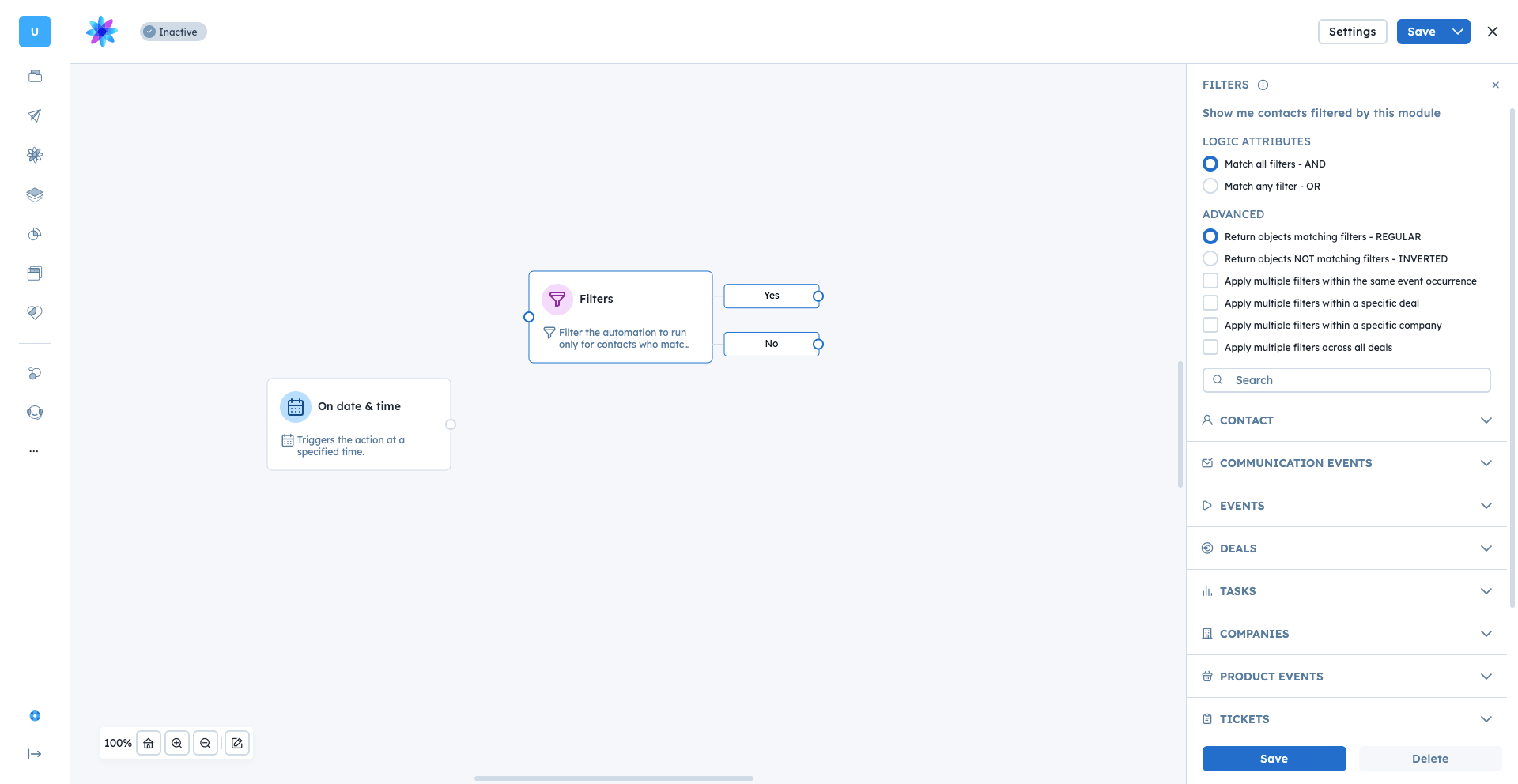
You can also find these exact same filters inside the "Automations" section, specifically in "On Date & Time" trigger and within "Filters" condition.
Create segments: Save your most-used filter combinations to easily monitor dynamic lists of contacts, companies, or products. More about it in “What Is a Segment”.
Manage your pipeline and workload: Quickly pull up high-value deals, open support tickets, or unassigned tasks so your team knows exactly what to focus on.
Trigger automations: Include or exclude specific contacts from entering your automated workflows.
Define campaign recipients: Choose exactly who should receive a specific message based on their behavior, past purchases, or company profile.
Analyze database quality: Get quick metrics and statistics about the current status of all your records across the platform.
Filtering relies on logic to decide which records to show you. When you open the filter panel, you define rules using basic and advanced logic.
The main idea of your filter is controlled by "AND" and "OR" logic operators at the top of the list.
AND logic: Use this when the results must meet all your conditions. For example, if you want to find recent anonymous contacts who do not have an email address, you would filter by "Last seen is less than 1 day" AND "Email is unknown".
OR logic: Use this when an object only needs to meet at least one condition. For example, finding contacts who visited a specific page OR have a specific tag.

Logic Inside a Single Parameter You can also combine rules inside a single filter parameter using either "AND" or "OR" logic. This keeps your setup clean and helps you search for highly specific scenarios.
Using OR inside a parameter: Use this when you are looking for multiple acceptable options for the exact same event or attribute. For example, if you want to find contacts who bought either a laptop or a tablet, you apply the "OR" logic inside a single "Product purchase" event filter. The rule looks for purchases where the product name contains "laptop" OR the product name contains "tablet".
Using AND inside a parameter: Use this when a record must meet multiple requirements for the exact same attribute. For example, if you want to find highly engaged clients, you can apply the "AND" logic inside a single "Tags" filter. The rule will only show contacts who have both the "VIP" tag AND the "Webinar Attendee" tag assigned to them at the same time.
The options you see in the filter dropdown depend on the type of data you are filtering. A text field (like "First name") will give you options like "exactly", "contains", "starts with" etc.. A boolean field (true/false) will only let you choose "exactly", "is not", "has any value", or "is unknown". Always set your attribute types correctly when creating them so you have the right filtering options later.
Type of Attribute | Available Filter Options |
string |
|
integer |
|
boolean |
|
date |
|
datetime |
|
fixed choices |
|
floating-point number |
|
JSON file format |
|
number (event attribute only) |
|
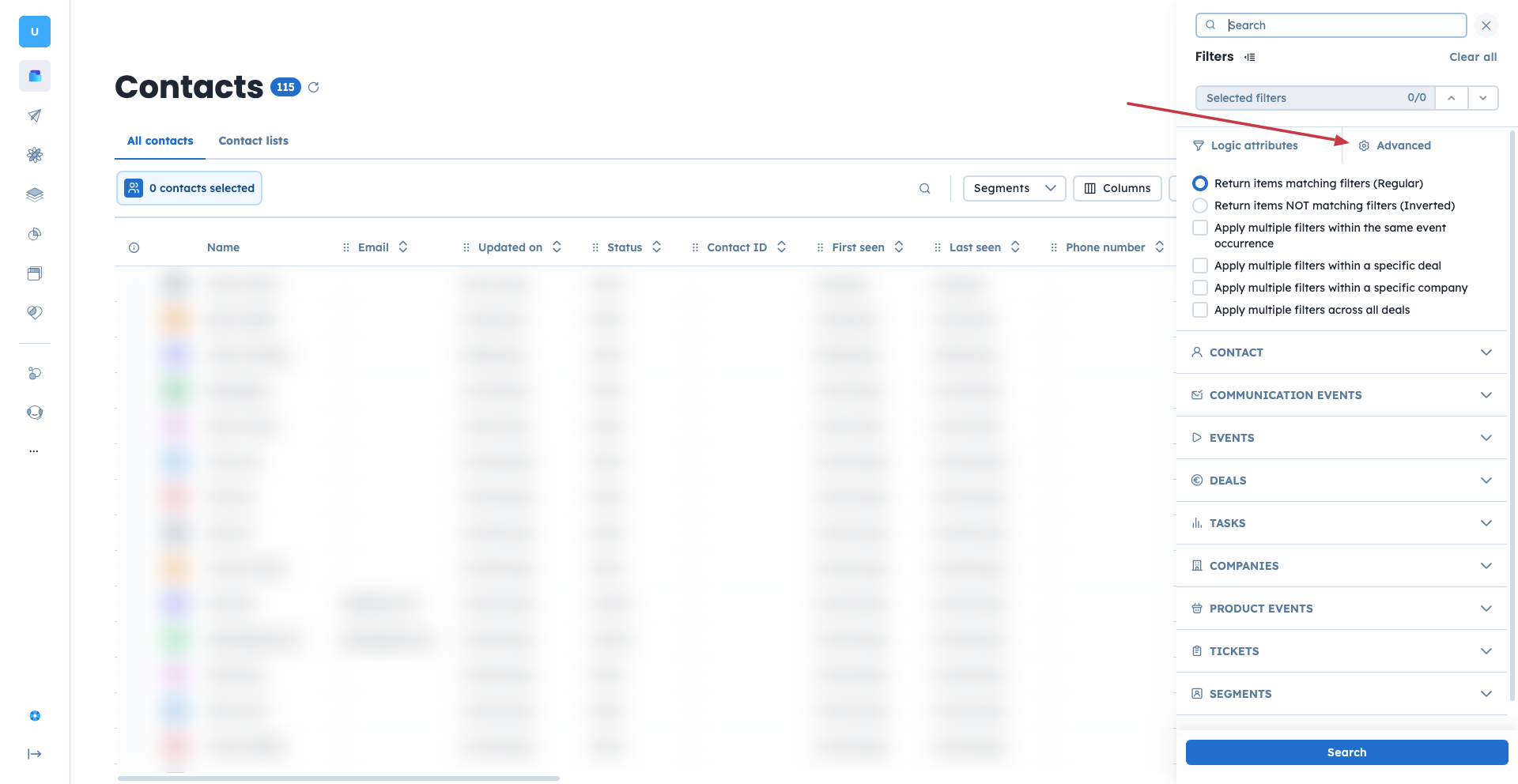
At the top of the filter list, you can open the advanced section for more complex rules.
Return items matching filters (Regular): This is the standard setting. It simply shows you the records that meet the exact rules you set up.
Return items NOT matching filters (Inverted): Choose this to see the exact opposite of your rule. If your filter is "Email has any value", inverting it shows you everyone without an email address.
Apply multiple filters within the same event occurrence: This is crucial for accurately tracking actions. If you want to find contacts who bought a specific product for more than $500 in a single transaction, use this option. If you do not check this box, the system finds anyone who bought that specific product AND spent over $500 on any product at some point.
Apply multiple filters within a specific deal: Helpful for managing your pipeline. This ensures that multiple sales filters (like value and stage) apply to the exact same deal, rather than looking across all deals a contact might have.
Apply multiple filters within a specific company: Ensures your filters apply to a single company profile. This is useful if a contact is connected to multiple businesses and you need them to meet all conditions under just one of those companies.
Apply multiple filters across all deals: Allows you to look at a contact's entire sales history. You can use this to see if the combined details of all their deals meet your specific requirements.
Filters are the foundation of targeting the right data across the platform.
Automations: If want to send a discount code to active customers, not new leads, then use a "Filters" condition module in your workflow to check if a contact's status is "Customer" before sending the email campaign.
Campaigns: If you are hosting a local event and need to invite people in a specific city, then you can define your campaign recipients by filtering contacts where the "City" attribute exactly matches your event location.
Segments: You want a live dashboard of your most valuable contacts to check daily. Apply filters for high deal values or frequent website visits, then save that exact filter view as a segment and create a dashboard to track the progress.