Keeping company data up to date is essential for effective B2B segmentation, accurate reporting, and meaningful automations. In User.com, you can update company information in several ways, depending on whether you need to make a quick manual change, update many records at once, or sync data automatically from external systems.
This article walks you through all supported methods for updating company profiles, so you can choose the approach that best fits your workflow.
To get familiar with the concept of the company please check “What Is a Company” article first. [LINK]
Manual updates work best when you need to edit individual company records or make small, one-time changes.
You can update company attributes directly from the company profile view. There are two ways to do this:
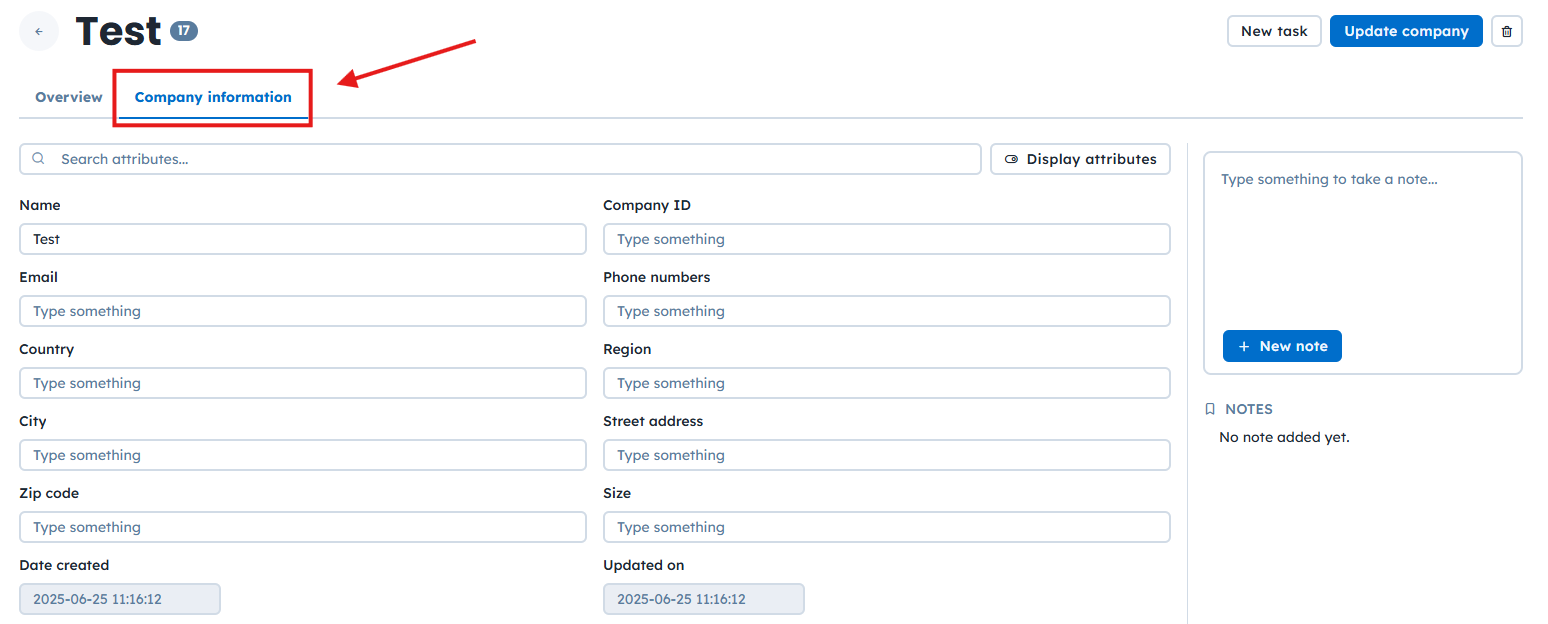
1. “Company Information” tab
Open the “Data” → “Companies” section, select a company to open its profile. Below the name of the company, open the “Company information” panel to update attribute values.
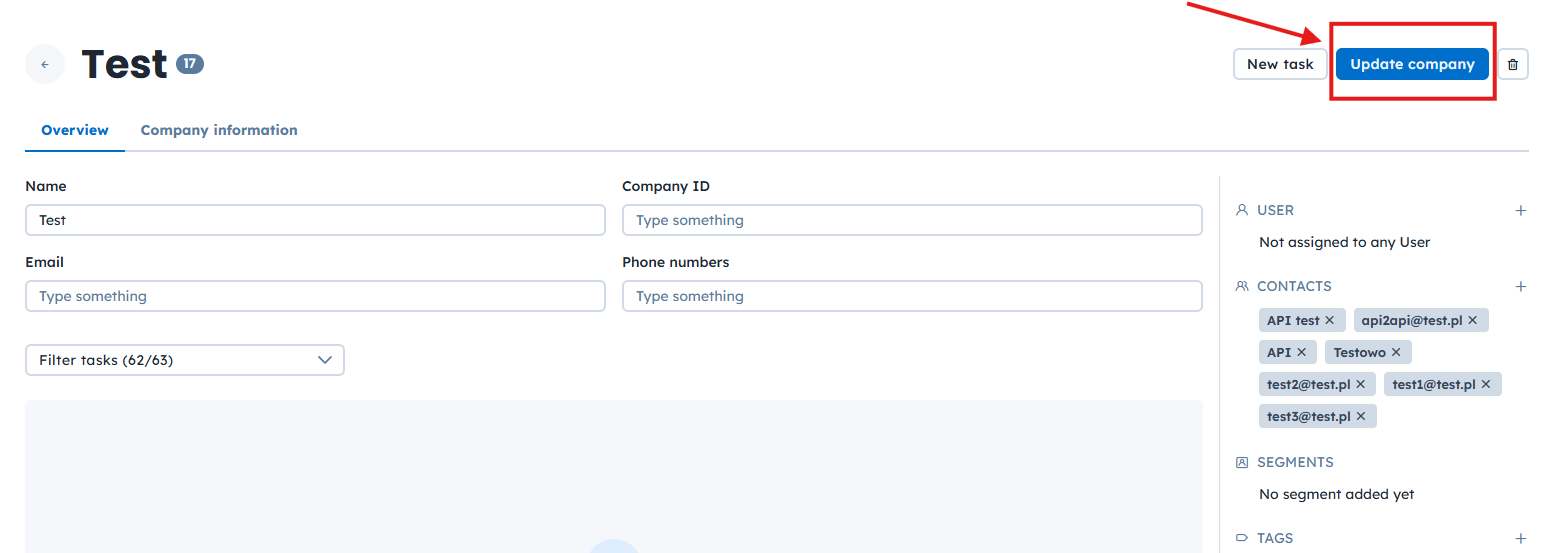
2. “Update company” button
Open the “Data” → “Companies” section, select a company to open its profile. Find the blue “Update company” button on the top-right corner of the profile, click on it, update the company information, and confirm the changes to save them.
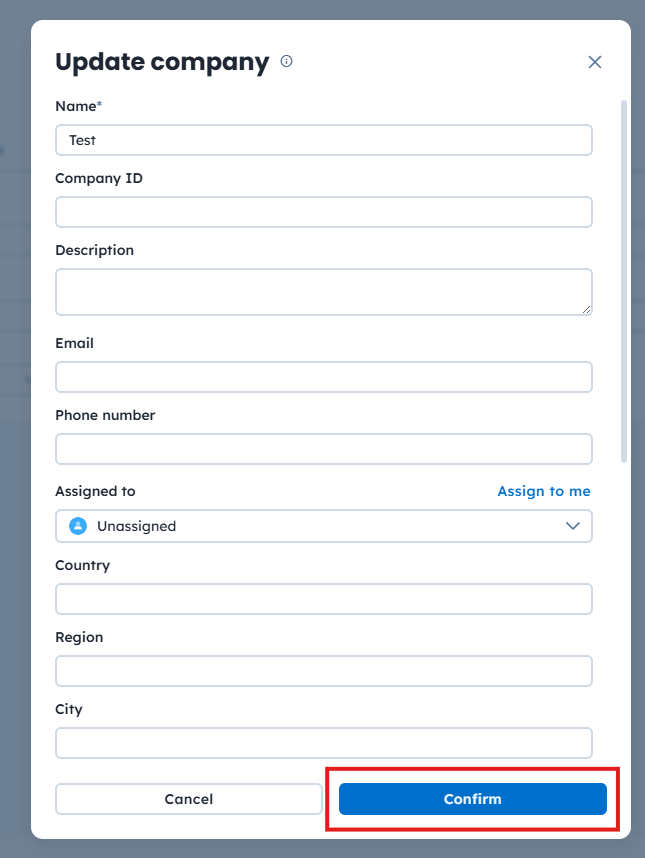
The “Update company” form opens on the click. Here you can update ant attribute of the company.
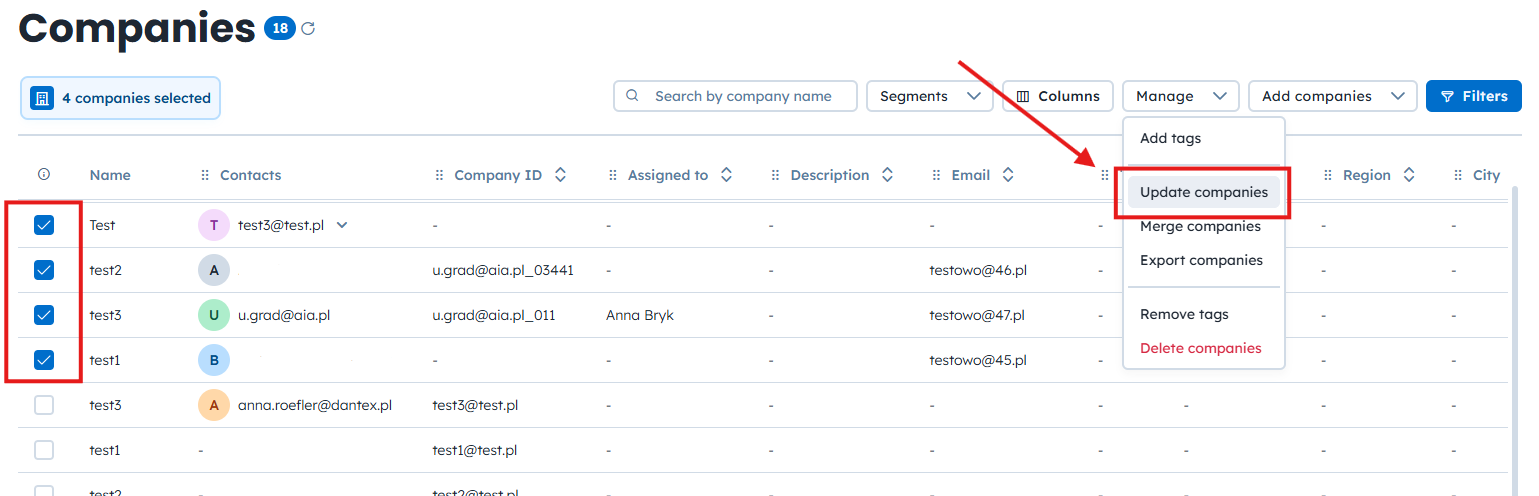
You can also update multiple companies at once from the “Companies” section.
Go to “Data” → “Companies”.
Apply filters or select companies manually using the checkboxes.
Click the “Manage” button in the top-right corner of the panel.
Choose “Update Companies”.
Select the attribute you want to update and enter a value or use dynamic content [LINK] for an update.
Automations allow you to update company attributes when defined conditions are met. This is ideal for keeping company data in sync with contact activity and lifecycle events.

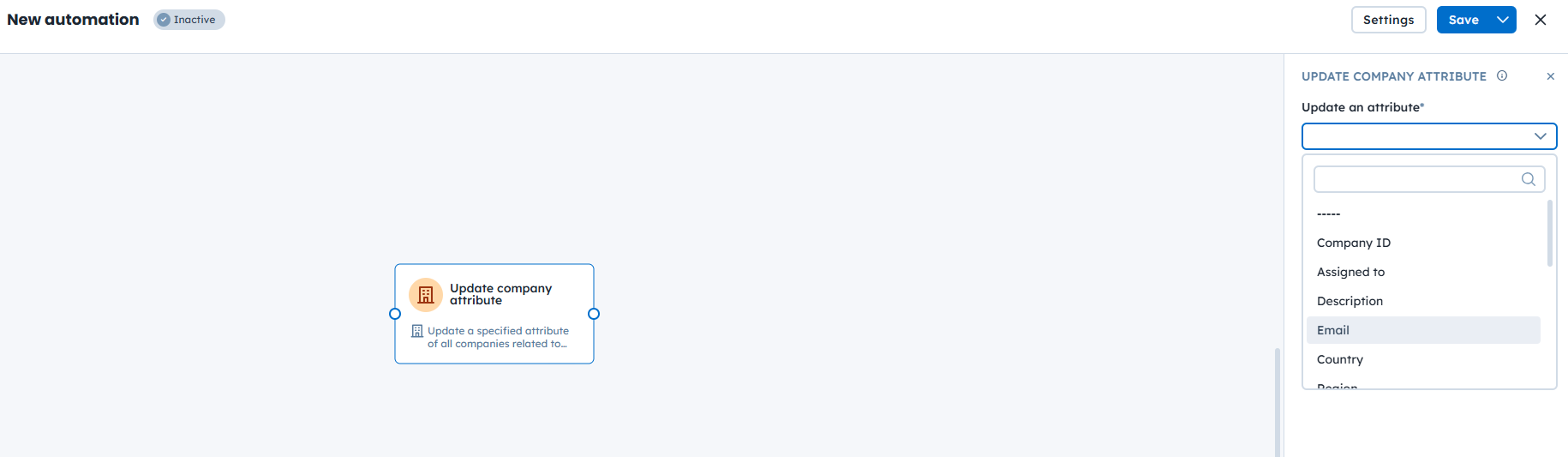
You can update company data using the “Update Company Attribute” action [LINK]. In this module, select the attribute you want to change and define the value that should be applied. Dynamic content [LINK] can be used to populate values.
Example: When a contact from a company submits a high-value form, you can automatically update the company’s “Lead Score” attribute to reflect increased engagement.
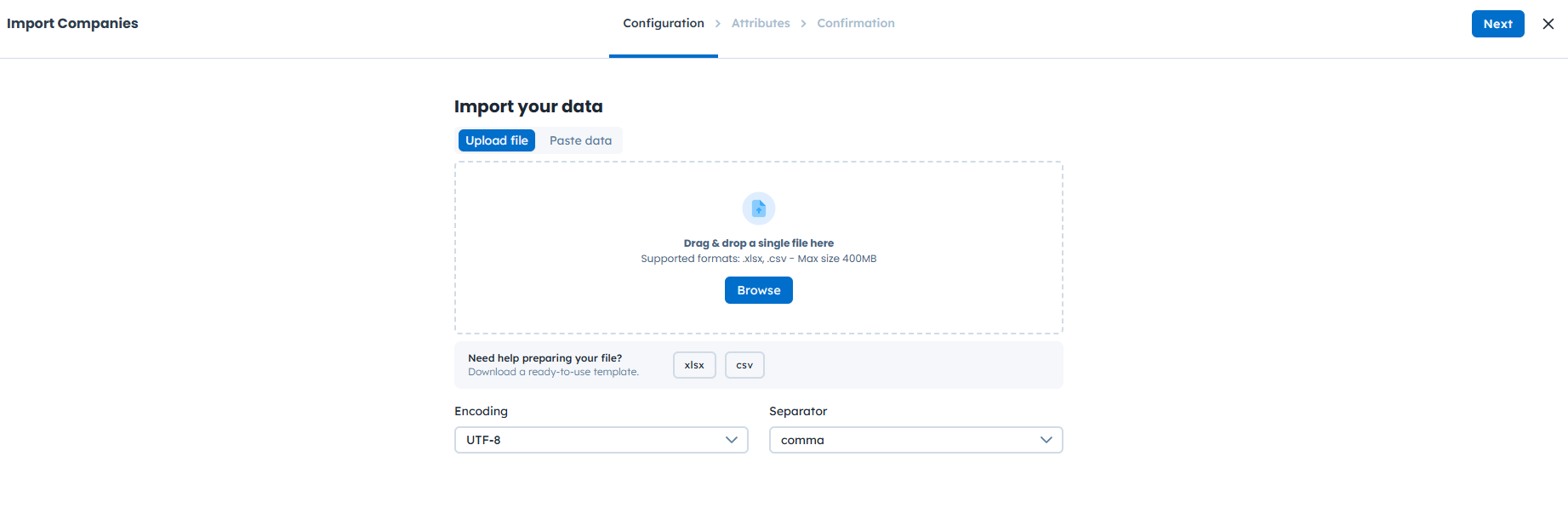
CSV import is an efficient way to update many company records at once. To update existing companies, you must include the “company_id” attribute in your CSV file. This identifier allows User.com to match imported rows with existing company records.
To update companies using CSV import:
Go to “Data” → “Importers”→ “Import Companies”.
Upload a CSV file that includes existing “company_id” values and updated data.
Match CSV columns to company attributes.
Start the import. The system updates existing companies with new values.
To learn more about file structure and the import process, see the dedicated CSV import article [LINK].
If you use the User.com widget on your website or app, you can update company data via JavaScript. This method is especially useful in B2B scenarios where records are associated with organizations.
Using JavaScript, you can pass a company object inside the tracking code. This allows you to:
Update an existing company when a matching “company_id” is provided.
Create a new company if no matching “company_id” is found.
Example script:
<script data-cfasync="false" type="text/javascript">
  window.civchat = {
    apiKey: 'YOUR_API_KEY',
    name: "John Doe",
    user_id: "idfromyourdatabase",
    email: "myemail@example.org",
    gender: 2,
    status: 2,
    date_attr: "2017-07-25T14:14:08.612Z",
    phone_number: "+44754123434",
    score: 0,
    company: {
      name: "My Company",
      company_id: "idfromyourdatabase",
      revenue: "$239.9 billion"
    }
  };
</script>
<script data-cfasync="false" type="text/javascript" src="https://.user.com/widget.js"></script>
The User.com REST API allows you to update company data directly from external systems in real time. This method is recommended for advanced integrations and custom workflows.
Available endpoints include:
There are also related endpoints, such as “Add employee” and “Remove employee”, which help you manage the company structure and relationships.
For full details, see the User.com REST API documentation.
User.com integrates with tools such as Make.com and Zapier, allowing you to update company data using no-code workflows. This is a good option if you want to sync data across systems without building a direct API integration.
You can use:
These integrations help keep company information accurate and consistent across your tool stack.
What is a Company
How to Create a Company
CSV Import of Companies
How to Assign Contacts to Companies
Module Guide: Update Company Attribute Action