A contact list is a static form of contact grouping. Contacts can be added to the list under different conditions that you set in: automations, filters, imports etc. Unlike segments, which update automatically every given period of time, contact lists require rules not only to add new contacts but also to remove the ones who no longer belong to it.
Usually, contact lists are used to define the recipient group for a specific campaign, as it can include a dedicated "unsubscribe from specific list" link, which allows the contacts to remove themselves from a list.
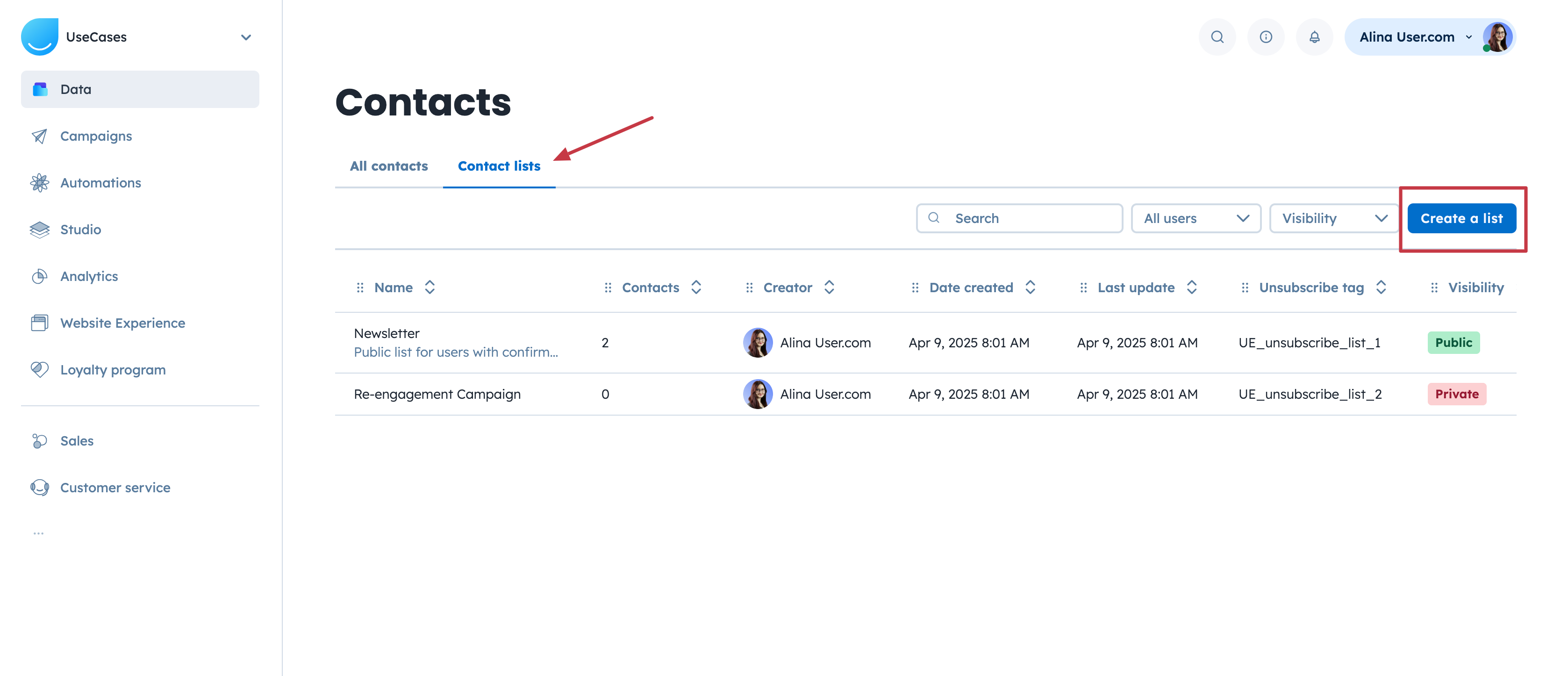
Go to “Data” → “Contacts” → “Contact Lists”, and click “Create a list”.
Type the name of the list, add description and select the checkbox if you want to make it a Public list.
Confirm the configuration.
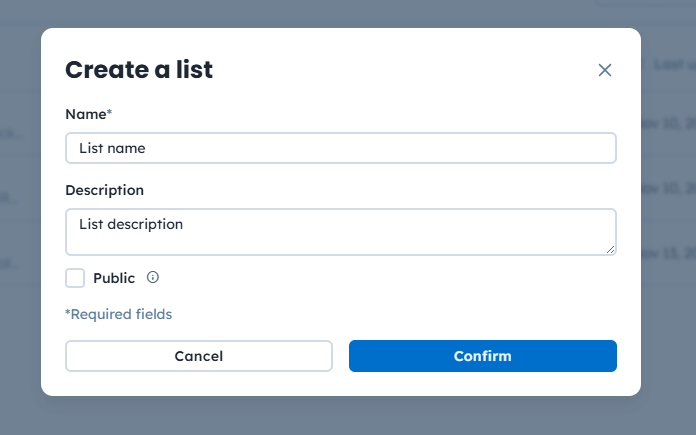
There are two types of the contact list that you can see while creating one:
Public
These lists are visible to contacts on the subscription management page, where they are able to subscribe and unsubscribe a certain public list.
Private
Contacts on a private list will not be aware of being on such a list. You can use this option for internal segmentation of the database.

Speaking about different options for segmentation, Positive User offers you those options:
Tags and segments can be applied to different objects in the application (contacts, companies, deals, etc.), but contact lists are unique - they work for contacts only. You can use this aspect while planning the data structure on your account.
Learn more about tags, segments and lists.
What also makes lists stand out is that they have their own "unsubscribe tags". You can find them in “Data” → “Contacts” → “Contact Lists” section. These tags allow you to put a special link into your email message to allow a contact to unsubscribe from a specific list, but still receive other email notifications from you.
For example, you send a newsletter campaign to all your subscribers using the "Newsletter" list. The email message includes a dedicated "unsubscribe from specific list" link. A contact clicks this link and gets removed from the "Newsletter" list. However, "unsubscribed from emails" attribute still has "false" value, what allows you to send other materials like announcements about privacy policy changes.
You can divide contacts into different lists or allow them to subscribe to these lists with the help of forms, pop-ups, pages, and other sources.
However, along with that you need to think of a rule for removing the contacts from the lists. Contact list scenarios should always contain the information about the way in and the way out.
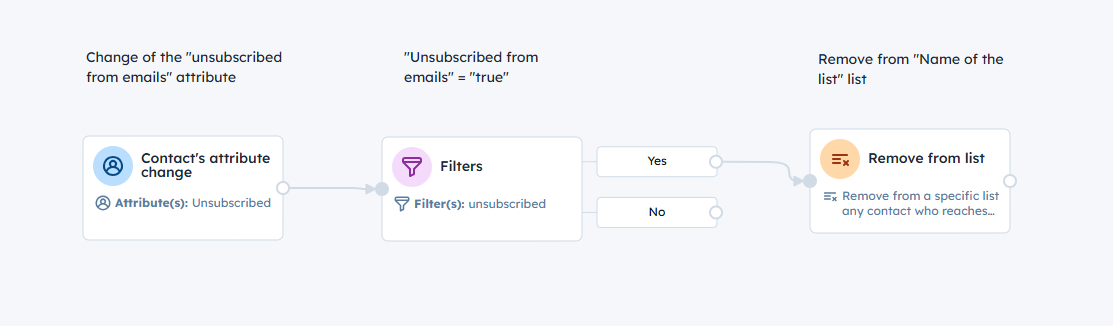
For example, your contact uses a general unsubscribe link and fully resigns from any email notifications from your side. In this case "unsubscribed from emails" attribute will be updated with the "true" value. It is a good moment to remove the contact from the "Newsletter" (or any other) mailing list to keep the up-to-date number of subscribers.
This is the automation you can use for it:
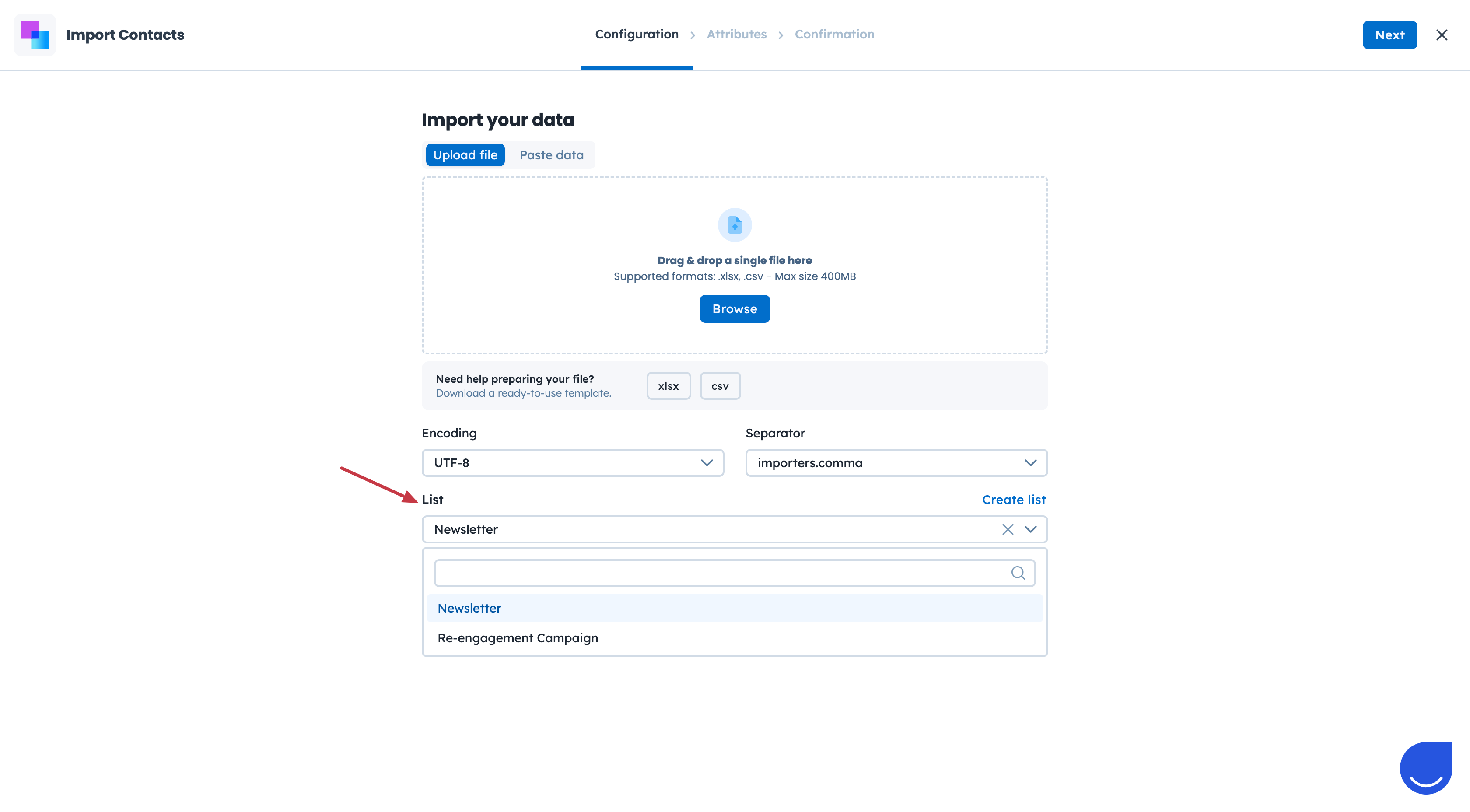
You can also upload your database into different lists straight away and use them for different purposes later. To apply this option you need to choose a predefined list right on the first step of the CSV import.
It might be useful if you are moving from another platform or if you have contacts from different sources (e.g. offline conference).
Learn more about importing contacts to Positive User.