Positive User lets your team build custom landing pages to capture information from potential leads. By connecting these pages to an automation, you can ensure your team responds instantly, whether that’s sending a confirmation email or updating a contact record.
To learn more about landing pages, check the following articles:
To trigger an automation o landing page form submit you need to have:
a landing page (How to Create a Landing Page)
a draft of the automation (Create Your First Automation)
Setting up an automation for a landing page involves identifying the specific page and creating a workflow that reacts to its activity.
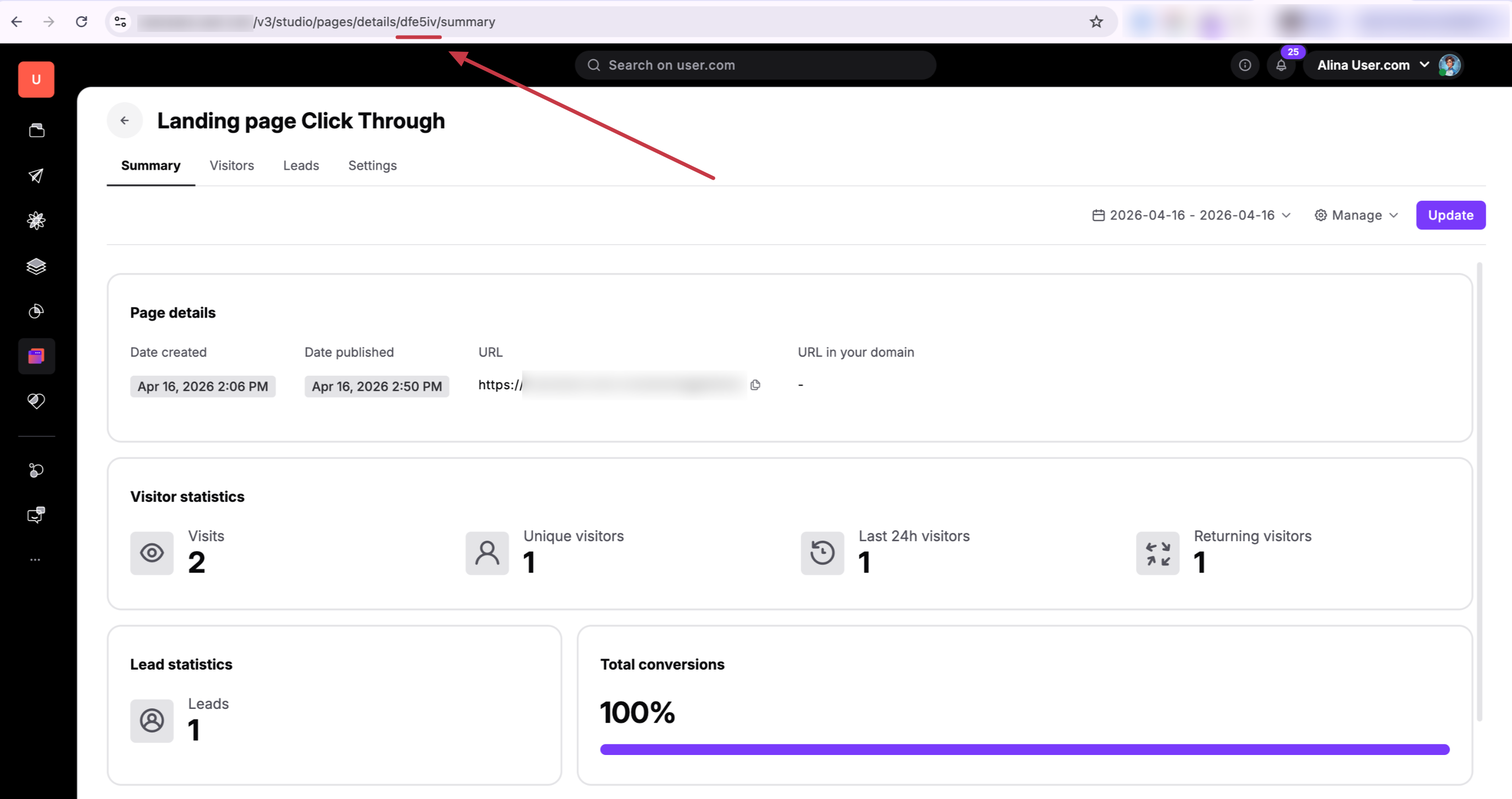
To target a specific landing page in your automation, you need its unique identification number. Go to "Website Experience" → "Landing Pages" and click on the name of the landing page you want to use. Look at your browser’s address bar - the unique sequence of characters in the URL is the ID.
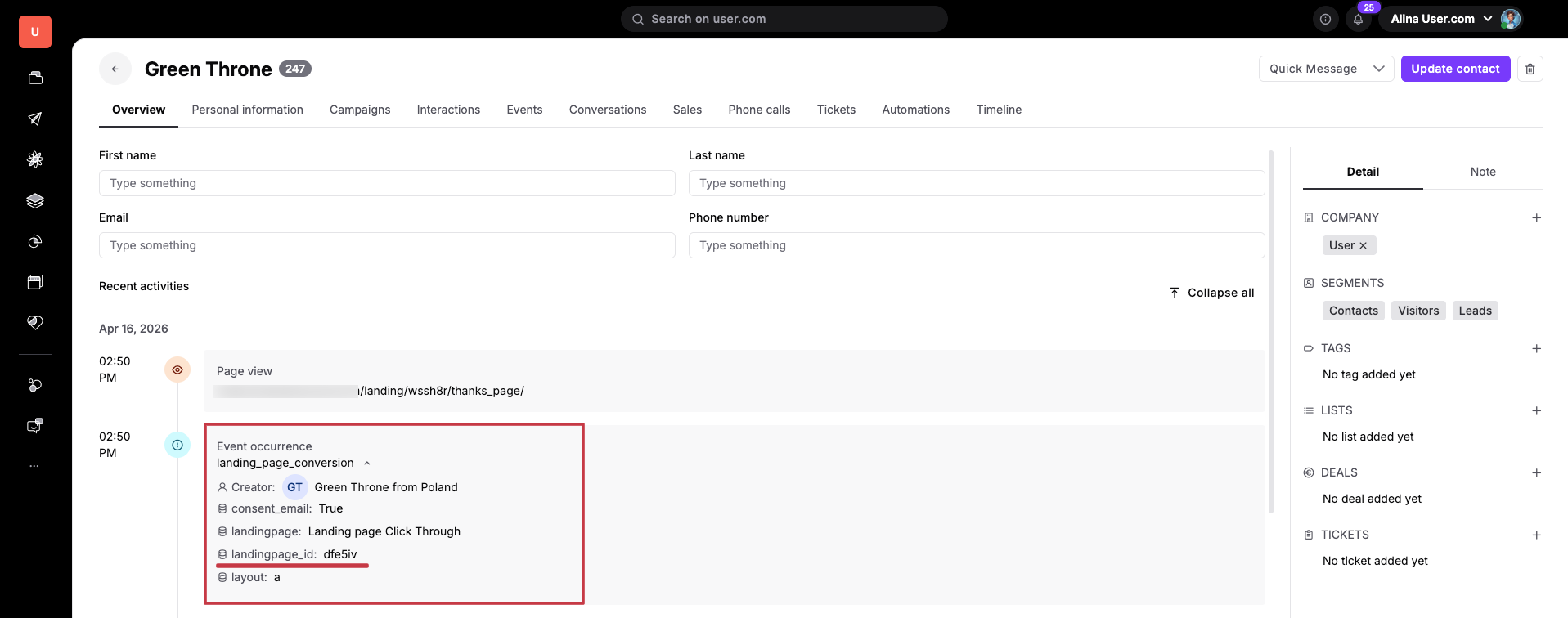
Other option to capture the landing page ID is to submit the form on the LP and check the event occurrence on the timeline in contact profile. Each time the form is submitted the “landing_page_conversion” event is triggered automatically. Each occurrence includes the info about the name and ID of the LP.
Navigate to "Automations" and open the draft of your automation or click a “New automation” button.
Each flow that should be triggered LP form submit should start with the “Event” trigger.

In the module settings, select the system event “landing_page_conversion”. Now the trigger will react on every LP form submit.
Since your team may have multiple landing pages, you must tell the automation which one to watch. This is where you need to use “landingpage_id” information collected in the previous step.
Inside the "Event” trigger settings, turn on “checking attribute value” option and use the “landingpage_id” attribute. The go with “equals” filter and paste the exact ID you copied in Step 1. This ensures the automation only runs for this specific page.
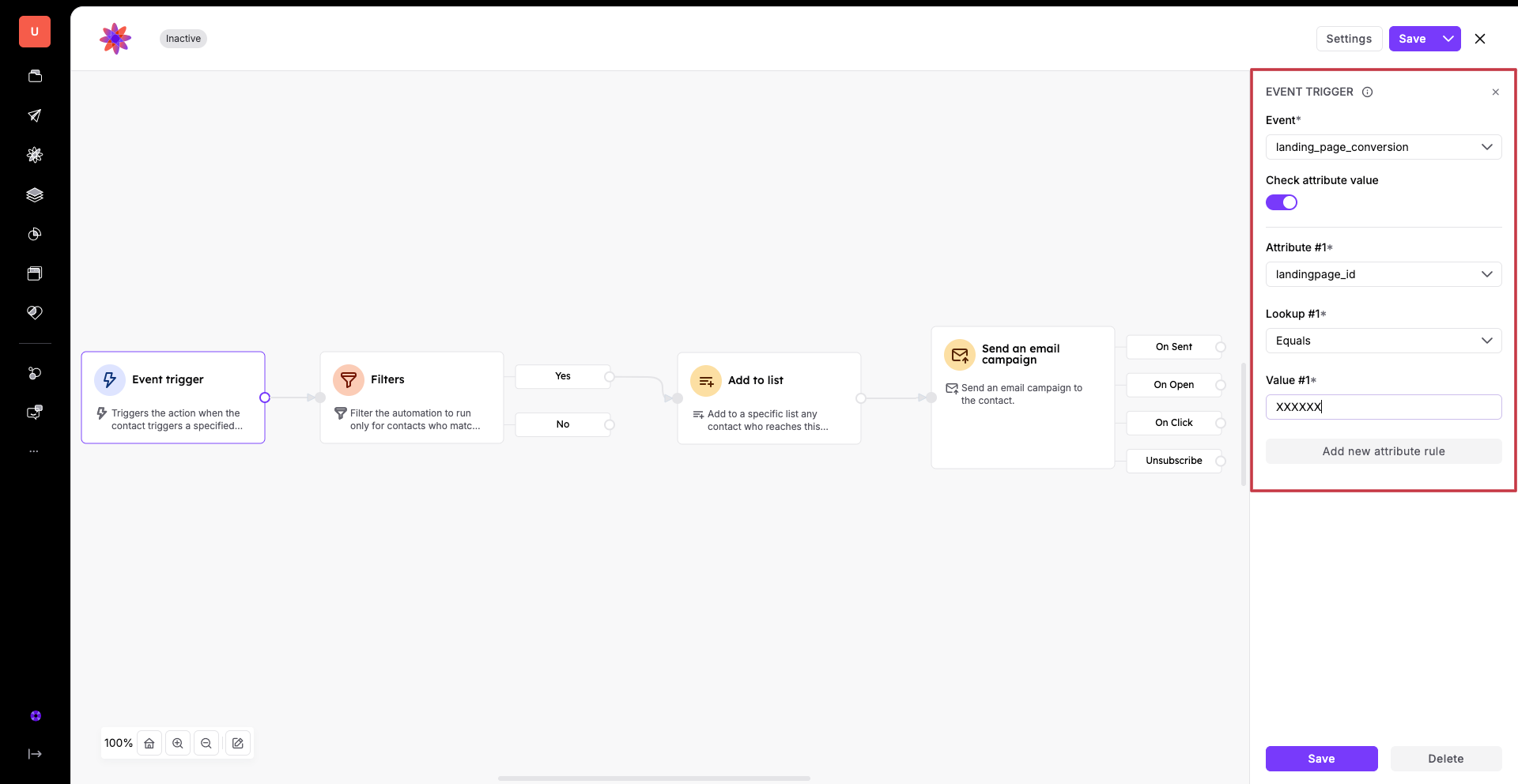
Connect the trigger to the tasks you want to perform. For example, drag the "Send Email Campaign" module and select a campaign you have previously created. This ensures the contact receives an immediate response.
Then define how often this automation should run for a single contact. You can set it to trigger "each time the condition is met" if you want them to receive an email every time they sign up, or "once" for a one-time welcome message. To learn more about available timing options, check the “Automation Settings Overview” article.
Activate the automation and run a test.
Event Registration: Automatically send a confirmation email with the event agenda and date immediately after a contact registers on your landing page.
Content Delivery: When a contact submits a form to download a guide, use the automation to instantly deliver the file to their inbox and create a follow-up task for your team.
Double opt-in: Send a confirmation email to each contact who wants to subscribe to your newsletter.
