Automation settings allow you to manage the core behavior of your marketing workflows. By defining these rules, you ensure your messages reach the right people at the right time without over-communicating. This setup is essential for maintaining a professional relationship with your audience and keeping your internal processes organized.
Automation Settings are the foundational rules found in the configuration window that appear after you press "Save & Exit" or “Settings” buttons on an automation canvas. These settings govern the timing, frequency, and organizational details of how a specific workflow operates within Positive User.
What they cover:
Precision Timing: Ensure your actions and messages only trigger during the most effective hours.
Controlled Frequency: Avoid overwhelming your audience by limiting how many times a Contact can enter the same flow.
Internal Organization: Use categories to keep your different marketing and sales processes easy to find.
Activation Control: Safely save your work as a draft until you are ready to toggle the automation to live.
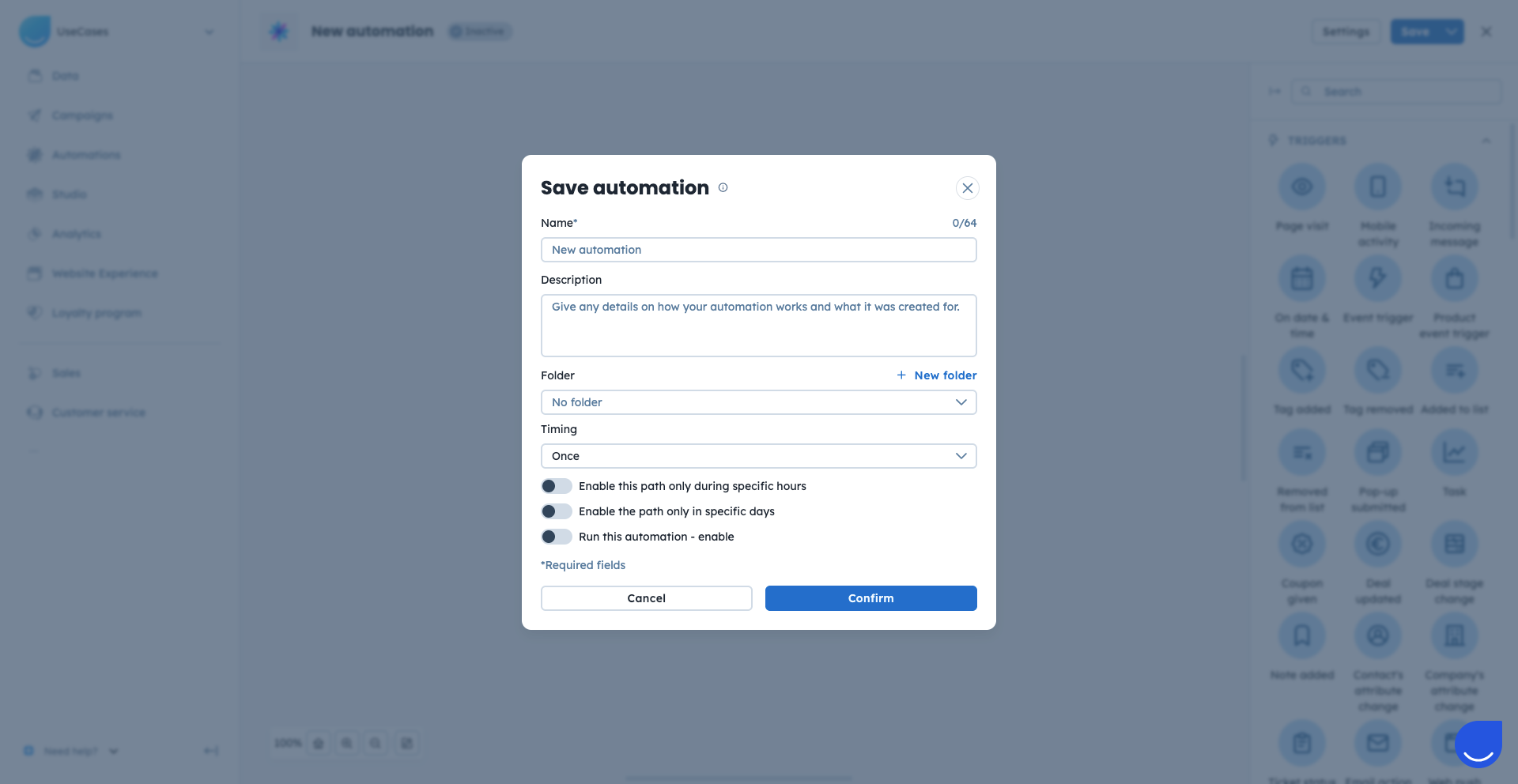
The "Automation Settings” window acts as the final control panel for your automation logic.
Management and Organization
Name: The internal label used to identify the workflow in your list.
Description: A place to add notes for your team about the purpose of the automation.
Category: A dropdown menu to group your workflow into pre-set folders like "Sales process" or "Customer support".
Timing
The “Timing’ section determines how often an automation flow triggers per each contact:
Once: The contact starts the journey only one time.
Max. once per day: Limits entries to once every 24 hours.
Each time the condition is met: The automation starts every time the trigger occurs are met.
For the next x days: Sets a specific active window for the automation.
Only on given week day: Restricts the flow to specific days, such as Monday through Friday.
No more often than: Sets a required "break" (in days/hours/minutes) before the automation can restart for that same person.
Additional Restrictions
It’s possible to set additional time-related limits for the automation flow to trigger it within a chose period of time. For example, if the flow creates the tasks for the team members, then it can be triggered only Monday - Friday, from 8:00am till 4:00 pm.
Enable this path only during specific hours: Define the time frame for the automation to be triggered.
Enable the path only in specific days: Choose specific date range automation should be triggered on.

