Testing your automations ensures that your setup works as expected before you launch it. By running a test, you can check page elements, triggers, and timing without affecting your actual contacts.
Prepare Your Test by Copying the Automation
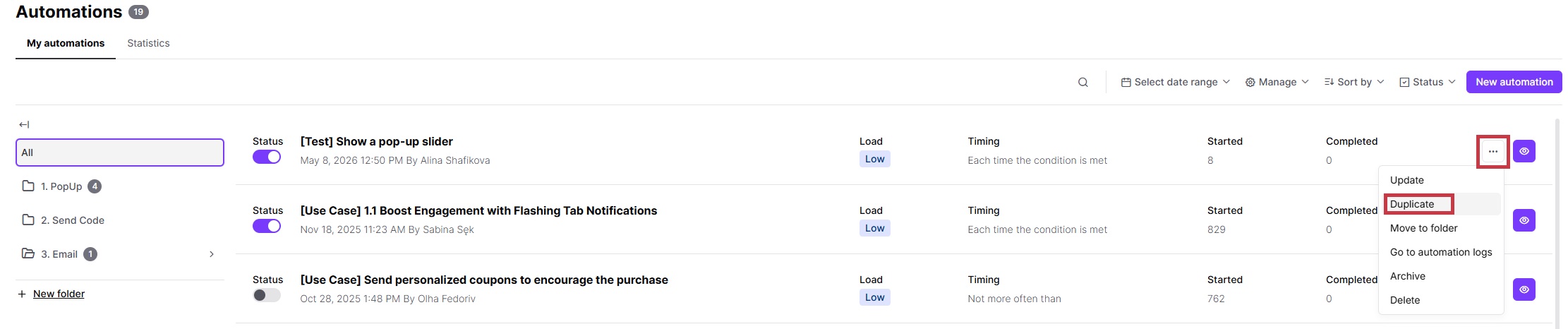
We recommend testing on a duplicate version of your path. This keeps the logs of your production automation completely clean and lets you speed up the testing of multi-day sequences.
Duplicate the automation you want to test from your main list.
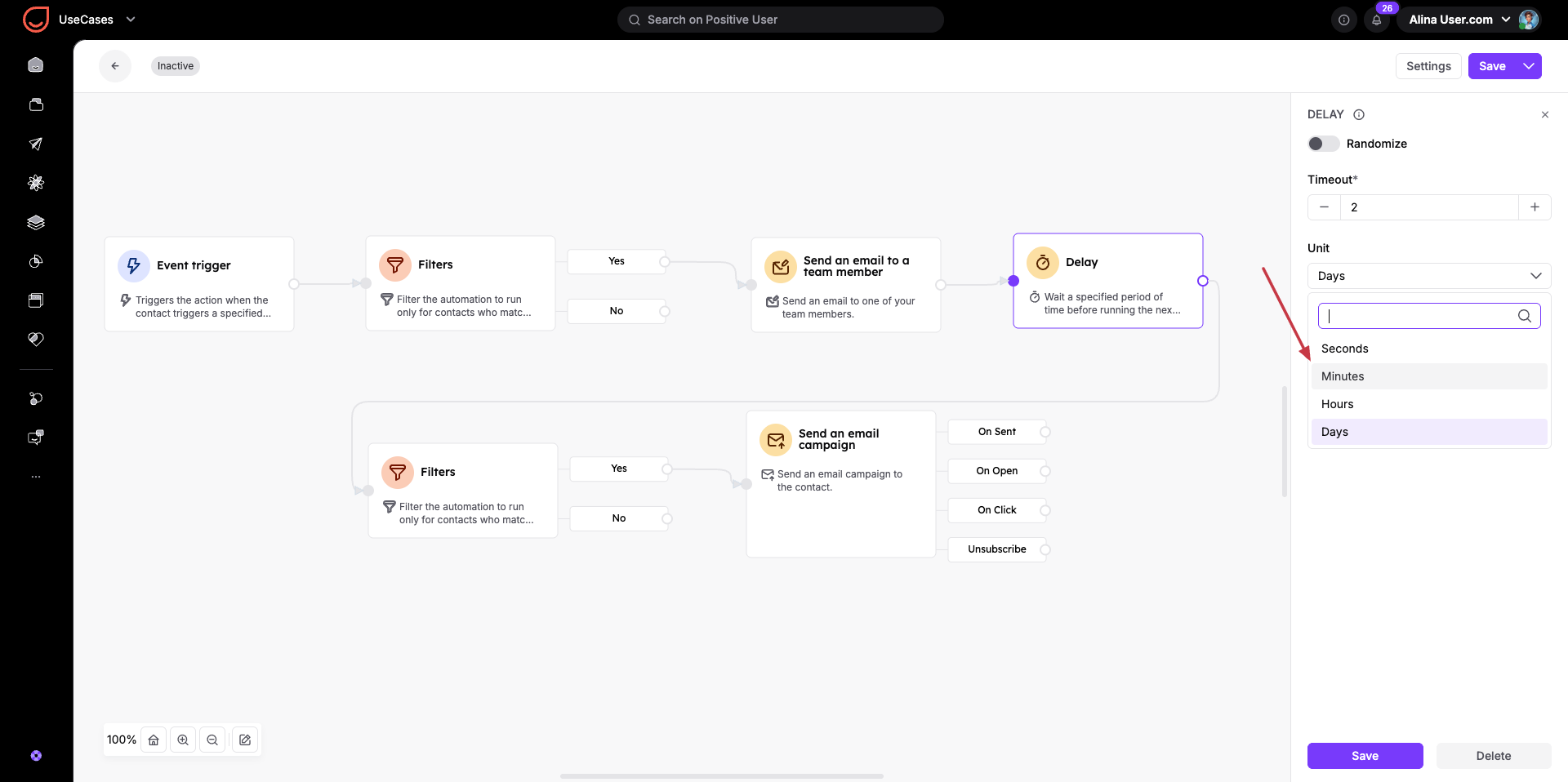
Open the copied version and change the “Delay” modules to run faster. For example, change a wait time from 2 days to 2 minutes.
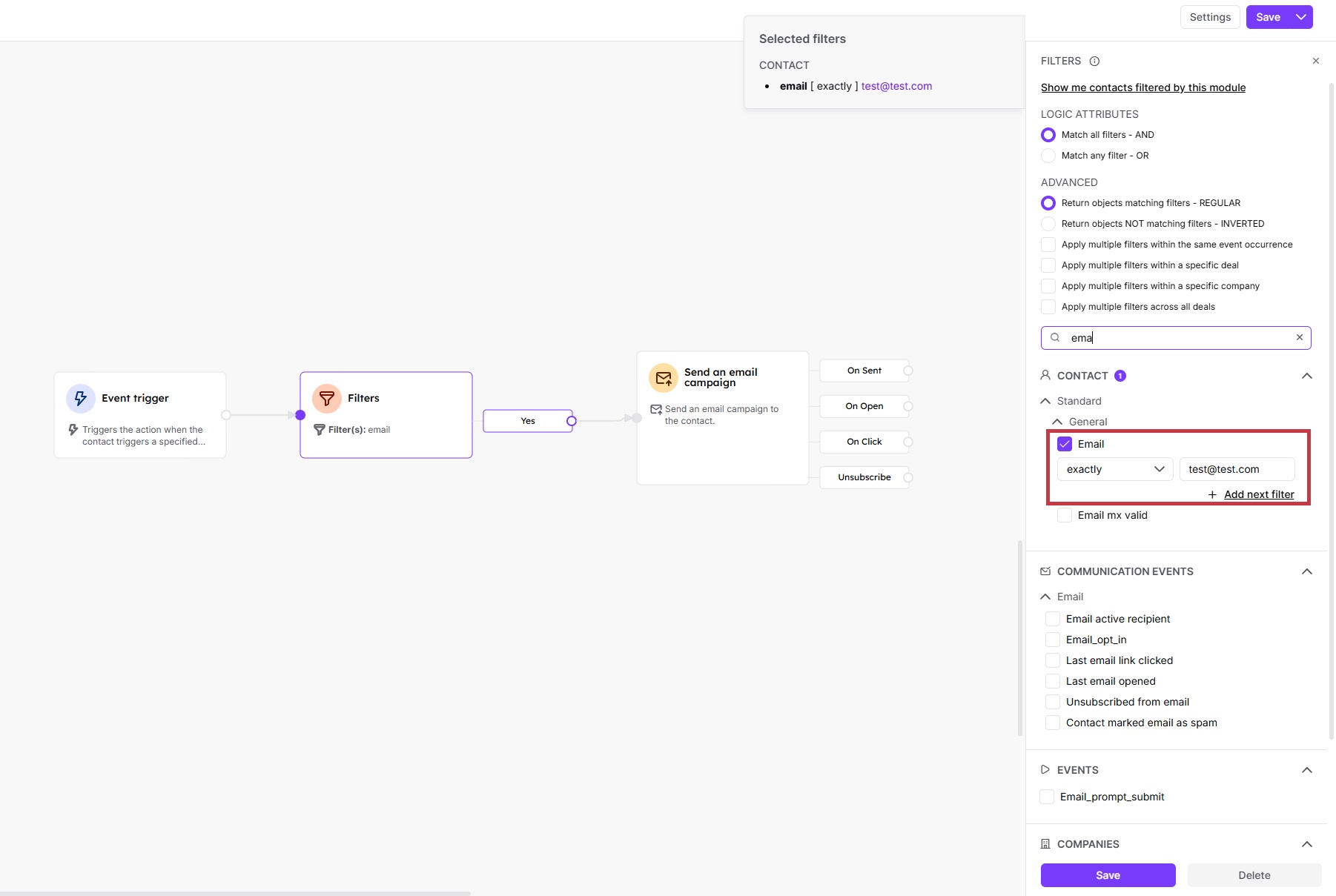
You can test any automation by adding a filter that ensures only your specific test profile makes it through the path. This is helpful if you want to use original URLs or other standard triggers.
Place “Filters” directly after your starting trigger on the canvas.
Configure the filter to check for your specific details. You can filter by email, IP, contact_key, or contact_ID. This ensures only your test contact moves forward, and everyone else drops out of the automation.
When your automation starts based on a page visit, you can modify the URL rules so the path only triggers when you use a special testing link.
Open your trigger and set the URL rule to contains or equal. Add (/?test) to the end of your link. For example: equals (https://your_domain.com/?test) or contains (/?test).
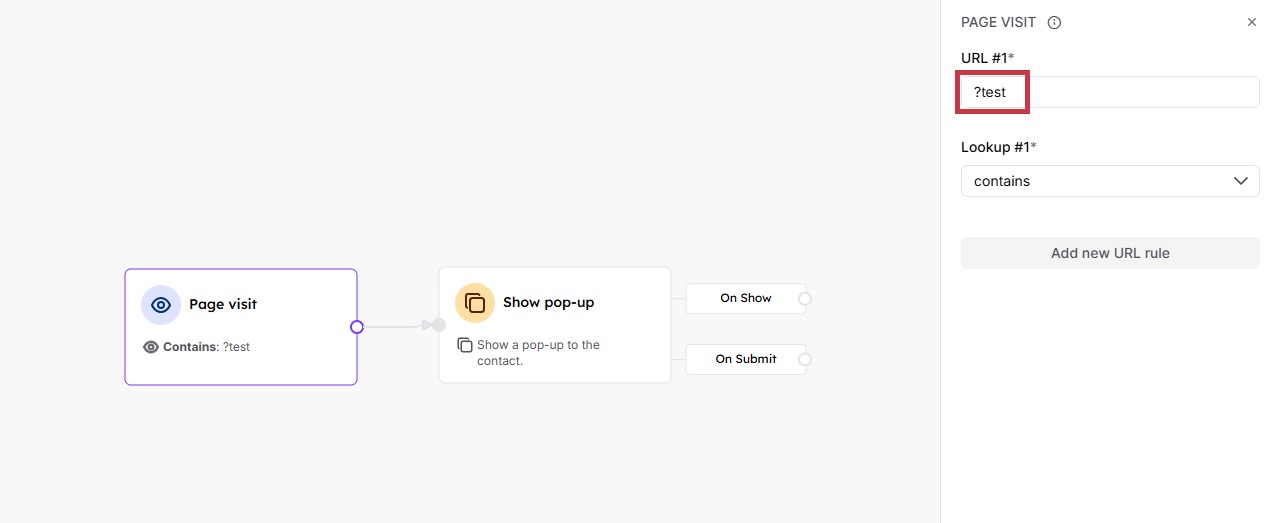
To test the automation, you need to use the exact URL that you get in the trigger or, in the end, add the part with the question mark.

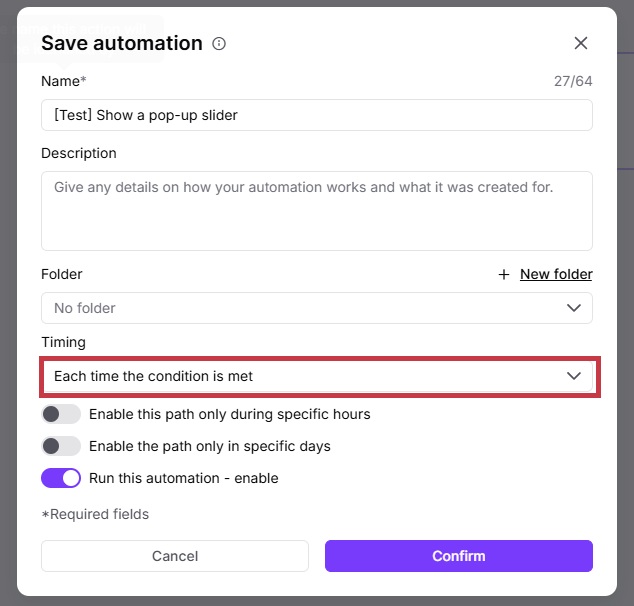
To run your test multiple times, go to the settings in your automation. Change it to "Each time the condition is met". Just remember to keep your URL condition or filters in place so the path does not trigger repeatedly for your real contacts.
Testing an Abandoned Cart Sequence: You can copy your recovery automation and shorten the "Delay" modules from days to minutes. This helps you verify that your sequential reminder emails trigger in the correct order and with the right timing before launching the path for your customers.
Previewing Live Website Pop-ups: You can set your trigger URL to "Contains" and add (?test) to launch a promotional pop-up on your live site. This helps your team safely inspect the visual layout and behavior of the form without showing it to real contacts.
Validating a Newsletter Sign-up Flow: You can add a contact filter with your own email address directly after the subscription trigger. This helps you test the entire onboarding journey - including receiving the welcome email and checking if tags are correctly applied - without impacting other profiles.
