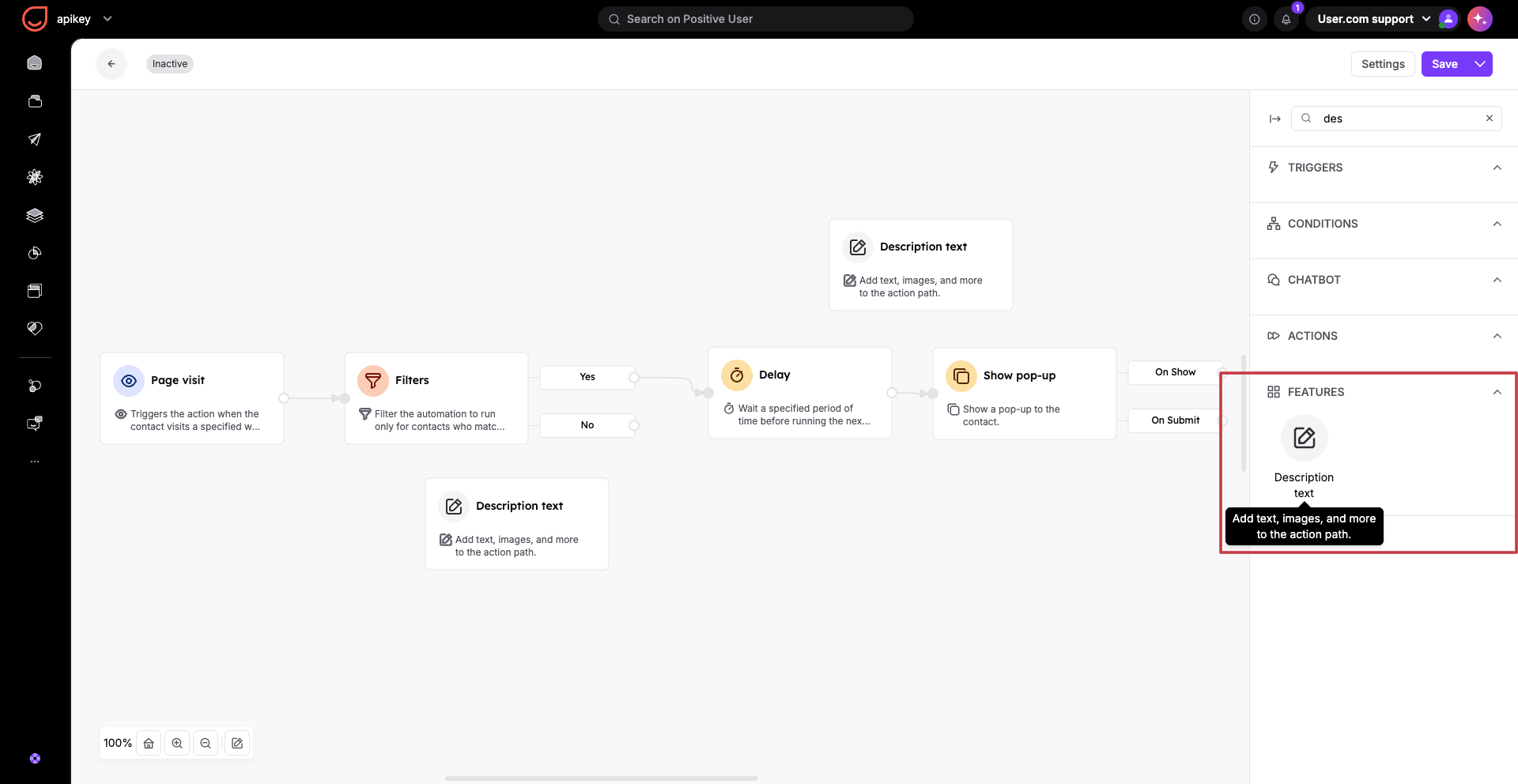
To build any automated workflow in Positive User, you use three main types of modules: triggers, conditions, and actions. Triggers decide when a journey starts, conditions act as filters to determine who moves forward, and actions execute the final steps. Together, they help your team manage customer interactions automatically, answering the essential questions of where, who, and when without needing to write code.
Building an automation means connecting these three elements to create a clear path for your contacts.
A trigger is the entry point. It dictates when an automation starts. Common triggers include page visits, incoming messages, specific dates, or custom events like adding an item to a cart. You can connect multiple triggers to the same flow. For example, someone could enter a workflow by submitting a form or by being tagged by a team member.
“Introduction to Automation Triggers”

Here are the triggers you can choose from to start a journey:
Page visit
Mobile activity
Incoming message
On date & time
Event trigger
Product event trigger
Tag added
Tag removed
Added to list
Removed from list
Pop-up submitted
Task
Coupon given
Deal updated
Deal stage change
Note added
Contact's attribute change
Company's attribute change
Ticket status change
Email action
Web push action
SMS action
WhatsApp action
Ticket created
Deal created
New contact
Conversation changed
Mobile push action
Wallet card status changed
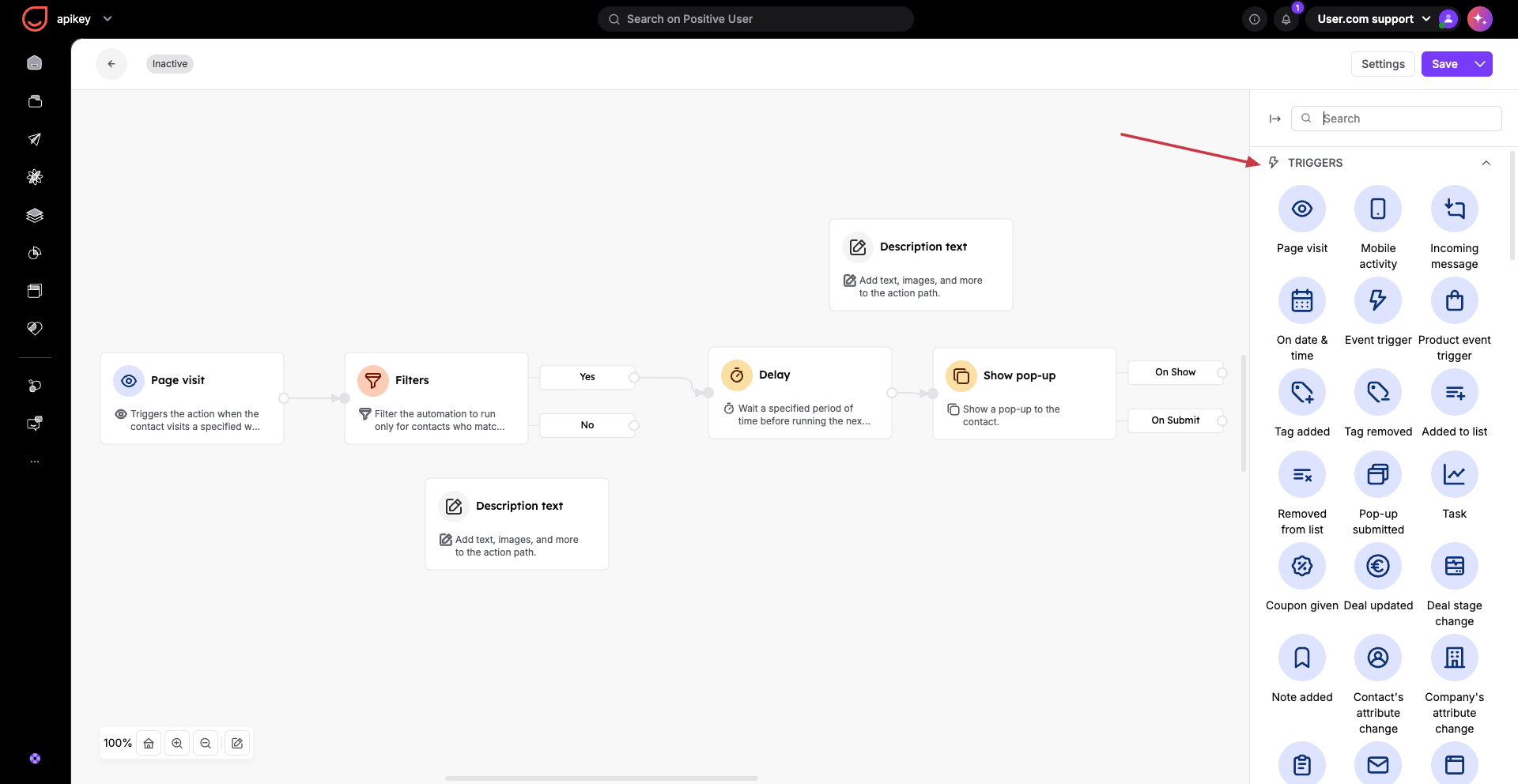
Conditions appear as orange blocks and act as filters. They ask a question, such as "Does this contact have a phone number?"
Most conditions have a "yes" and "no" exit. If the answer is yes, the contact moves down one path. If no, they follow a fallback path or exit the automation.
“Introduction to Automation Conditions”
Based on the available options in Positive User, here are the conditions you can use to filter your contacts:
Filters
A/B split
Submitted pop-up
Received email
Visited page
Team member responded
Contact responded
Email action
IMAP Email
Segment
Compare attributes
Time
Global variable
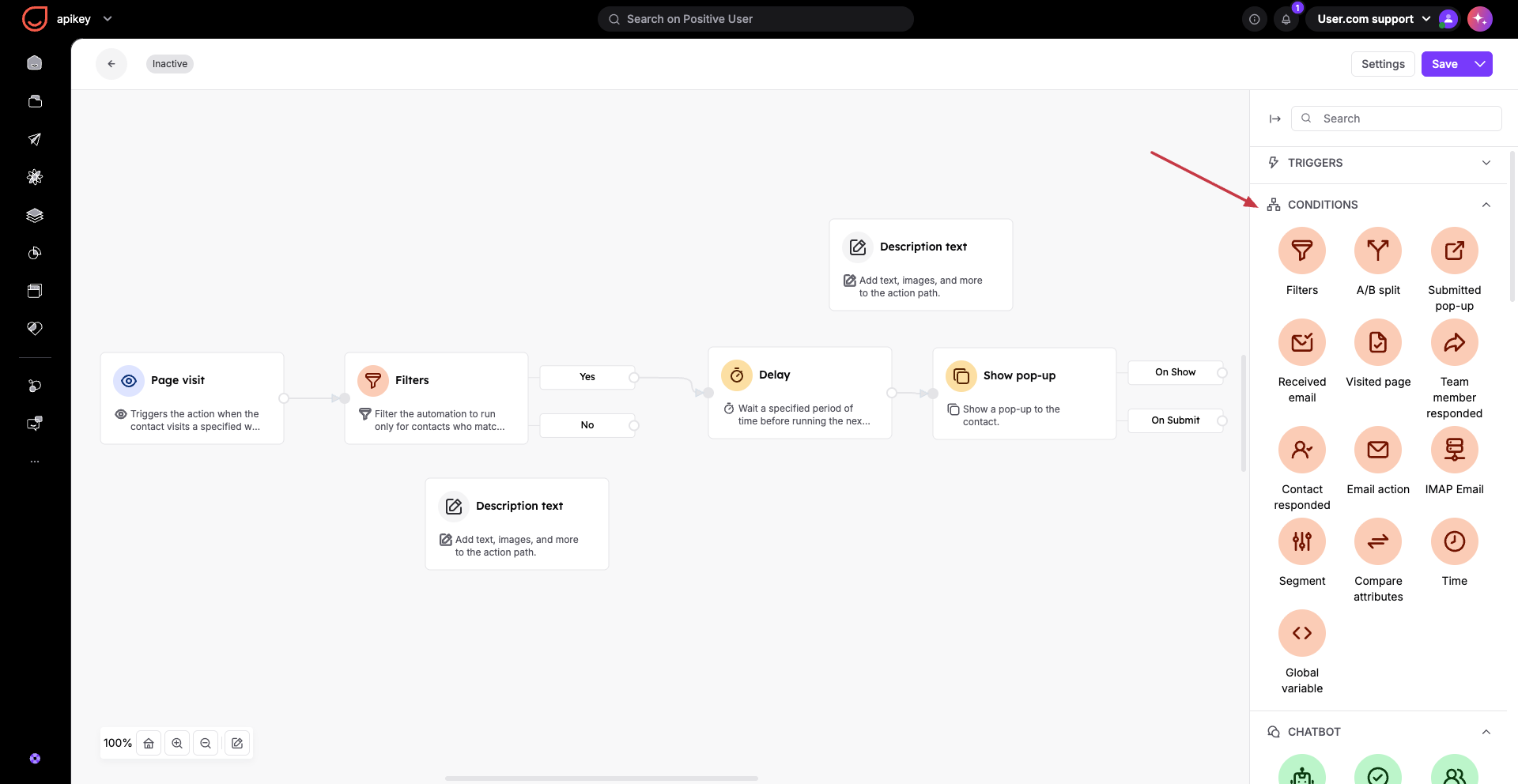
Actions do the actual work. Once a contact passes through triggers and conditions, actions perform tasks like sending an email, showing a pop-up, creating a sales deal, or updating the contact's profile with a new tag.
“Introduction to Automation Actions”
Chatbot Actions
Actions have a group of modules dedicated specifically to chatbots (these appear as green modules). These modules work for automation flows related to your chat widget, chatbot, and conversations.
These are:
Bot message
Answer condition
Assign to a team member
Update conversation status
Standard Actions
The rest of the action modules (which appear in yellow) cover everything from sending campaigns to updating data records:
Send an email campaign
Send a web push campaign
Send chat message
Send an email to a team member
Update an attribute
Update company attribute
Update deal attribute
Create event
Delay
Change score
Show pop-up
Custom widget
Website events tracker
Add to list
Remove from list
Add a note
Add tag
Remove a tag
Create a task
Offer coupon
Check coupon
Create a deal
Change deal status
Update numeric contact attribute
Team member push notification
API call
Calculated attribute
Send SMS campaign
Send mobile push notification
Send mobile in-app message
Finish path
Send code
Update ticket attribute
Create a ticket
Show web push prompt
Team member web notification
Change global variable value
Add to segment
Remove from segment
Issue wallet card
Update wallet card
Send mobile wallet notification campaign
Send WhatsApp campaign
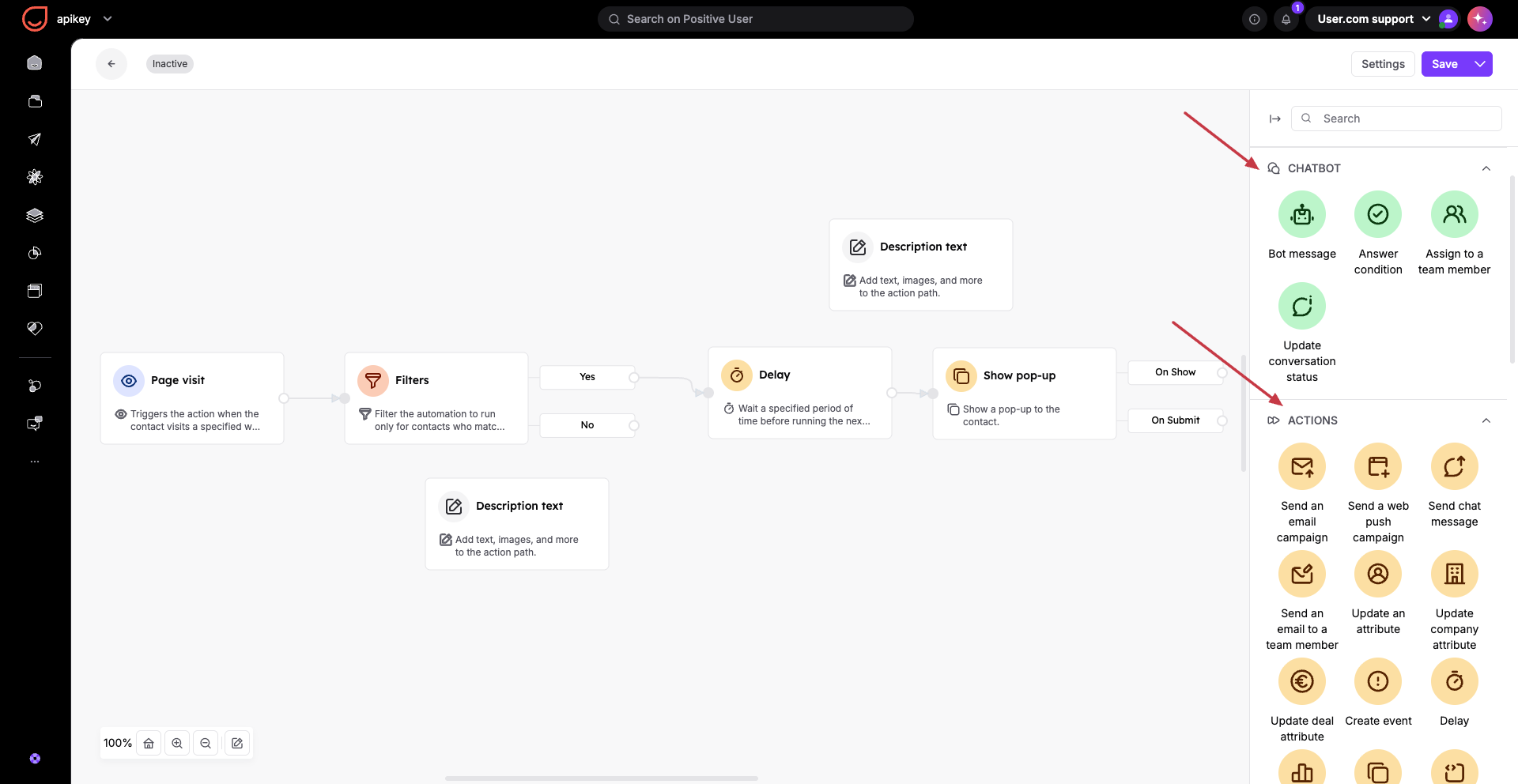
Features are a separate group of modules designed entirely for your internal notes. Currently, this includes the "Description text" module.
You can place a "Description text" module anywhere on your automation canvas. It acts as a sticky note that only you and your team members can see. Use it to leave helpful context about what a specific part of the workflow does, document details about your contacts, or leave reminders about tasks and corrections needed in the automation. This keeps your workflows clear and comfortable to manage for everyone on your team.