Form statistics are performance metrics and real-time logs within Positive User that show you exactly how people interact with the inline forms on your website. Located inside the "Forms" section under "Website Experience", this data tracks how many times your forms appear, how many contacts fill them out, and who those individuals are. Measuring these metrics helps your marketing team move from guessing to knowing what catches your audience's attention so you can capture more leads effectively.
Boost your lead generation: See which specific inline offers or fields convert best so your team can design highly effective signup forms that grow your contact list.
Gauge audience interest: Track how many people view your embedded content compared to how many take action, giving your team a clear look at what content genuinely resonates.
Improve your website content: Spot low-performing forms quickly so your team can test fresh headlines or layouts without losing valuable website traffic.
Empower sales and support teams: Capture submission details in real time so your team can reach out to interested prospects right away while they are actively engaged.
Positive User tracks interaction data automatically whenever an embedded form loads or gets completed on your website. This tracking is split across different dashboards and logs to give your team both high-level trends and deep individual insights.
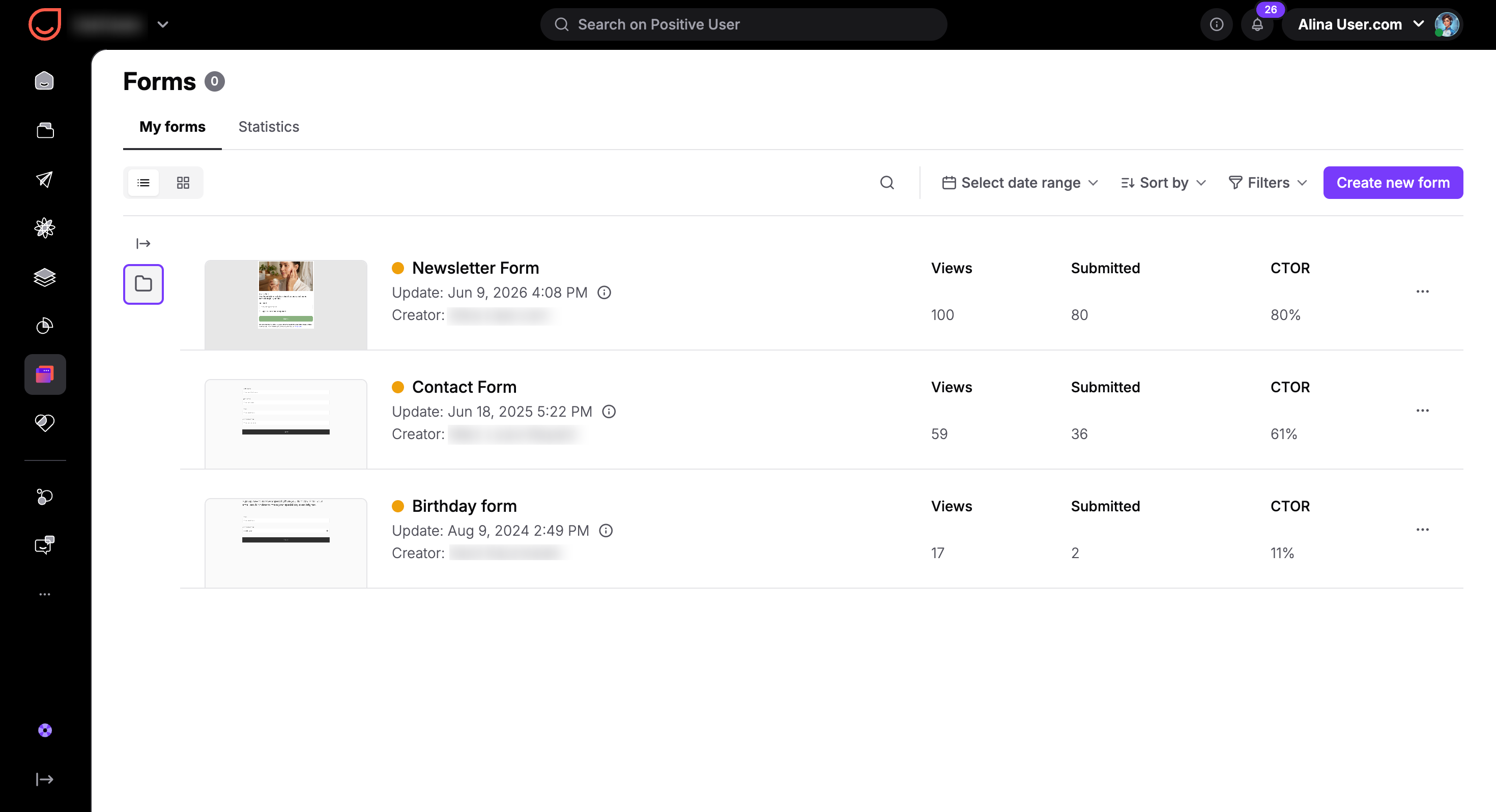
When your team opens the "Website Experience" section and navigates to "Forms", you will find the "My forms" tab. This tab lists every inline form your team has built alongside key performance columns:
Views: The total number of times the form loaded for someone browsing your site.
Submitted: How many times a contact successfully completed and sent the form.
CTOR: The Click-to-Open Rate shows the percentage of views that turned into successful submissions.
Checking the "My forms" tab helps your team monitor the daily pulse of your lead generation and quickly identify which pages or embedded assets are doing the heavy lifting. To manage a large list, you can click "Select date range" to filter data by a specific time frame, helping you isolate seasonal trends or campaign periods. You can also click "Sort by" to arrange your list by attributes like "Name" or "Creator" in ascending or descending order or filter by a status.
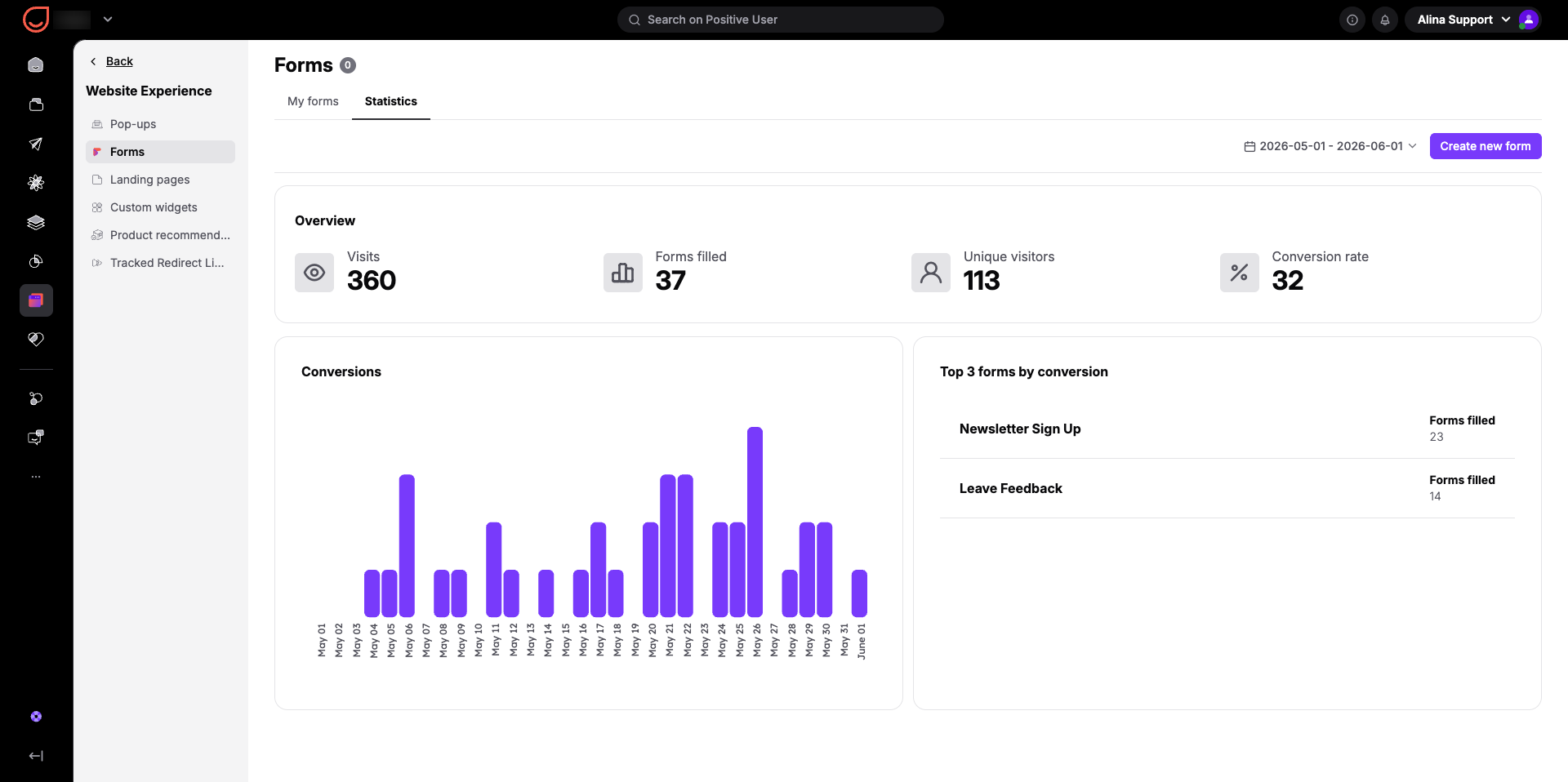
Switching to the dedicated "Statistics" tab provides an aggregated view of all your embedded form activities across your entire workspace. This dashboard features several key widgets to analyze audience patterns:
"Overview": High-level totals for "Visits", "Forms filled", "Unique visitors", and "Conversion rate". Reviewing these totals helps leadership see the overall ROI of website content and judge whether site-wide design changes are driving conversion trends up or down.
"Conversions": A daily graph tracking when submissions occur so you can analyze weekly engagement patterns. This helps you identify peak days or times when your audience is most active, allowing you to align future marketing pushes with high-traffic windows.
"Top 3 forms by conversion": A quick leaderboard highlighting your most successful embedded forms. This immediate insight tells your team exactly which copy, layouts, or incentives work best, giving you a proven blueprint to clone for future forms.
You can filter this entire dashboard using the date picker in the top right corner to isolate specific marketing campaign windows.
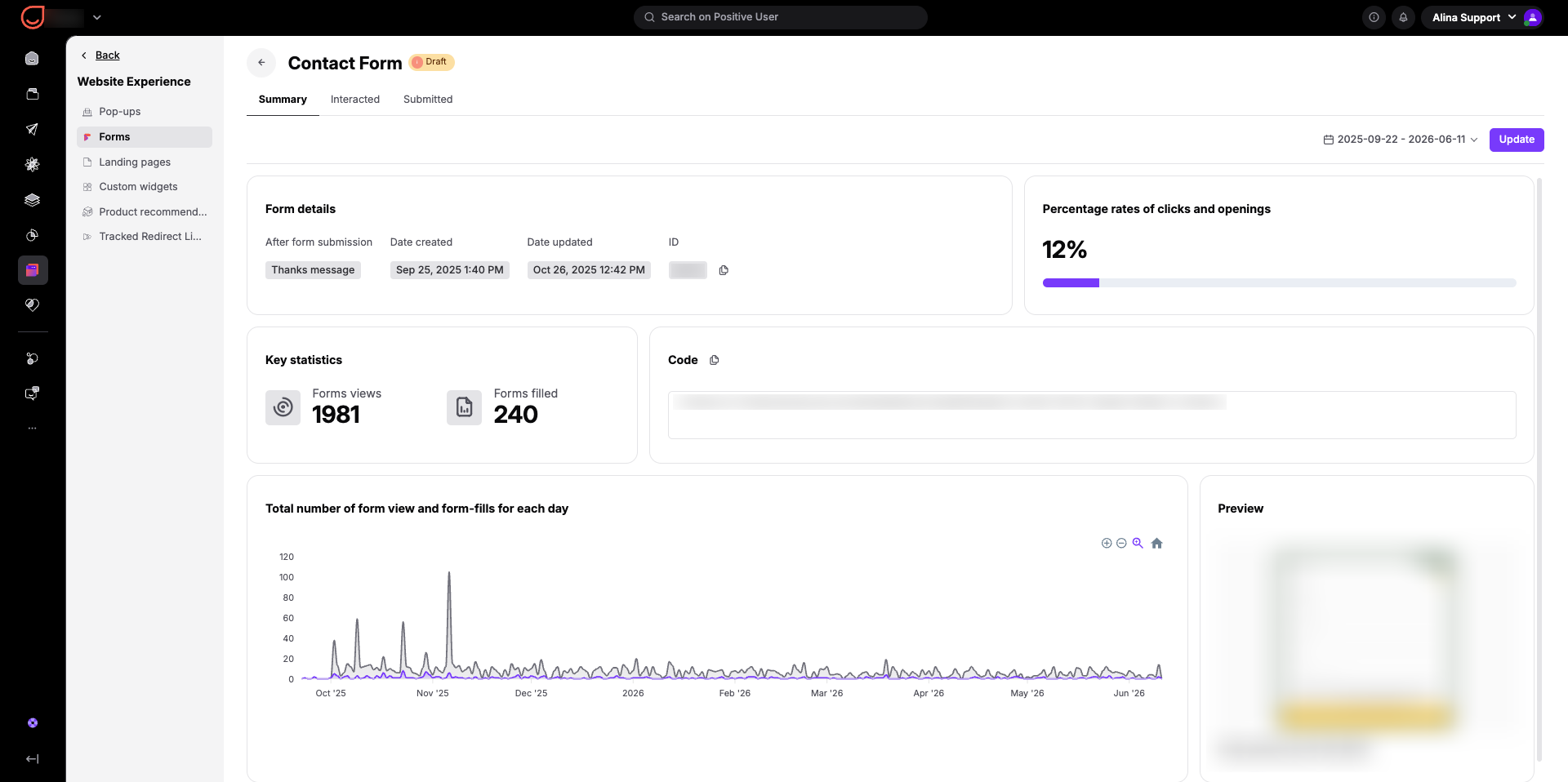
When you click on the name of any specific form in the list, Positive User opens a detailed view showing a preview of the design alongside a real-time activity log split into three tabs:
"Summary": Displays a visual "Preview" of your form layout, "Form details" (such as the creation date and form ID), "Key statistics" (tracking total "Forms views" and "Forms filled"), and a daily timeline chart. Checking this summary lets your team cross-reference your layout and code with real-time conversion trends to make sure everything displays and functions perfectly.
"Interacted": Lists every contact who encountered the embedded form on your website and the exact timestamp of their visit. Monitoring this log helps you identify hesitation points or high traffic that isn't converting, signaling that your form fields might be too complicated or your offer isn't clear enough.
"Submitted": Lists every contact who successfully completed the form, displaying the exact details they submitted and a precise timestamp. This log acts as a direct tool for data validation, letting your team verify exactly what kind of information prospects leave behind and ensure your fields are capturing high-quality data.
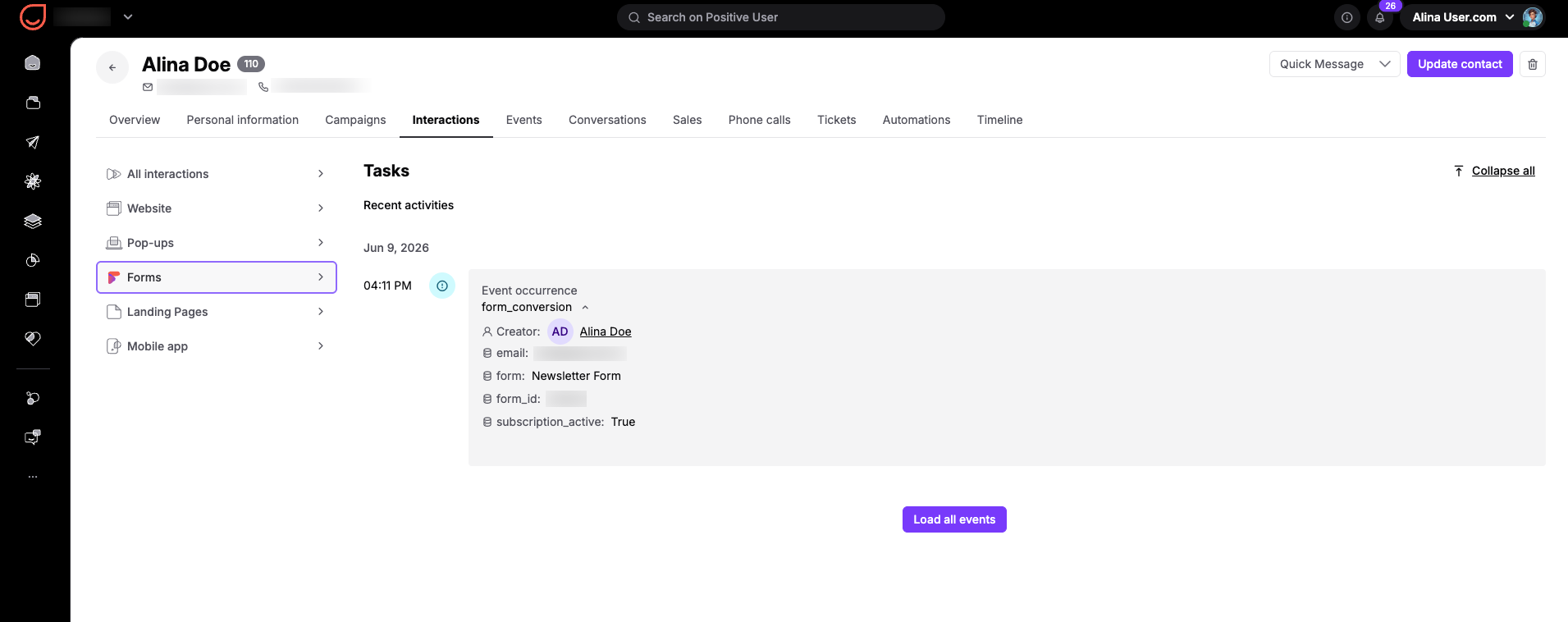
Beyond these lists and dashboards, your team can view specific form interactions directly on an individual contact's profile. Inside a contact profile, look at the top menu and click the "Interactions" section. From there, click "Forms" on the left menu to view a full history of every embedded form that specific contact has seen or filled out, along with logged timeline event - “form_conversion”. Reviewing individual profiles gives your account managers and sales team members context-rich histories, enabling them to see exactly what caught a contact's interest right before they hop on a call or open a support ticket.
Optimizing Low-Converting Promotional Forms: During a seasonal marketing push or product launch, your team can use the date picker to isolate the exact timeframe of your campaign. By analyzing the specific metrics for your promotional form, you can see if high page traffic is actually converting into signups. If the data shows a high view count but low submissions, you can quickly adjust the form layout or headline to capture more contacts before the campaign ends.
Targeting Abandoned Form Views: Your marketing team can look at the "Interacted" tab of any inline form to see exactly which contacts saw the form but left the page without completing it. This interaction history lets you filter your main contact database to build highly segmented lists, enabling you to run precise remarketing campaigns or follow up with custom offers designed to win back prospective leads who hesitated.
