Creating a product in Positive User is your first step toward tracking how customers interact with your store and automating your daily tasks. Whether you want to add a few items one by one or update a massive catalog all at once, Positive User makes it easy to add the details that power personalized shopping experiences. By setting up your products correctly from the start, you ensure everything is perfectly organized and ready to shine in your automated campaigns and product recommendations.
To learn more about products, check the “What Is a Product” article.
This method is best when you only need to add a few new items or make quick changes without preparing a spreadsheet. Add products to your workspace manually directly from the “Products” section.
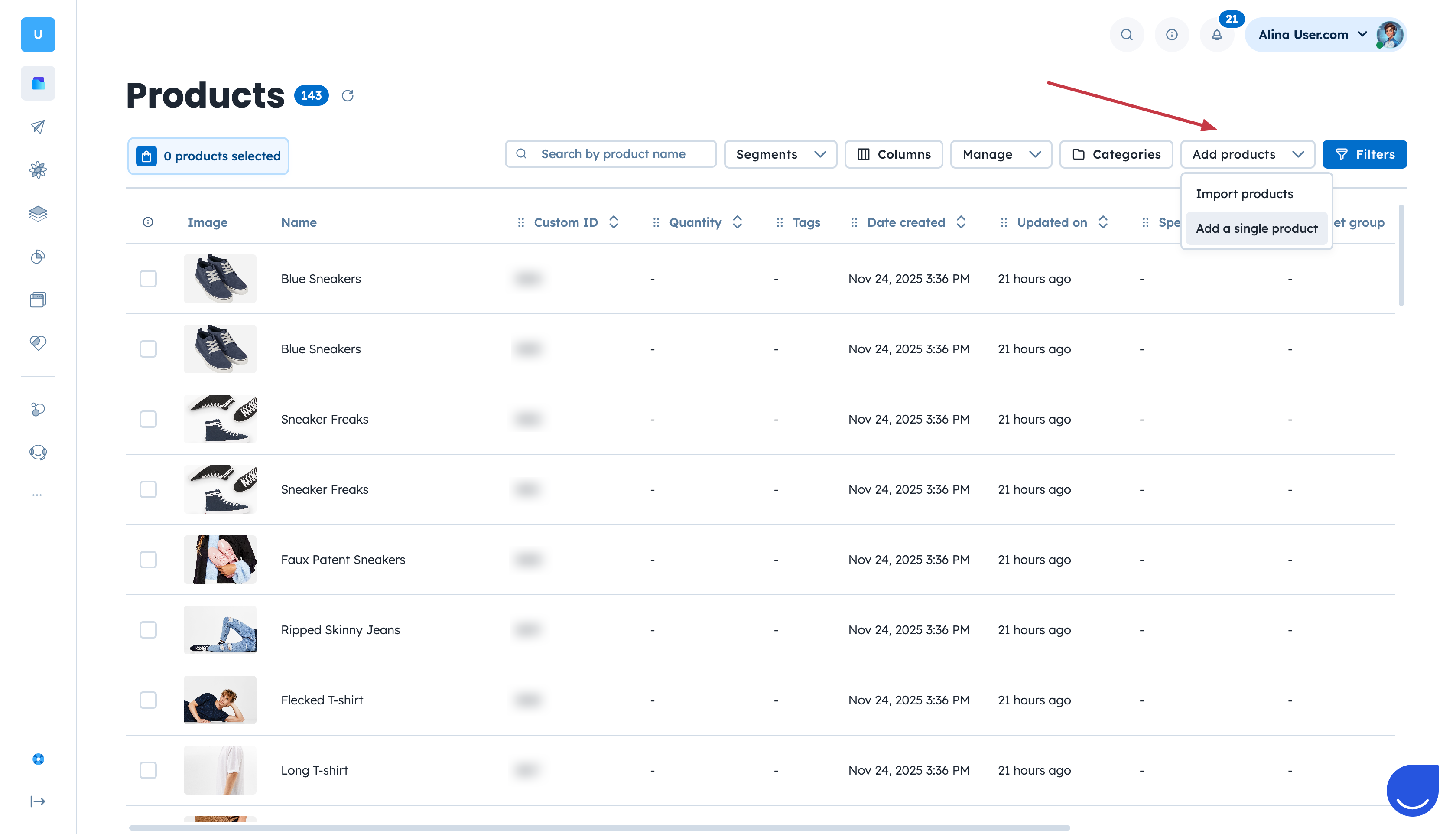
Go to “Data” → “Products” section.
Click “Add products” button in top right corner → Choose “Add a single product” option from the list.
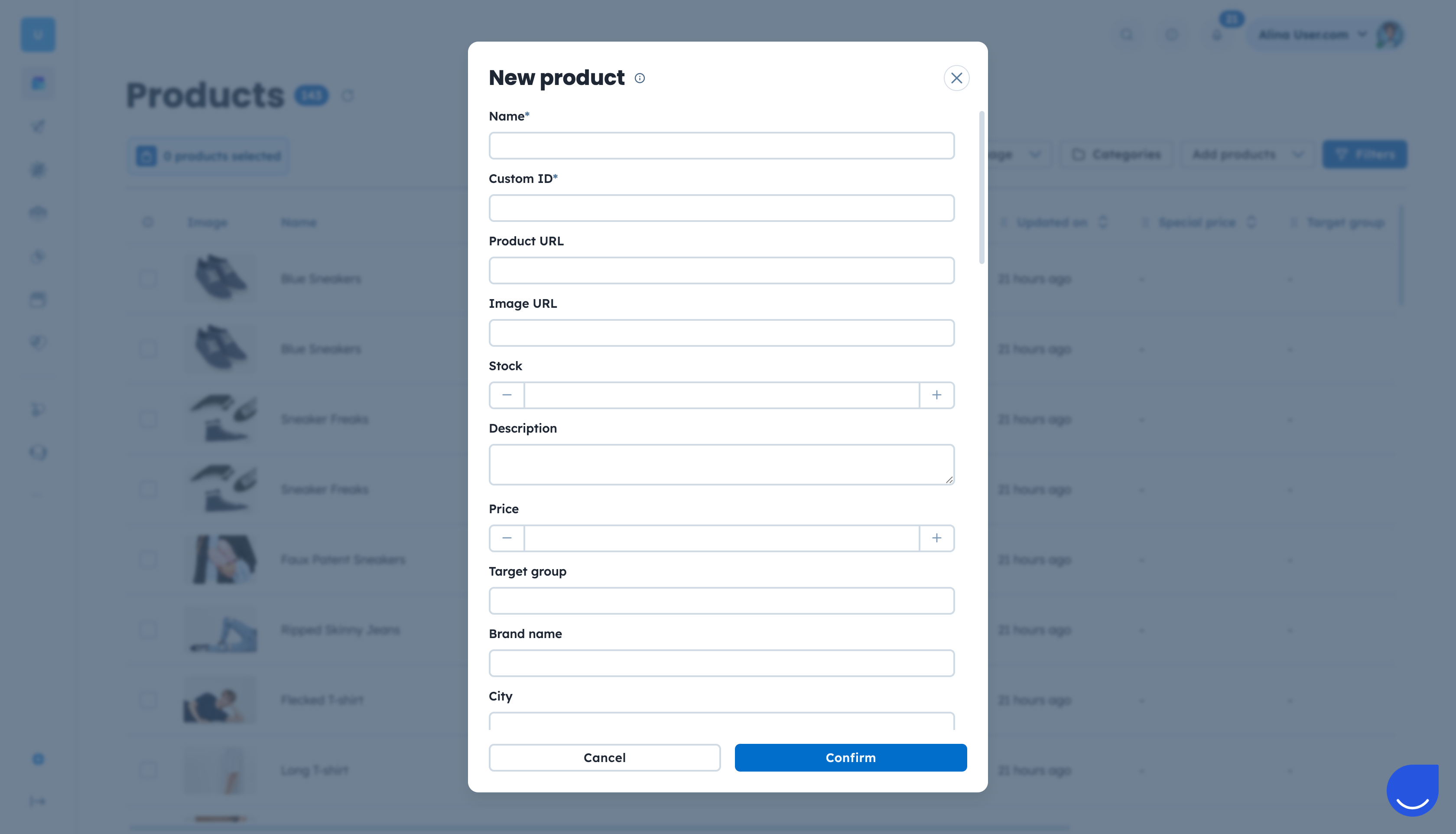
Fill in the product details and click the “Confirm” button.
Connect a live link that holds all your product details. This is the best choice for e-commerce businesses where prices and stock change often, as it syncs automatically every day.
A product feed is a file containing all the product information, such as attributes for segmentation and personalization. You can connect feeds like Google Merchant Product Feeds or .xml files hosted on your server.
For detailed steps on preparing and connecting a product feed, refer to “Product Feed Integration Guide”.
Manage and add products easily using a spreadsheet file. Use this method when you have a set product list or need to upload a large amount of items all at once. You must have your data saved as a CSV or XLSX spreadsheet beforehand.
Follow the step-by-step instruction from “How to import Products from CSV/XLSX”.
You can also import products in bulk by uploading a CSV file through the REST API. The file must have standardized attribute names in the header row. You can track the progress of your import using API endpoints.
For a step-by-step guide, refer to the Bulk Product Import Documentation.
Send individual product details directly from your software to Positive User. This method is best when you want your website or app to instantly add a single new product to your catalog the exact moment you create it in your own store. You will need a developer's help to set this up.
While Positive User supports several methods to create and update your products, it does not automatically delete outdated products. To maintain an accurate database, you must manually remove discontinued items using the "Delete products" option in the “Manage” menu or via the REST API.
