Testing your emails is the most important step to ensure your brand looks professional. It allows you to catch mistakes and verify that your contacts receive a clear, engaging message. It is especially vital to test the mobile version - most people read emails on their phones, where layouts can sometimes shift or break.

Follow these simple steps to verify your content and personalization within Positive User.
Before you start, make sure the email addresses you want to use for testing (your own or your teammates) are added as team members in the app. This allows the system to "recognize" the recipient during the test. Test emails can be sent only to the team members of the workspace.
Check that fields like “First Name” are actually filled out in the profile of your test contact. If these fields are empty, your test email will show a blank space instead of a name.
Working in the email builder, you can verify your message using the dedicated test tool located in the top right corner of the screen - the “Send a test” button.
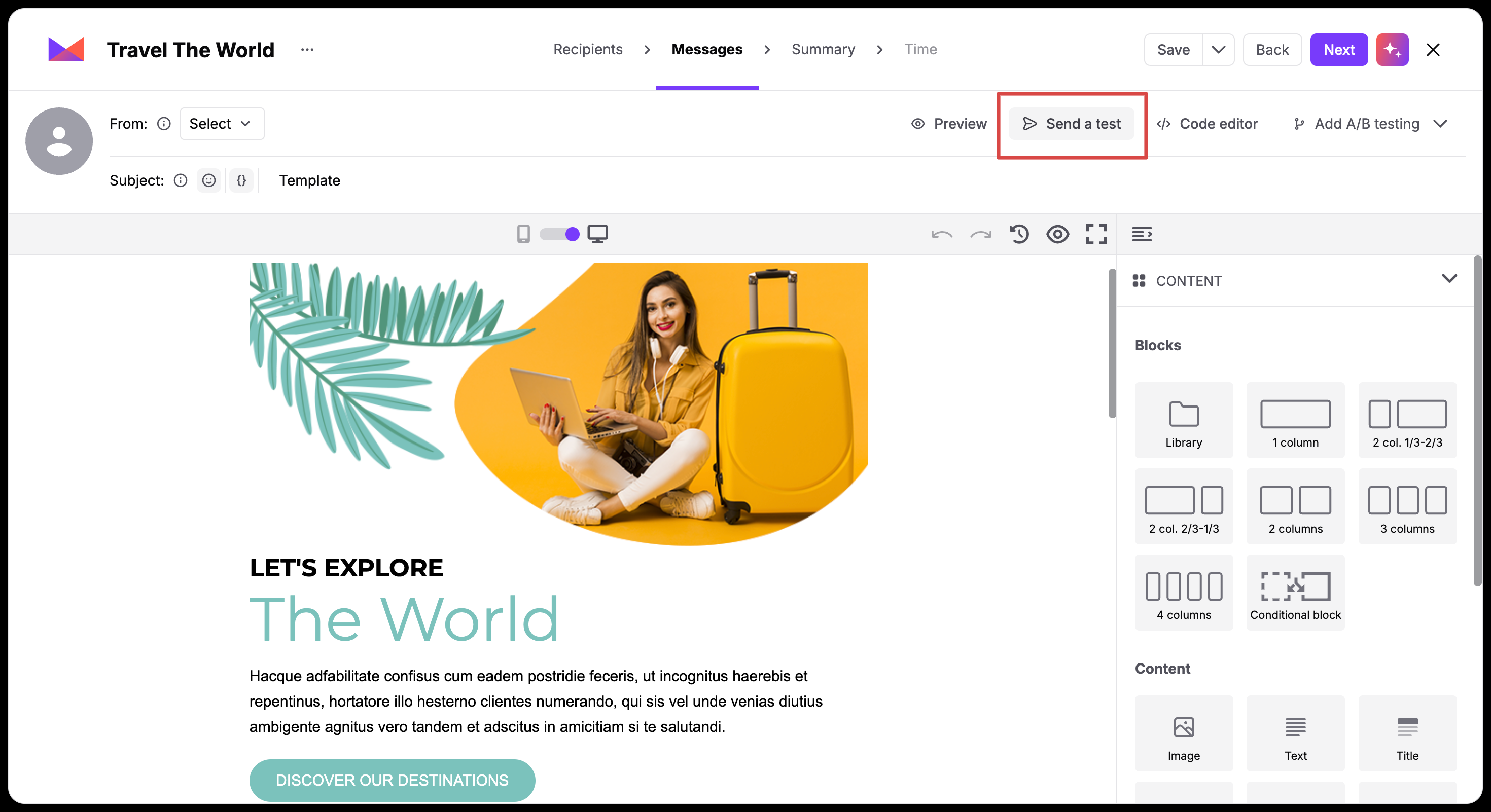
After clicking the button, the pop-up window will appear where you need to fill in all required fields to send the message:
Receiver Email: Choose a recipient from the list of team members.
Subject: Define the subject line for this specific test.
Settings SMTP: Choose how the email is sent based on your app configuration:
Settings SMTP: Selecting this opens the Select SMTP field to choose a specific server.
Custom Domain: Selecting this opens the Custom Domain field to choose a specific domain.
Custom Sender: Selecting this opens the Sender field to choose a specific sender.
After filling out all fields, click the “Send” button.
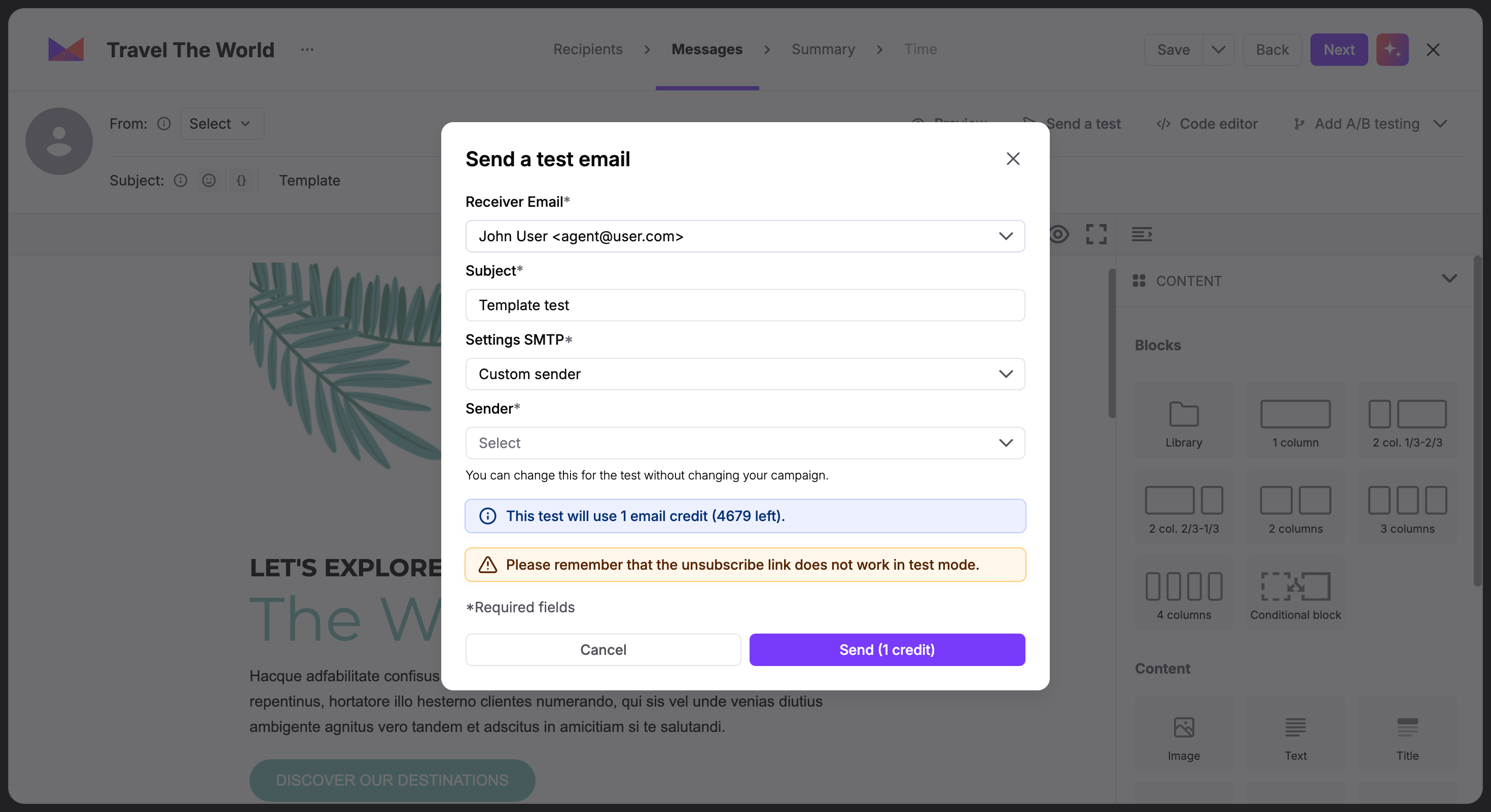
When the email arrives in your inbox, perform these essential checks to guarantee a high-quality experience for your contacts:
Link Integrity: Click every button and text link to make sure they lead to the correct landing pages.
Compliance Check: Verify that the unsubscribe link is clearly visible and functional.
Personalization Accuracy: Confirm that tags like “First name“ or “products added to cart” are replaced with the correct data. (Use “Preview” options as additional help).
Mobile Responsiveness: Open the email on a mobile device to ensure that images scale correctly and the layout doesn't break.
Inbox Preview: Check the subject and preheader text to ensure they aren't cut off and look appealing.
Today, more than half of all emails are opened on mobile devices. Because phone screens are much smaller than desktop monitors, an email that looks beautiful on your computer might look cluttered or broken on a phone.
Always open your test email on a physical mobile device. Check that your text is large enough to read without zooming, your images resize correctly, and your call-to-action buttons are easy to tap with a thumb. Verifying the mobile experience ensures your message looks professional and is accessible to your entire audience, no matter where they are reading it.
