Keeping your contact lists fresh is one of the most effective ways to ensure your emails land in the inbox rather than the spam folder. Over time, some subscribers may stop opening your emails or change their addresses entirely. If you continue to send messages to these "unengaged" contacts, email providers like Gmail or Outlook may start to see you as a low-quality sender, which hurts your ability to reach your active recipients.
Regularly cleaning your list allows you to focus your energy and your budget on the people who actually want to hear from you. This practice is a prerequisite for maintaining a high sender reputation and achieving consistent success with your email campaigns.
Unlike unsubscribes or hard bounces you must manually identify and exclude unengaged contacts to protect your sender reputation. For a deeper look at why this matters, see “How to Improve Email Deliverability”.
Think of your sender reputation like a credit score. Every time you send an email to a non-existent address or a "spam trap," your score drops.
Deliverability: Major providers (Gmail, Outlook, Yahoo) track engagement. If people don't open your mail, they start routing you to the spam folder.
Domain Health: High bounce rates can get your domain blacklisted, meaning even your 1-on-1 business emails won't get through.
The logic behind list cleaning is based on setting specific "engagement" parameters that fit your business model. You use filters to group these contacts and then decide whether to try and win them back or move them to a "blocklist".
Before you can clean your list, you need to decide who qualifies as "unengaged" or part of your "blocklist." In Positive User, these are not automatic categories; they are lists your team creates and manages.
What are the unengaged contacts?
These are subscribers who are still technically able to receive emails but haven't opened or clicked your content in a long time. We recommend using the following parameters to filter them out:
Last email open date: More than x months ago.
Last email click date: More than x months ago.

What is a "blocklist"?
This is a dedicated segment you create to house contacts you no longer wish to email, such as generic addresses (admin@, info@) or those identified as risky by third-party tools.
Activity-Based Filtering: Identify contacts based on their last interaction.
Last email open date: More than x months ago.
Last email click date: More than x months ago.
Generic Address Search: Find addresses like "info@", "test@", or "no-reply@" which often result in low engagement.
These elements can be different for various industries and types of businesses.
You can also look for email addresses with typos like “gmal.com”.
Automated Verification: Use the Bouncer integration to scan for "undeliverable" or "risky" addresses.
Connect your Bouncer account to Positive User using your API key found in "Workspace Settings" → “API & Integrations” → “Public API”. Create a new dedicated API key (for this specific integration).
Bouncer will scan your contacts and flag "undeliverable" or "risky" addresses.
Once the scan is complete, import these contacts directly into your "Blocklist" in Positive User.
MX Validation: If a domain (like @company.com) doesn't have a valid MX record, it means that domain cannot receive emails at all. Positive User automatically runs this check for every email address in your database.
There is a dedicated “mx valid” attribute in the application.
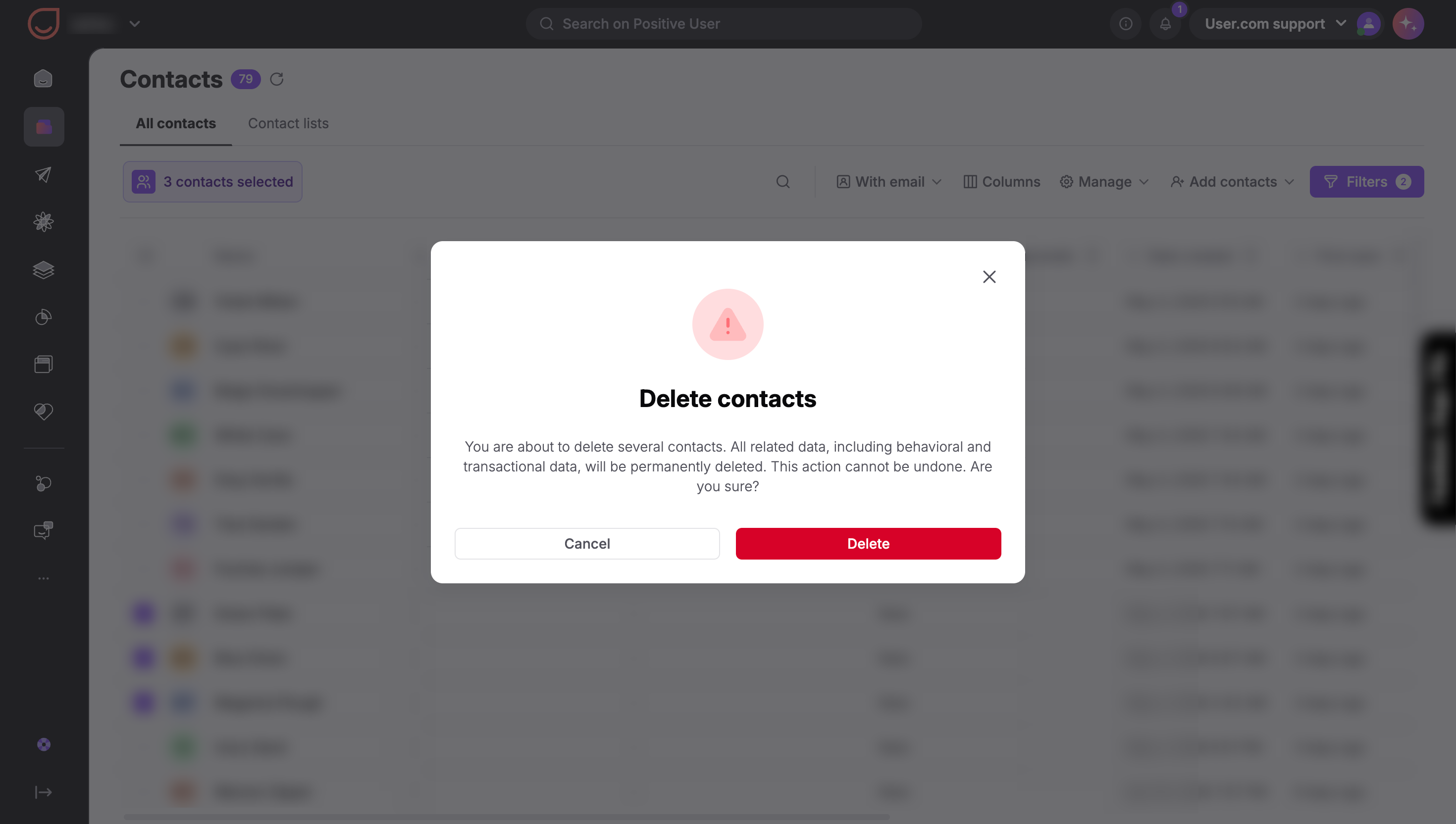
All the unexciting email addresses can be removed from the database, as they will never be used for the email delivery. You can filter them out in “Data” → “Contacts” section and delete via “Manage” → “Delete contacts” option.
First you need to create a segment of inactive contacts (who still can receive your emails, but do not open them).
Go to “Data” → “Contacts” section and apply the filter described in the article earlier.
Then click “New segment” button and create your blocklist “Dormant" segment. The advantage of the segment is that you don’t need to add any new contacts to it. It will be updated automatically.
Now you can exclude these contacts from your regular email campaigns.
In order to make the process easier you can create a special segment that includes all your newsletter subscribers and excludes all inactive contacts. In this case you simply need to use this “cleaned” recipient segment in your email campaigns.
A Sunset Policy is an automated process that gracefully "retires" unengaged contacts. When a contact enters your "Dormant" segment you can send one final, high-value "Win-back" email (e.g., "We miss you! Here is 20% off") via the automations. If they open the email they will automatically leave the segment. If not - avoid sending other marketing campaigns to these addresses.
Use Double Opt-In: This is the gold standard. It ensures the email address actually exists and the user truly wants your content.
Never Purchase Lists: This is the fastest way to get blacklisted. Purchased lists are riddled with spam traps.
Give an Easy Exit: Make your "unsubscribe" link easy to find. It’s better to have someone unsubscribe than to have them mark you as "spam" because they couldn't find the exit.
Regular Audits: Schedule a "hygiene audit" once per quarter to check your segments and see if your "active" criteria need to be tightened.
Blocklist Policy: Blocklist unengaged contacts instead of deleting them. Blocklisting keeps their data and history in your workspace while ensuring they never receive an accidental email if you re-import an old file. Also, you will still be able interact with these contacts via other channels.
