
By default, landing pages use a generic address. Connecting your own domain ensures that your marketing pages look professional and integrated with your website. This process involves a quick update to your domain provider's settings to link it with Positive User.
Step-by-Step
To connect your domain, you will need to access your domain provider's website (like Cloudflare, GoDaddy, or Freenome).
1. Add a CNAME Record
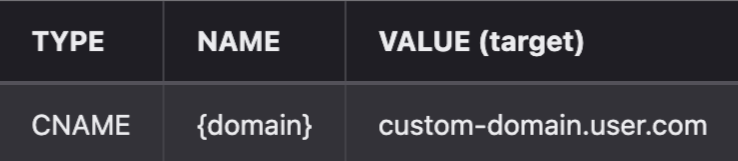
Log in to your domain provider's dashboard and navigate to the DNS settings. Create a new "CNAME" record.
Record type: CNAME
Name: Enter your chosen subdomain (e.g., if you want specials.example.com, enter specials).
Value/Target: Enter custom-domain.user.com exactly as written.

2. Connect the Domain to Your Landing Page
Once the DNS record is saved, head back to Positive User to finalize the link.
Go to "Website Experience" → "Landing Pages".
Open the specific landing page you want to update.
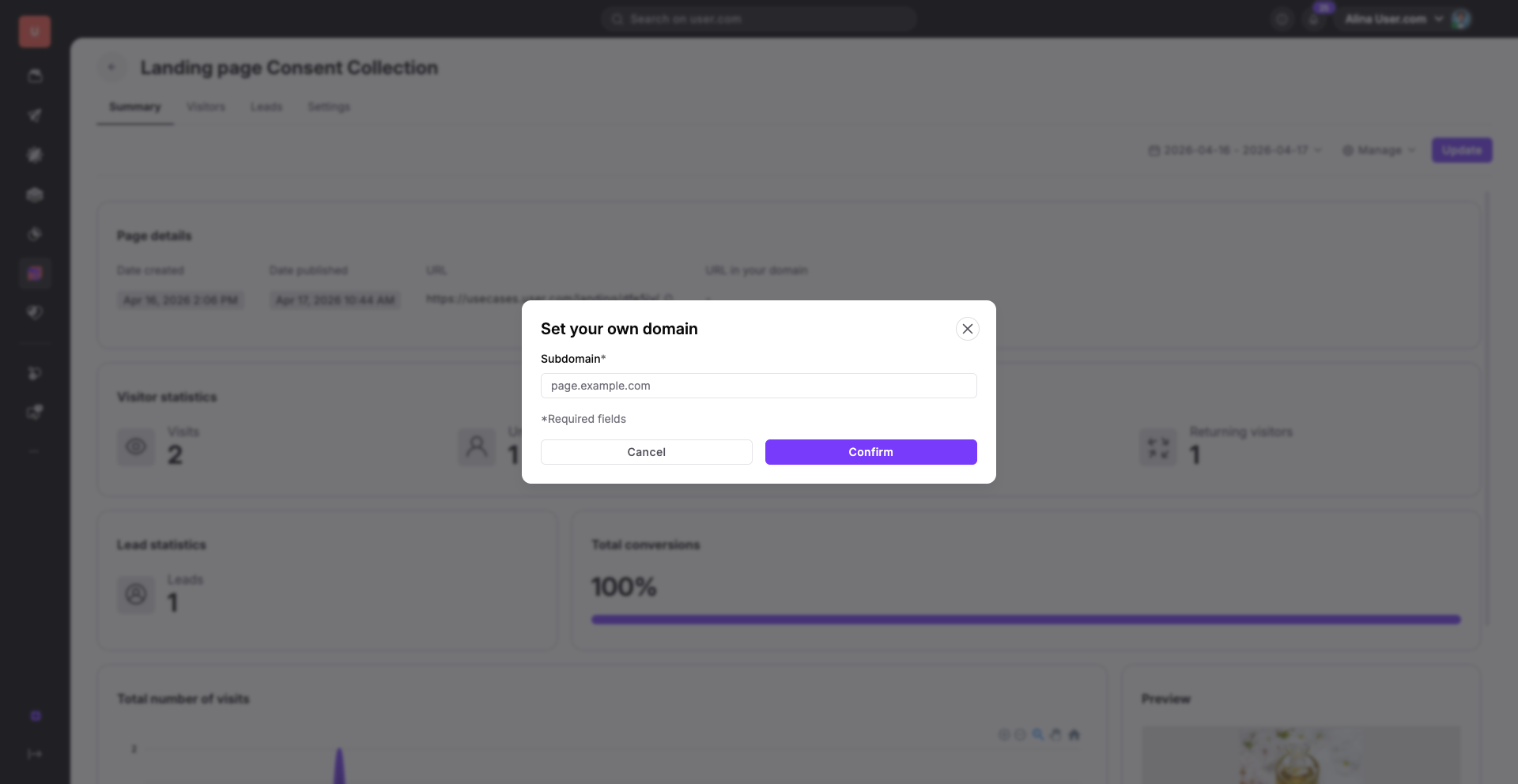
In the landing page profile go with “Manage” → “Add own domain”. Enter your full subdomain address (e.g., specials.example.pl) into the domain settings field.
Use Cases
Brand Consistency: Instead of using a long, technical URL, use your own domain so that every interaction a contact has feels like a seamless part of your website.
Campaign Specific Pages: Create a custom subdomain like offers.yourbrand.com to host seasonal promotions, making the link recognizable and trustworthy for your contacts.