Uma is an AI assistant built directly into Positive User to help your team work faster and more efficiently. Instead of navigating complex menus or manually combining filters, you can ask questions in plain language to get instant data insights and step-by-step setup assistance without losing your place.
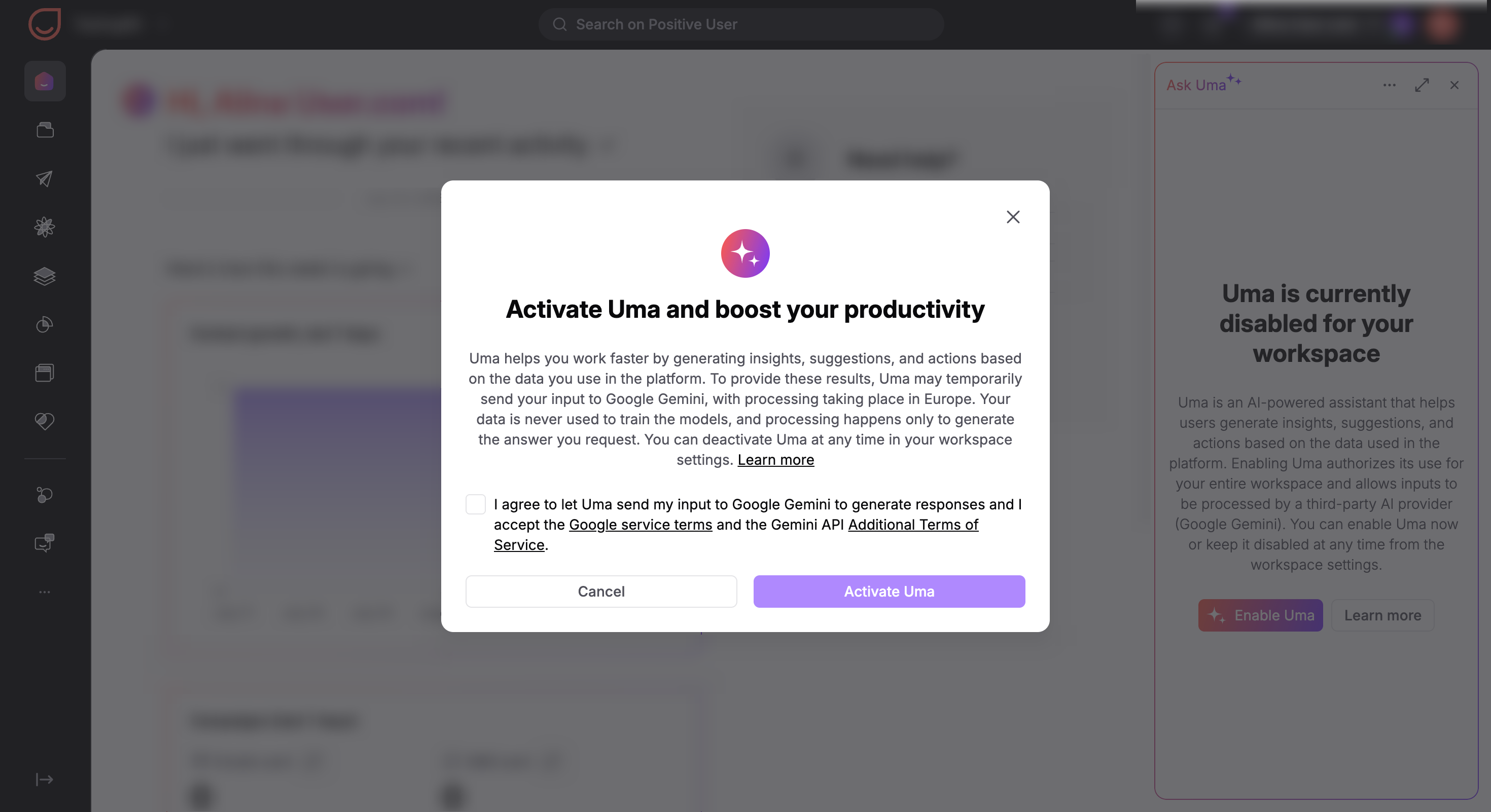
Before you can start using Uma assistant, it must first be activated for your workspace by an administrator. When the administrator clicks the Uma icon in the top right corner for the first time, a pop-up window will appear displaying important information and our terms of service. To successfully activate Uma for the entire workspace, the administrator must explicitly confirm and accept these terms. For more detailed information on data handling and privacy, please refer to the articles.
Follow these steps to check your access status, send an activation request to your administrator, and open the chat panel.
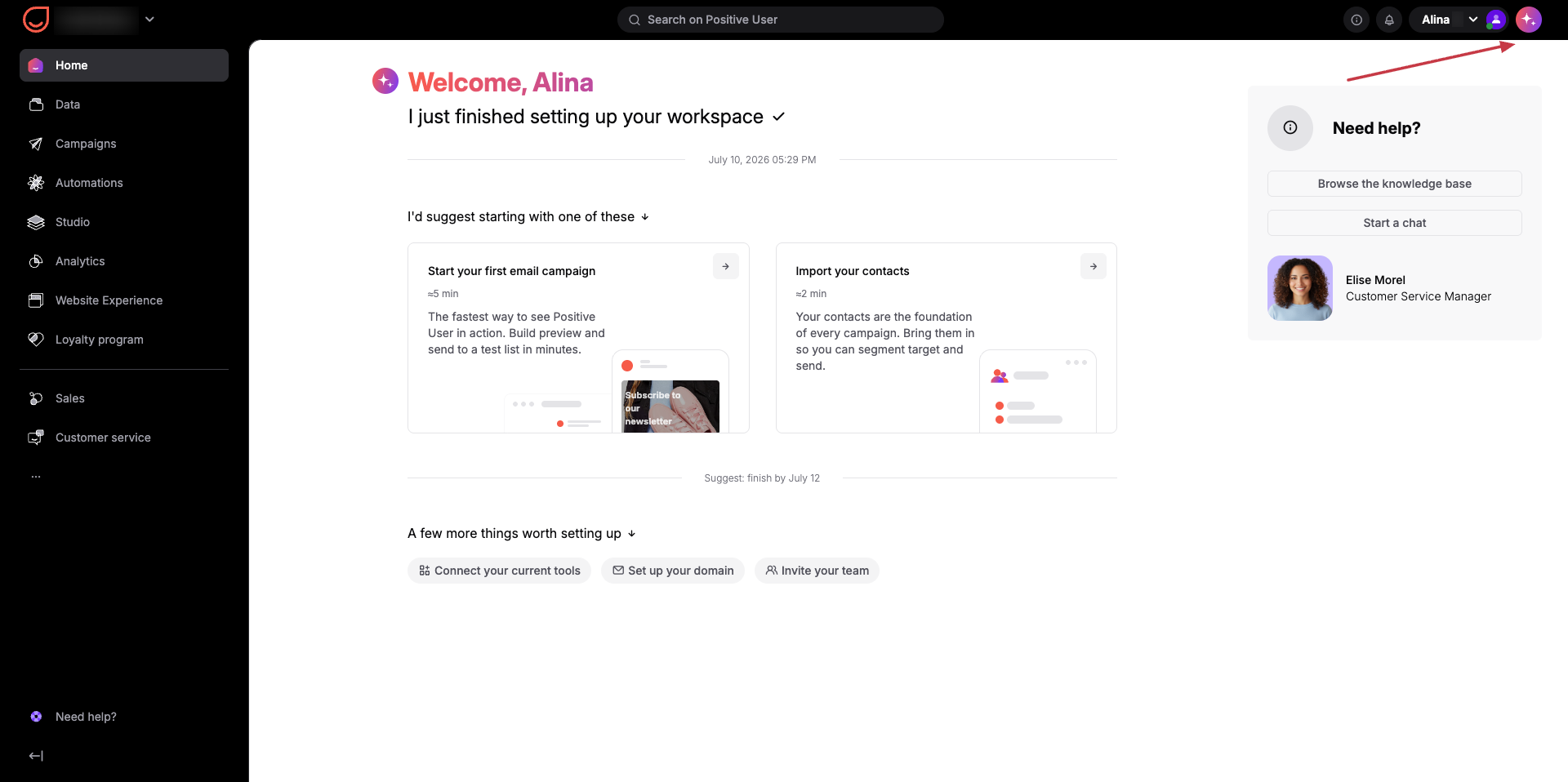
Look at the top right corner of your workspace panel to see if the Uma icon is visible. This icon indicates that your workspace has access to the feature, though it is restricted to administrators by default.
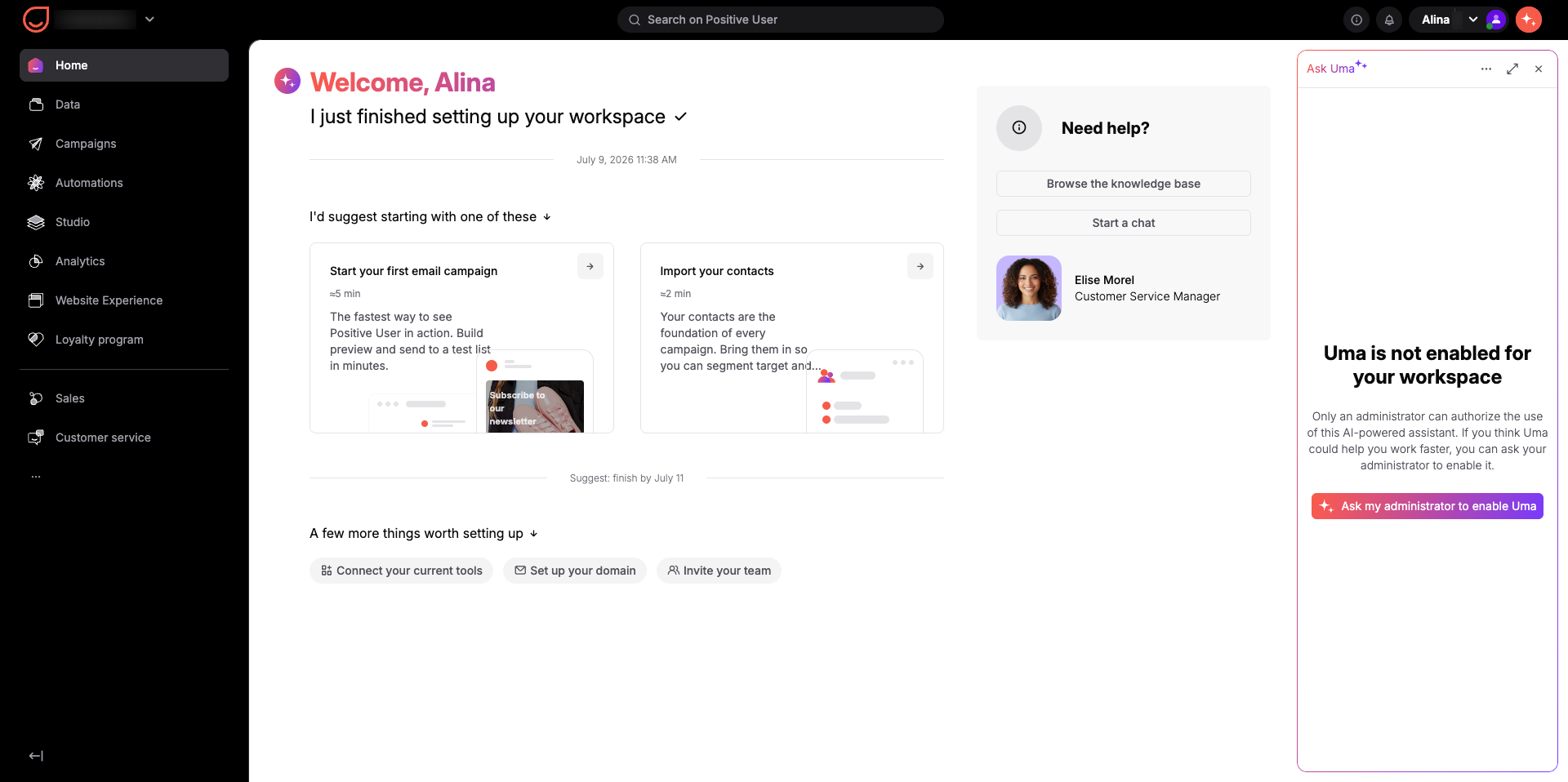
Click the icon to open the status notification. If the assistant is not yet enabled for your account, a message will display stating that only an administrator can authorize the use of the AI-powered assistant. Click "Ask my administrator to enable Uma".

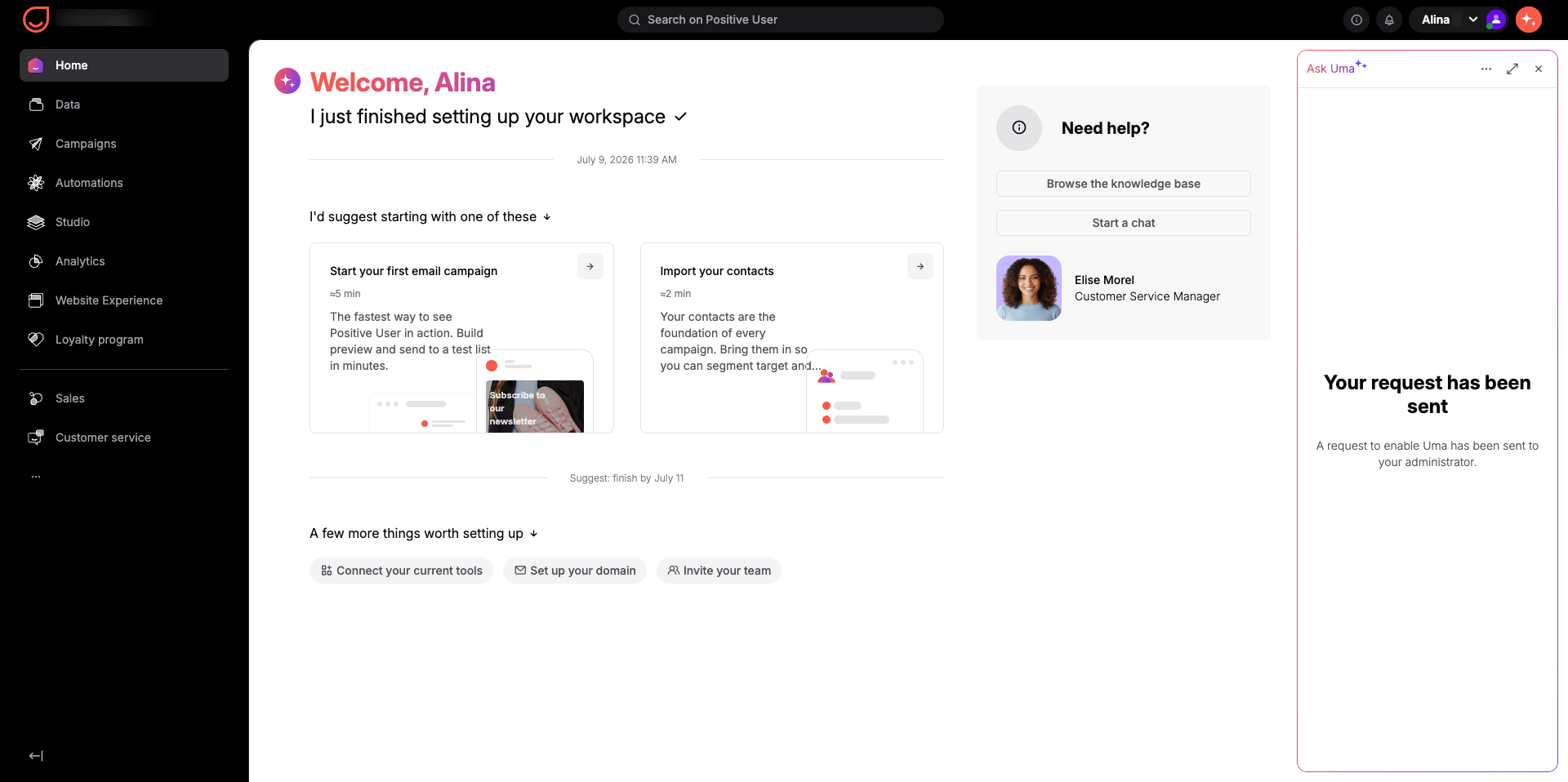
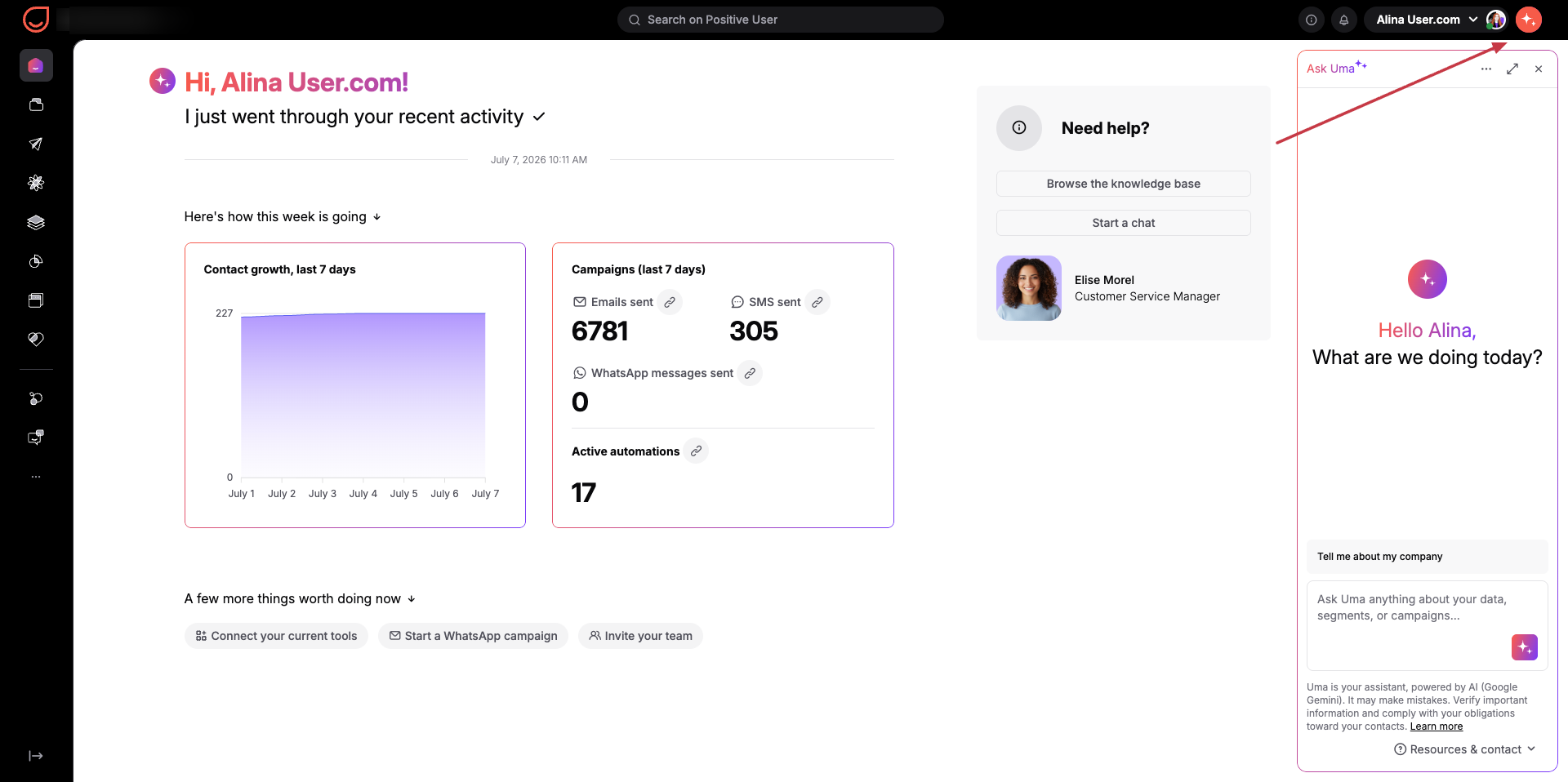
Once your administrator grants access, click the icon to open the side panel and begin your conversation with Uma.
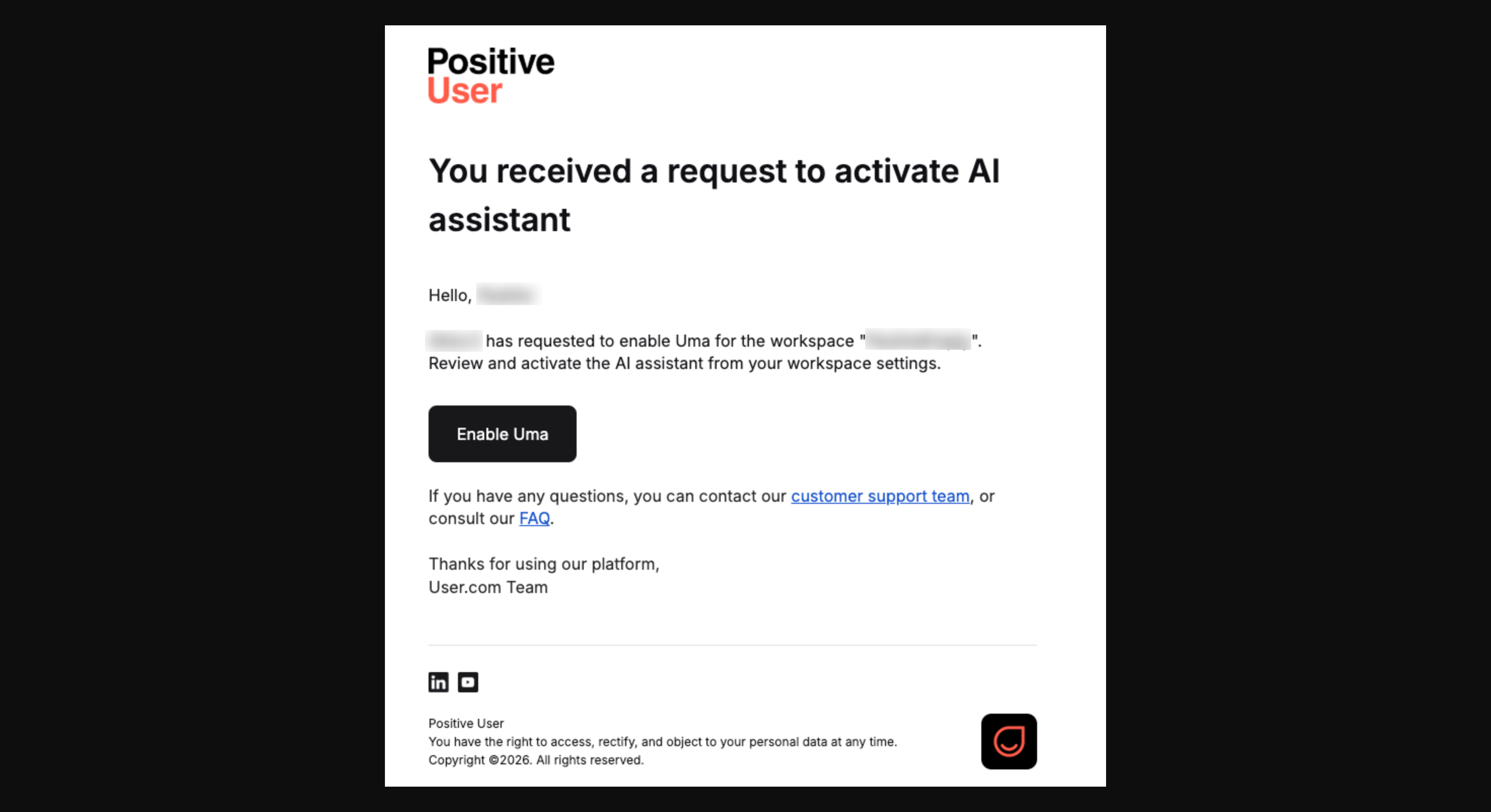
Once you submit the request, your administrator receives an email titled "Request to activate AI assistant". This email contains your workspace name and the name of the team member who needs access. It includes a dedicated activation button that instantly updates your access permissions.