
If your team needs to manage multiple brands or client accounts, you can set up additional workspaces directly inside Positive User. You do not need to register a new email address or set up a separate account. All your workspaces stay connected under your primary email address so you can switch between them whenever you need to.
Create a Workspace from the Workspace Menu
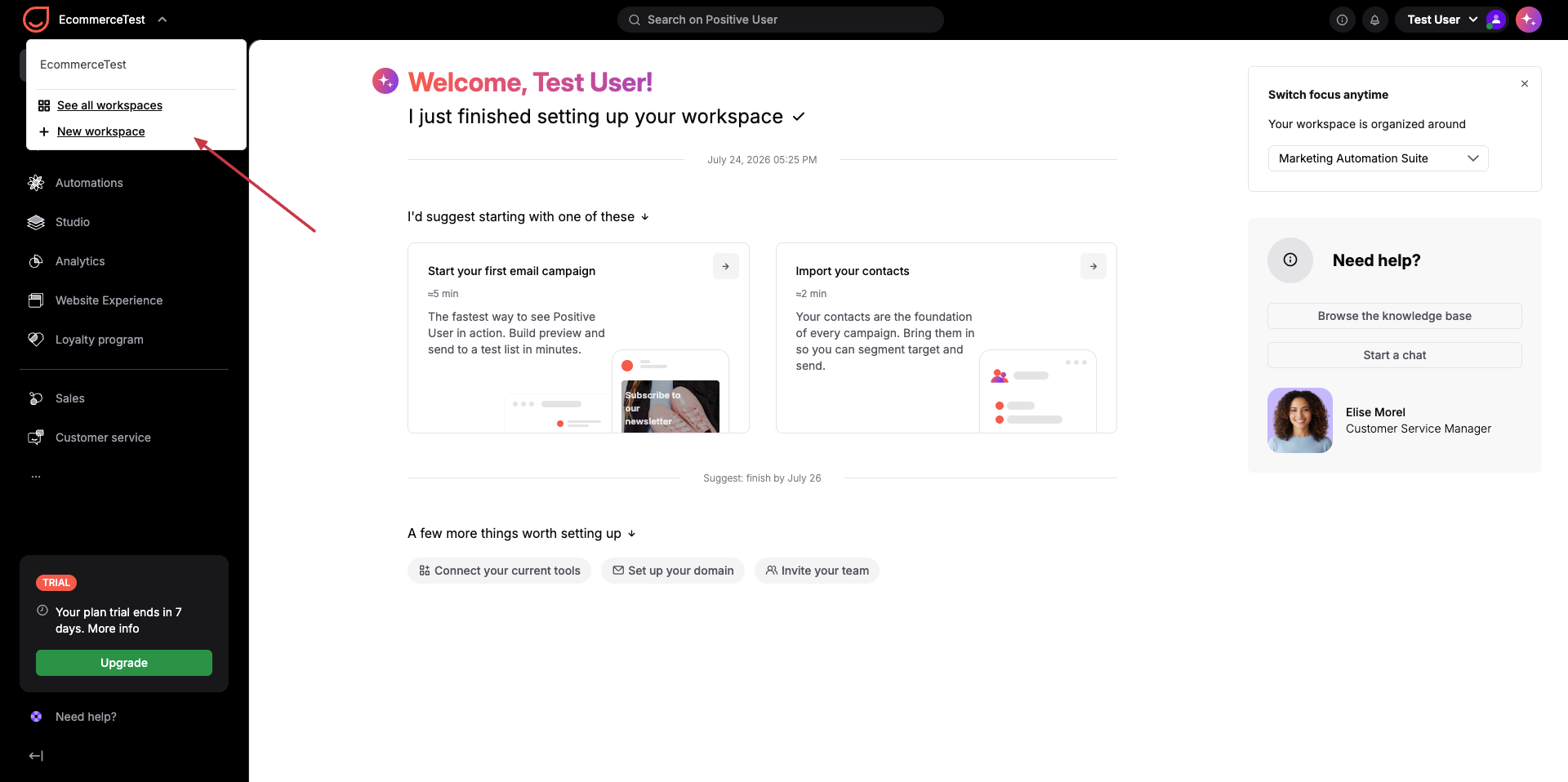
1. Log in to Positive User and click your current workspace name in the top-left corner of the panel.
2. Click "New Workspace" from the dropdown menu.
3. Complete Onboarding. Follow the on-screen steps with the Uma AI assistant to finish setting up your new workspace. More details in “How to Create First Workspace”
Create a Workspace from the Dashboard
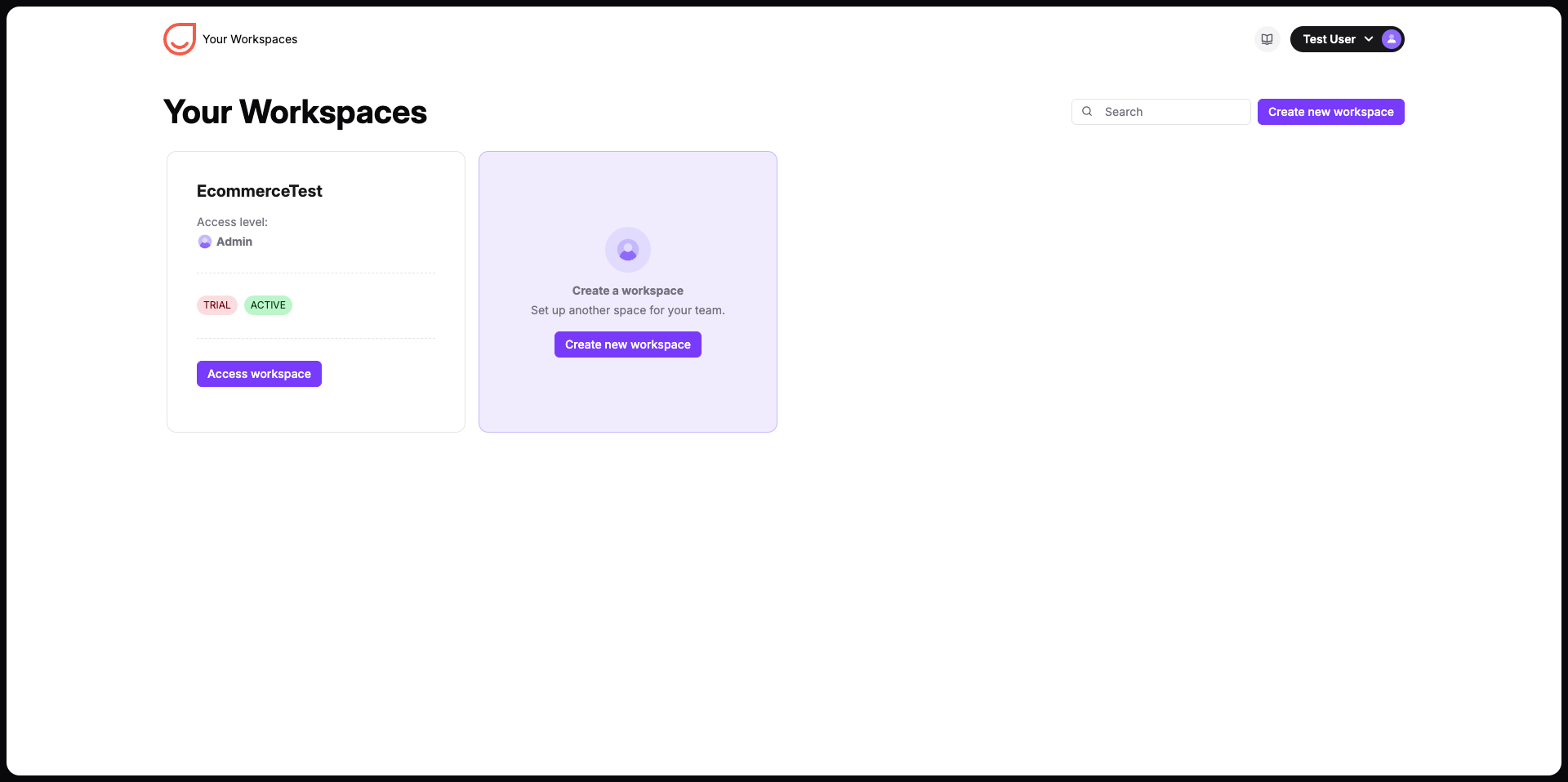
Create a new workspace from your account dashboard where all your existing workspaces are listed.
1. Navigate to https://app.user.com/dashboard/ to view all your connected workspaces.
2. Click "Create New Workspace" on the right side of the dashboard.
3. Complete Onboarding. Follow the guided steps with the Uma AI assistant to complete your new workspace configuration. More details in “How to Create First Workspace”
Use Cases
Managing Multiple Brands: Keep your contacts, tasks, and campaigns organized in dedicated environments for each distinct brand.
Agency Client Management: Maintain isolated workspaces for separate clients while accessing them all through one email address.
Test Environment: Create a sandbox workspace to test campaigns, automations, and integrations before deploying them to your live production account.