Organize your team's daily sales activities by scheduling and tracking clear follow-ups directly inside Positive User. Managing tasks ensures every deal maintains momentum, keeps customer interactions transparent across team members, and prevents leads from slipping through the cracks. To learn more about core task concepts, see “What Is a Task”.
Filter and organize your scheduled tasks each morning to focus on high-priority items and clear overdue follow-ups before starting new outreach.
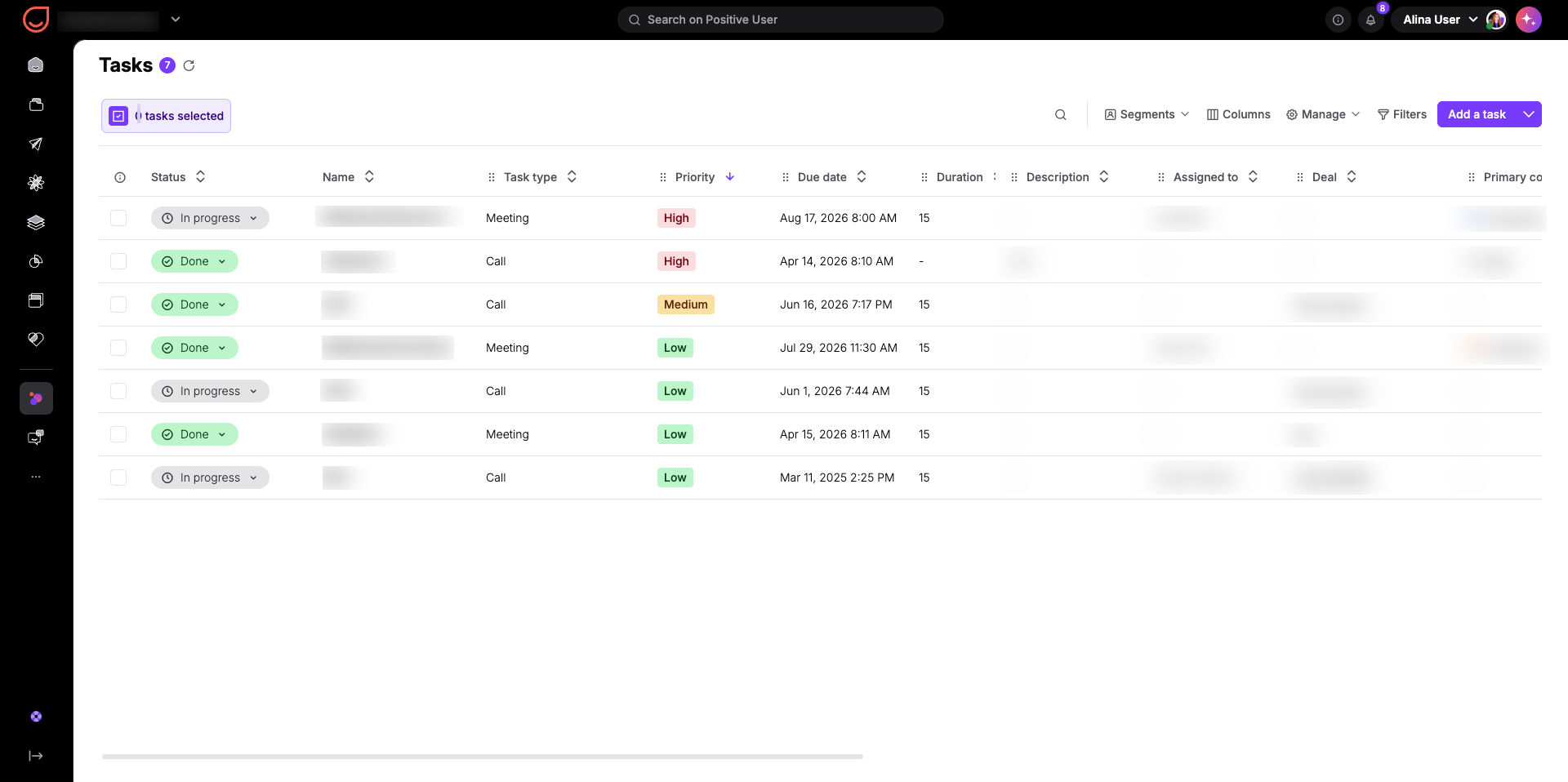
Filter for your active assignments: Go to "Sales" → "Tasks", click "Filters", and set the criteria to "Assigned to" matching your name and "Status" set to "In progress". This displays your personal daily to-do list, excluding completed items or tasks assigned to other team members.
Prioritize overdue follow-ups and high-priority items: Sort your list by due date so past-due items appear at the top, followed by tasks scheduled for today. Also you can sort by priority to bring "High" priority tasks to the top, which are distinguished by red badges in the list. Past-due tasks remain in "In progress" status with a due date in the past, making them easy to spot and resolve first.
Review Your Timeline and Calendar Slots: Review the duration set on each task (defaulting to 15 minutes) alongside its built-in type icon (such as "Call", "E-mail", "Meeting", "Task", etc). Use these time blocks to schedule exact slots for call preparation, client demos, or proposal writing directly in your daily plan.
Creating tasks directly inside customer profile ensures all context is linked automatically and visible across your team's timeline:
Log a task inside a deal profile
Create a task inside a contact profile
Create a task inside a company profile
More details on each methods you can find in “How to Create a Task”.
Regularly check deal activity statuses to ensure no active deal is left without a scheduled next step or stuck on an overdue follow-up.
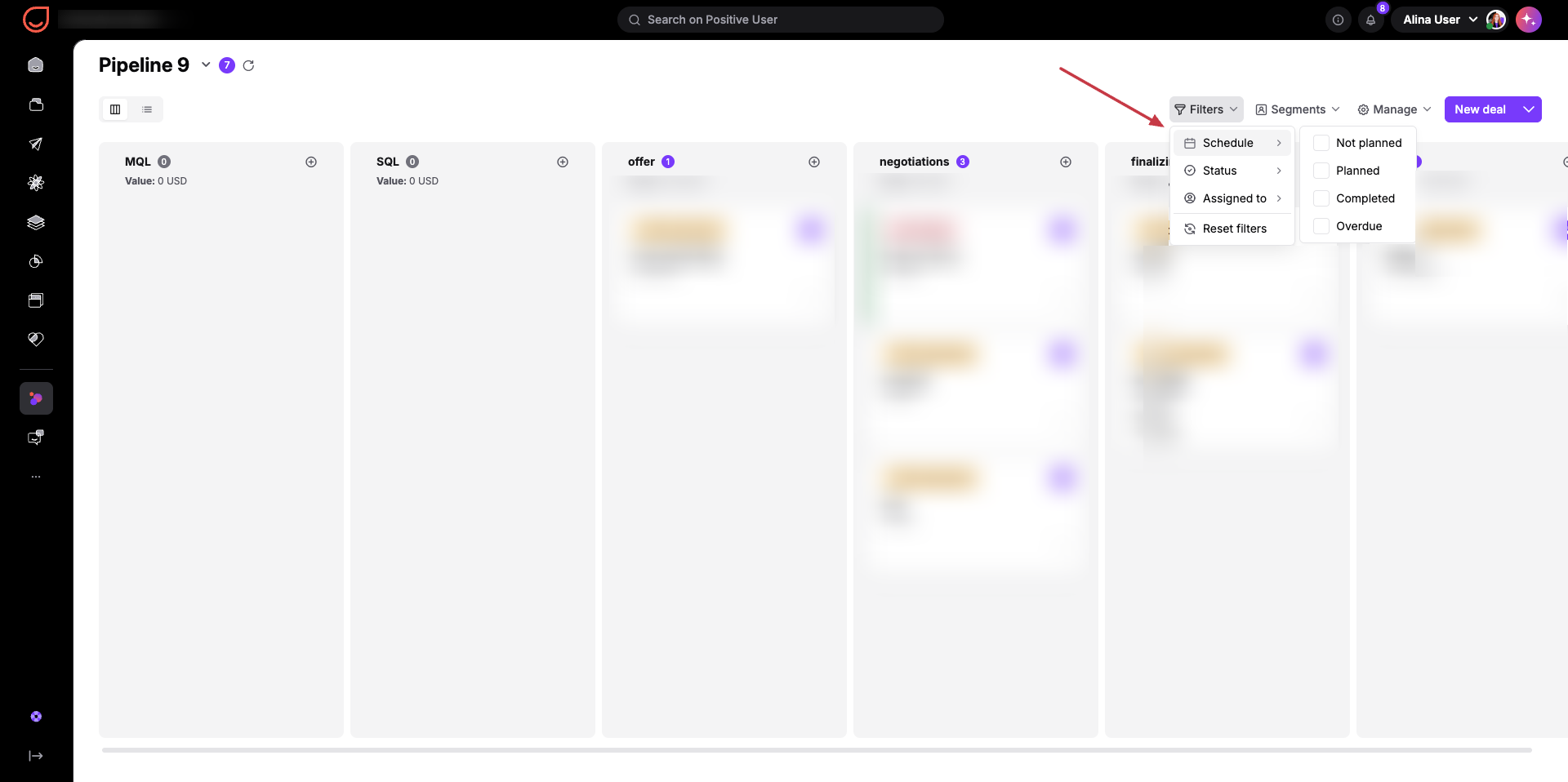
Filter deals by activity status: Go to "Sales" → "Deals" and apply a filter using the "Tasks" filter group to isolate deals marked as "overdue" or "no planned". A deal marked "overdue" indicates a scheduled call or meeting was missed, while "no planned" means an active deal has no upcoming task scheduled.
Update overdue tasks and assign next steps: Open each flagged deal to bring the pipeline up to date. For "overdue" deals, open the past-due task, complete the outreach, or reschedule the due date to a realistic future date. For "no planned" deals, click "New task" to assign a clear next move (such as a "Call" to review a sent quote) ensuring every deal maintains momentum and an assigned owner.
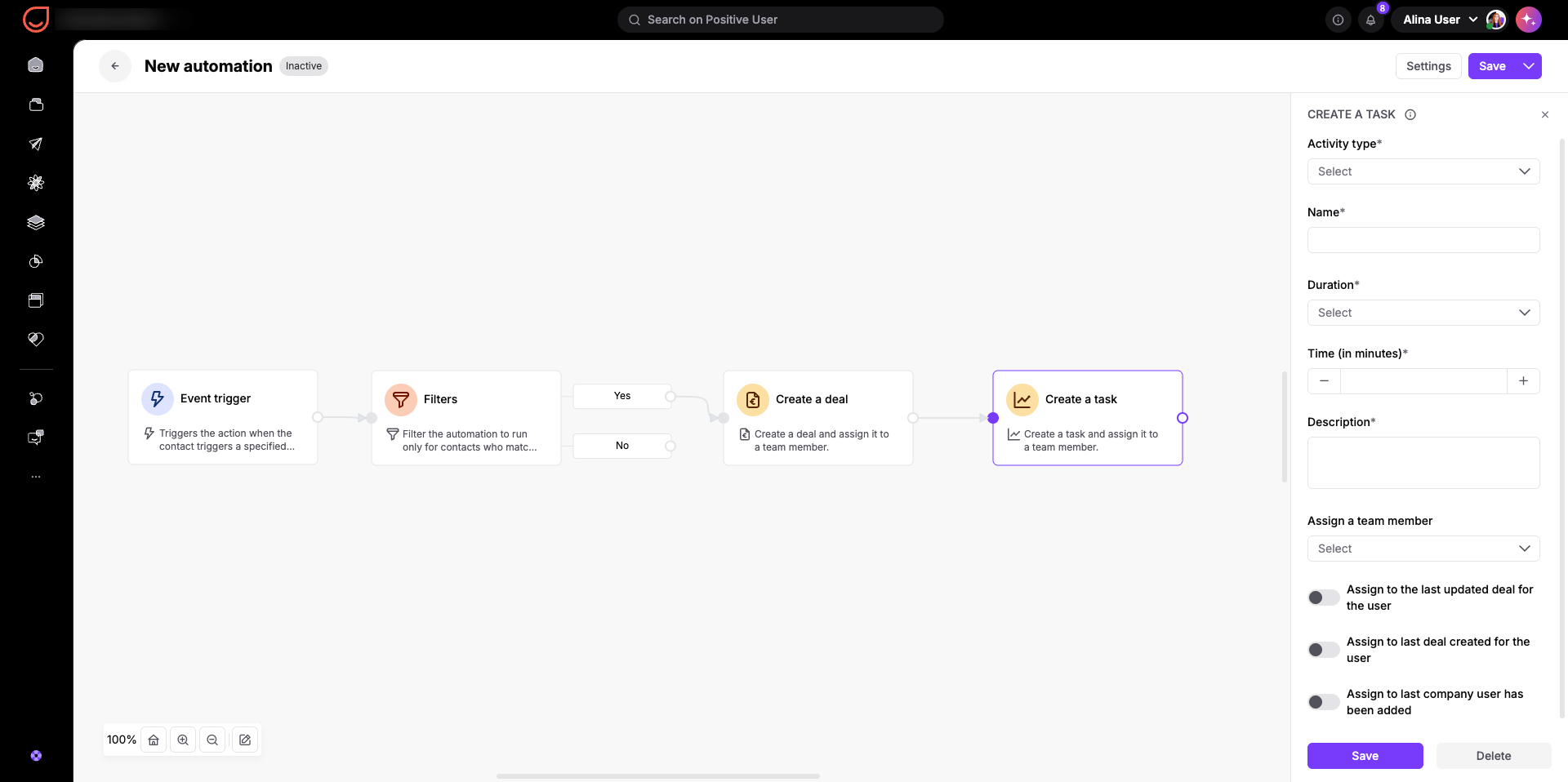
Set up automation flows to create follow-up tasks automatically based on customer behavior or pipeline stage changes. Automating routine follow-up tasks reduces manual administrative work, accelerates inbound lead response, and standardizes sales processes.
Define a trigger for task creation: Select a trigger based on strategic sales events to ensure timely follow-up without manual effort.
Configure key parameters in the “Create Task” action module: When adding the "Create task" action module to your workflow, configure key settings to define how and when the task should be executed.
Personalize tasks with dynamic content: Use dynamic content tags in the task "Name" and "Description" fields to provide clear context for your sales team directly in their task list.
Manage task volume across team members, export activity data for performance reviews, or import tasks from external tools.
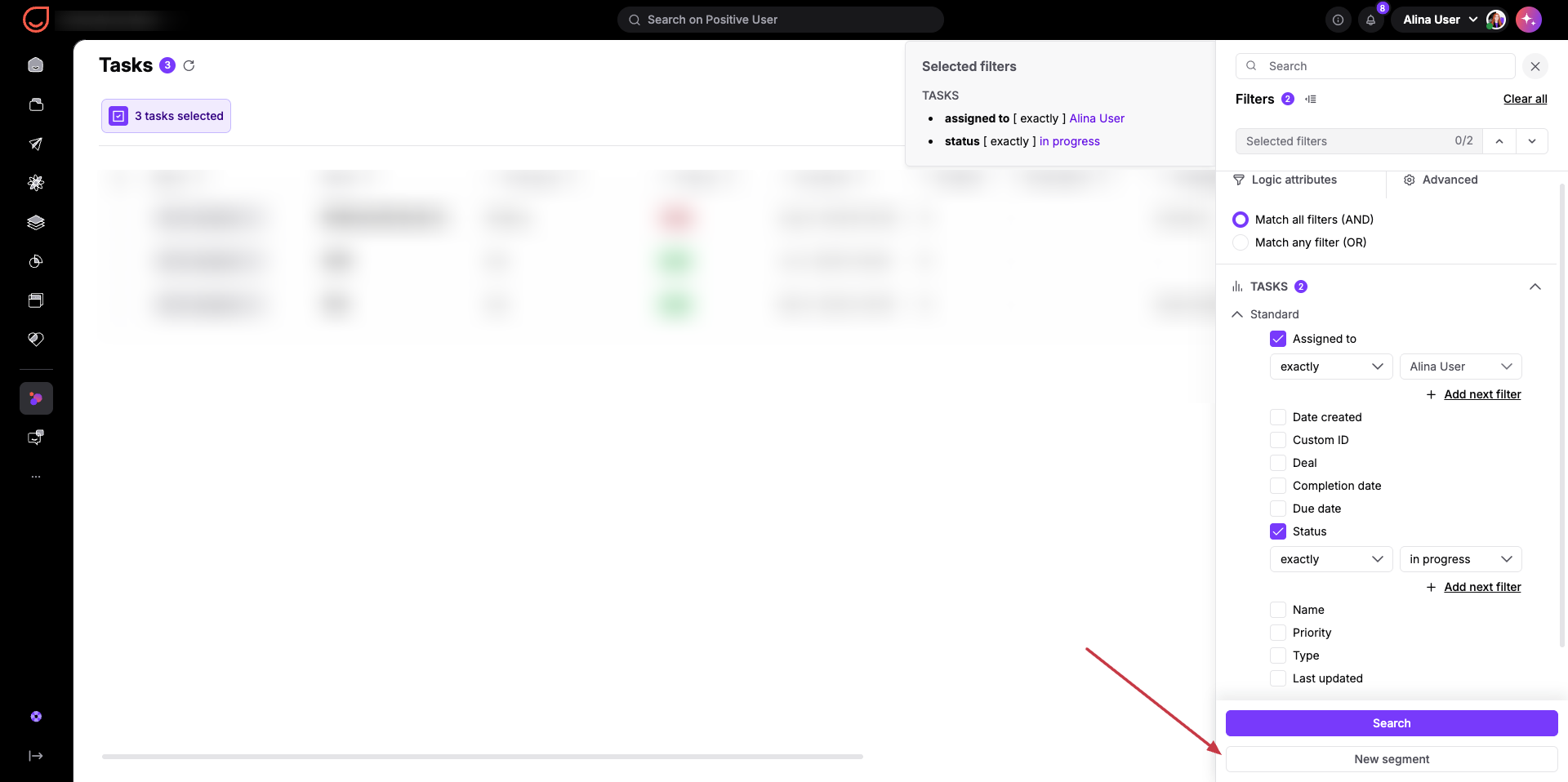
Create task segments: Use the "Tasks" filter group across contacts, companies, or deals to segment lists by priority, assignee, due date, completion date, or task count.
Use segments for dashboards: Create a dedicated analytics dashboard based on details on tasks.
Import, export, or bulk delete tasks: Manage task data in bulk using the header controls above the task list.
Inbound Lead Handover: When a new deal is created, an automated flow generates a "Call" task assigned to the deal owner, due in 60 minutes. This ensures immediate outreach for new leads without relying on manual reminders.
Post-Demo Follow-Up Sequence: When a team member marks a "Meeting" task as "Done", an automated follow-up chain creates a "Send offer" task due 24 hours later, attached to the contact's last updated deal. This keeps pipeline deals moving forward automatically.
High-Intent Behavioral Routing: When a contact visits high-value pages or abandons a high-value cart, the system automatically creates a "High" priority "Call" task for the account owner. This alerts team members to reach out while buyer interest is highest.
