This guide gathers the most common challenges you may face with pop-ups and provides immediate solutions to get your campaigns back on track.
Before troubleshooting, make sure that:
Your pop-up is properly connected to an active automation path.
You have team member permissions to edit pop-ups and automations in your workspace.
Below are the most common situations you may encounter with pop-ups and how to resolve them.
Problem: Your pop-up does not appear on your website.
Solution: An issue inside your automation flow usually prevents the pop-up from showing. To verify this, connect a known working pop-up to the automation flow to test if it triggers. If nothing happens, the problem is in the automation path, not the pop-up itself. Check your first module - the trigger. If you see no logs in your automation history, check your trigger conditions or flow timing.
Problem: Your pop-up appears on the website and accepts input, but submitted details do not show up in Positive User.
Solution: This occurs when form fields are not connected to the right contact field. Check your pop-up form settings to make sure every data field is defined and mapped to the correct contact attribute. Go to "Website Experience" → "Pop-ups", select your pop-up, and update form fields. If you can a pop-up in HTML builder, then check if all the inputs are connected correctly according to “Custom Pop-Up Interaction Settings”.
Problem: Your pop-up saves submitted details, but subsequent modules in your automation path do not run.
Solution: The cause depends on how you built your pop-up:
Custom HTML pop-ups: Check your custom code to make sure it fires the "submit" event when a contact completes the form. Follow the “Custom Pop-Up Interaction Settings” guide.
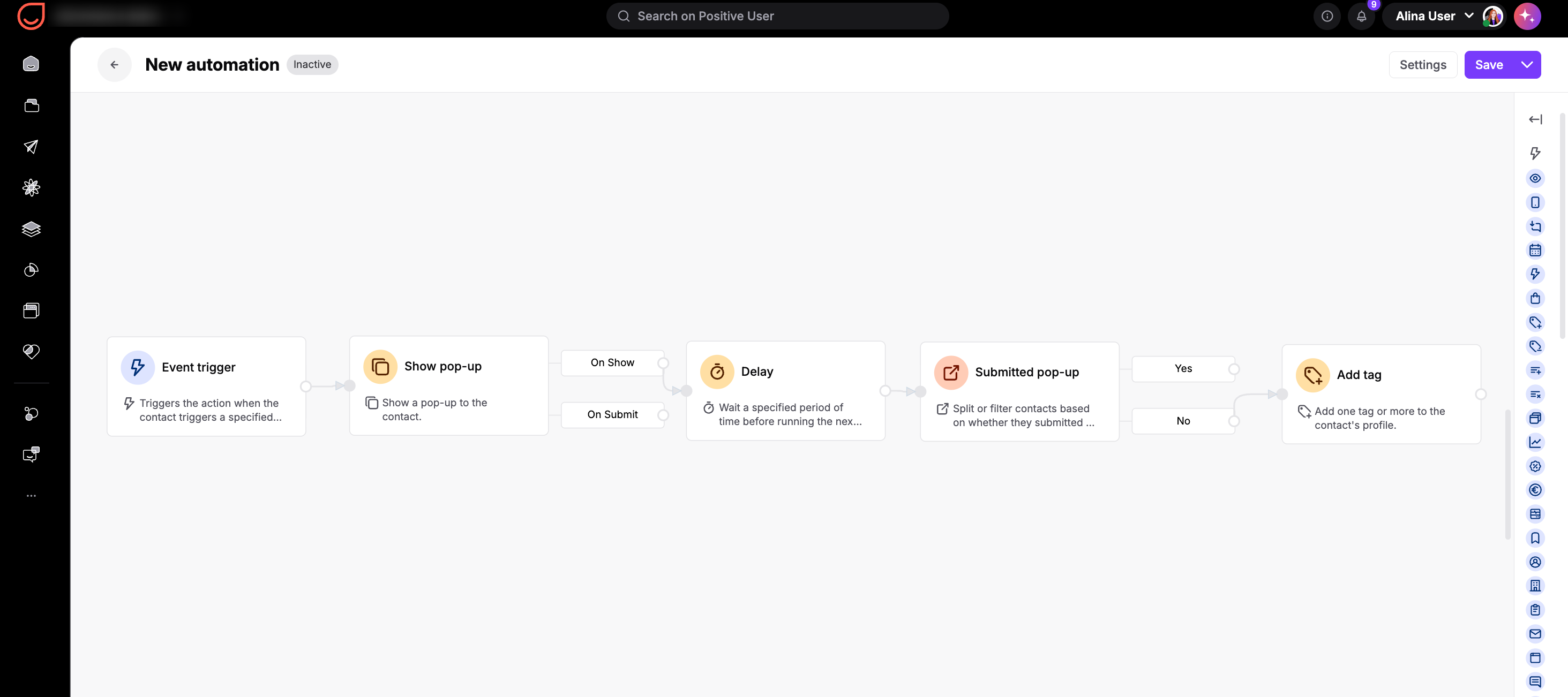
Visual editor pop-ups: Check your automation logic. The "On submit" path fires only when a contact fills out and submits the pop-up. The "On show" path fires immediately when the pop-up displays on screen.
If you want to reach contacts who do not fill out the form, use the “Submitted pop-up” [LINK] condition module.
Example:
Problem: Your follow-up actions trigger instantly when the pop-up displays, before the contact fills out the form.
Solution: This happens when follow-up modules connect to the "On show" output instead of the "On submit" output. The "On show" output triggers the moment the pop-up appears on screen. Connect your follow-up modules directly to the "on submit" output. Go to "Automations" to adjust module paths.
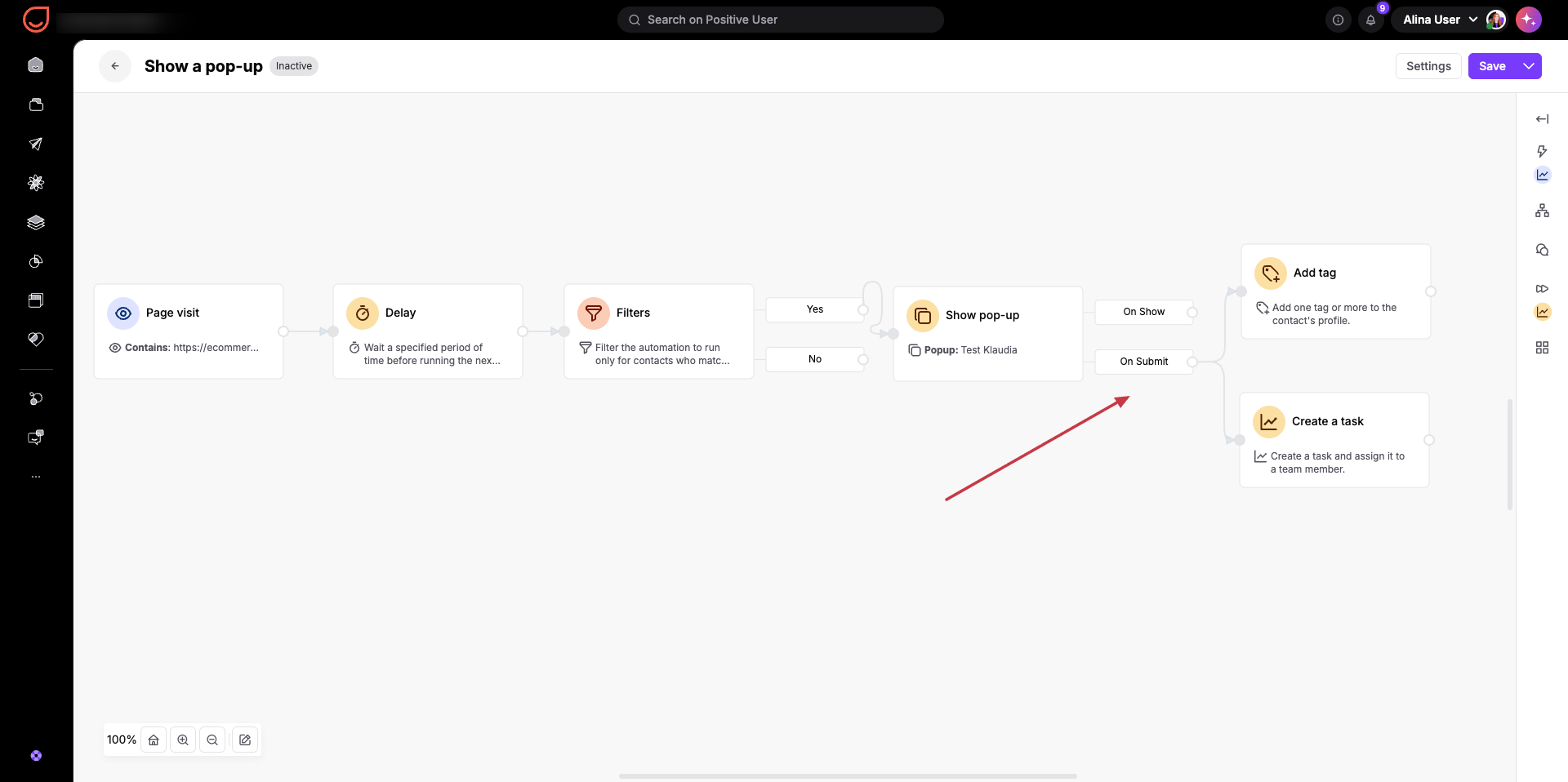
When building custom HTML pop-ups, test form submissions in a test environment before publishing live. Ensure that the custom form explicitly fires the "submit" event so Positive User can trigger downstream automation paths reliably.
