A one-time mobile push notification delivers an immediate message directly to your contacts' phone screens, even when your mobile app is closed. This campaign format helps your team broadcast timely updates like weekend flash sales, product arrivals, or event reminders in a single push. By setting up device-level filters, your message reaches only the contacts who have installed your app and agreed to receive notifications.

A one-time mobile push campaign delivers a single message to a selected group of contacts at a designated moment.
Use a one-time campaign when you want to:
Announce time-sensitive promotions, such as flash sales or weekend discounts.
Share major company news, app updates, or new product arrivals.
Send date-specific reminders for upcoming events, broadcasts, or webinars.
In contrast, automated push campaigns send messages dynamically based on individual contact behaviors, specific app events, or custom rules. For broadcast announcements that go out to an entire audience at once, choose a one-time campaign.
Before building a push notification campaign, ensure you have the following elements ready:
Integrated mobile application: Your mobile application must be integrated with your Positive User Workspace.
Contacts with stored FCM keys: You must already have contacts with an FCM key stored on their profile. Push notifications cannot be delivered to contacts without an active FCM key.
Predefined segment or contact list: While you can select contacts manually, having a prepared segment or a contact list makes targeting eligible recipients faster and more accurate.
Follow these steps to configure, compose, and send your one-time mobile push notification campaign.
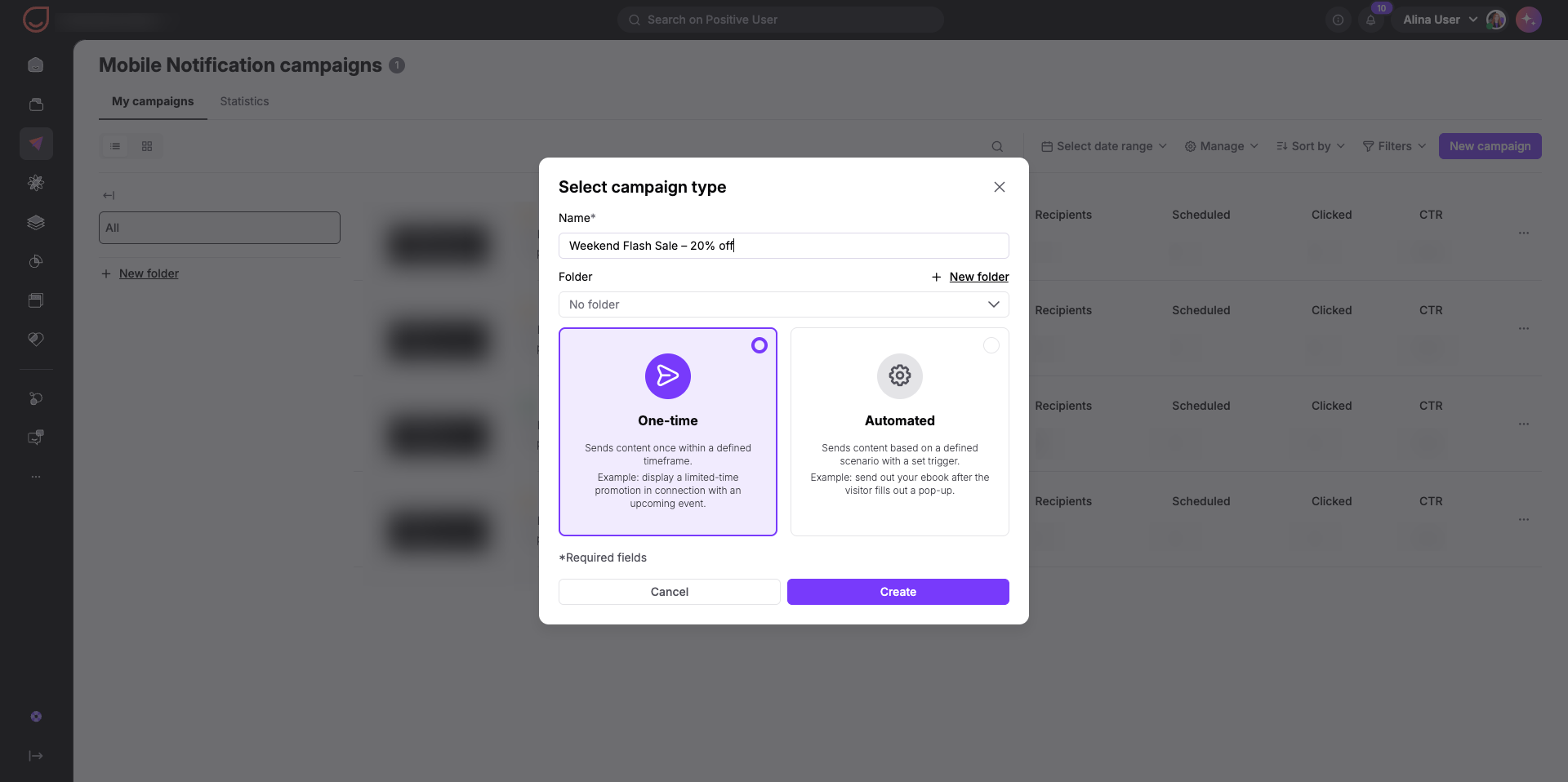
Go to "Campaigns" → "Mobile App Marketing" → "Push Notifications". This opens your workspace list of existing push notification campaigns. In the top right corner, click the purple "New Campaign" button. A modal window titled "Select Campaign Type" will open.
Configure the basic campaign parameters:
In the "Name" field, enter an internal campaign title, such as "Weekend Flash Sale – 20% off". Contacts will not see this name.
In the "Folder" dropdown, choose an optional folder to keep your campaigns organized.
Select "One-time" to indicate that this message sends once rather than triggering from contact events.
Click "Create".
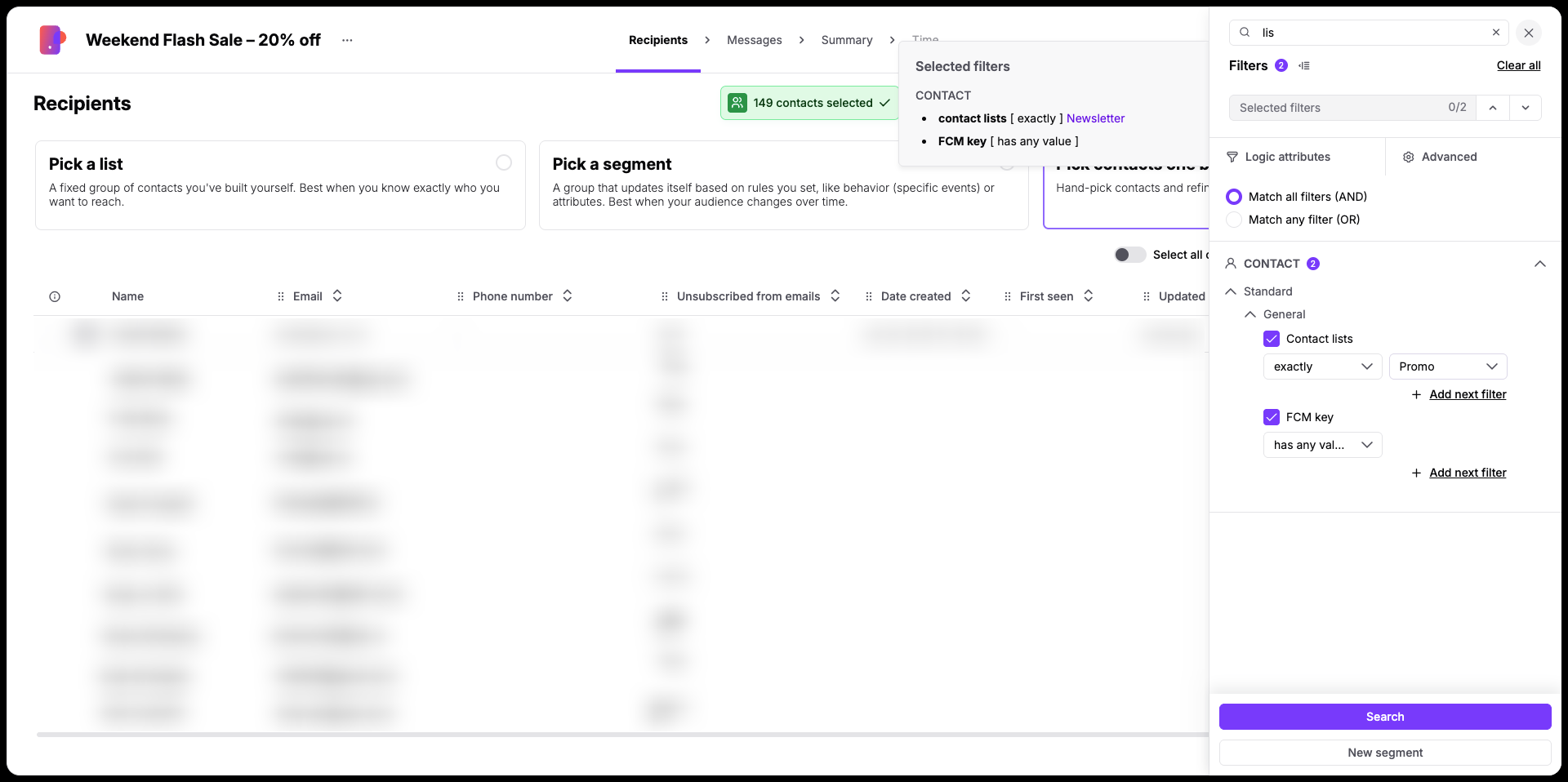
On the "Recipients" step, you can define your audience using a static list, a dynamic segment, or contact filters. Remember, that you can choose only from the contacts who have the value in “FCM key” attribute.
Select a contact list.
Select a segment.
Select contacts (using filters).
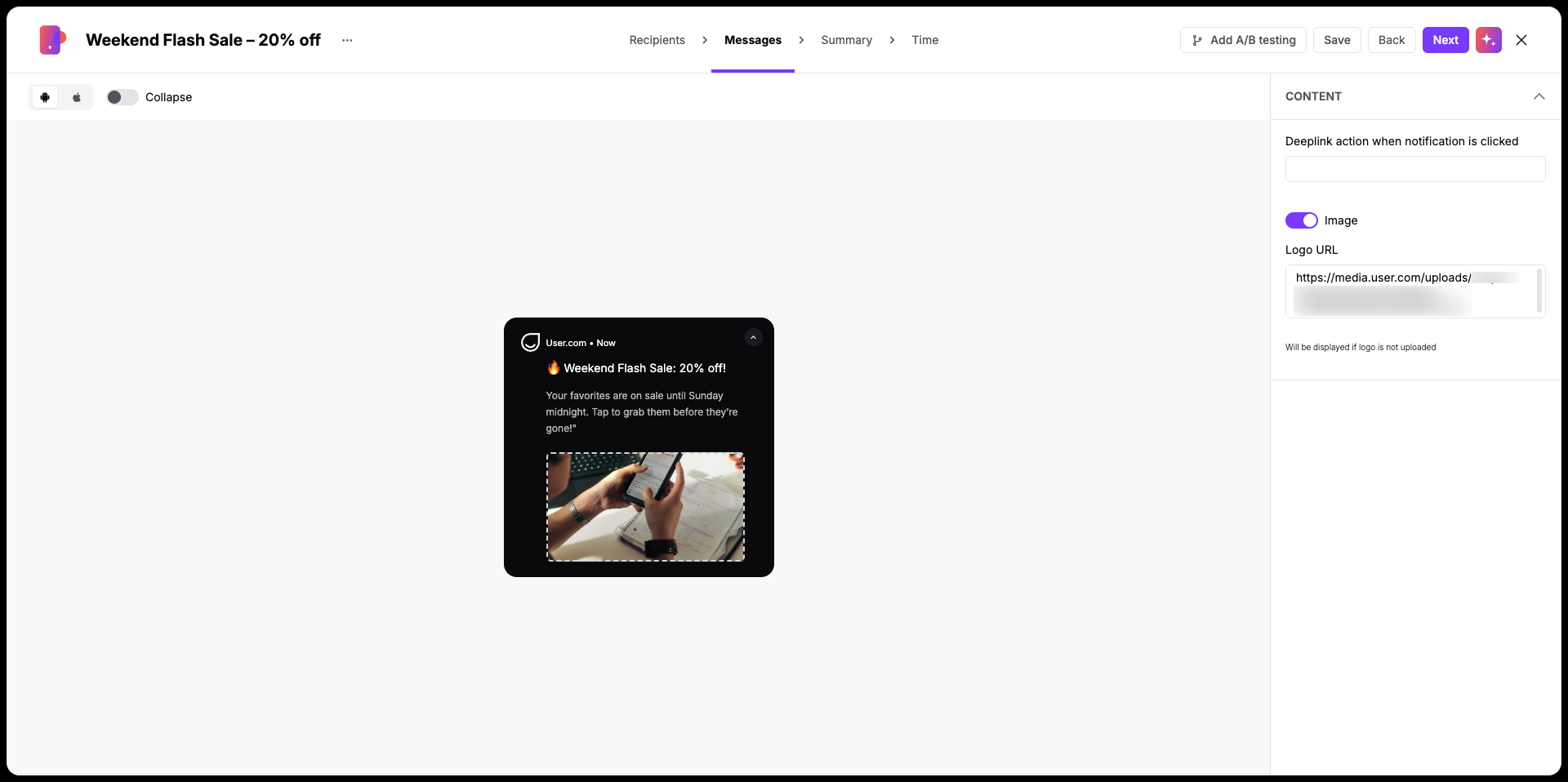
On the "Messages" step, draft your notification using the interactive mobile phone preview:
Click the default "Welcome" title field and enter your headline, such as "🔥 Weekend Flash Sale: 20% off!".
Click the text field below the headline and enter your copy up to 150 characters, such as "Your favorites are on sale until Sunday midnight. Tap to grab them before they’re gone!".
Optionally, add an "Image" to include visual media in your lock screen notification.
Optionally, add a "Deeplink" to direct contacts straight to a specific page or section in your mobile app when they tap the message.
Click "Next".
Keep your message clear and concise. Most mobile devices display only the first two lines of text on the lock screen, so place your primary offer and call to action at the beginning.
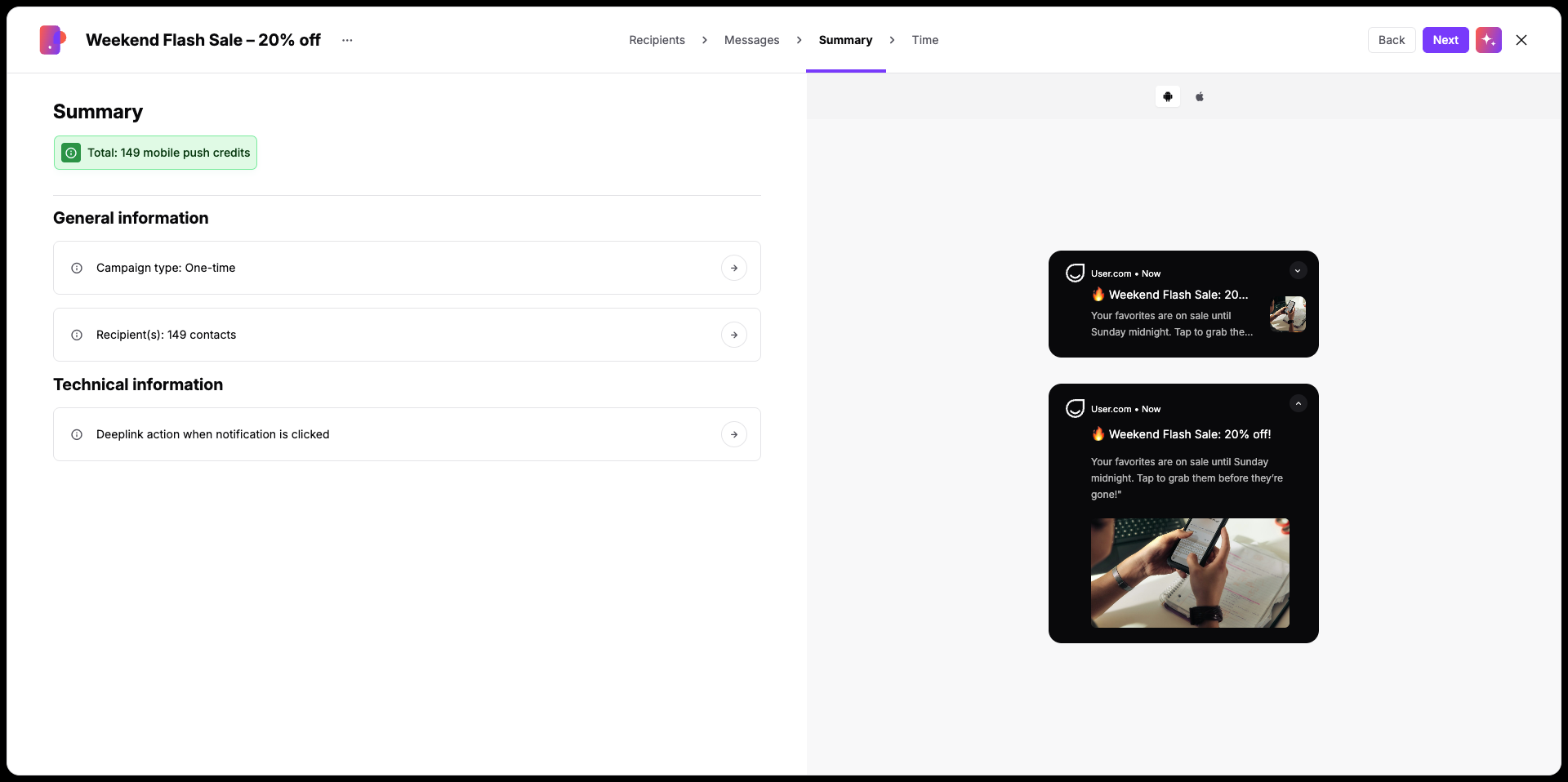
The "Summary" step provides an overview of your campaign settings before scheduling:
Campaign type.
Total recipient count.
Deedlink information.
Preview of your notification title and body text.
Required push credits for the dispatch (calculated at one credit per recipient).
If you need to make changes, click any step name in the top navigation bar to return to that section. When your setup is complete, click "Next".
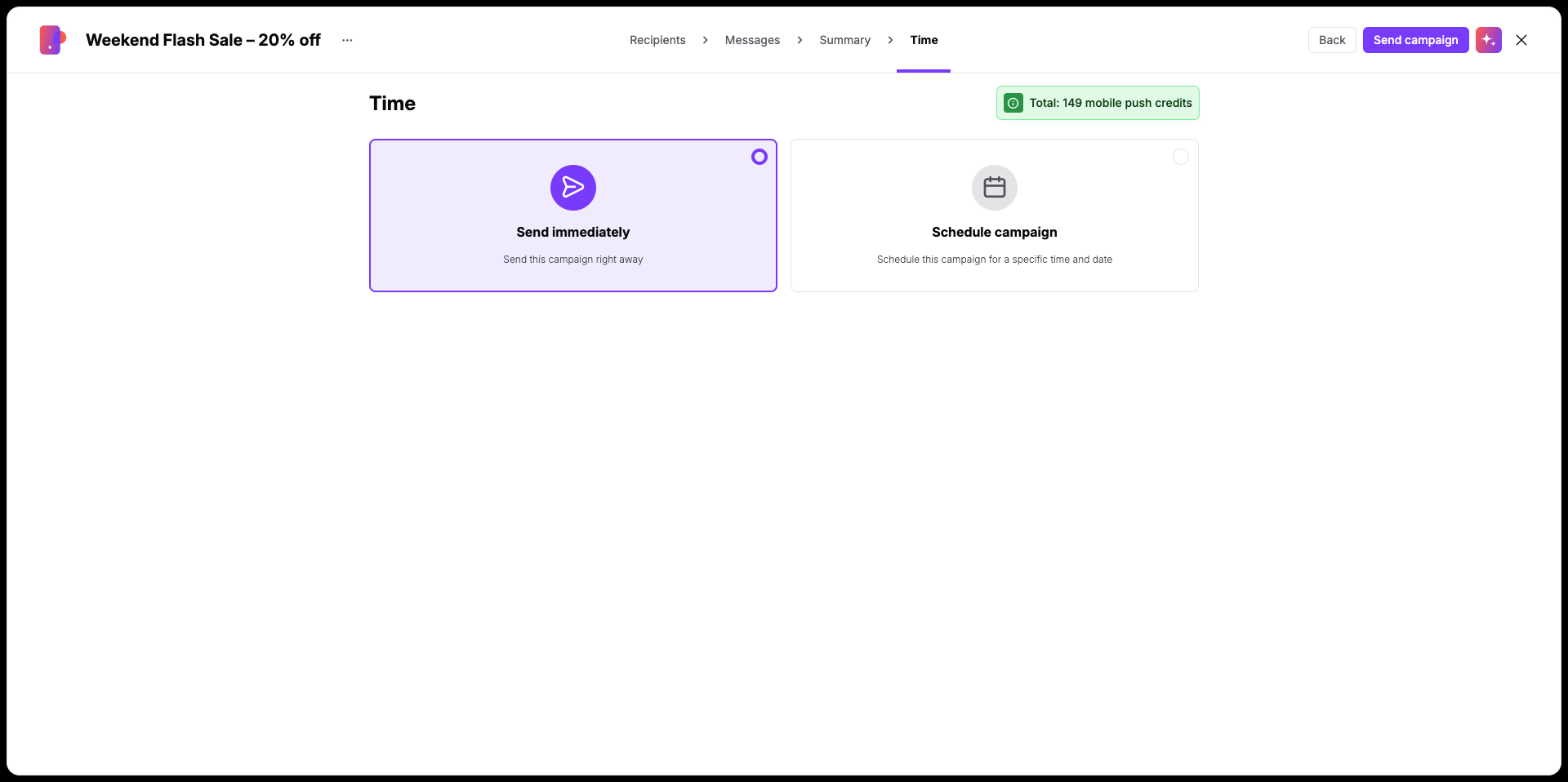
On the "Time" step, determine when your push notification will go out:
"Send immediately": Delivers the notification to your selected contacts right away.
"Schedule campaign": Lets your team choose a specific date, delivery time, and time zone.
Click "Send Campaign" to dispatch or schedule your notification.
Weekend Flash Sales: Alert contacts to limited-time promotions directly on their mobile screens, driving immediate traffic back into your mobile app.
Product Launches: Announce newly released items or features, using deep links to direct contacts straight to the relevant product page.
Event Reminders: Keep contacts informed about live webinars, broadcast start times, or local gatherings with timely day-of reminders.
