Segments help you organize your data and target the right audience. If you’re new to segments, start with “What Is a Segment” article to understand the basics and learn how to build your first one.
Once your segments are created, you may need to refresh their results or adjust how often they update. This article explains how segment recalculation works and how to manage it.
Segments are automatically recalculated every 4 hours by default. It means that system checks whether all object still suit the conditions of the segment (to remove unnecessary ones) and if there are any new objects that fulfil the requirements (to add them to the segment).
When you select a segment from the filters panel in any Data section, you see cached results. This means you are viewing the latest calculated version of the segment, not real-time data between recalculation cycles.
By default segments are recalculated automatically every 4 hours. Between recalculations, the system displays cached results. Thanks to that mechanism filtering large databases stays fast and efficient.
If changes occur in your data (for example, new contacts meet the segment conditions), they will appear in the segment after the next scheduled recalculation.
You might want to recalculate a segment when:
• You need up-to-date results immediately
• You’ve just imported data
• You’ve updated segment conditions

4 hours is the average period of time, but some segments require less or more time. You can adjust the interval according to the segment’s conditions.
Go to a relevant “Data” section (Contacts, Companies, Deals, etc).
In the top-right panel find the “Segments” section.
Then go with “Actions” → “Manage Segments” option.
You will be redirected to “Workspace settings” → “Segments” → “Segment management” section.
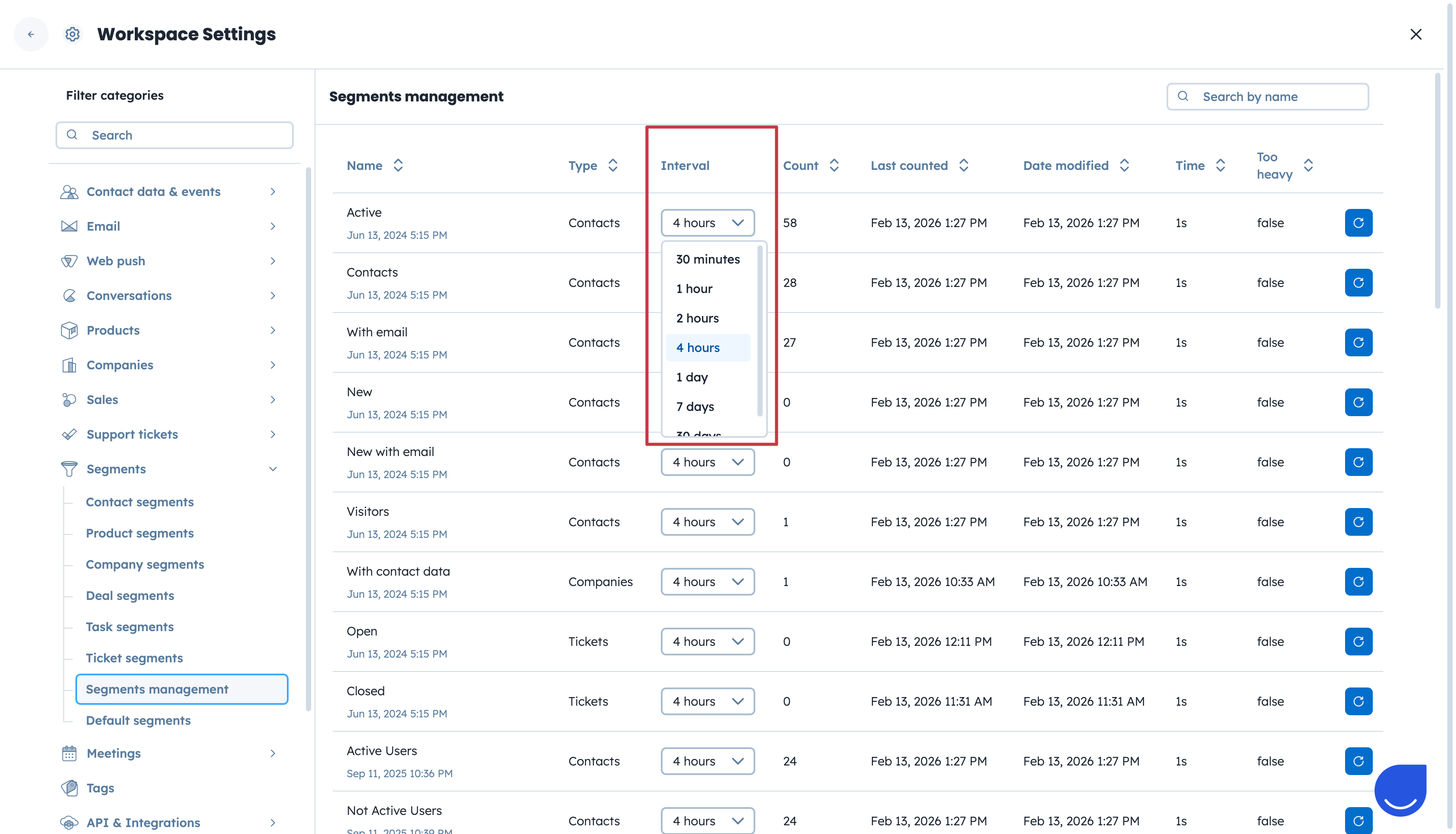
Find the segment you want to update and change its value in the “Interval” column.
In the “Interval” column, you can set how often each segment should be recalculated. By default, the interval is set to 4 hours. You can choose a value between 30 minutes and 30 days.
Once you define the interval, the segment will follow this recalculation schedule automatically.
Using different intervals for different segments helps optimize performance and speeds up recalculations across your workspace.
If you need fresh segment results immediately, you can trigger a manual recalculation. The process may take a few minutes, depending on the size of your database.
Go to a relevant “Data” section (Contacts, Companies, Deals, etc).
In the top-right panel find the “Segments” section.
Then go with “Actions” → “Manage Segments” option.
You will be redirected to “Workspace settings” → “Segments” → “Segment management” section.
Or
Go to “Workspace settings” → “Segments” → “Segment management” section.
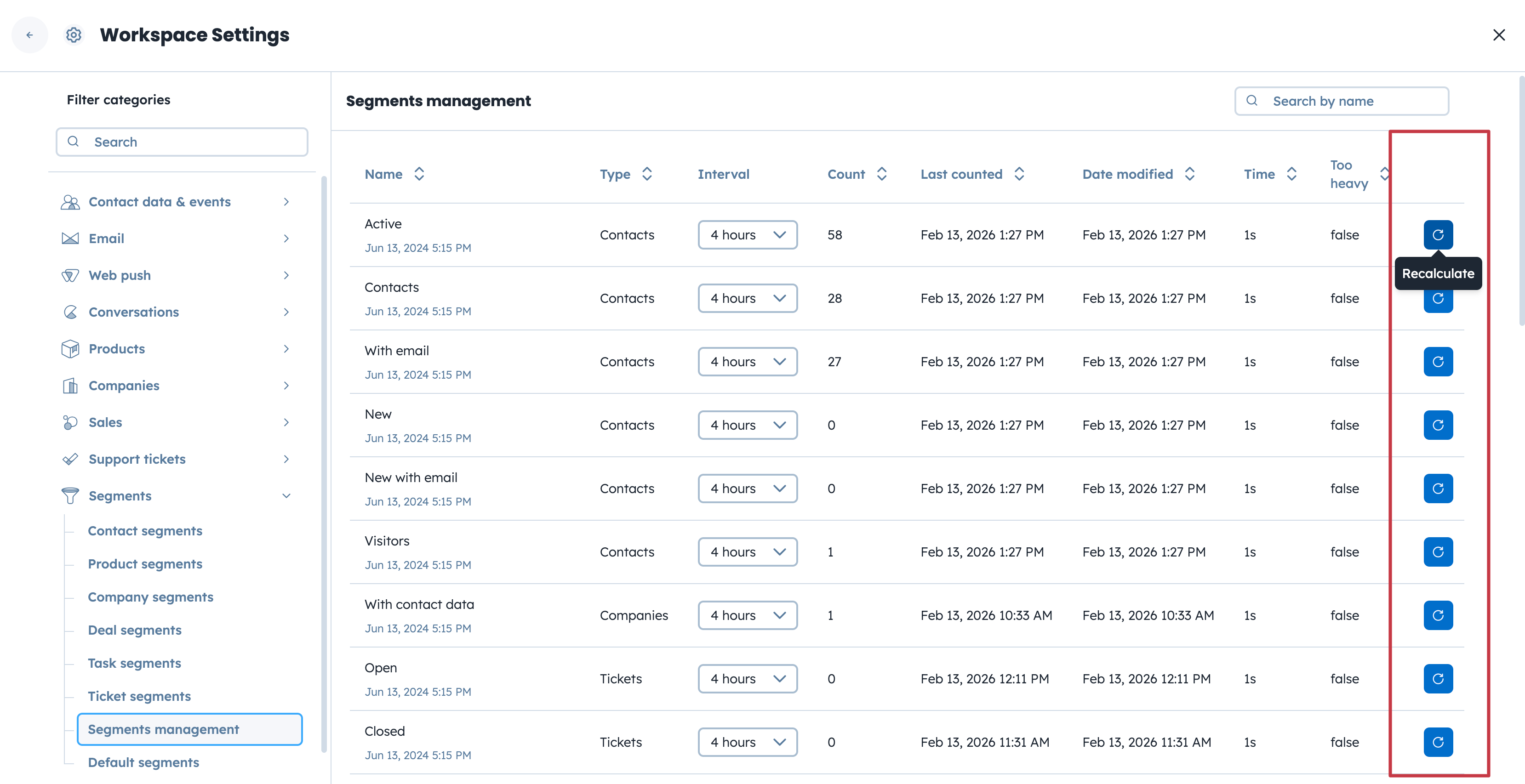
In the last column, click the “Recalculate“ button next to the selected segment.
This action immediately starts recalculating the selected segment.
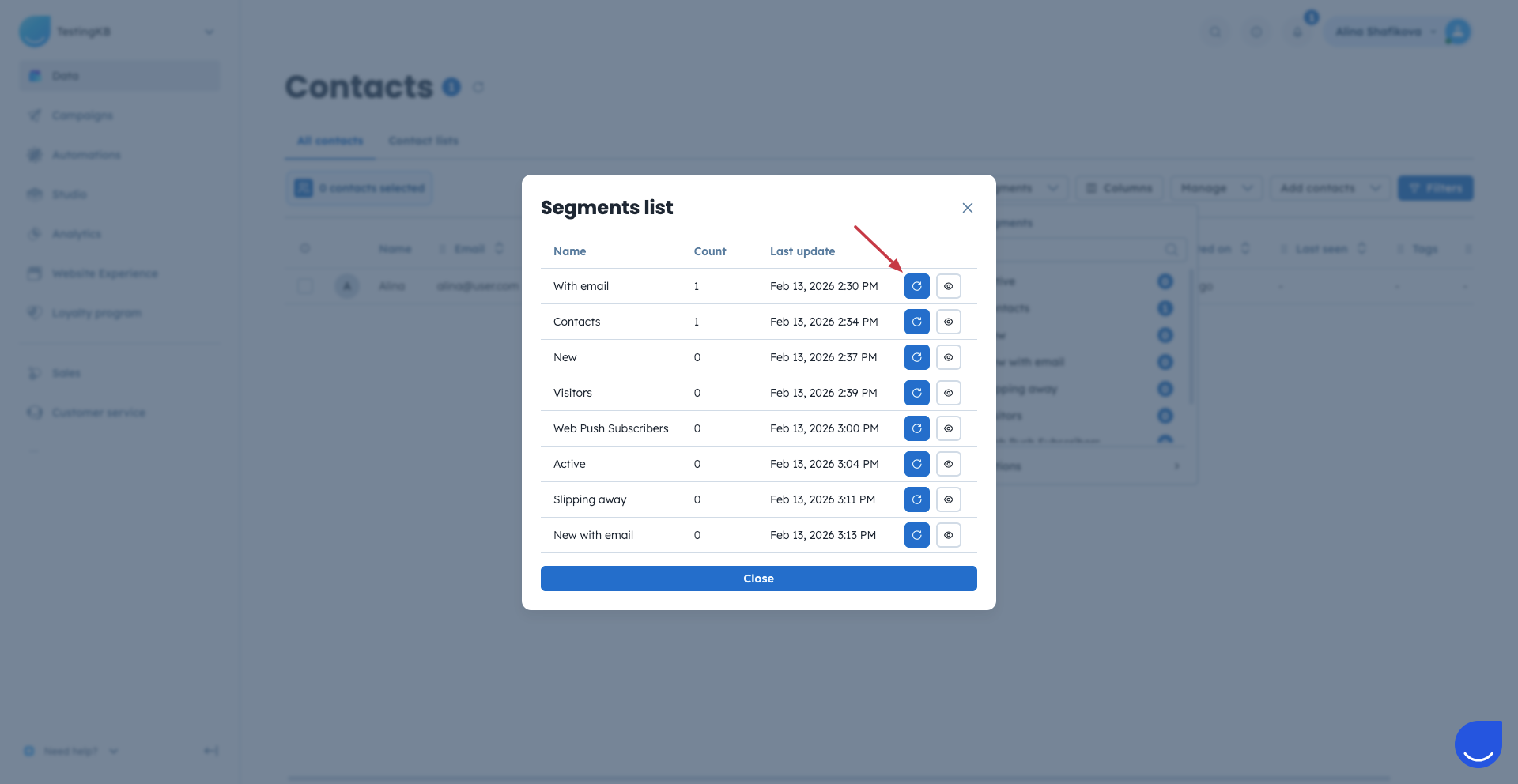
Another option to recalculate a segment straight away is to it from any “Data” section.
Follow these steps:
Go to a relevant “Data” section (Contacts, Companies, Deals, or similar).
Click the “Segments” button in the top-right corner.
Choose “Recalculate Segment”.
A pop-up window will appear with a list of segments for the selected object (contacts, companies, deals, etc).
Click “Recalculate’ next to the chosen segment.
This action starts immediate recalculation of the selected segment. Remember, it can take few moments depending on the size of the segment.
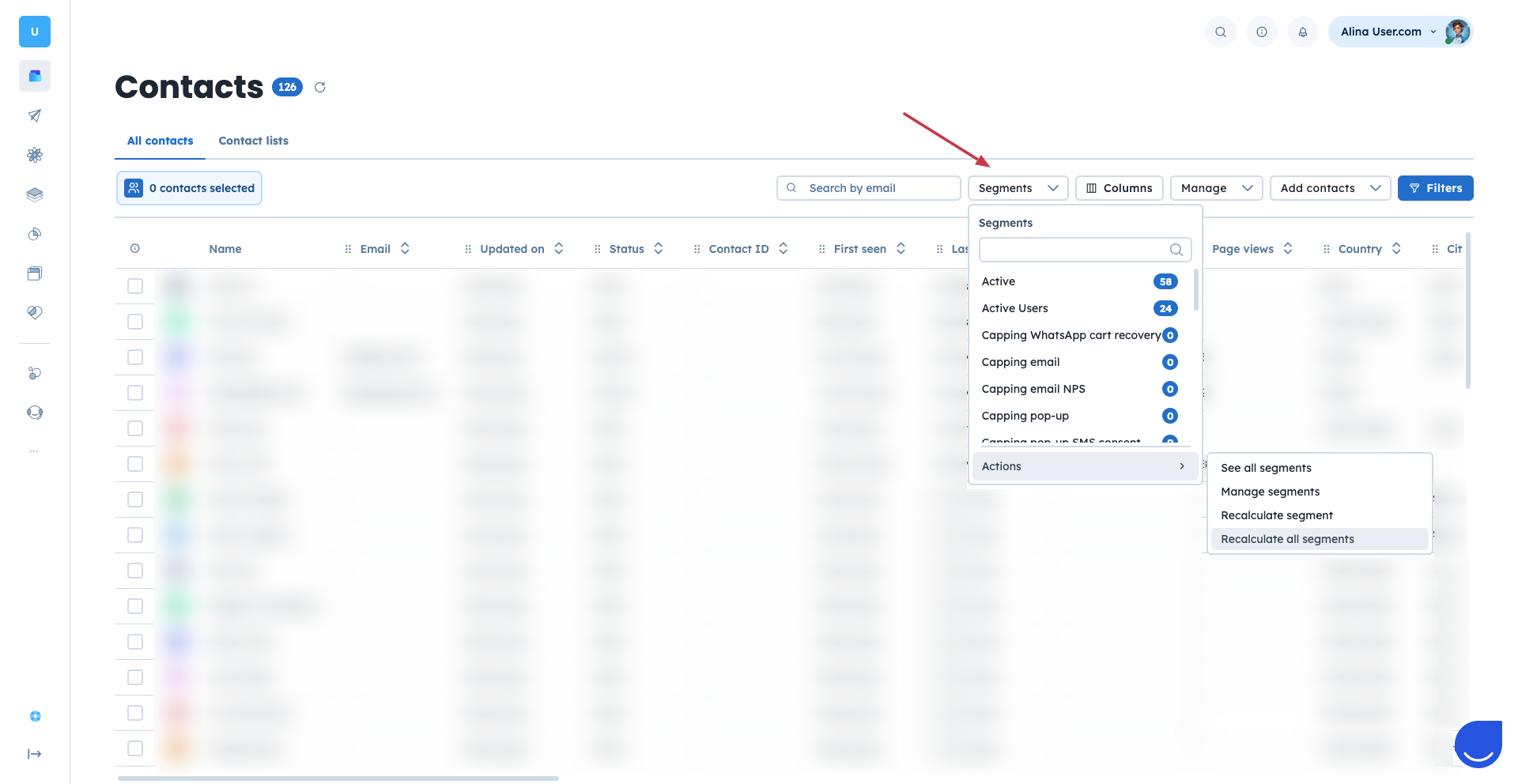
If you want to refresh all segments related to one object (for example, all contact segments), you can do it in one action.
Go to a relevant “Data” section (Contacts, Companies, Deals, or similar).
Click the “Segments” button in the top-right corner.
Choose “Recalculate All Segments”.
Wait a few minutes until the process finishes. The exact time depends on the selected option and your database size.
Recalculating segments helps you ensure accurate targeting and reporting.
