Providing a browser preview option lets your recipients view your email directly in a web browser. This improves accessibility when an email client doesn’t render the layout correctly or blocks images. In this article, you’ll learn how to add a webcopy link to your emails using a dedicated HTML snippet.
Use the drag-and-drop editor to automatically include or customize a browser preview link in your email design. When you create and email via “Email” → “New campaign” or open an email via “Studio” → “Templates” → “My Templates”, Positive User automatically adds a pre-header line with a "View in browser" link at the top of your canvas.
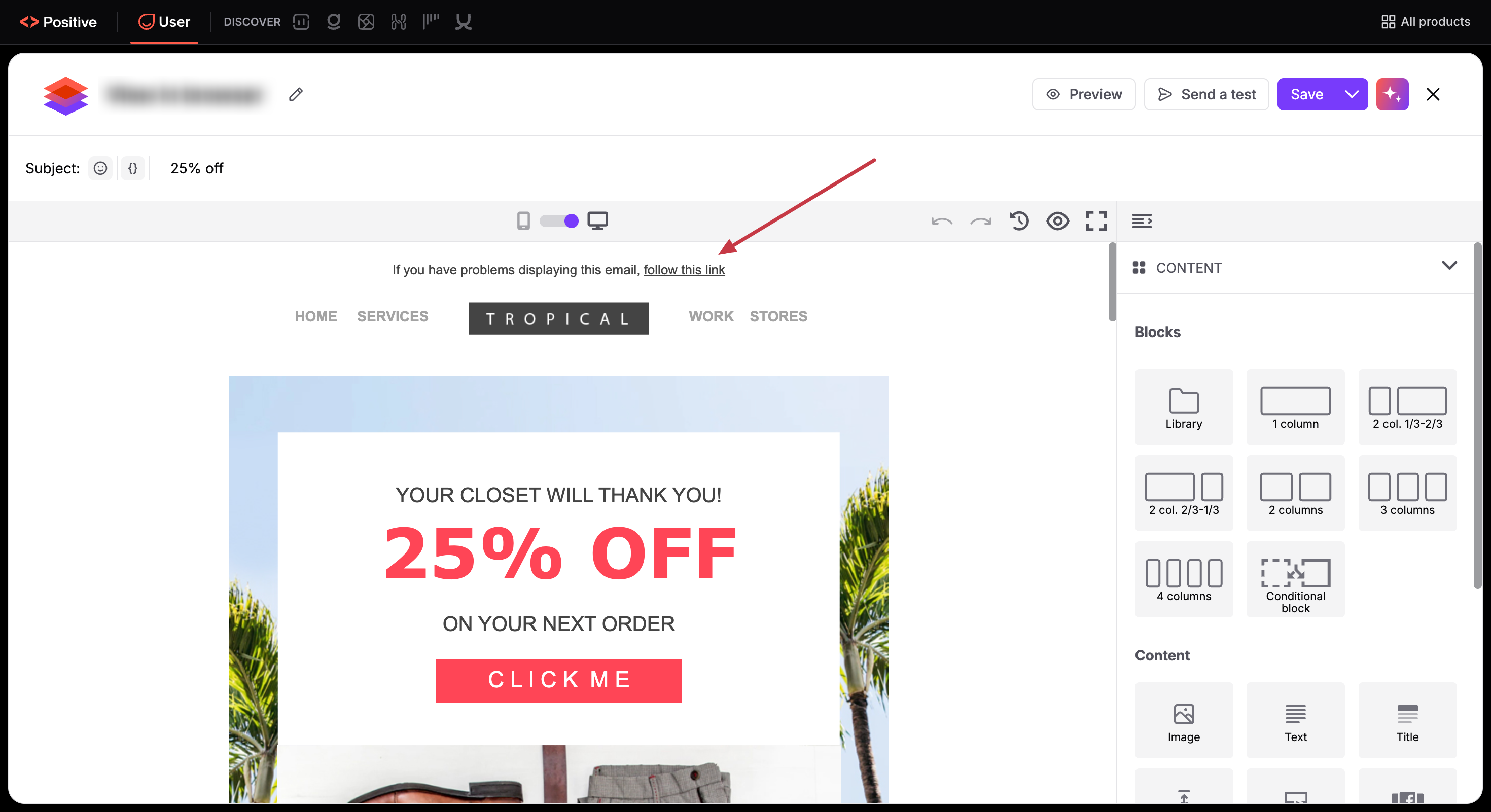
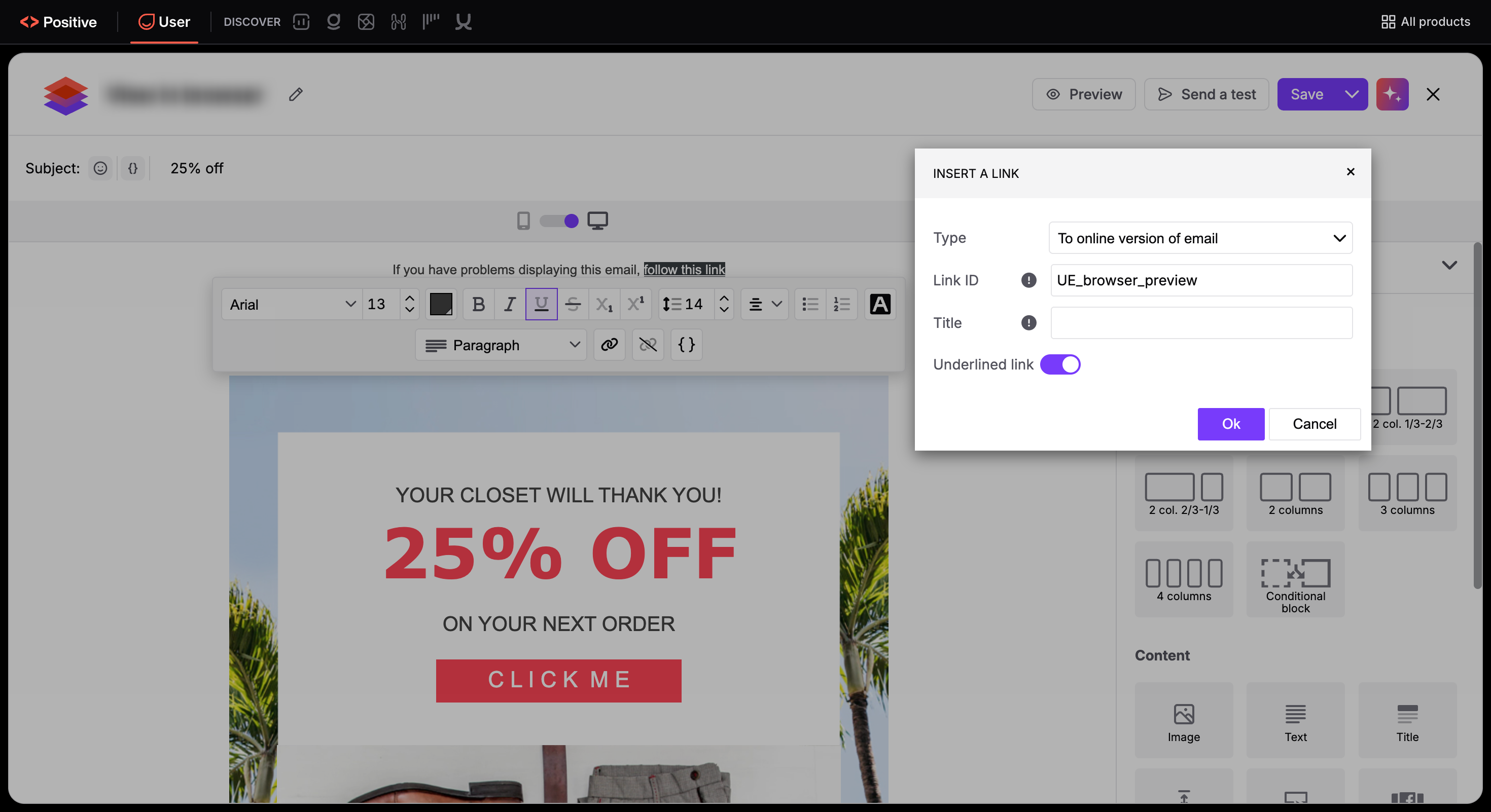
Your team can keep this default line or write custom wording, such as "Read online". Highlight the text you want to use as your link, then click the link icon in the text editing toolbar above the block.
In the "INSERT A LINK" modal, click the "Type" dropdown and select "To online version of email". Positive User automatically fills in the required link ID, so you do not need to paste any code.
Follow these steps to include a “View in browser” link in your email message.
Open the email message you want to update in the code editor. You can access it from an existing campaign or go to “Studio” → “Templates” → “My Templates”.
Decide where the browser preview link should appear in your email template such as the preheader or header area. Paste the following anchor tag into your HTML:
<a id="UE_browser_preview">View in browser</a>You can customize the styling to match your email design. It’s also a good practice to add supporting text, for example:
“If this email doesn’t display correctly, view it in your browser.”

Ensuring Consistent Rendering Across Devices and Clients: Email clients such as Outlook or Gmail may render HTML emails differently, especially when images, fonts, or complex layouts are used. A browser preview helps preserve the intended layout and branding by opening the message in a standard web environment.
Supporting Recipients Behind Firewalls or Security Filters: In B2B communication, corporate security settings often block images or external resources in emails. A browser preview allows recipients to access the full content without these restrictions.
