Email campaigns are one of the most effective ways to communicate with your contacts. They help you share updates, nurture relationships, and support sales, marketing, and support efforts - all from one place.
In User.com, email campaigns let you reach the right audience at the right time. You can send one-time messages, such as newsletters or promotions, or automate emails based on contact behavior to scale your communication without losing relevance.
An email campaign in User.com is a set of one or more email messages (A/B tests) sent to a selected group of contacts. Campaigns can be sent manually or triggered automatically as part of an automation flow, depending on your goal.
An email campaign is different from a single email message. The campaign defines the purpose, audience, and sending logic, while messages define the actual email content that contacts receive.
User.com supports 2 types of email campaigns, depending on how and when messages are sent.
One-Time Campaigns: These campaigns are one-time email sends. You use them when you want to send a newsletter, announcement, discount, or update to a selected group of contacts.
Automated Campaigns: This type of campaigns is designed to be used inside automations. They are triggered automatically when a contact meets specific conditions or reaches a certain step in an automation workflow.
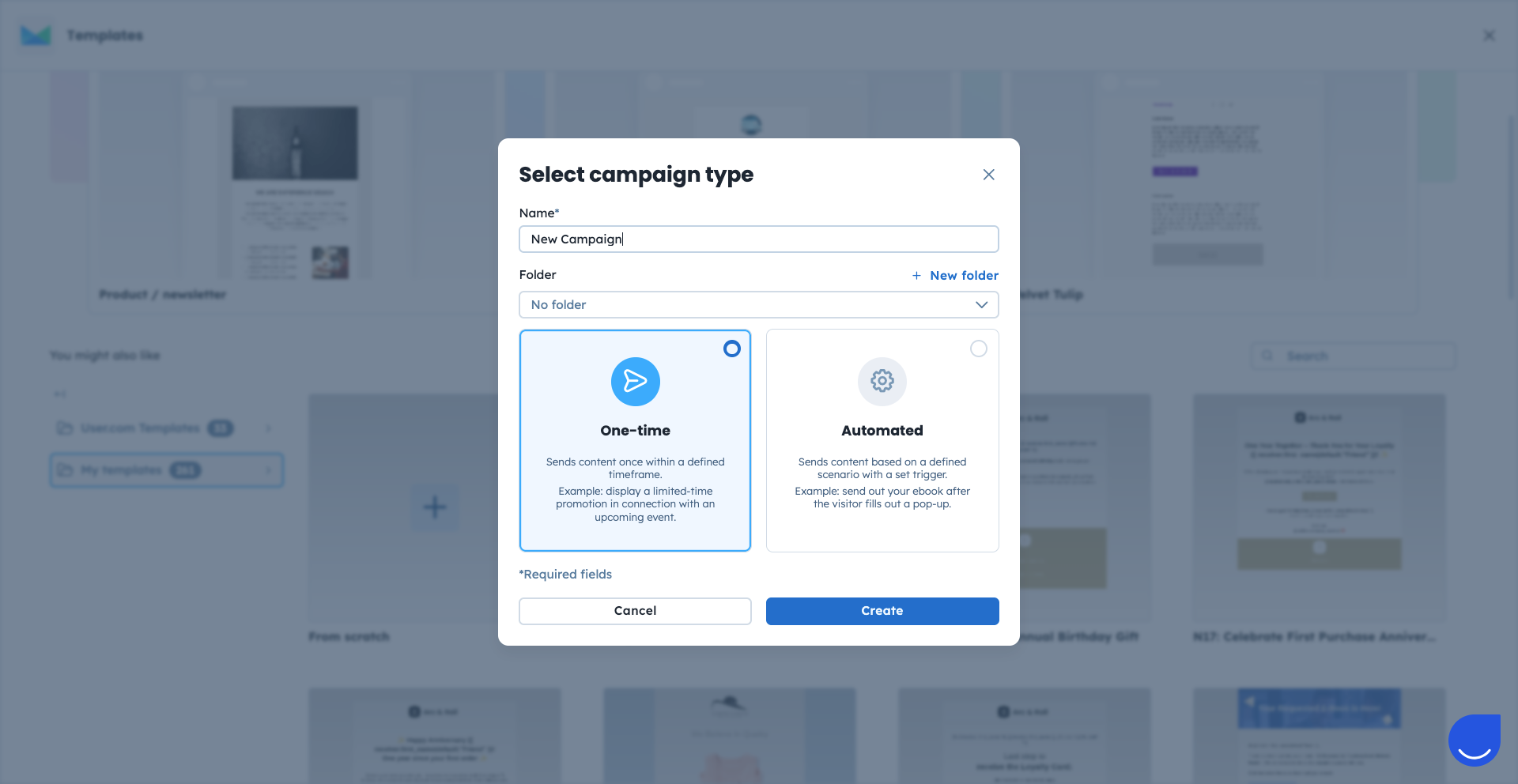
Each email campaign has a status that defines whether it can be edited or used.
Draft: Campaign is not active yet. You can edit it freely until you decide it’s ready for delivery.
Active: Active campaigns are ready to be sent or used in automations. You cannot edit an active campaign, but you can edit the email message that is connected to the email campaign.

You ca easily identify the status of the email campaign by a dot in top right corner of the message preview:
Orange dot = draft campaign
Green dot = active campaign
More info about email campaign statuses: here.
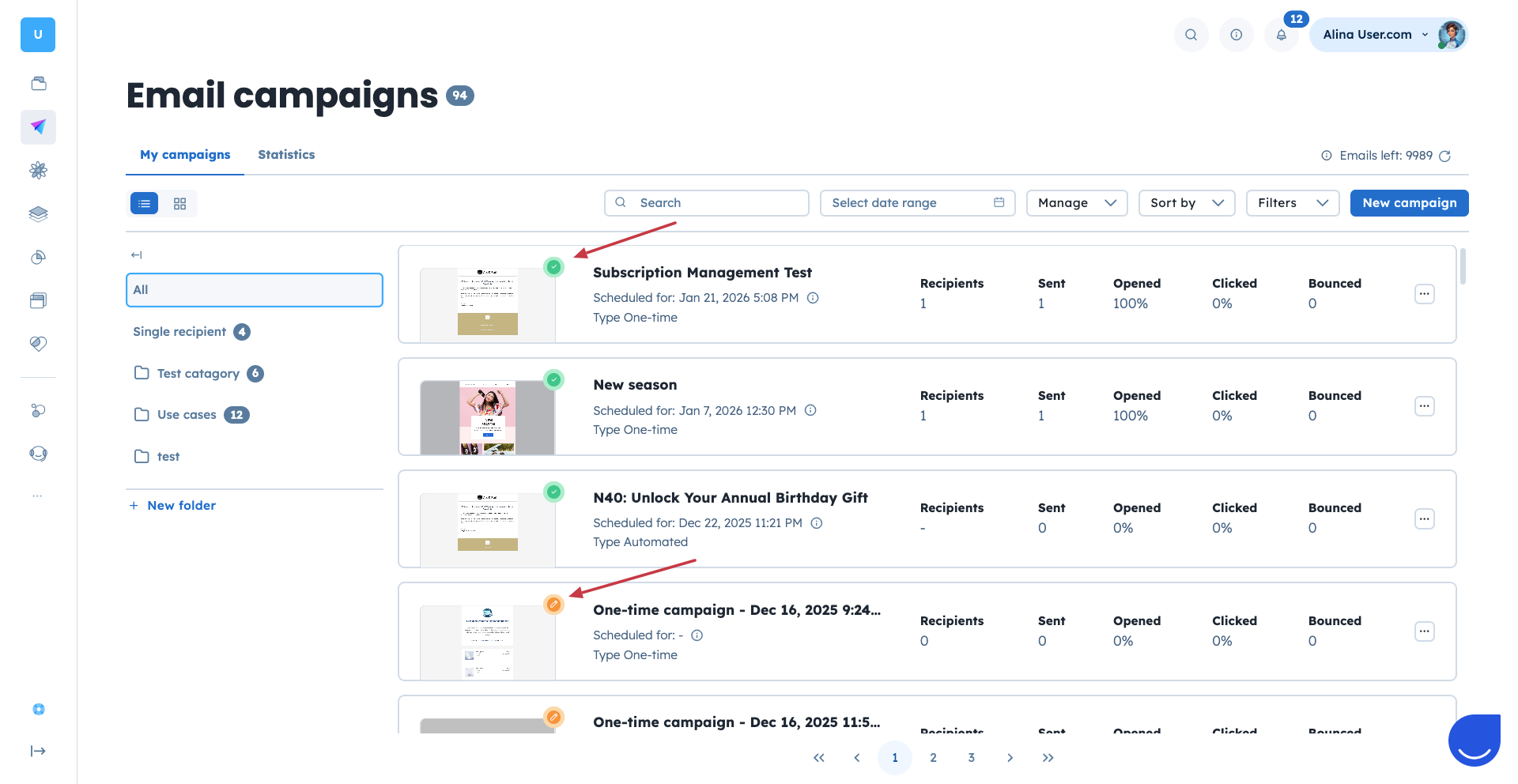
You can create and manage email campaigns from the “Campaigns” → “Email” section in User.com. Here you can track performance statistics, group campaigns into folders, and access related resources.
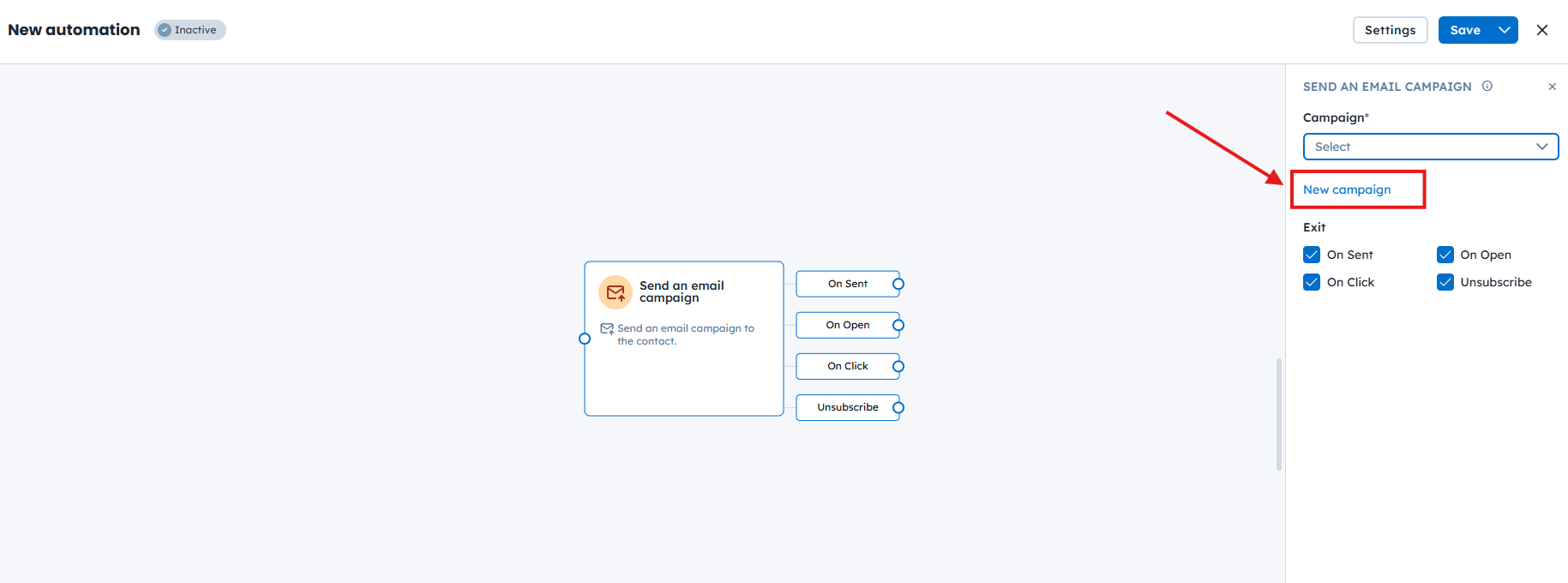
Additionally you ca be redirected to the campaign creation mode from the “Send an email campaign” action module from Automations.
To check detailed step-by-step instructions on how to create email campaigns, please check the following articles:
An email campaign always includes at least one email message. You can create a message on the basis of the predefined template.
Templates can be created using:
Ready-to-use layouts with simple or advanced drag-and-drop editor.
Custom templates built with drag-and-drop or HTML.
Existing messages reused from your library.
Check “How to Create an Email Template” article for more details.
To proceed with the A/B testing you need to add more than 1 email message to the email campaign. The message will be set on the basis of your A/B test configuration parameters.
Check a dedicated article about A/B tests in email campaigns.
Newsletters and Announcements: Use email campaigns to keep contacts informed about product updates, company news, or upcoming events.
Lead Nurturing and Follow-ups: Follow-up campaigns help you stay in touch with contacts who requested an offer or showed interest. Regular follow-ups are a key part of building long-term relationships.
Outbound Communication: Outbound campaigns let you initiate contact with a new audience and start conversations at scale, while still keeping messages relevant.
It is also crucial to include an unsubscribe link in every marketing email campaign to comply with best practices and legal requirements. Check our dedicated articles about it:
How to Add an "Unsubscribe From Specific List" Link to the Email Message
How to Add "Subscription Management" Link to the Email Message
