Measuring email performance helps you understand how your audience reacts to your messages and where you can improve. In Positive User, email campaign statistics give you both high-level results and detailed, user-level insights, so you can optimize future campaigns based on real data.
Measuring the effectiveness of your email campaigns allows you to evaluate whether your communication meets your business goals. With email statistics, you can track engagement, identify delivery issues, and understand how recipients interact with your content.
Positive User puts an invisible tracking pixel into every email message sent from the platform to track the email openings. Each url from the campaign also includes a tracking element to get full info about clicks. How open and click statistics are calculated in your workspace depends on the email tracking settings configured in your workspace:
Navigate to “Workspace settings” → “Emails” → “Email tracking”.
Select your preferred mode:
Enable for all (Default): Every email sent from Positive User includes the invisible pixel and link tracking parameter (__ca__chat).
Enable per contact: Attaches pixels and wrapped links only for contacts whose consent status attribute (Email tracking consent) is explicitly set to “true”. Contacts with “false” or “none” receive untracked emails.
Disable for all: Emails are sent without tracking pixels or parameter-modified links. Links function normally as standard URLs.

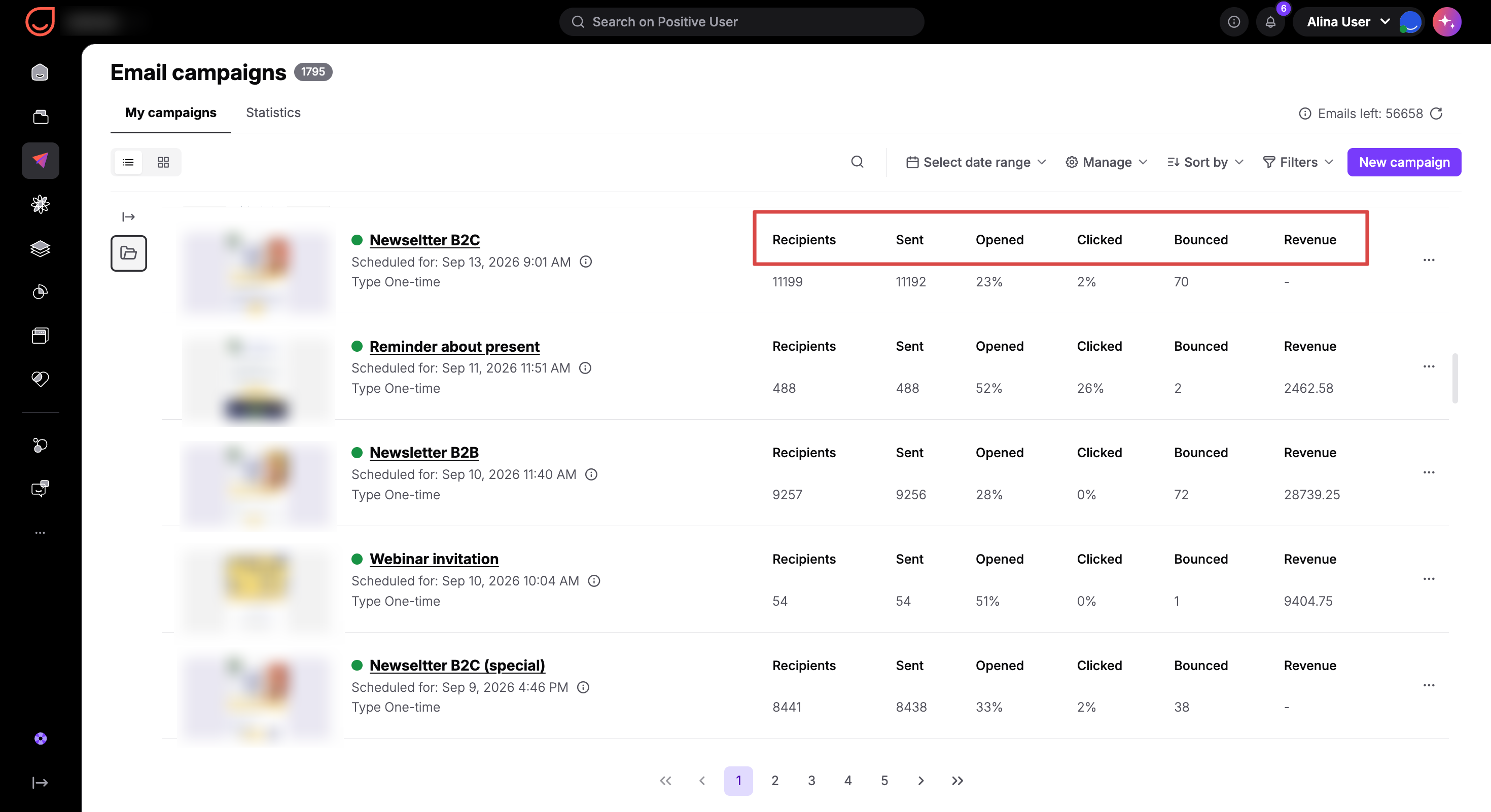
To see the main results of your campaigns, go to the “Campaigns” → “Emails” section. In the campaign list, you can find key metrics such as:
Number of recipients: The total size of your targeted audience segment. Checking this helps you confirm that your list filters pulled the right audience before you assess overall performance.
Number of emails sent: The total messages dispatched by the system. Comparing this with your recipient count allows you to check if any contacts were suppressed or excluded during sending.
Open rate: The percentage of delivered emails opened by recipients (when tracking is enabled). This reflects how compelling your subject line was and how recognizable your sender name is to your audience.
Click rate: The percentage of delivered emails where recipients clicked at least one link (when tracking is enabled). This shows whether your message body and call to action successfully encouraged contacts to take the next step.
Number of bounces: Combined count of soft bounces, hard bounces, and spam bounces. High bounce numbers warn you that contact data may be outdated or that mail servers are rejecting your domain.
Revenue (if you have it configured)
These indicators give you a quick overview of how each campaign performs.
On top of the “Campaigns” section you can apply the date range - then system will show you only statistics collected within a chosen period of time.
To get overall statistics about your email campaigns go to “Campaigns” → “Email” → “Statistics” section.
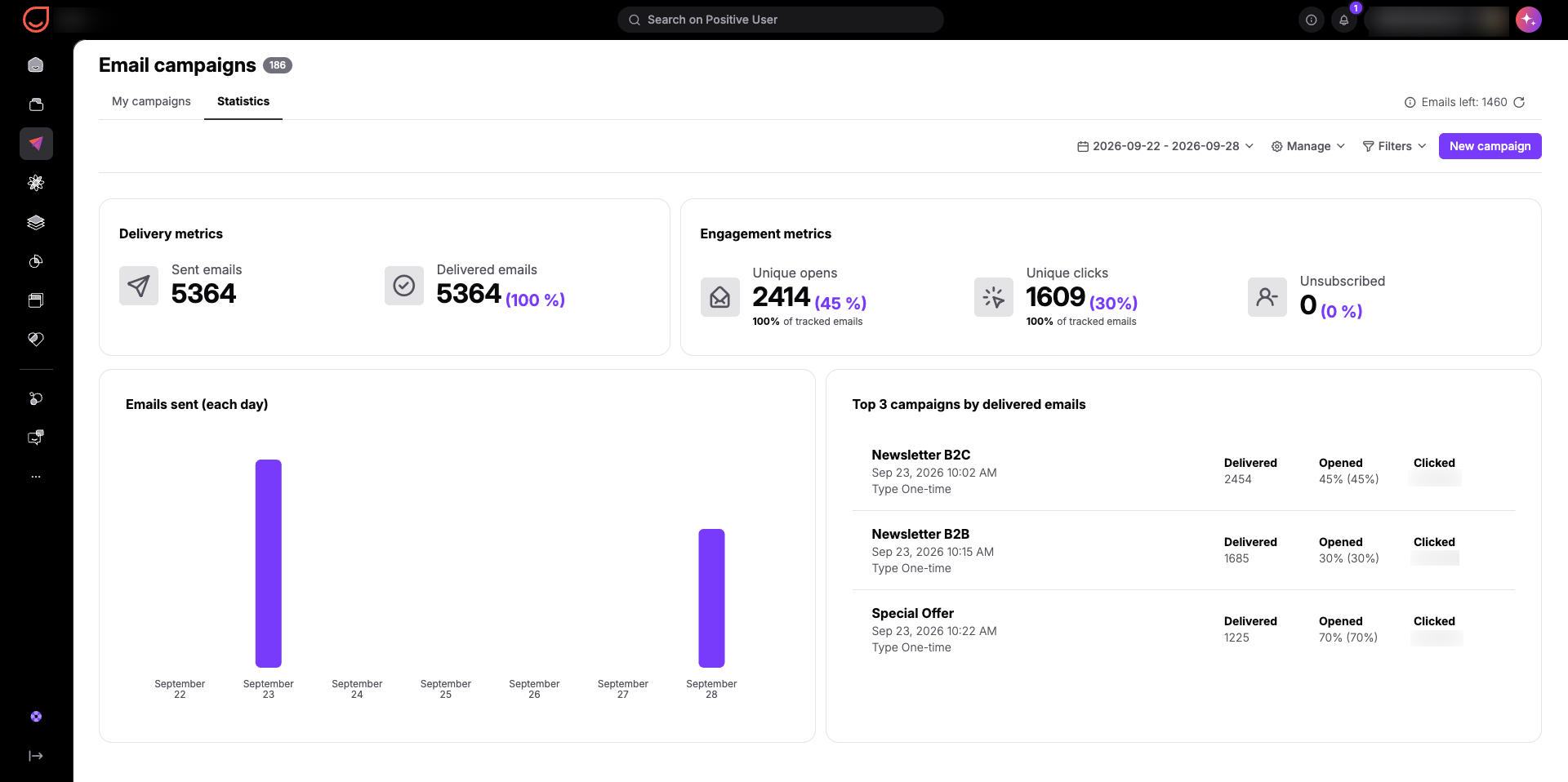
Here you have access to all main statistics:
Delivery metrics: Total sent versus delivered messages, giving you an instant health check on whether your domain maintains solid deliverability.
Engagement metrics: Workspace-wide unique opens, unique clicks, and unsubscribes. Tracking these figures over time shows whether overall audience interaction is growing or tapering off.
Top 3 campaigns by delivered emails: Your highest-volume campaign sends during the selected period, highlighting which messaging drives the most audience reach.
Daily delivery stats: Day-by-day delivery and interaction trends, helping you identify peak engagement days to schedule future campaign dispatches.
Moreover, you can apply filters by campaigns type (one-time / automated) or choose the period of time you want to check statistics for.
For more in-depth results, click the name of a specific campaign from the campaign list. This opens the campaign profile, where performance data is grouped into several sections:
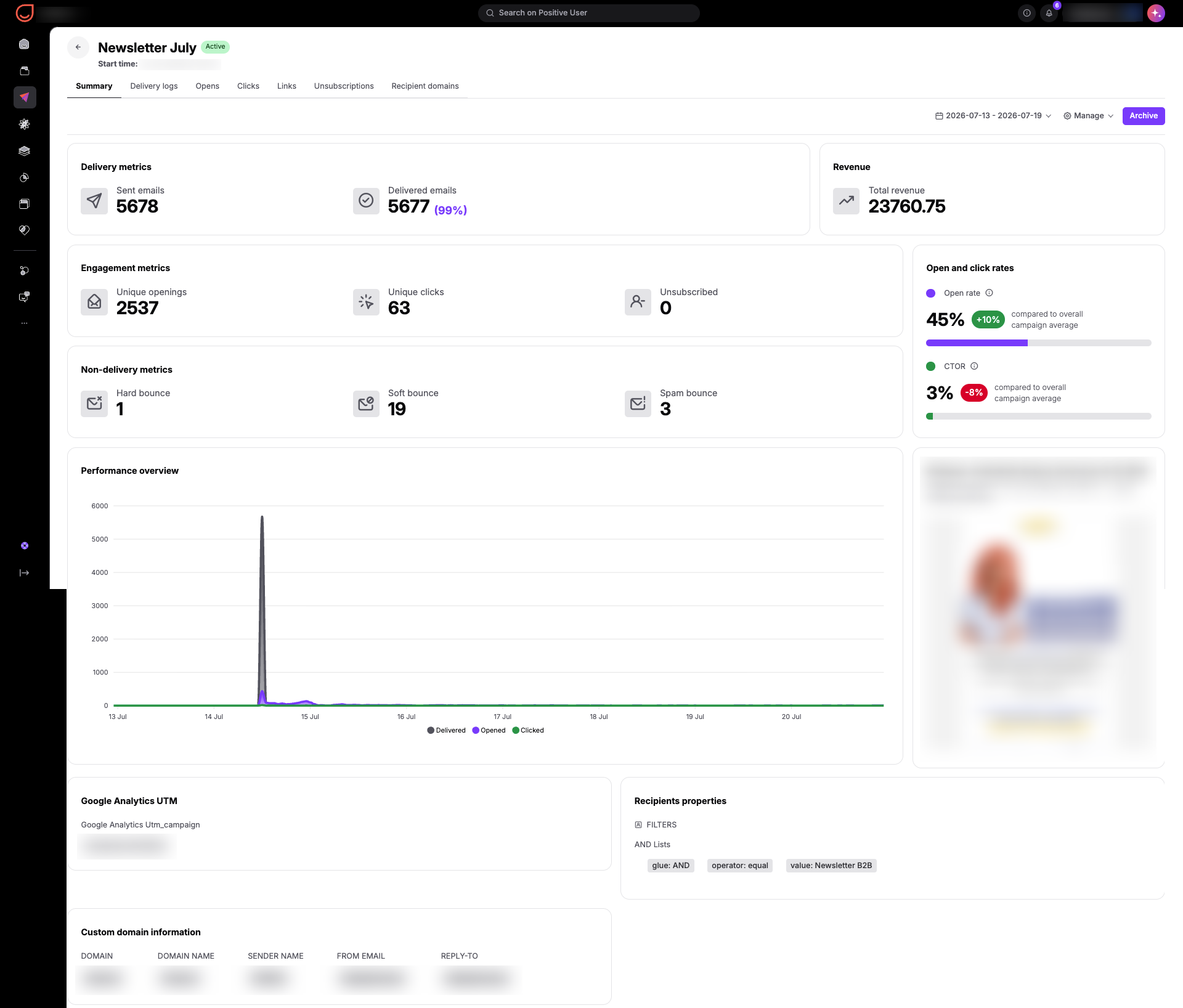
The "Summary" tab aggregates overall results for the campaign:
Delivery metrics: Displays sent emails, delivered emails, and tracked emails (showing the total count and percentage of emails sent to contacts with tracking turned on). Comparing delivered emails against tracked emails helps you understand how much of your audience is actively measured.
Revenue: Calculations showing direct revenue brought in by the campaign. This connects email activity directly to business outcomes so you can measure actual return on investment. The number is based on your settings.
Engagement metrics: Shows unique openings, unique clicks, and unsubscribes. Under "Enable per contact" settings, unique openings and clicks display the percentage of tracked emails beneath the metric count (for example, 100% of tracked emails). If tracking is turned off workspace-wide, these fields display a dash (-).
Non-delivery metrics: Breaks down hard bounces (e.g. invalid email addresses), soft bounces (e.g. temporary inbox issues), and spam bounces (recipient complaints or server blocks). Monitoring these details helps you identify bad lead sources or content that triggers spam filters.
Open and click rates: Displays your overall open rate and Click-to-Open Rate (CTOR) alongside campaign averages, plus the percentage of tracked emails. If tracking is disabled workspace-wide, this section displays: "These stats aren't available because open and click tracking is off."
Performance overview: Day-by-day counts for delivered, opened, and clicked emails. This reveals how quickly contacts respond after dispatch, helping you plan follow-up offers or reminder sends.
SMTP information: Details about the email provider responsible for campaign delivery.
Message: A visual preview of your email. Click the three dots in the bottom-right corner of the thumbnail to access a click heatmap or edit options. Studying the heatmap shows which visual areas or buttons attracted the most attention.
If your campaign includes A/B testing, bottom part of the campaign profile will show a comparison of results for each variation used.
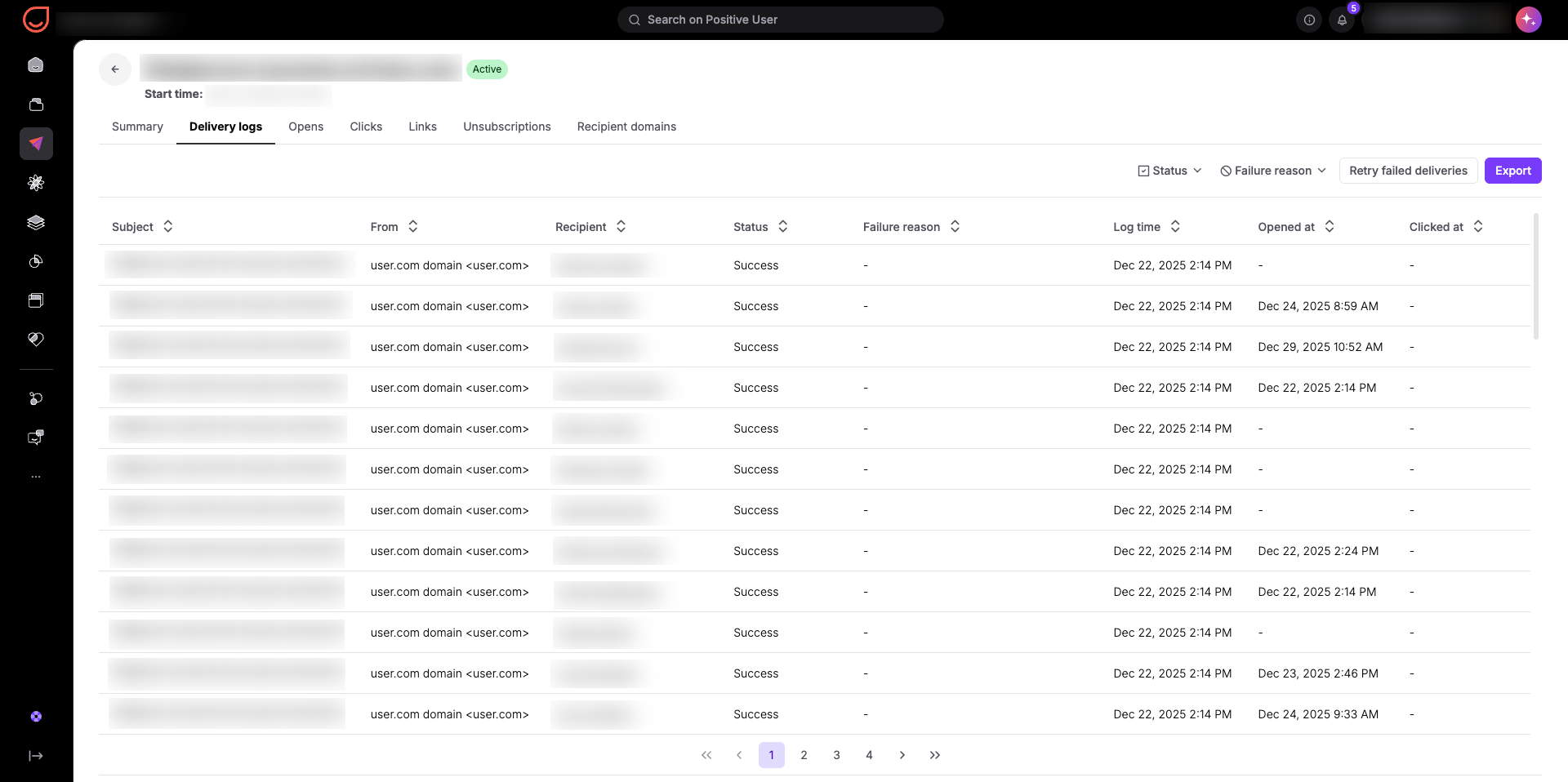
The “Delivery logs” view presents a detailed list of all sent emails. You can see:
Subject line of the message used in the campaign
Email address the email message was sent from
Each recipient details
Status of the delivery (success/failure)
Failure reason (in case of unsuccessful delivery)
Delivery date
Open and click timestamps (displays "Disabled" if tracking is turned off for that specific contact).
This view is especially useful when troubleshooting delivery issues or dispatch failures.
Click "Export" to download a log file. Exported CSV files include an additional parameter called “tracking enabled”, marked as “t” (true) or “f” (false) for each contact. This ensures your team can audit tracking preferences and respect customer consent choices when analyzing raw data.
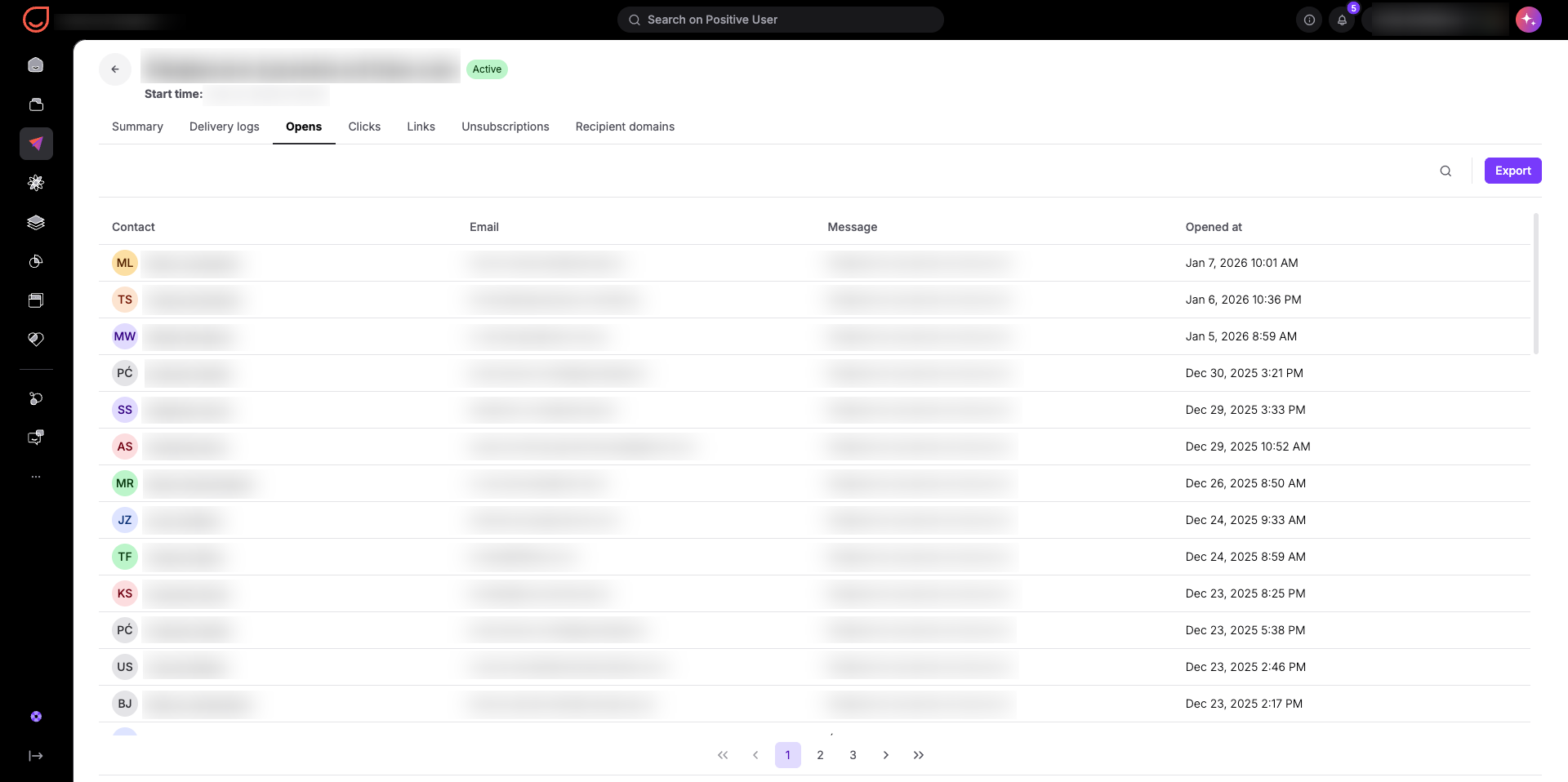
The "Opens" tab shows every contact who opened your message, along with the exact time of the interaction.
Seeing who opened your email and when helps sales teams time their outreach, reaching out while your offer is fresh in the contact's mind. It also helps marketing teams identify engaged leads for targeted follow-up campaigns.
If email tracking is turned off in your workspace settings, this tab displays: "These stats aren't available because open and click tracking is off."
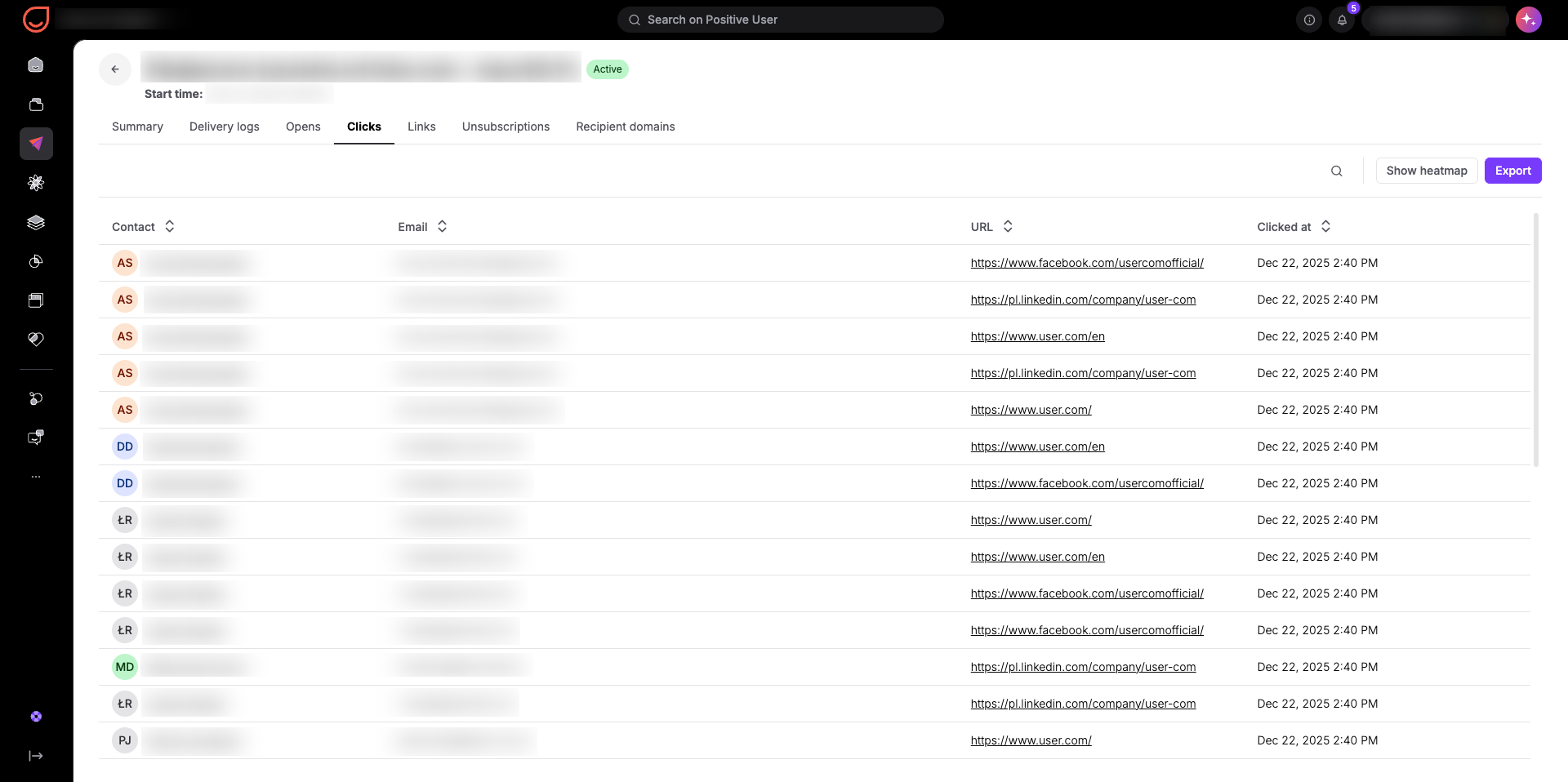
The "Clicks" tab shows which specific contacts clicked links in your email and when those clicks occurred.
Clicks represent clear intent. Knowing exactly which contacts clicked lets you segment interested leads, trigger immediate automated follow-ups, or pass warm prospects to your sales team.
If click tracking is turned off in your workspace settings, this tab displays: "These stats aren't available because open and click tracking is off."
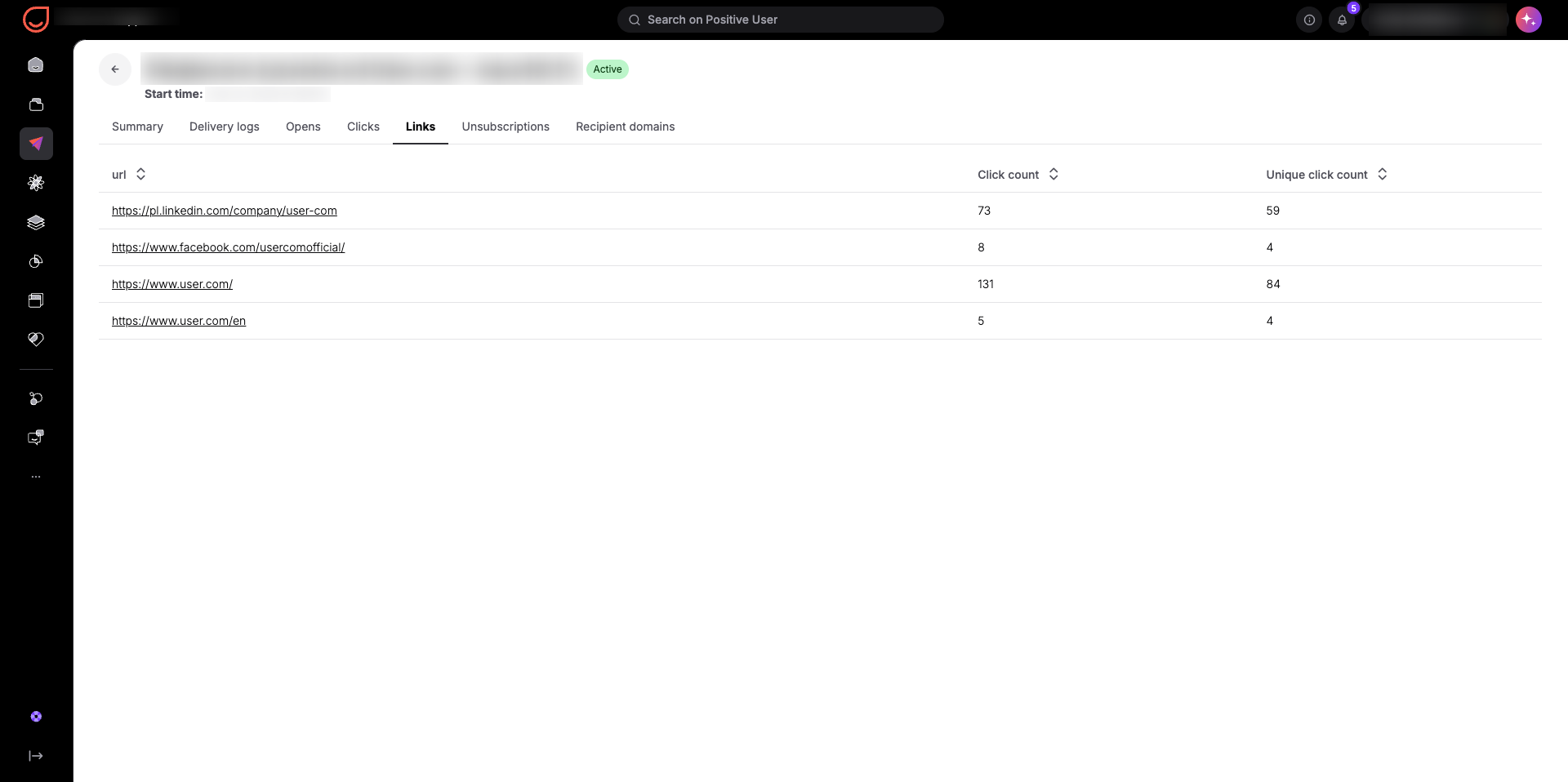
The "Links" tab lists every URL in your campaign alongside its total and unique click count.
This view highlights which calls to action, image links, or product offers resonated most with your audience. If a prominent link receives few clicks, you can adjust your button styling, copy, or link placement in future templates.
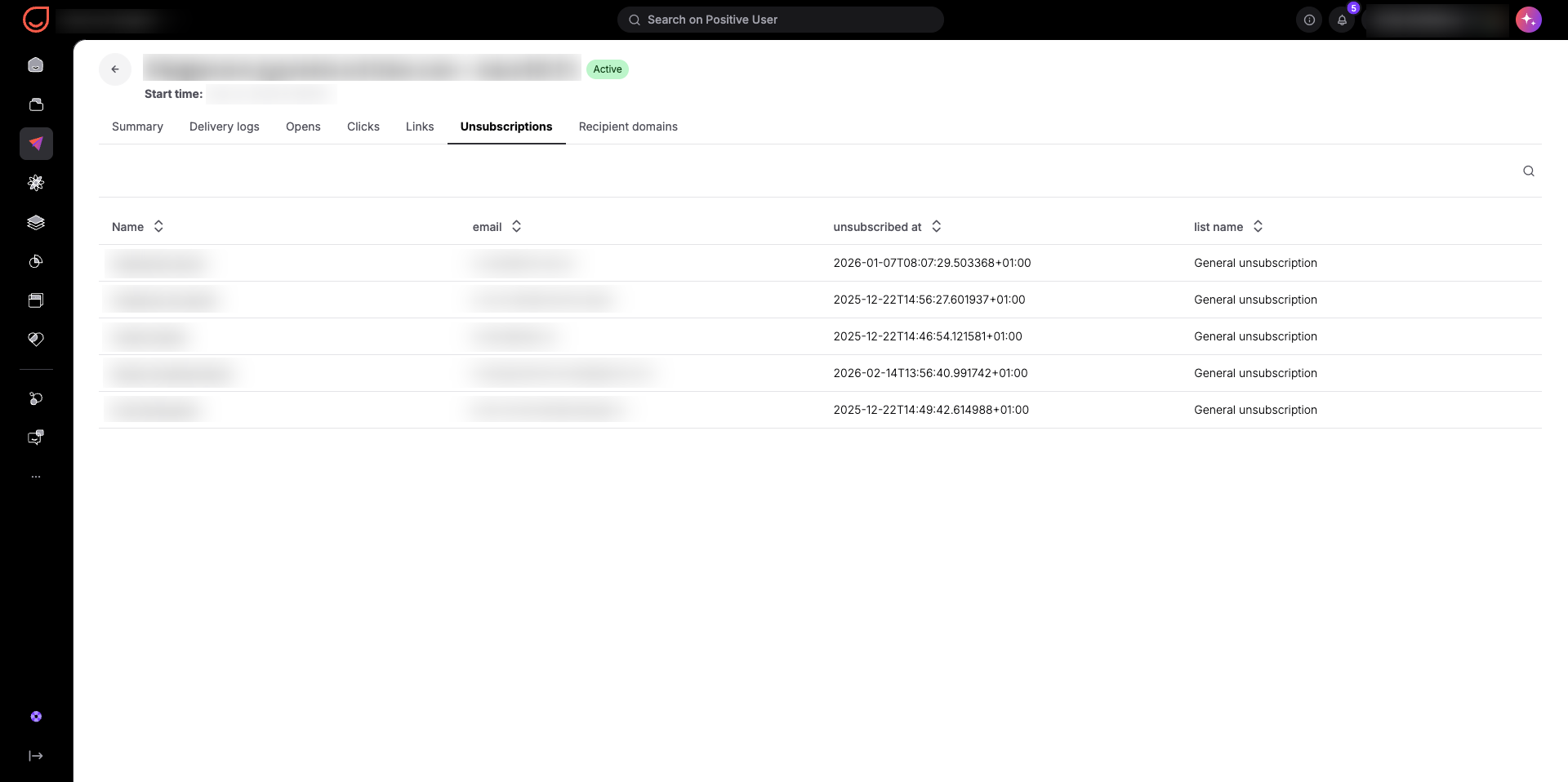
The "Unsubscriptions" tab lists every contact who clicked the "Unsubscribe" link or used a “one-click unsubscribe” option in your campaign.
Reviewing unsubscribes helps you spot messaging mismatches, aggressive sending schedules, or irrelevant content. If a specific campaign triggers a jump in unsubscribes, you can refine your segment filters before sending similar content.
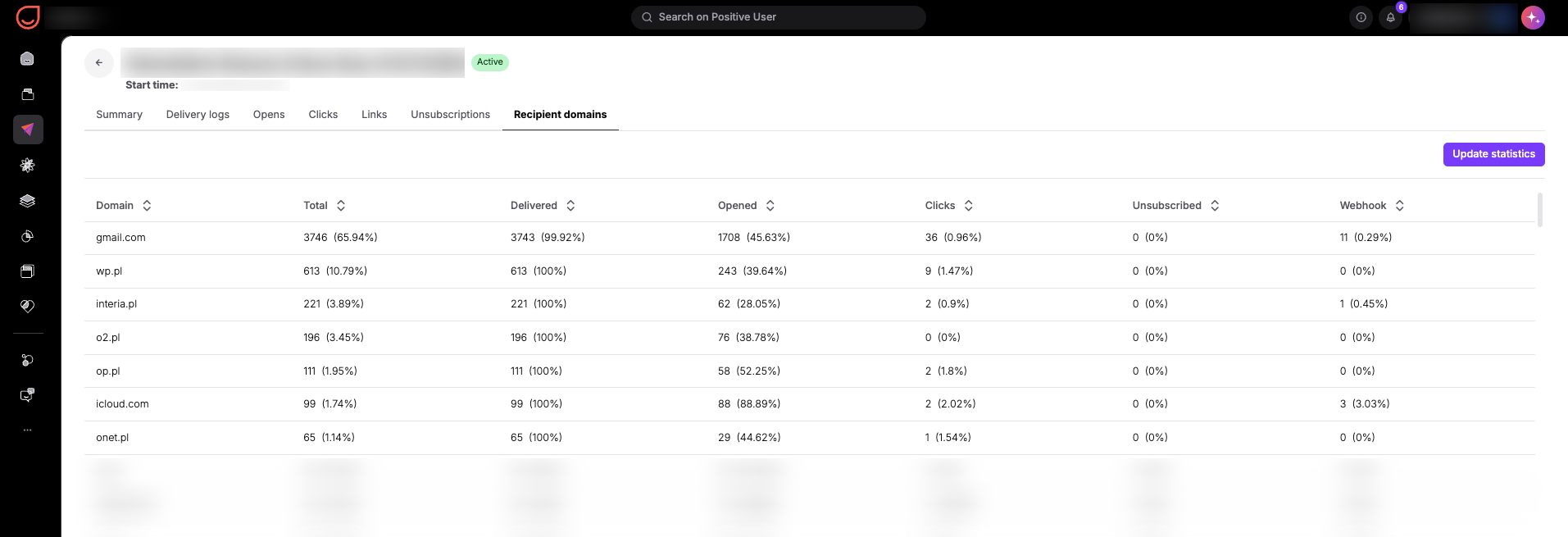
The "Recipient domains" tab shows how your recipients are distributed across email service providers like Gmail, Outlook, or corporate mail servers.
This insight helps deliverability specialists isolate technical issues. If open rates are strong overall but drop significantly among Outlook users, you can test template formatting or authentication settings specifically for that provider.
If email tracking is disabled for all contacts in your workspace settings, open and click statistics across recipient domains will show as zero. If "enable per contact" is turned on, statistics in this section will only reflect activity from contacts who have explicitly given you their consent.
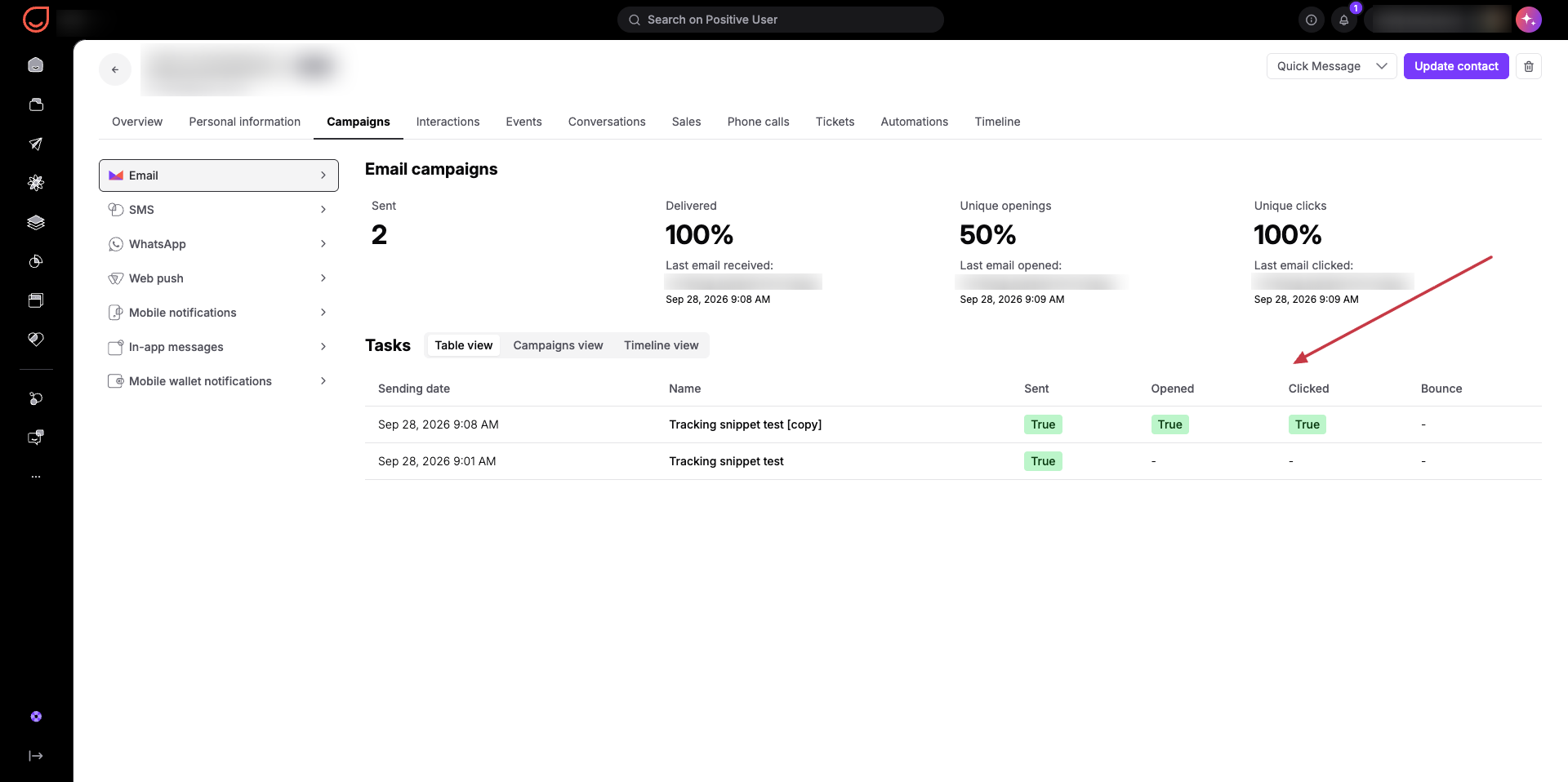
Positive User also lets you analyze email activity on a per-contact level.
Open a contact profile.
Choose “Campaigns” section from the top panel.
Pick “Email” option from the list on the left.
Here you can check the following details:
Number of sent campaigns
Percentage of delivered campaigns
Percentage of unique campaign openings
Percentage of unique campaign clicks
Bounce parameters
For better transparency you can switch between table, campaign and timeline views.
If email tracking is limited or disabled for a contact, open and click data will not be recorded for sends delivered during that period:
Campaigns sent without tracking permission: Open and click metrics display as a dash (-), showing that engagement was not measured.
Campaigns sent after permission is granted: Open and click metrics display recorded activity (such as True), and overall profile percentages update accordingly based on tracked sends.
This gives account managers and support team members complete visibility into contact engagement while respecting individual privacy choices.
Email open rates are calculated using a tracking mechanism. When you send a campaign, an invisible tracking pixel is automatically added to the email.
When a recipient opens the email in their email client and images are downloaded, the tracking pixel is requested from the server and the open is recorded in the campaign statistics.
However, this method has limitations:
Some email clients block images by default, so an open is only detected after an additional action, such as clicking a link or allowing image downloads.
Emails read offline cannot trigger the tracking pixel.
Because of these factors, open rate tracking is not 100% reliable.
To learn more about email tracking check “How Email Opens and Clicks Are Tracked”.
Understanding email statistics helps you:
Optimization of subject lines and contents based on the open and click rates: Reviewing open rates shows which subject lines catch attention in the inbox, while click rates tell you if your message content persuaded recipients to act. Comparing these metrics across campaigns helps your team refine writing styles, test headlines, and structure email bodies for higher engagement.
Identification of the most engaging links and calls to action: Checking link statistics and visual click heatmaps reveals which offers, button styles, or visual placements drive the most contact interactions. Your team can use these insights to optimize template layouts and highlight high-converting content in future sends.
Detecting delivery problems early using delivery logs: Inspecting individual delivery logs and failure reasons allows your deliverability team to catch dispatch issues, spam blocks, or server rejections immediately. This helps you resolve domain authentication issues or fix bad contact addresses before they impact major campaign dispatches.
Improvement of the list quality by monitoring unsubscribes and bounces: Tracking bounce types and opt-out rates ensures your contact list stays healthy. Removing invalid email addresses reduces hard bounces, while monitoring unsubscribes prevents contact fatigue and helps you adjust targeting to keep your database active.
