Team member groups help you organize your team in User.com. By grouping team members, you can control who has access to specific parts of the application and decide how objects and chat conversations are assigned. This makes it easier to manage responsibilities across departments like Marketing, Sales, or Support, while keeping data access aligned with your internal structure.
Once you create dedicated team member groups, check how you can apply them all over the application. [LINK]
Click on your icon in top right corner of the panel. Go to “Settings” → “Team management” → “Team member groups”.
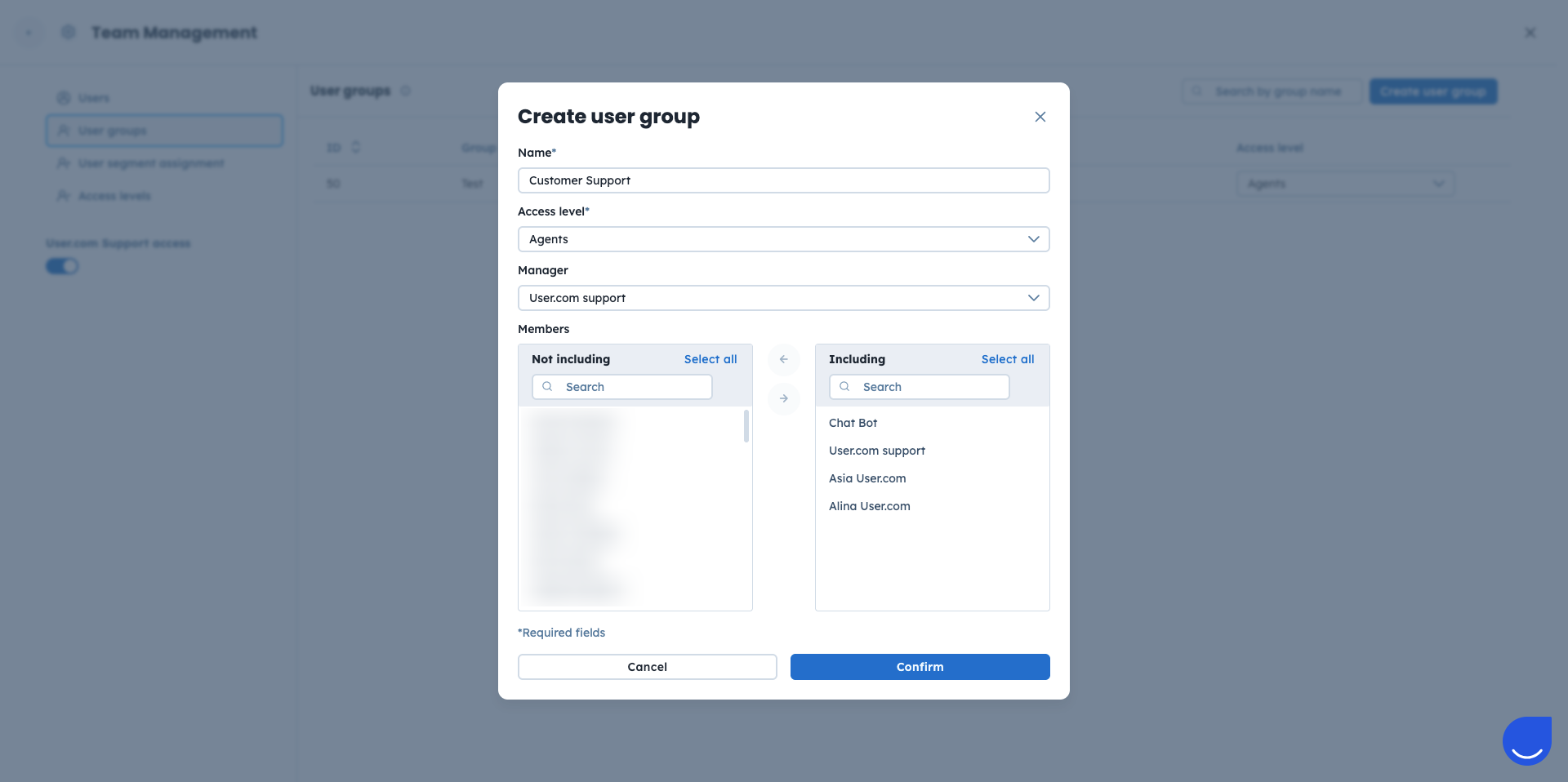
Click “Create team member group”.
Enter a name for the team member group and assign it to an access level. [LINK]
Access levels define which parts of the application the team members in this group can access.
You also need to choose a manager for this specific group.
Select the team members you want to include in the group. You can select all the members and add them to the group in one click.
Click the arrow button in the middle to move selected team members to the group.
When all team members appear in the right-hand column, click “Confirm”.
Team member groups support several everyday workflows across teams.
Access Management
You can limit access to specific features by assigning different access levels. For example, your marketing team can access “Automations” and “Campaigns”, while sales team members have access to “Sales” module.
Chat Routing
Team member groups help manage incoming chat conversations by directing chats to the right team. This improves response time and ensures contacts are connected with team members who have the right expertise. You apply these rules directly in the automations using the “Assign Team Member” [LINK] action module.
A group manager can be either a single team member or another team member group. The group manager always has “Visibility: Team” access for the group, regardless of other visibility settings.
This option works best for team leaders and supervisors who need to see all objects related to group members, even when standard visibility rules would normally restrict access.
Related Articles
How to Configure Access Levels
How to Apply Team Member Groups