Creating message templates is the first essential step to start communicating with your contacts on WhatsApp through the Positive User platform. Whether you’re sending product updates, order reminders, or personalized marketing campaigns, templates ensure your messages meet WhatsApp’s policy requirements and deliver a seamless customer experience.
Check how to create and manage templates both in Positive User and in the official WhatsApp (Meta) Template Manager, so you can start building automated, scalable, and compliant WhatsApp communication flows with ease.
If you prefer to manage your WhatsApp templates directly within Meta’s official platform, you can use the WhatsApp Meta Template Manager. Templates created there are automatically available in your Positive User application once you sync them.
To create a new template in the Meta Template Manager, you need to follow WhatsApp’s official instructions, which ensure your message meets all formatting and policy requirements. Once submitted, templates go through an approval process, and only approved templates can be used later on.
Creating message templates directly in the Positive User platform gives you full control over WhatsApp communications without needing to leave the app. This is especially useful when you want to build customized, dynamic templates tailored to your recipients and automate your messaging processes.
Navigate to “Campaigns” → “WhatsApp” → “Manage” → “Templates” section and click on the "New template" button i top right corner of the panel.
Once you click the button, the “Message Template Editor” is opened. You need to fill the details to create your template on the right. In the center of the screen you see the preview of the template with all the fields.
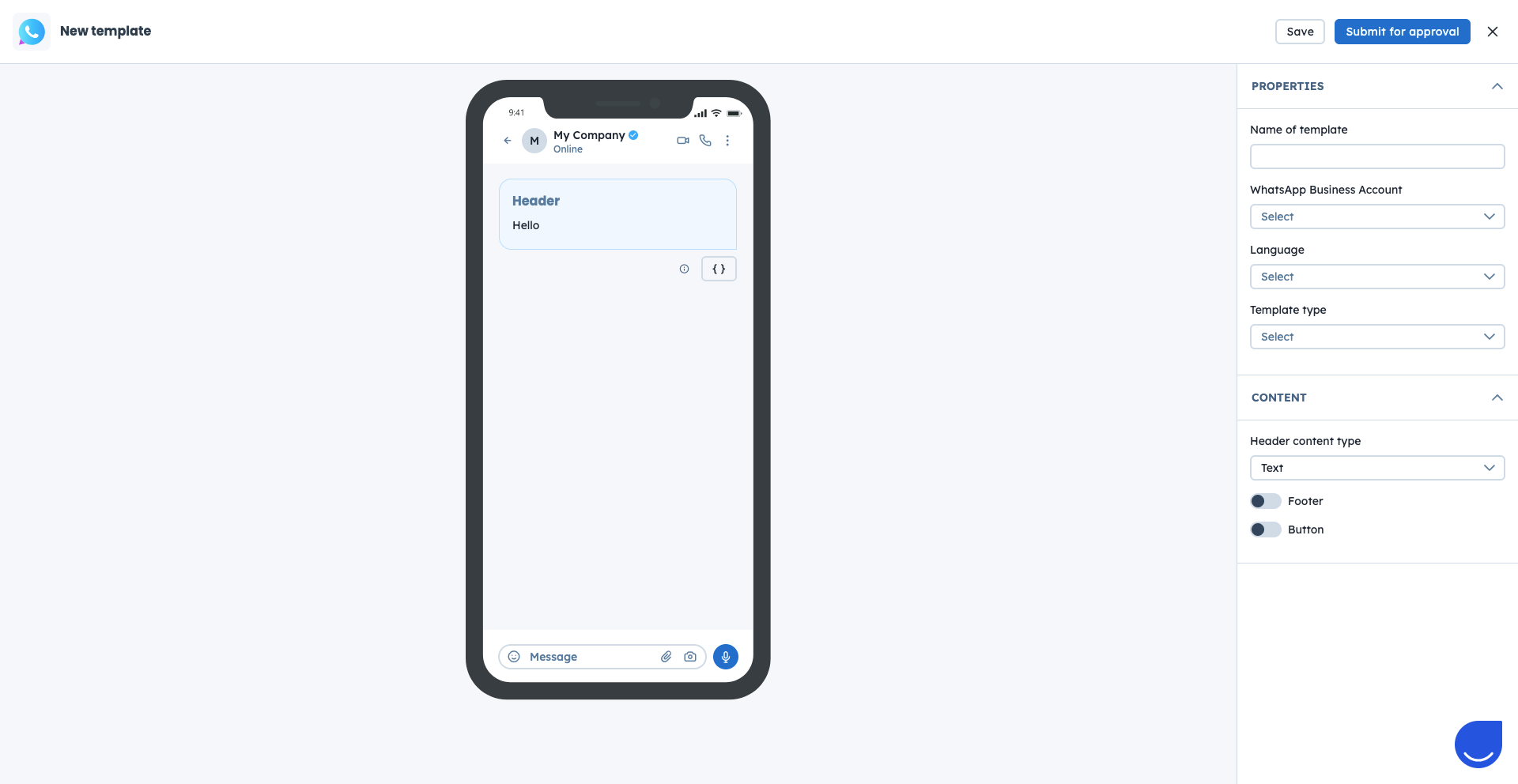
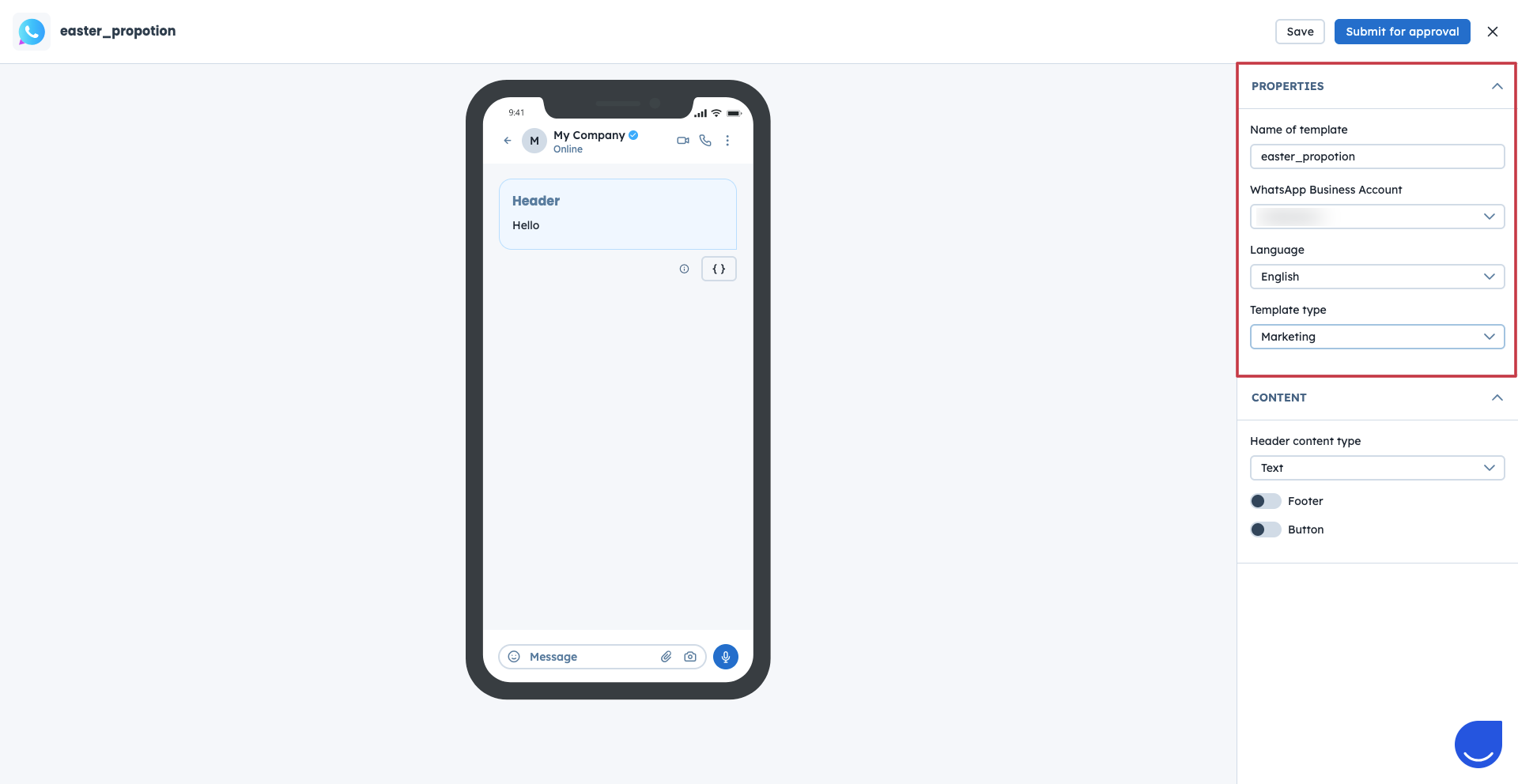
This part of the configuration includes 4 fields:
Name: Must be unique per language, lowercase only, and cannot include numbers or special characters.
WhatsApp Business Account: Select the previously connected account from the dropdown list.
Language: Choose the language variant for your message.
Template Type: Choose between:
Marketing: For promotional, opt-in-required messages.
Utility: For updates or service-related notifications.
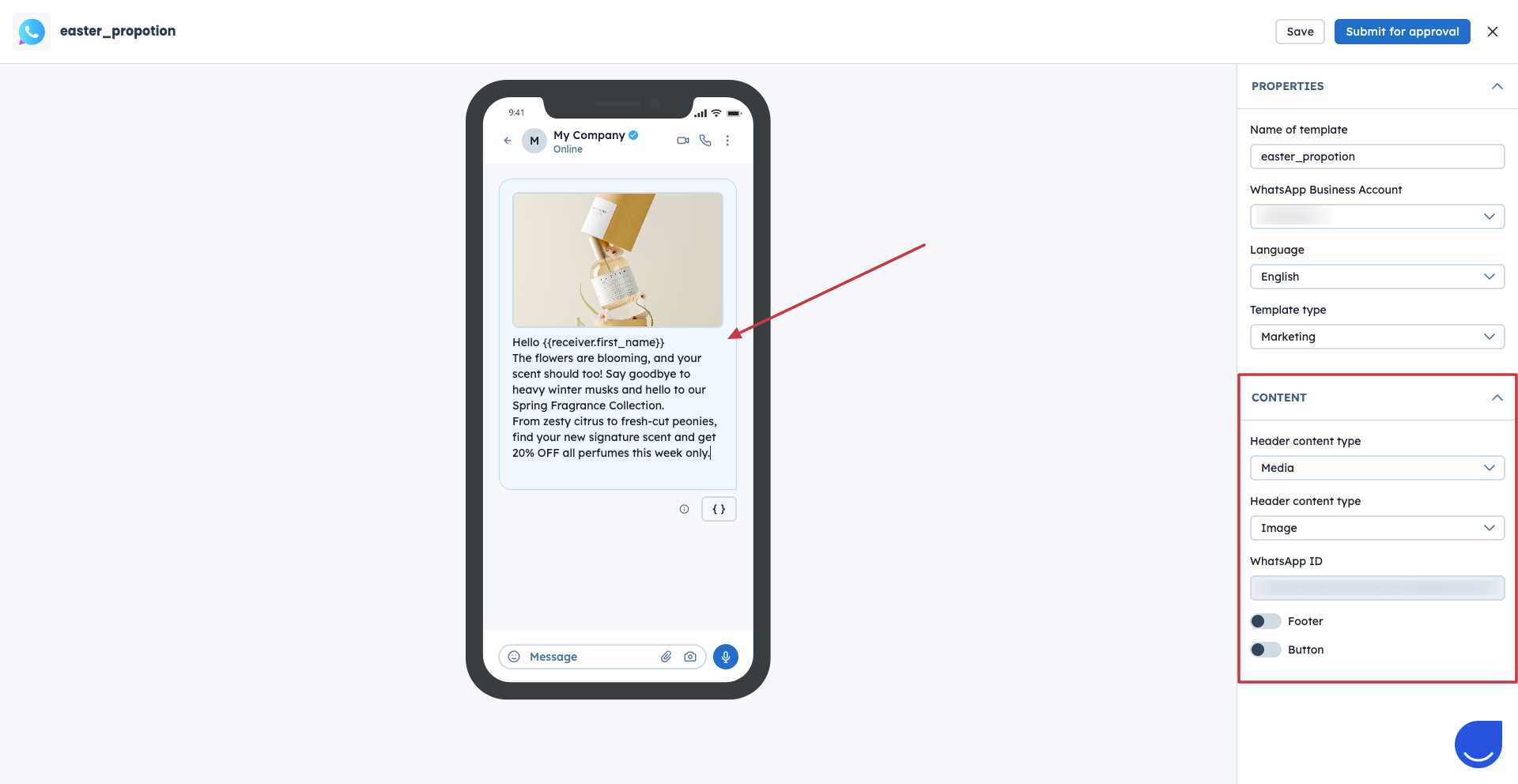
This part of the template consists of:
Header content type: You can choose between 2 options:
Text
Media: Upload an image, video, file, or paste a URL to import the content from it.
Body: This is the main message content. You can write a plain text or add dynamic variables linked to contact attributes. For example, you want to include the name of the recipient into the message, use the dynamic content {{receiver.first_name}} which matches with the "first_name" contact attribute. The variable cannot start with the number or be numbers only.

Footer: It's an optional field, where you can add supporting details or disclaimers.
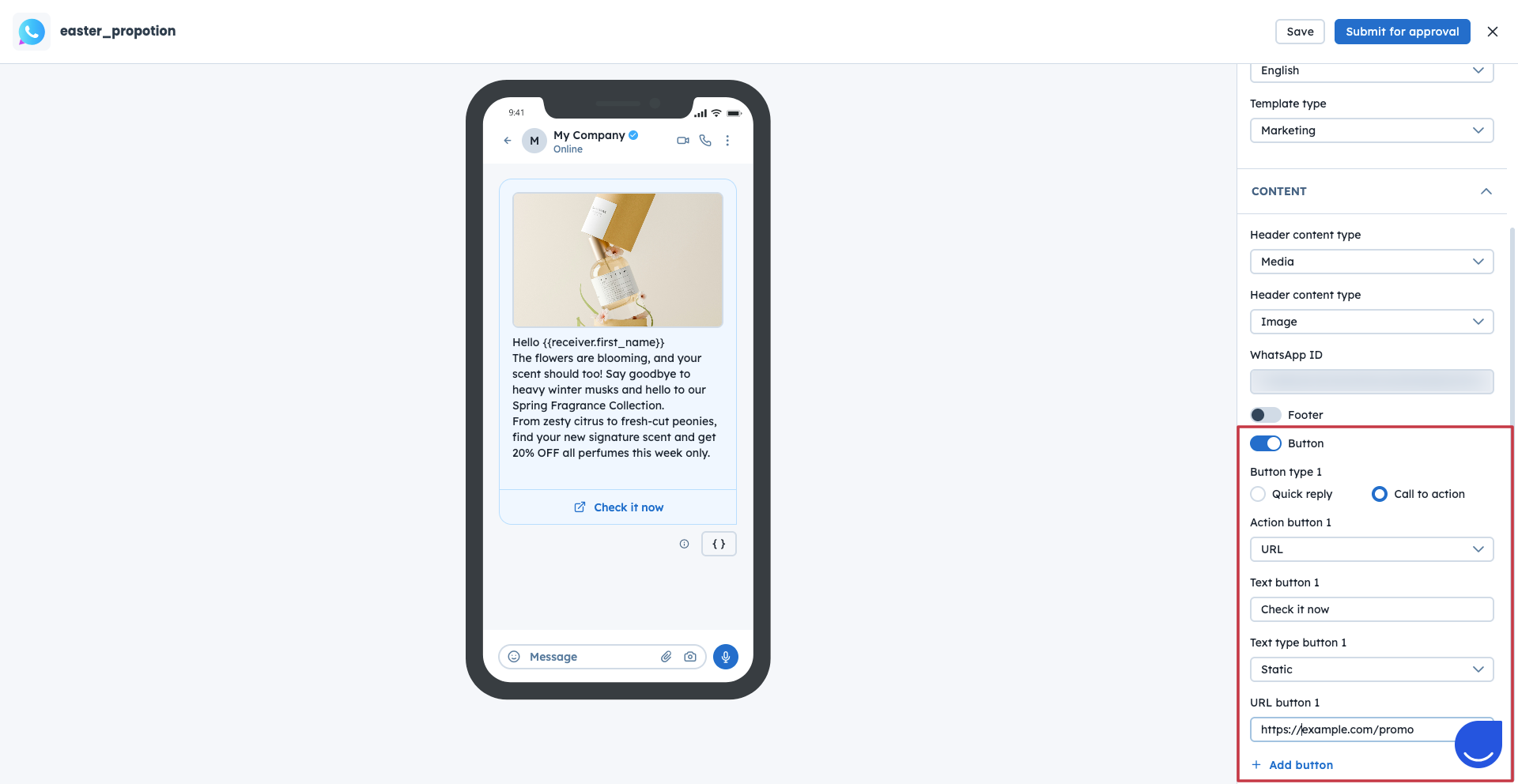
Button: You can add several buttons into your message template. There are two types to choose from:
Quick reply:
Text: It can be a simple clickable response. For example, "Yes, I'm interested".
Unsubscribe: Such a button automatically opts recipients out of future WhatsApp campaigns. It means, that the contact attribute "Unsubscribed from WhatsApp" will be updated with the "true" value.
Call to action includes 2 actions:
URL: You can choose between a static and dynamic ulrs. Dynamic ones include the variables that should be connected to the contact attributes to extract the value and include into the url.
Phone number: It initiates a call when tapped. You need to decide on the text and the phone number.
Once you fill all the details you can save the template and wait for the approval. Only approved templates can be used in the campaigns.
WhatsApp Templates Section Overview
How to create a WhatsApp campaign
Module guide: WhatsApp action trigger
Module guide: Send a WhatsApp campaign action
