The WhatsApp Templates section in Positive User is the central dashboard for organizing your WhatsApp communication. This area allows you to monitor and manage templates created within the Positive User app as well as those imported from the Meta WhatsApp Template Manager. Because WhatsApp requires all business-initiated messages to be pre-approved, this section serves as a vital checkpoint to ensure your templates are valid and ready for use in your automation or manual campaigns.

Navigate to “Campaigns” → “WhatsApp” → “Manage” → “Templates” section.
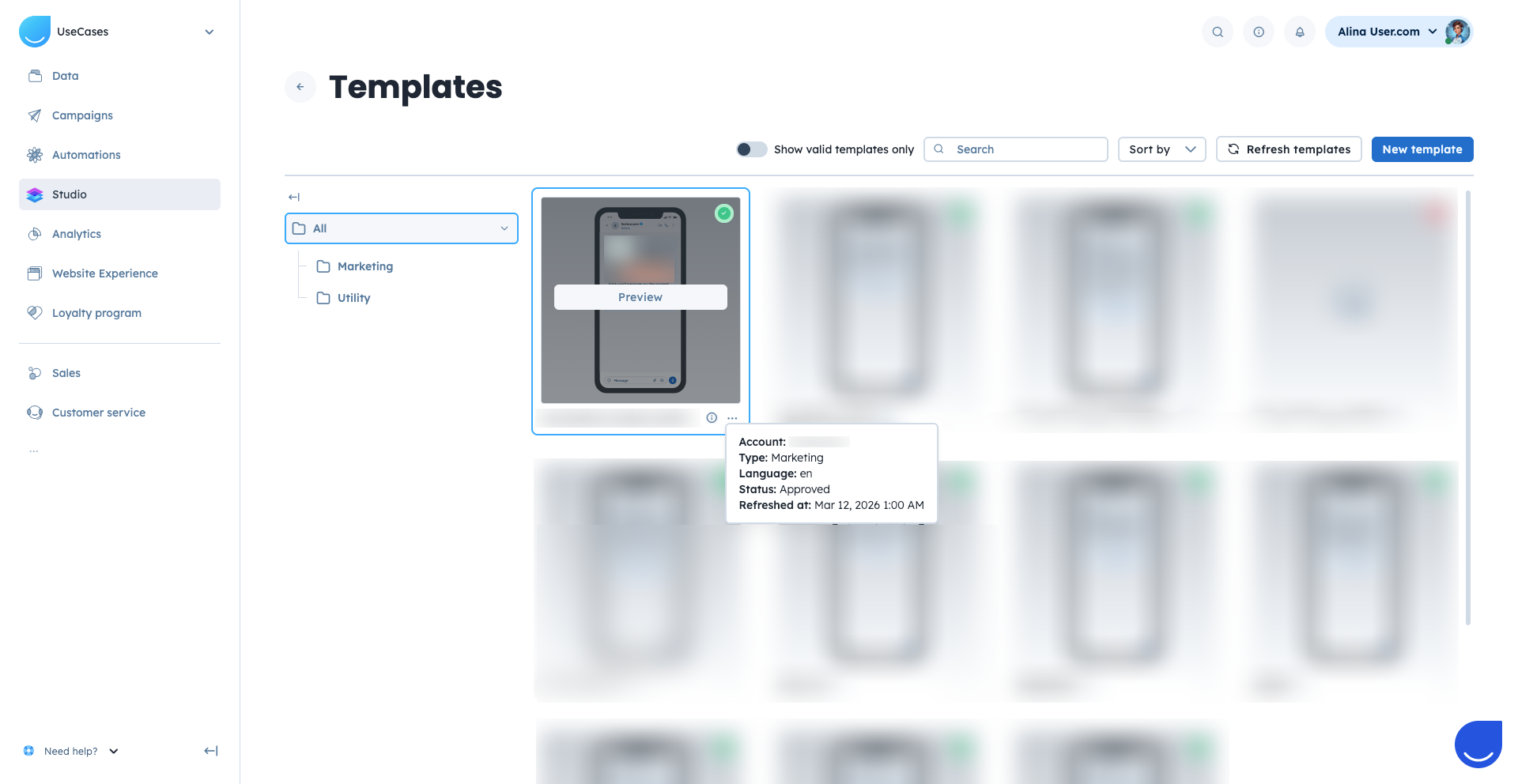
When you hover over the “i” icon near the template name you will see the following details:
Account: The WhatsApp account connected with the Positive User app.
Template type: Currently supported types are:
Marketing – used for business-initiated conversations that promote products or services to recipients who have opted in.
Utility – used for business-initiated conversations that provide information, updates, or support regarding specific services or products.
Language: Identifies the language version of the template.
Status: Such as “Approved”, “Pending”, or “Rejected”.
Refreshed at: Showing the timestamp of the latest synchronization.
If you click on the “three dots” near it, you will get access to editing, duplicating and deleting the template.
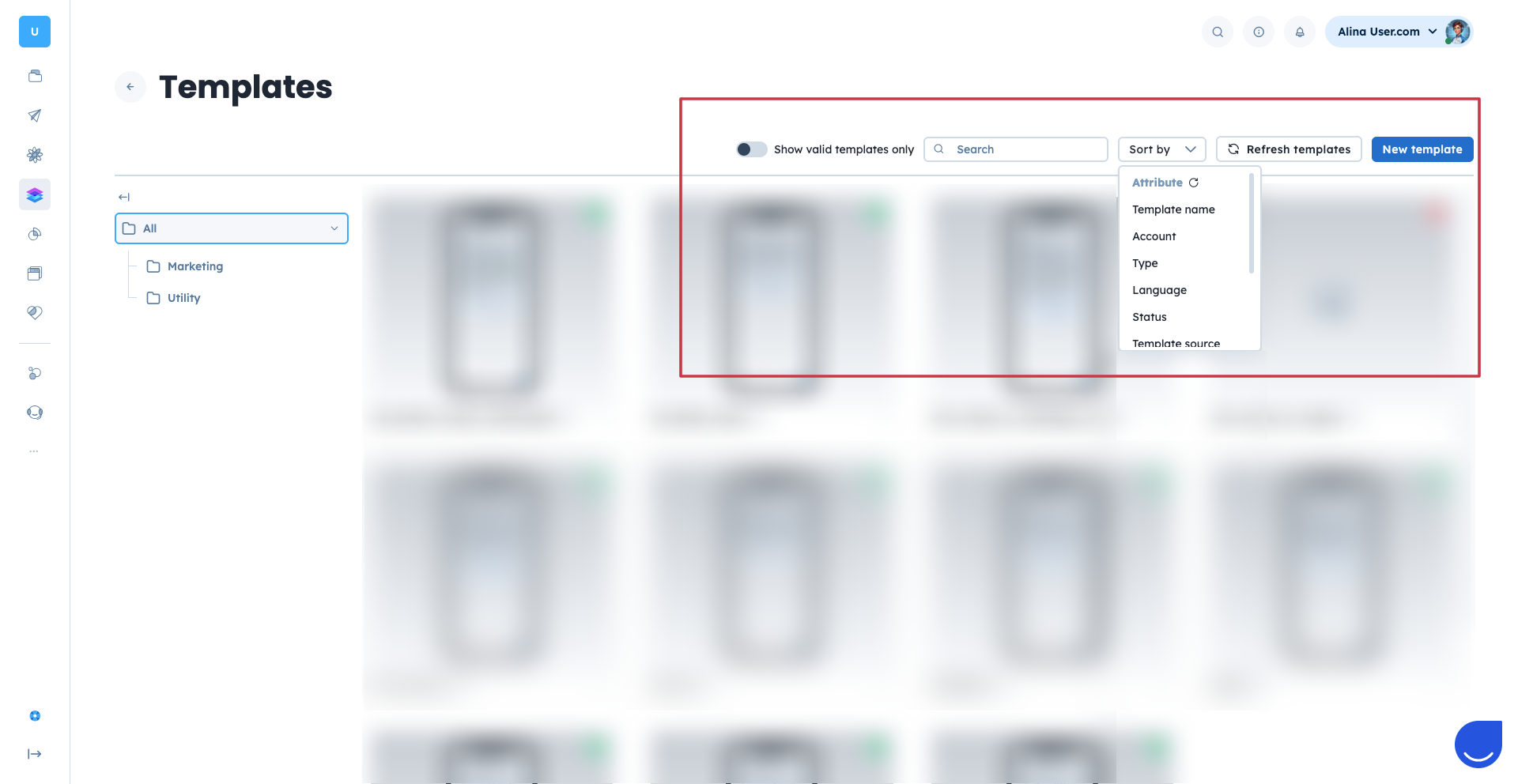
Few filtering options are available on top of the panel too.
Show valid templates only: Each template has a coloured dot in top right corner. Green stands for the approved templates. Red - for rejected.
Search: You can find a template by name.
Sort by:
Template name
Account (WhatsApp account)
Type (Marketing / Utility)
Language
Status (“Approved”, “Pending”, “Rejected”)
Template source (created in Positive User / created in Meta WhatsApp panel)
Refreshed at
+ Order (Ascending/Descending)
Invalid templates cannot be used or previewed in Positive User. Reasons a template may be marked invalid:
It has a type other than "marketing" or "utility"
It was created in WhatsApp and contains variables
It contains media and was not created in Positive User
How to Create a WhatsApp Campaign
Module Guide: WhatsApp Action Trigger
Module Guide: Send a WhatsApp Campaign Action
