As a new user, configuring your profile is one of the first and most important steps after joining User.com. Your User Profile defines how you appear to customers and teammates, and it also controls key personal settings such as language, notifications, and security. A well-configured profile helps you work more efficiently and keeps your communication consistent and professional from day one.
User Profile is the place in the application where you can personalize selected platform settings and manage your personal details.
To access your User Profile, click your user icon in the top-right corner of the application and choose Settings → User settings.
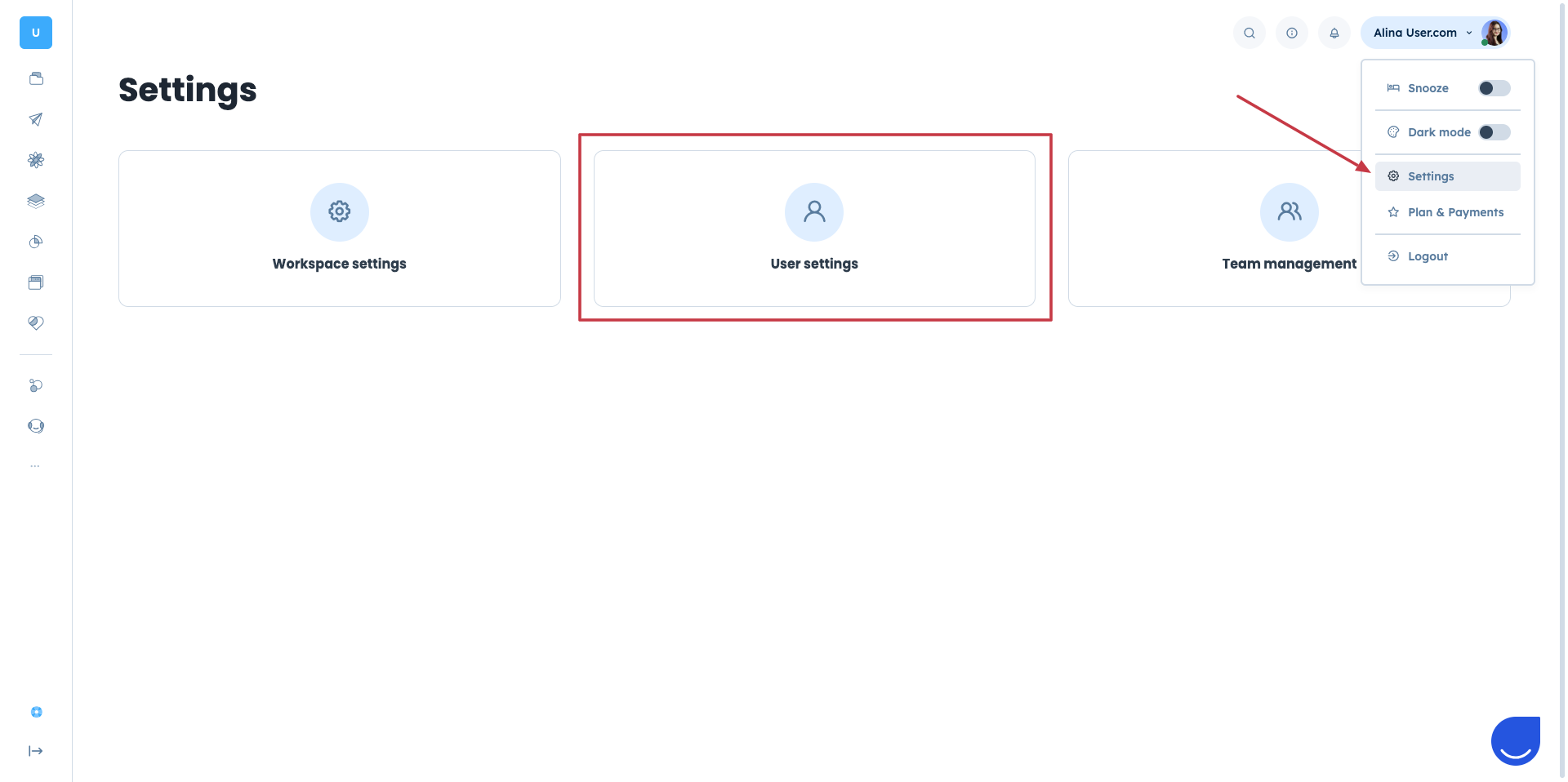
In the User Profile view, you can change your avatar.
Click the default user icon in the top-left corner.
Upload your profile picture.
This is especially important if:
you are visible on the list of users in the chat widget, or
your name is used in automated chat messages.
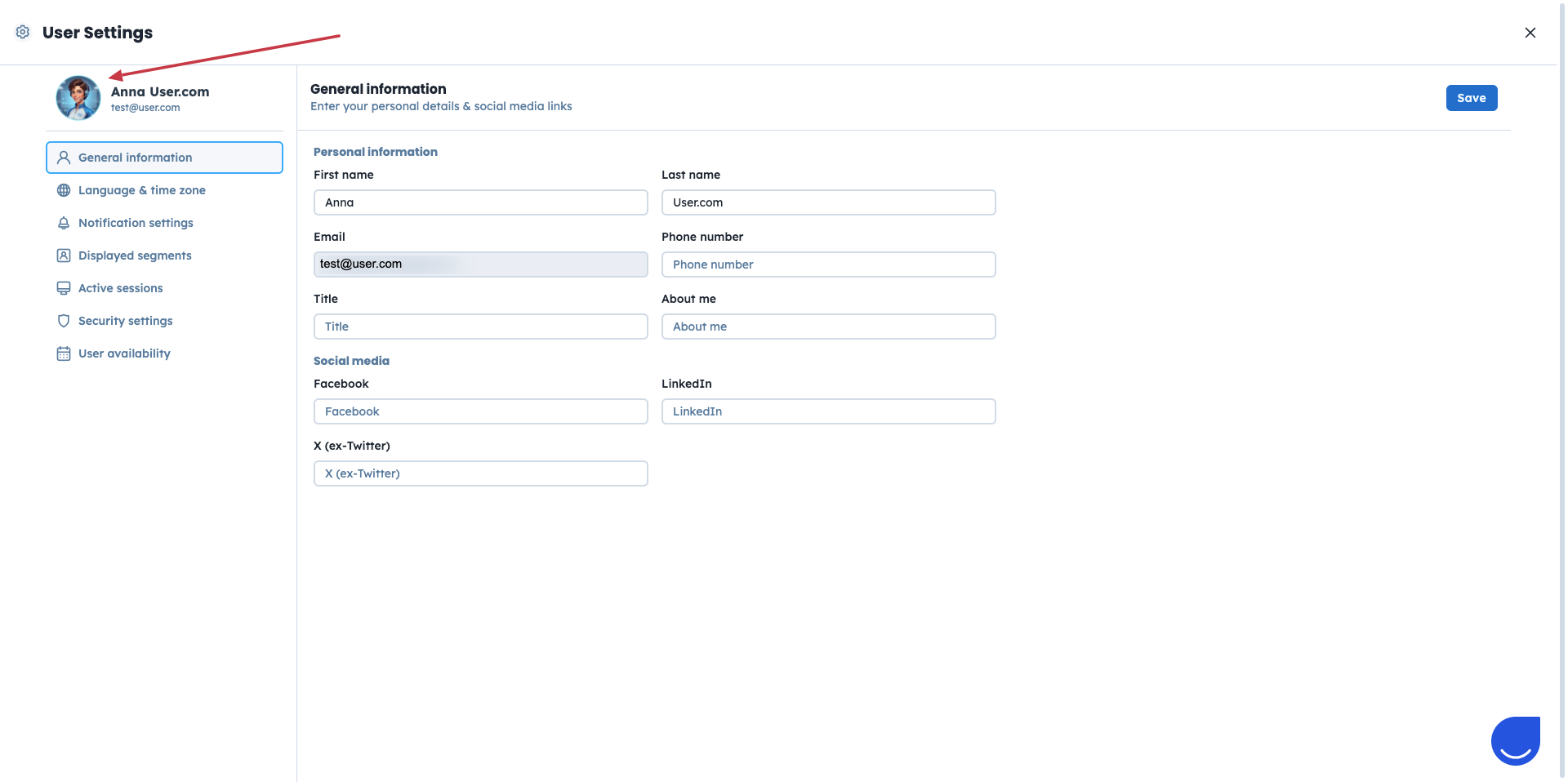
The General information section contains your core account details.
Here you can see:
First name
Last name
Email address (used to invite you to the account)
Title (visible in the chat widget)
About me (visible in the chat widget)
Phone number
Social media links
You can replace your last name with your company name if it fits your team’s internal rules.

Optional fields such as “Title”, “About me” and Social Media links are visible in the chat widget. Filling them in depends on your team’s decision and communication style.
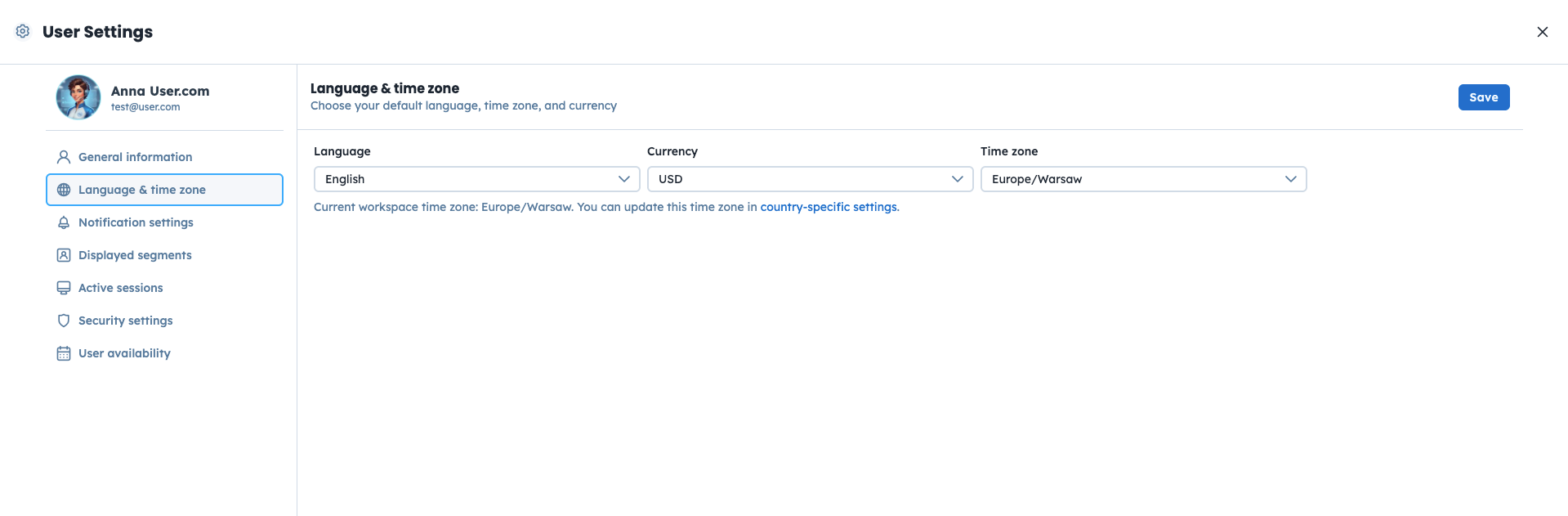
In the “Language & time zone” section, you can adjust how the application behaves for you.
Language: Choose the interface language that is most comfortable for you. (Primary app language - English)
Timezone: Correct timezone settings are critical when scheduling email campaigns or planning activities for a specific time in the future.
Currency: If you use the CRM module, you can also set the default currency used in pipeline views.
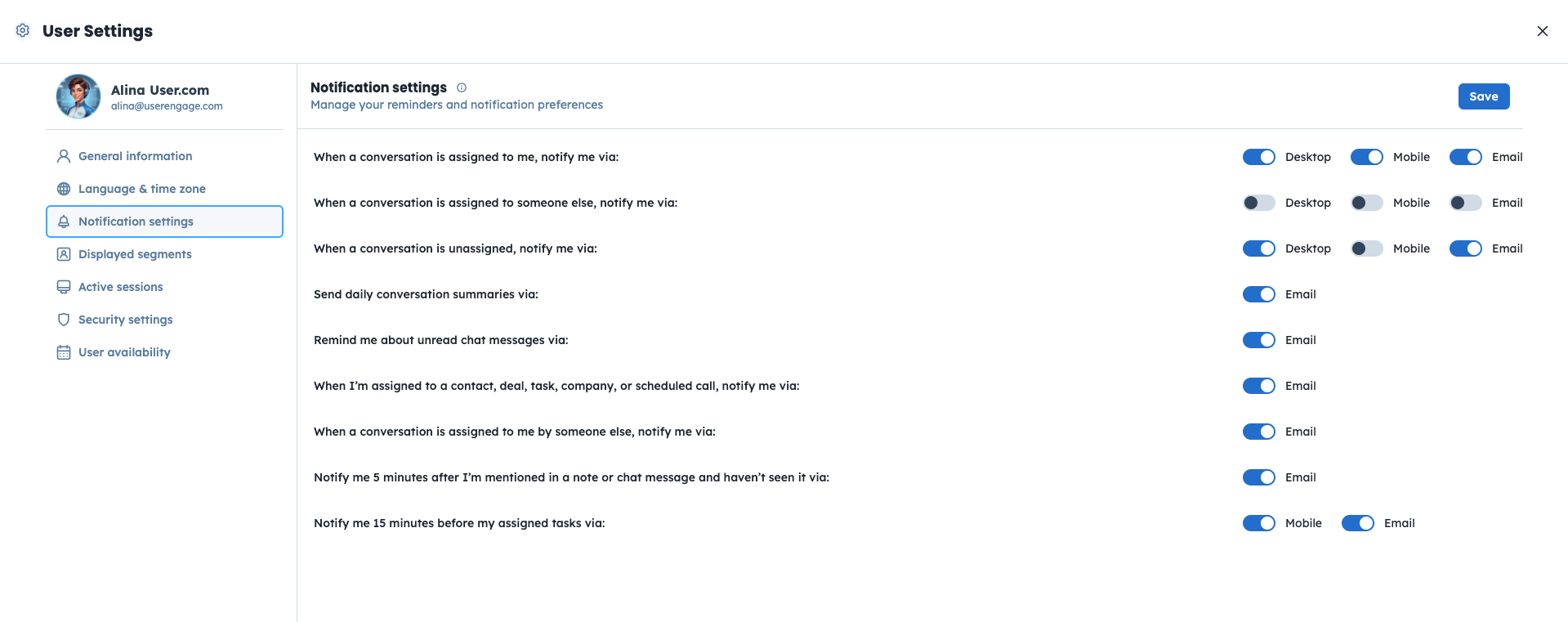
In Notification settings, you decide which notifications you want to receive and from which communication channel.
Notifications can be related to different sections, such as chats or other activities. Adjust them to avoid distractions and stay informed only about what matters to you.
Check this dedicated article that describes all the options in details. [LINK]
This section of the User Profile refers to the contact and company segments you want to see in the related sections of the application.
If you leave it empty, all segments will be visible for you.
The Active sessions section is informational and security-related.
Here you can:
See all currently active sessions for your user account,
Remove sessions that are no longer needed.
This helps you keep control over where and how your account is used.
The Security settings section includes two important areas.
Two-factor Authentication (2FA)
Two-factor authentication adds an extra layer of security to your account. In addition to your login credentials, you must provide a second form of verification, such as a code from an authenticator app or another secure method.
This significantly reduces the risk of unauthorized access, even if your password is compromised.
Turn it on on the basis of your company’s security policies.
Password Settings
You can change or reset your password if you log in using the email address and password method
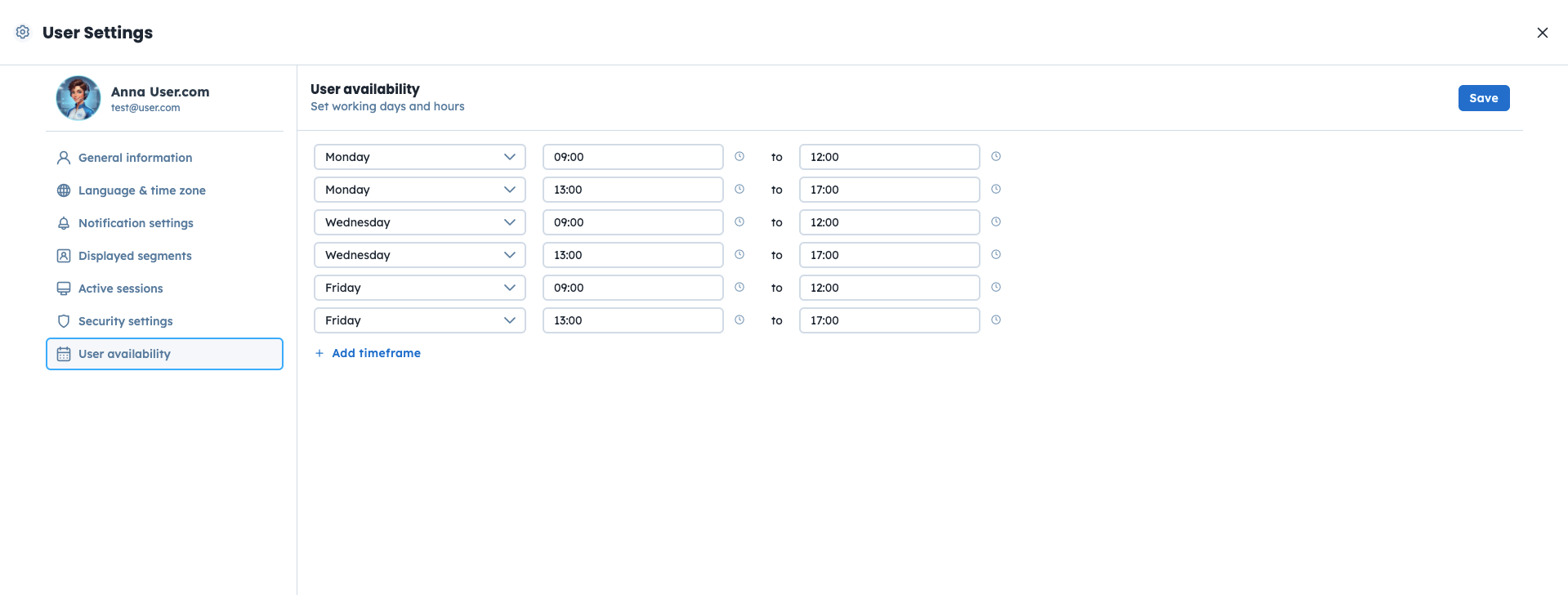
User availability settings allow you to define when you want to receive notifications from “Conversations” section.
You can:
choose specific days and hours,
block chat email and web push notifications outside working hours.
This helps you manage your work schedule and automatically control your availability status in the system.
How to Configure User Notifications