Providing a browser preview option lets your recipients view your email directly in a web browser. This improves accessibility when an email client doesn’t render the layout correctly or blocks images. In this article, you’ll learn how to add a browser preview link to your emails using a dedicated HTML snippet.
Follow these steps to include a “View in browser” link in your email message.
Open the email message you want to update in the email editor. You can access it from an existing campaign or go to Studio → Templates → My Templates.
Decide where the browser preview link should appear in your email template. Drag the “HTML” module into that location.
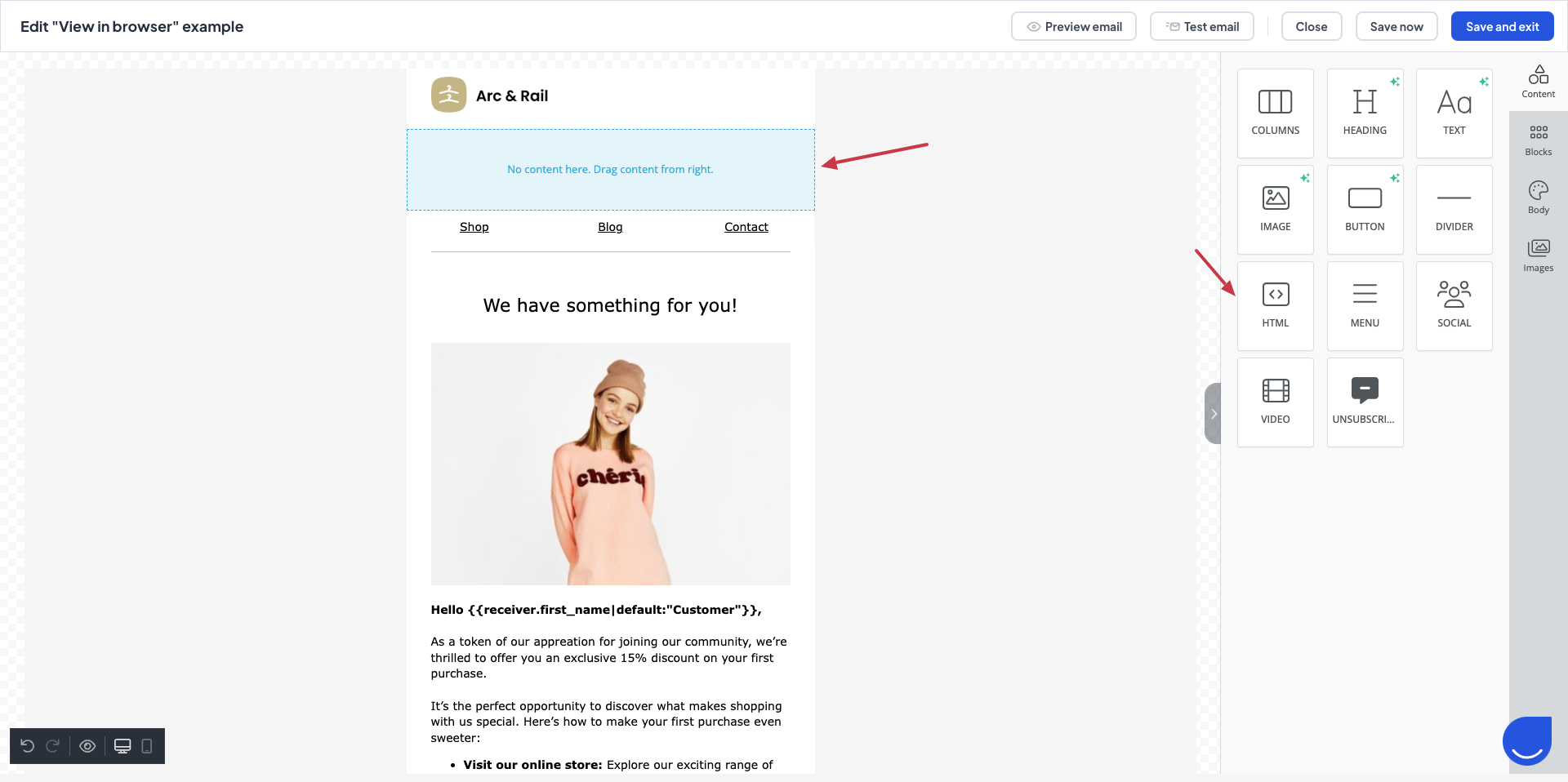
Paste the following HTML snippet into the Code module:
<a id="UE_browser_preview">View in browser</a>You can customize the styling to match your email design. It’s also a good practice to add supporting text, for example:
“If this email doesn’t display correctly, view it in your browser.”
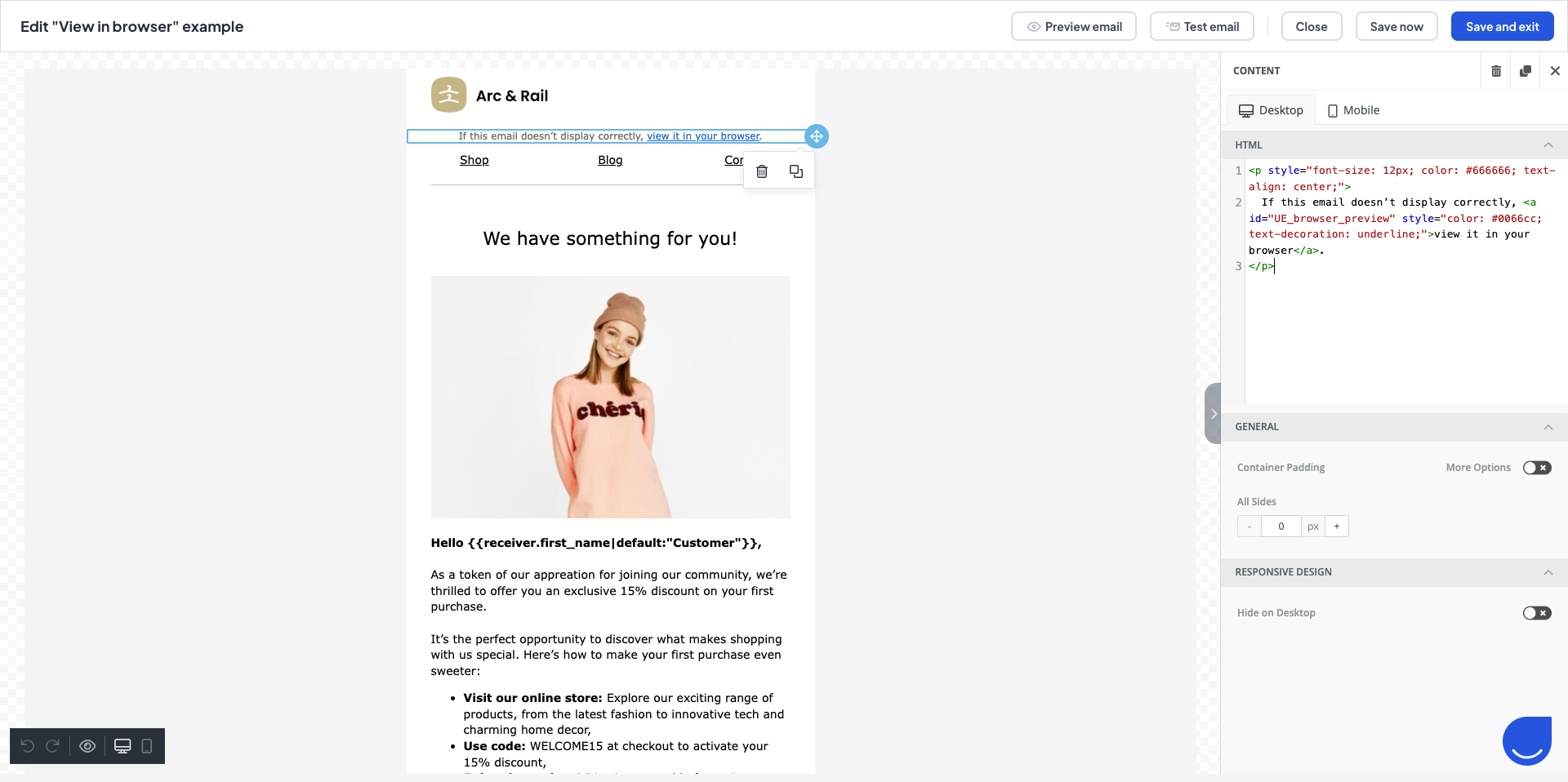
Save the email message to apply the changes.

Ensuring Consistent Rendering Across Devices and Clients
Email clients such as Outlook or Gmail may render HTML emails differently, especially when images, fonts, or complex layouts are used. A browser preview helps preserve the intended layout and branding by opening the message in a standard web environment.
Supporting Recipients Behind Firewalls or Security Filters
In B2B communication, corporate security settings often block images or external resources in emails. A browser preview allows recipients to access the full content without these restrictions.
