Importing data from a CSV or XLSX file to Positive User is usually quick and straightforward, but errors in the file structure, formatting, or attribute values can affect the import result. If your file is rejected, the import does not start, or only some records are imported, this article will help you identify the cause and fix the most common issues.
Before troubleshooting an import issue, make sure that:
Your file is saved in the correct format (.csv or .xlsx).
The selected encoding matches the actual encoding of the file.
All values in the file are separated using the same separator (e.g. coma, semicolon, tab).
Column headings are on place and correctly named.
The value types in your file match the attribute types in your Positive User workspace.
More details can be found in “CSV/XLSX Import Formatting Rules” article.

If you upload the file and the import does not start, the issue is usually related to the file format or import settings.
Go through the following aspects:
Make sure you upload a valid .csv or .xlsx file.
Check whether the selected encoding matches the file encoding. In most cases, UTF-8 is the correct choice.
Open the file and verify that all values are separated consistently using the same separator, such as a comma, semicolon, or tab.
Check the “Completed at” column in the “Import Results’ view. If there is no “Completed at“ date yet, the import is still in progress.
If the file uses inconsistent separators or the wrong encoding is selected, the import process will be interrupted.
If the system rejects your CSV file, the file structure is most likely incorrect.
Make sure that:
There are no double commas or separators in the wrong places.
The file does not use unusual characters as separators.
All values are separated by a supported separator, such as a comma, semicolon, or tab.
A CSV file exported from a spreadsheet or database should always follow a consistent structure. If needed, open the file in a text editor to verify how the data is separated. Such applications like Excel or Google SpreadSheets might ot show the hidden signs.
If only part of the file was imported, some rows most likely contained invalid or incomplete data.
What to do:
Go to “Data” → “Importers” → “Import Results” and click the name of the imported file. There you will find detailed information about the import and the reasons why some rows failed.
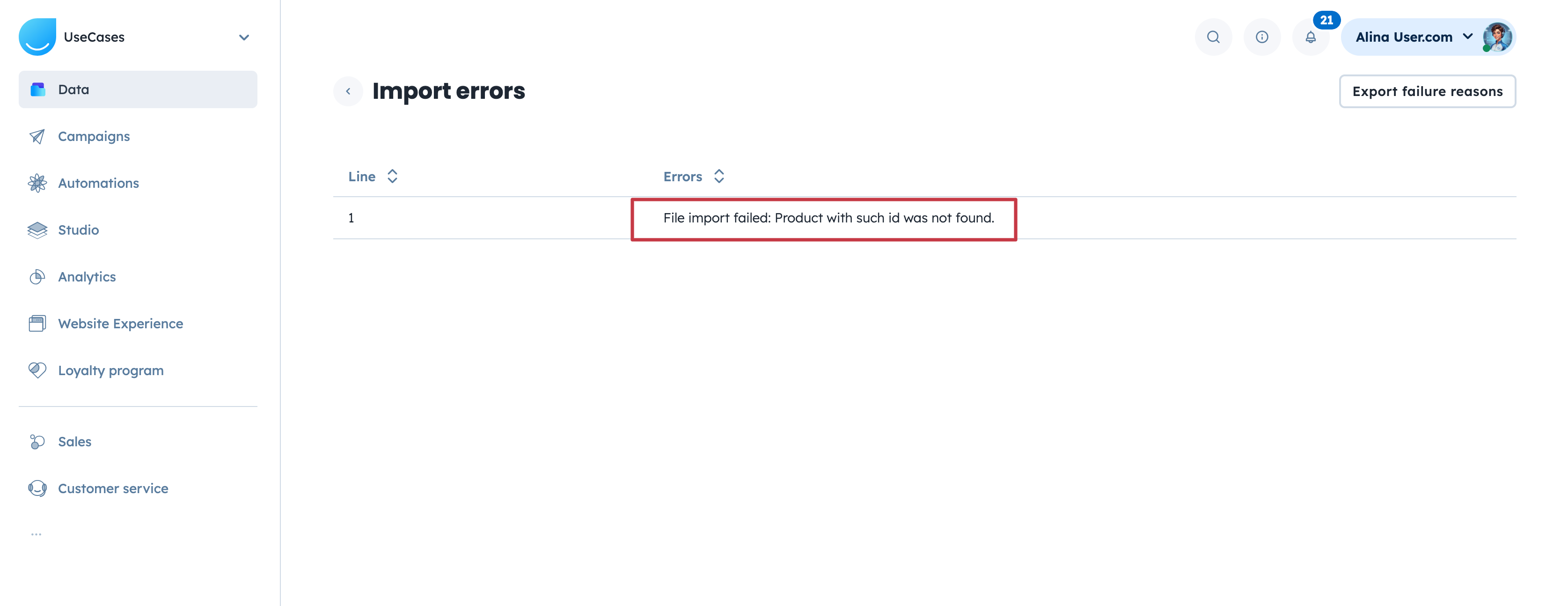
Also check whether the import has a “Completed at” date:
if the date is visible, the import has been completed,
if there is no “Completed at“ date yet, the import is still in progress.
If only some rows were imported, the details visible in “Import Results” will help you identify which records were rejected and why.
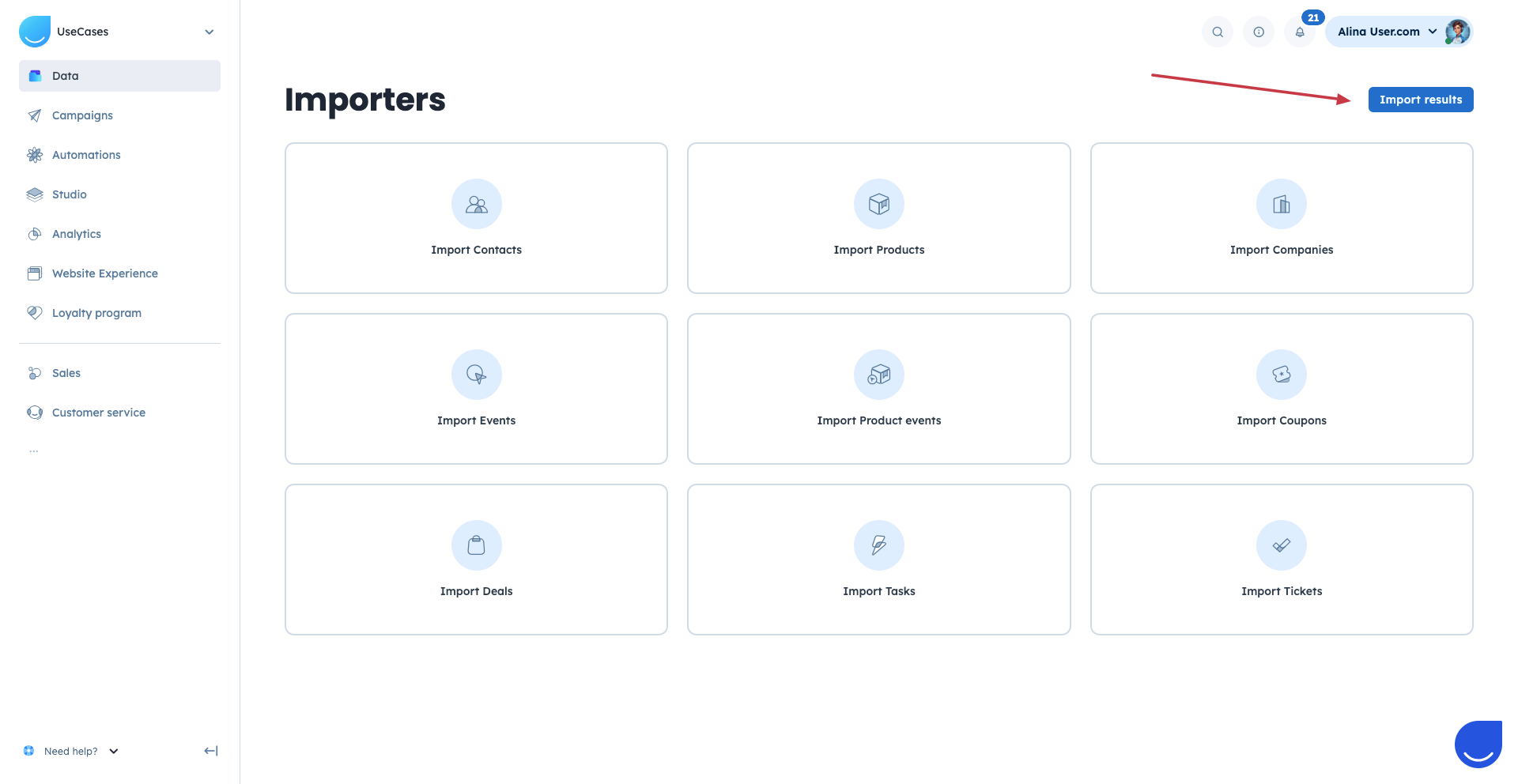
This error appears when the value of a boolean attribute is incorrect or left blank.
Boolean attributes (both standard and custom) accept only two values:
TRUE
FALSE
Solution:
Replace the values in your import file with the reflecting “TRUE“ and “FALSE” values.
If the field is empty or contains any other value, the row will fail during import.
This means that the value provided for the mentioned attribute is missing or not recognized.
Solution:
Check the type of the attribute mentioned in the error. If the attribute is a fixed-choice attribute, then it only accepts predefined values available in your workspace, such as team members names, group names, ect.
If this error appears, make sure the value in your file matches an existing value in Positive User workspace.
If you cannot find a matching attribute during import, it usually means that the attribute has not been created i prior.
Solution:
Create the missing custom attribute first, then upload the file again.
Step-by-step instruction can be found here.
Only existing attributes can be matched during import. If a column in your file does not correspond to a standard attribute and no custom attribute has been created for it, it will not appear on the mapping list.
Some attributes cannot be updated via import. The system gets the values for them from the browser or some other source.
Solution:
Check if the attribute you want to update with the value if on the list of changeable attributes.
If you need to import a similar value, create a separate custom attribute with the suitable type and use it instead.
In this case there are two possible options:
The value for the string attribute is longer than 255 chars. (In case of “Last name” attribute the limit is 32 signs).
There is a problem with the separator in the file.
Solution:
Shorten the values that go beyond the limit or store them as JSON attributtes.
Sometimes a row contains extra values that do not correspond to any attribute. When this happens, the importer may incorrectly combine neighbouring values into one field, which makes the value appear longer than it really is. Check the file and remove the extra values.
This may happen when commas are used inside the value. For example, the post address info.
If your file uses commas as separators, commas inside an address may break the file structure and cause the import to fail or get the value spread into several fields.
Solution:
To fix this, check whether the value in the import file contains commas and make sure they do not conflict with the separator used in the file. You can either remove the commas from the file or use a different separator during the import.
When troubleshooting CSV/XLSX imports, remember that:
one invalid value can cause the entire row to be rejected,
custom attributes must be created before the import,
fixed-choice attributes must contain only accepted values,
boolean fields must contain only “TRUE” or “FALSE”,
the file structure, separator, and encoding must be consistent throughout the file.
