Turn your text message strategy into a data-driven process by understanding what your campaign statistics really mean. Measuring SMS performance helps your team understand how your audience reacts to your messages and see exactly where you can improve.
In Positive User, SMS campaign statistics give you both high-level results and detailed, contact-level insights. This allows your team to evaluate your text messaging performance and optimize future campaigns based on real interaction data.
Evaluating the effectiveness of your text message campaigns lets you see whether your communication hits your business goals. With SMS statistics, your team can monitor delivery success, catch phone number errors, and understand how your audience interacts with your text message content.
Positive User tracks engagement by converting the links you include in your messages into tracked redirect links. This gives your team full visibility into exactly who clicks your links and when.
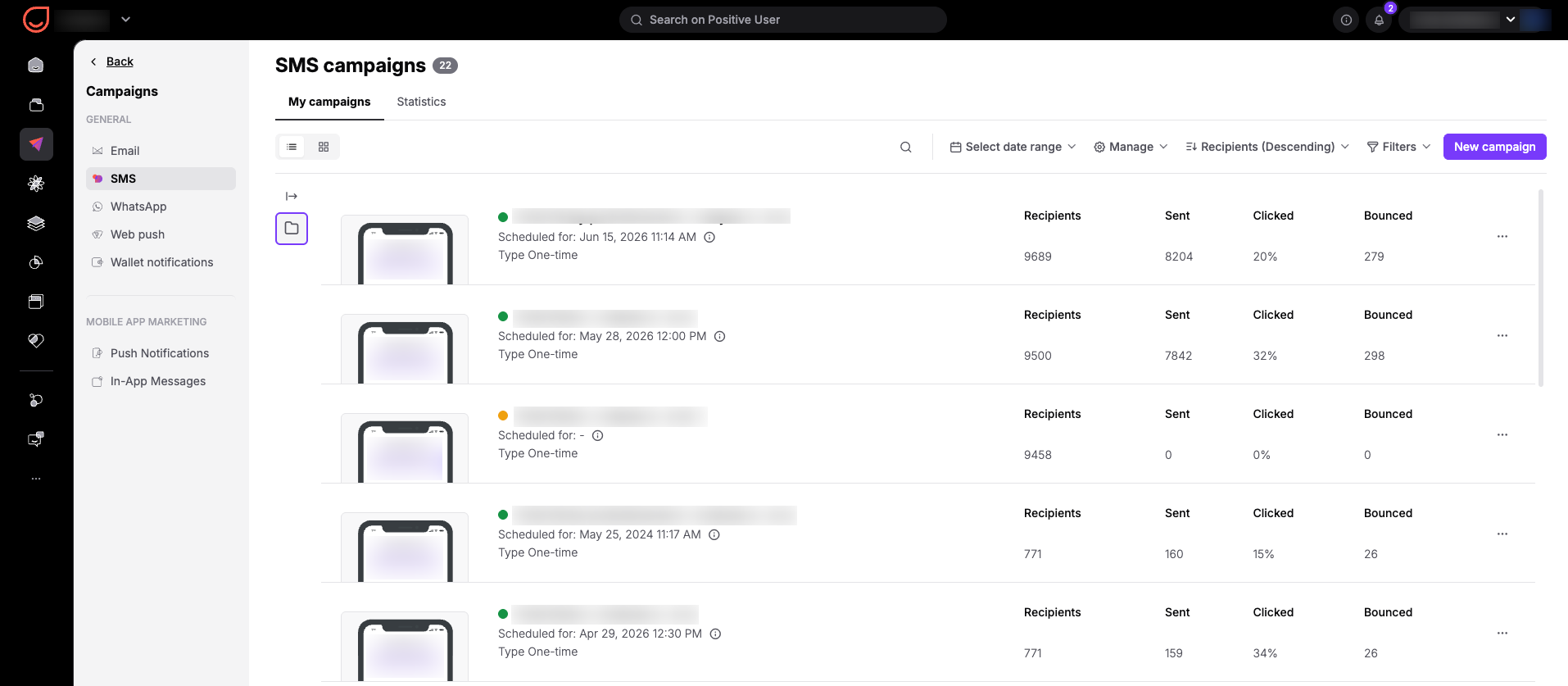
To see the quick results of your text messages, go to the "Campaigns" → “SMS” section. In the campaign list under the "My campaigns" tab, you can find key metrics for each message:
Recipients: The total number of contacts targeted by the campaign.
Sent: The number of messages successfully dispatched from the platform.
Clicked: The percentage of delivered messages that received at least one link click.
Bounced: The number of messages that failed to reach your contacts.
These indicators give you a fast overview of how each campaign performs. On top of the "My campaigns" tab, you can apply a date range using the "Select date range" filter to show only the statistics collected within that specific timeframe.

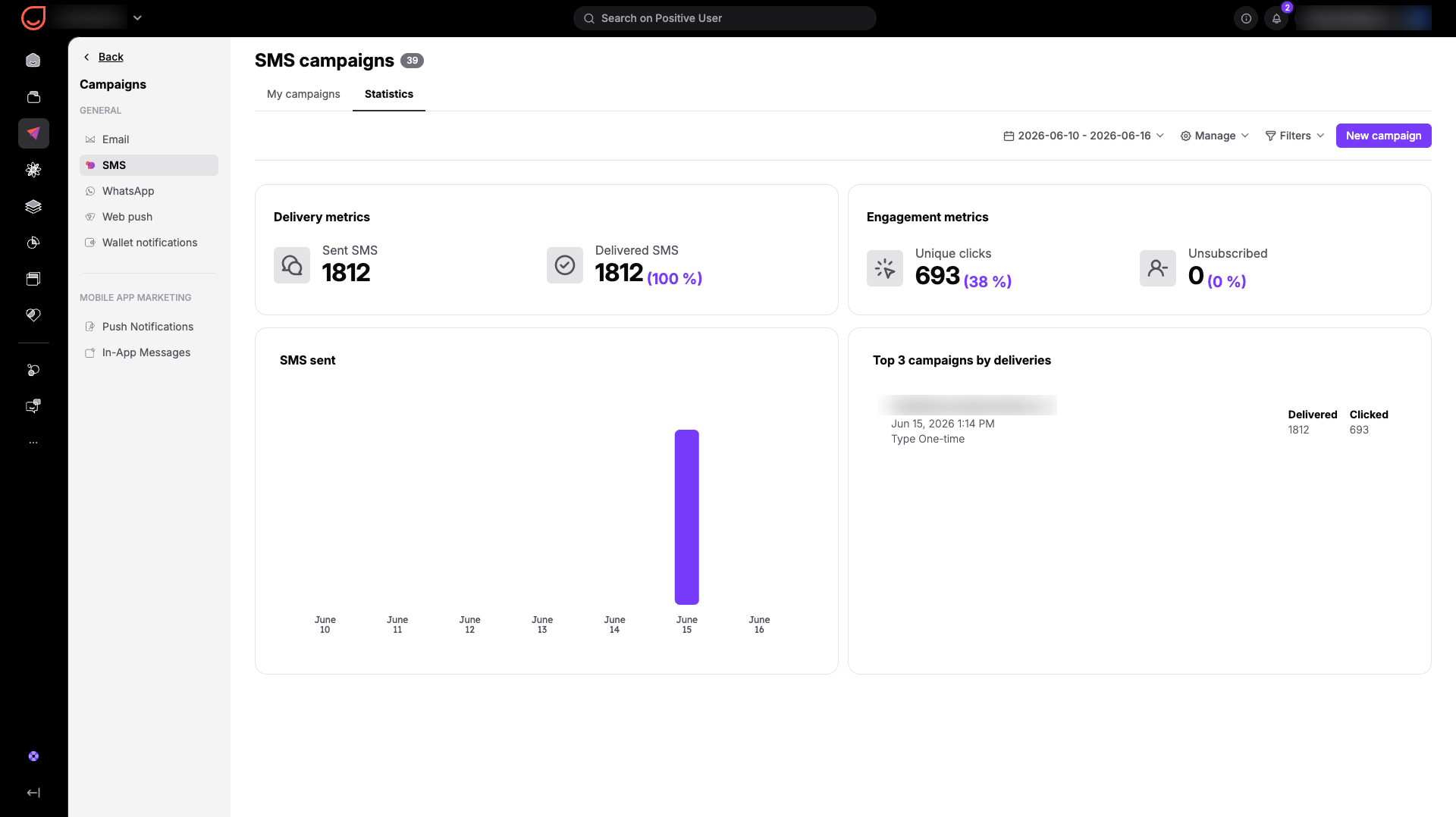
To get overall statistics about your text message marketing, go to the "Campaigns" → “SMS“ section and click the "Statistics" tab.
Here you have access to aggregated performance statistics across your entire workspace:
Delivery metrics: Total counts and percentages for both Sent SMS and Delivered SMS.
Engagement metrics: Total counts and percentages for Unique clicks and Unsubscribed contacts.
SMS sent: A daily bar chart showing your delivery volume over time.
Top 3 campaigns by deliveries: A quick list of the campaigns with the highest number of successful deliveries within your chosen period.
You can also apply filters by campaign type (one-time or automated) or adjust the date range to focus on a specific time period.
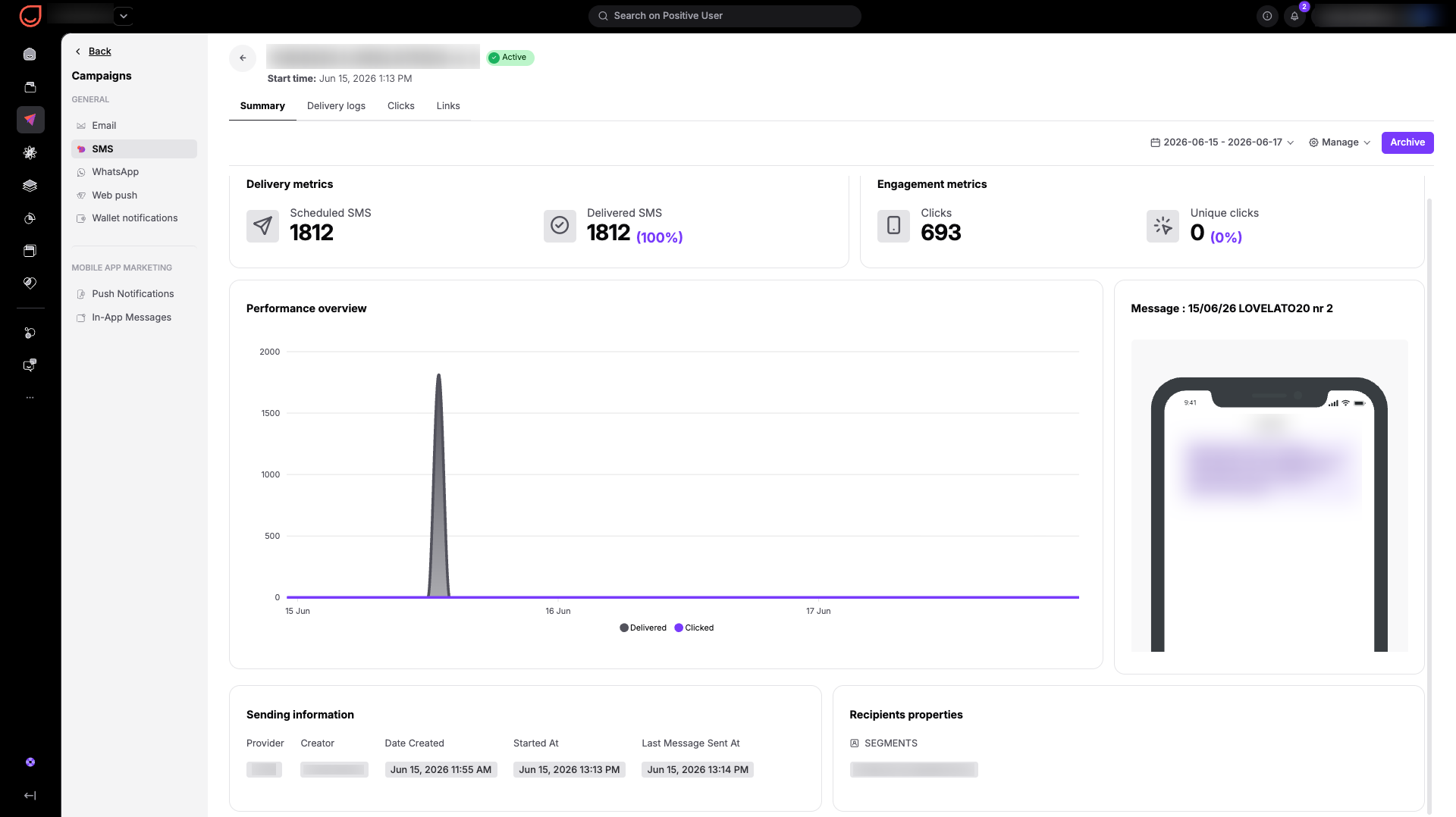
For deeper insights, click the name of a specific campaign from your campaign list. This opens the individual campaign profile, where your performance data is organized into four main tabs.
In the "Summary" tab, you can review high-level aggregated data for that specific message:
Delivery metrics: Check the exact number of scheduled SMS messages versus the number of delivered SMS messages.
Engagement metrics: Track total clicks and unique clicks from your contacts.
Performance overview: A timeline chart mapping delivered messages against link clicks day by day.
Message: A visual preview of the text content sent to your contacts.
Sending information: Operational details including the provider used, the creator of the campaign, the creation date, and the exact start time.
Recipients properties: The specific segments used to target contacts for this campaign.
The "Delivery logs" tab provides a complete list of every text message sent in the campaign. This view displays:
Recipient: The name of the specific contact with the link to their profile.
Body: The actual text content received by the contact.
Status: Whether the message delivery was a success or a failure.
Failure reason: Clear diagnostic details explaining why a message failed (for example, "No correct phone numbers").
Log time: The exact timestamp when the delivery status was recorded.
Price: The cost calculated for sending that specific message.
This view is highly useful for troubleshooting delivery issues or catching bad phone numbers. You can also use the "Retry failed deliveries" button to attempt sending the message again, or click "Export" to download your log data.
The "Clicks" tab gives your team clear visibility into individual engagement. [UI REVIEW] It shows a list of exactly which contacts clicked a link inside your message, the specific URL they visited, and the exact timestamp of that interaction. This behavioral data helps you identify buying intent and prioritize follow-ups.
The "Links" tab lists every URL included in your text message along with its total clicks and unique clicks. This helps you see which call-to-action (CTA) drives the most interest so you can optimize your message structures in future campaigns.
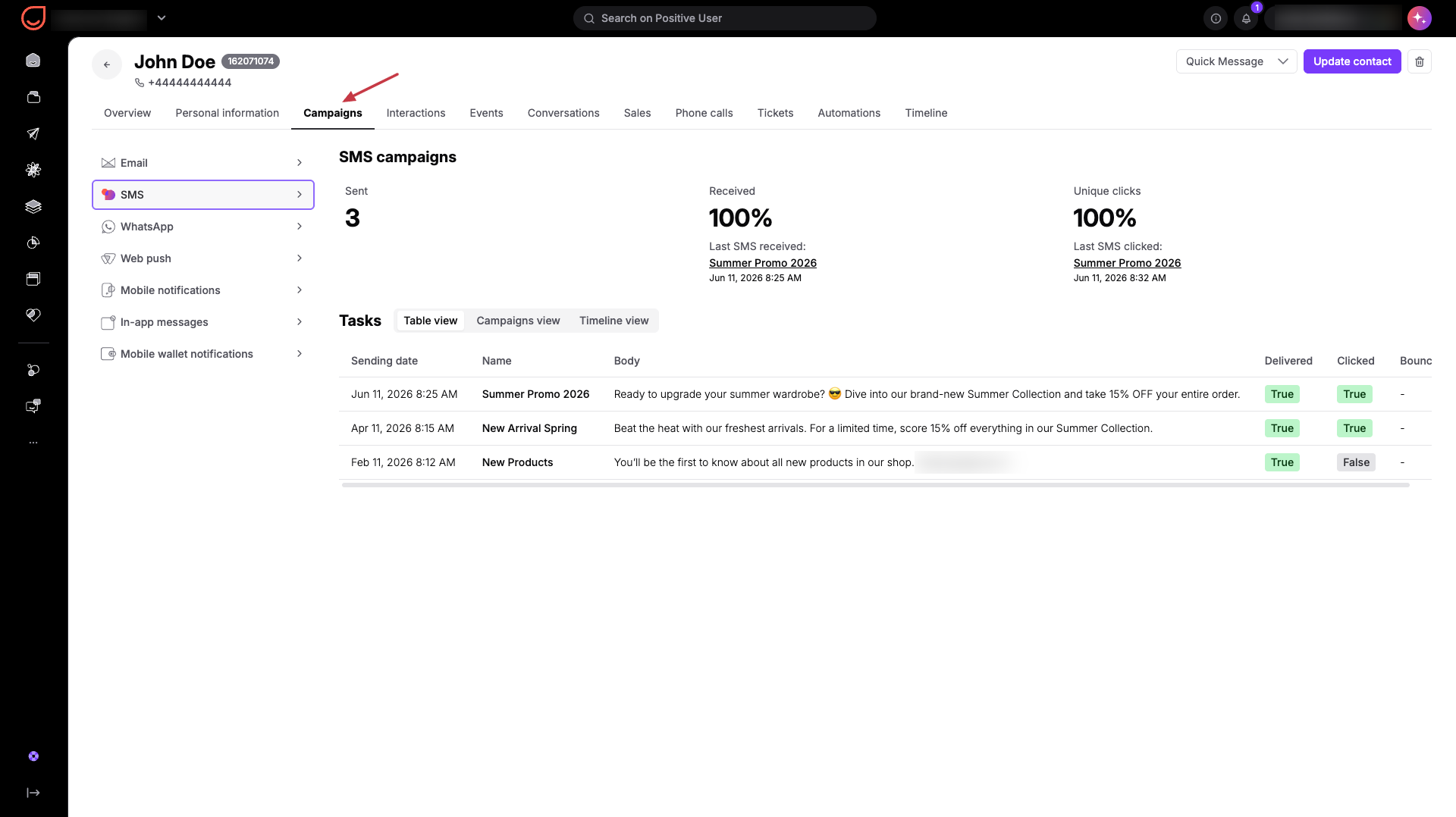
Positive User also lets your team analyze text message interactions on an individual level:
Open a contact profile.
Choose the "Campaigns" section from the top panel.
Pick the "SMS" option from the list on the left side.
From here, you can track the historical delivery status, logs, and link clicks for every text message sent to that specific contact.
Measuring Content Engagement: You send a text message containing two different product links to see what your audience prefers. By checking the "Links" tab, you can see which specific URL received more unique clicks, helping your team understand which product variation your contacts find more interesting.
Timely Sales Follow-ups: A team member opens the "Clicks" tab for a recent webinar promotion campaign to check recent contact activity. They see that a hot prospect just clicked the registration link, giving the sales team a perfect opportunity to follow up with a personalized conversation.
Cleaning Your Contact Database: Your team reviews the "Delivery logs" tab after a large broadcast to find delivery failures. You find a list of contacts with the failure reason "No correct phone numbers," allowing you to clean your database and remove those invalid numbers from your workspace.
