When you send an email campaign, you want to be sure it reaches your audience exactly when you planned. Sometimes, a campaign might not send as expected, or the number of recipients might look different than your original list. Understanding the logic behind these checks helps your team fix issues quickly and ensures your data stays reliable. This knowledge is a prerequisite for anyone managing email campaigns or automations within Positive User.
Before troubleshooting, make sure that:
The campaign status is set to "active".
Your sending domain is correctly authenticated and verified.
Below are the most common situations you may encounter with email campaigns and how to resolve them.
Problem: Your campaign was not sent at the time you expected, or it is scheduled for a time that seems incorrect.
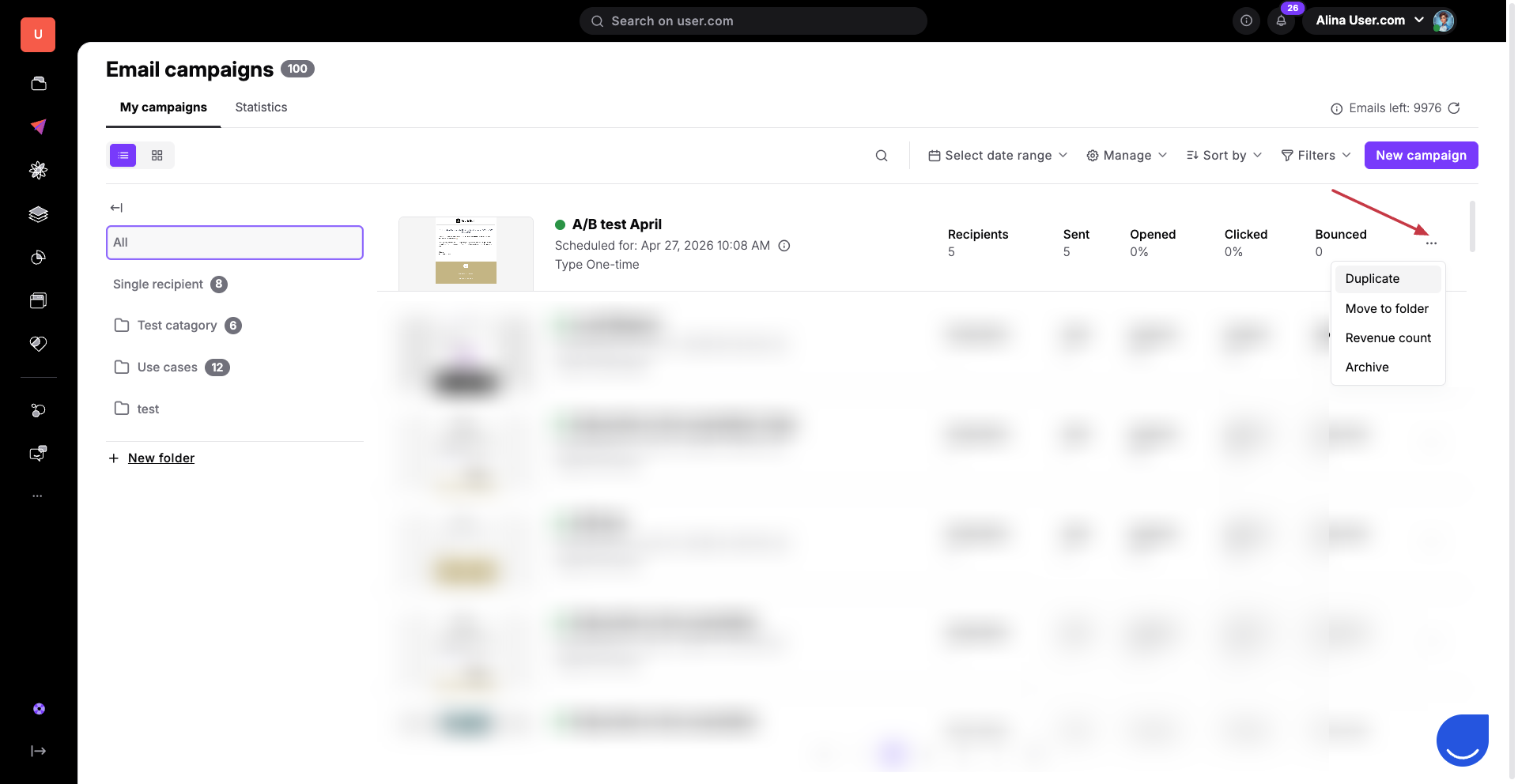
Solution: Email campaigns are scheduled according to the timezone set in your team member profile, which may differ from the general "Workspace Settings". Go to “Settings” → "Team member settings" to verify your individual timezone. To fix a campaign already scheduled for the wrong time, you must duplicate the existing campaign, archive the original to prevent accidental sending, and then activate the new version with the corrected schedule.
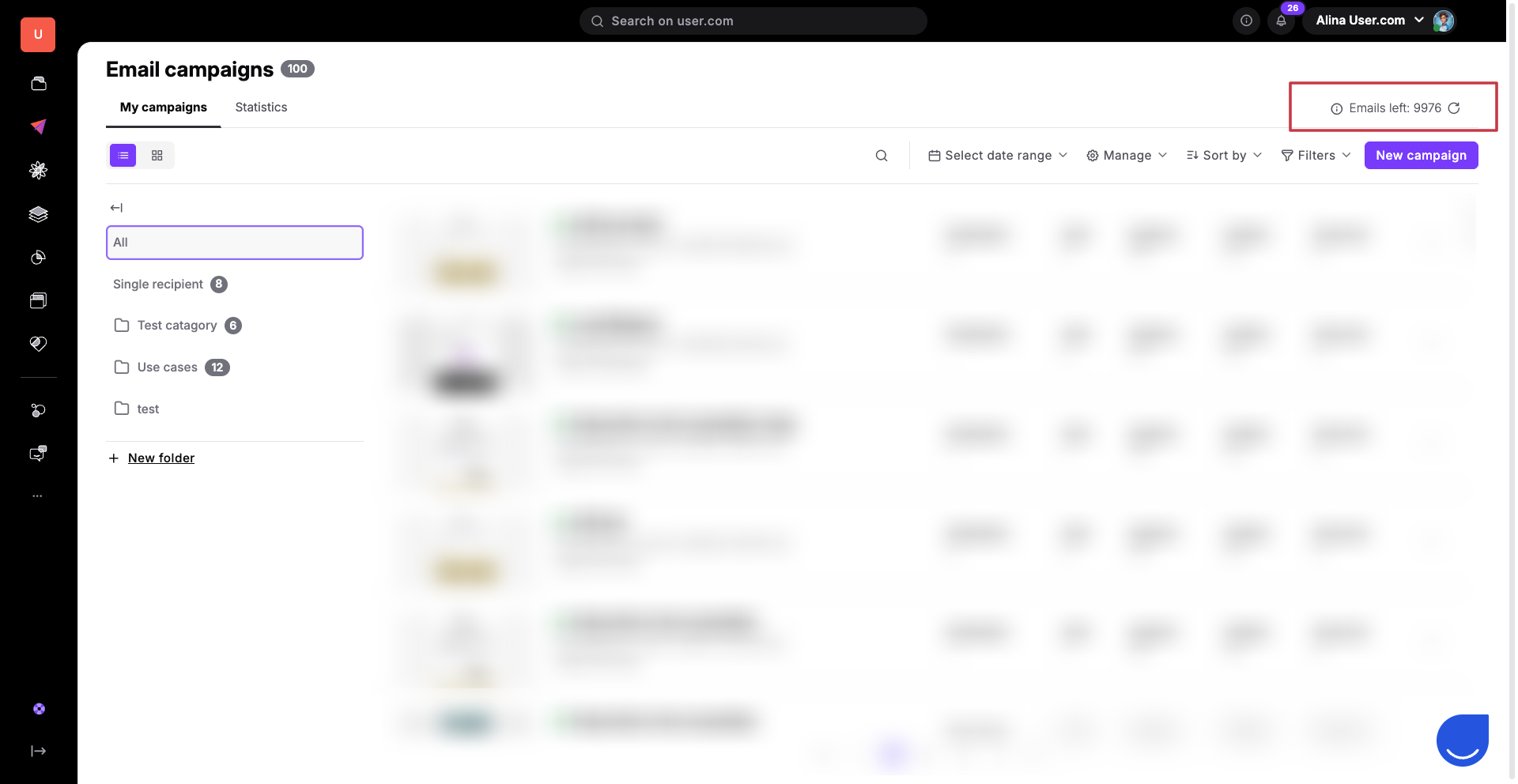
Problem: Your campaign stops sending or fails to start because the limit of available emails has been reached.
Solution: Each plan includes a specific package of emails. Go to "Campaigns" → "Email" [UI REVIEW] and check the top-right corner to see your remaining credits. If you reach this limit, the system cannot process further deliveries unless you are using a custom SMTP provider (which typically has no internal limits). You can purchase additional credits by contacting our team via the live chat.
Problem: The final number of sent emails is lower than the number of contacts you originally filtered.
Solution: During the final step of the campaign creation process, the system automatically removes specific contacts to protect your deliverability and comply with regulations. This includes unsubscribed contacts, duplicate email addresses, contacts with a "hardbounce" status, and invalid email addresses (failed MX validation).
We recommend performing regular database maintenance to keep your contact list healthy. See our guide on database cleaning.
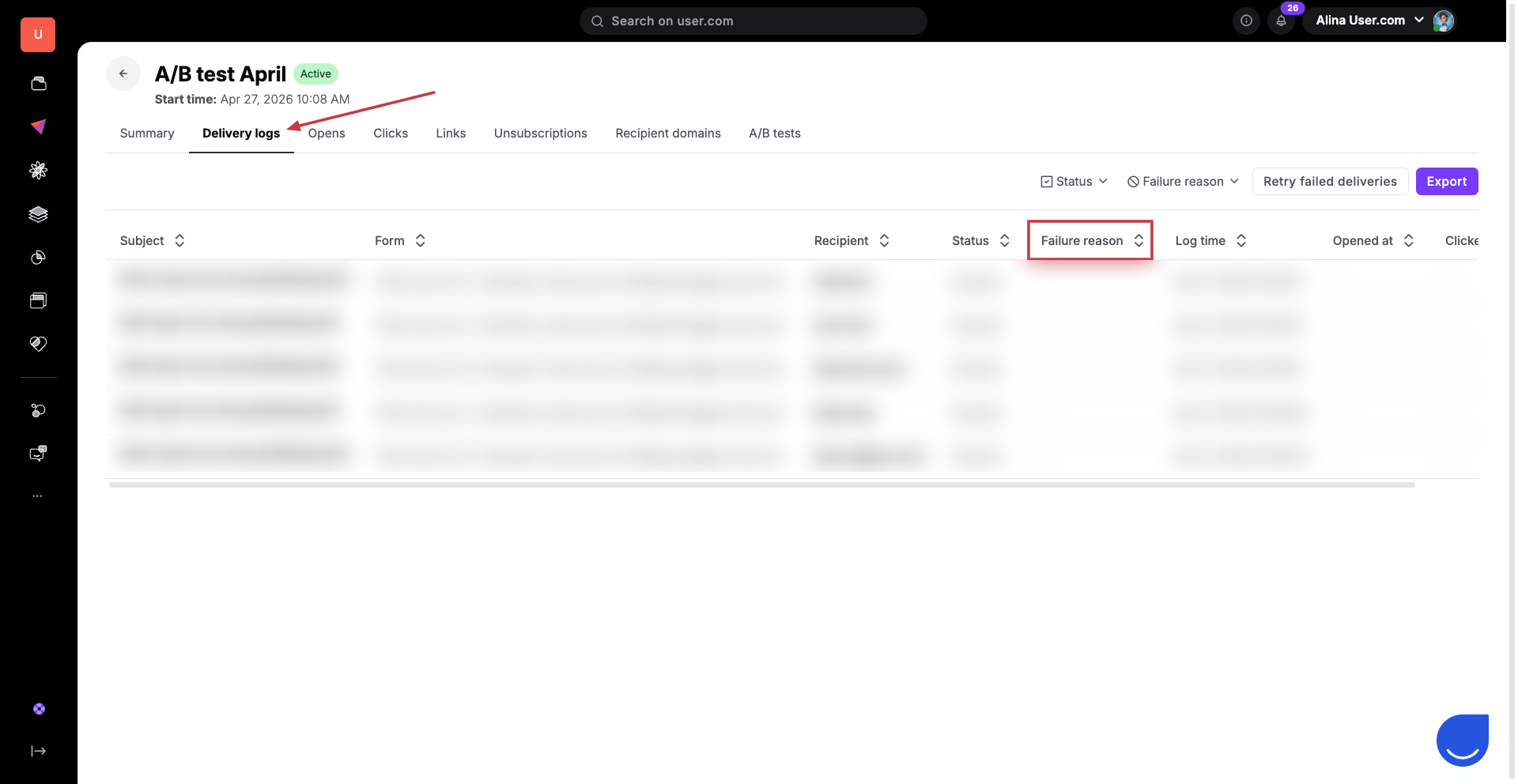
Problem: The campaign shows a "failure" status for certain contacts.
Solution: Go to "Campaigns" → "Email" and select your campaign to view the "Delivery Logs". The "Delivery Logs" provide specific details for every failed attempt. Look for the "failure reason" column to identify exactly why the message was blocked (e.g. rejected by server). If you need help decoding a specific error message, please share it with our support team via chat.
Problem: Emails are sending slowly or being throttled despite having an active campaign.
Solution: If you use your own SMTP provider, they may have internal limits on how many emails can be sent per hour or per day. When these limits are hit, your provider may delay or reject the outgoing messages from Positive User. Check your SMTP provider's dashboard or documentation to verify your current sending limits.
Problem: General delays in campaign delivery or slow platform performance.
Solution: If your workspace has many un-optimized automations or background processes running simultaneously, it can impact the capacity of your account. This "overload" can cause delays in processing email queues. Contact our support team to confirm your workspace status, then focus on the optimization of the processes.
To ensure the best performance, we recommend reviewing your active automations periodically. Avoid triggering massive task creations or heavy data exports at the same time you launch a large-scale email campaign to ensure maximum processing speed.
